Modem Connected Without Internet: Urgent Troubleshooting Guide
Quick, practical steps to diagnose and fix a modem that’s connected but has no internet. Learn safe, proven fixes from Modem Answers to restore service fast and prevent future outages.


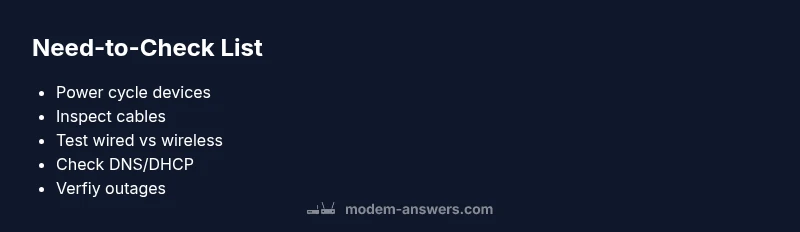
If your modem is connected but you can’t reach the web, start with the simplest fixes: power cycle the modem and router, check cables, and verify you’re on the correct network. Then run the diagnostic flow to identify whether the issue is DNS, DHCP, or a provider outage. Most cases resolve with at-home steps within minutes. See the full guide for the step-by-step process.
What 'modem connected without internet' means
When you see a modem showing online (or connected) but devices cannot reach websites, you’re dealing with a common, urgent problem often caused by DNS or DHCP issues, misconfigurations, or simple hardware faults. The phrase modem connected without internet describes a mismatch between the modem’s link status and actual data flow on your devices. In 2026, many households report this symptom after routine changes or power events. According to Modem Answers, the most frequent culprits are configuration errors, gateway conflicts, or faulty cables. The key is to stay calm and methodical, because most fixes are safe and repeatable at home. You’ll want to verify both the modem’s status and the router’s settings to isolate the root cause and reestablish internet access quickly.
Quick checks you can do in seconds
- Ensure the modem and router are powered and show normal indicator lights. A quick visual check saves time before digging deeper.
- Check all physical cables: coax, ethernet, and power cords should be firmly connected with no loose ends.
- If you have separate devices, make sure you’re connected to the right network and test with both Wi‑Fi and a wired connection.
- Do a swift power cycle: unplug, wait about a minute, then plug back in. This refreshes the network stack and clears many minor glitches.
- If possible, connect a laptop directly to the modem with an Ethernet cable to rule out router problems.
- Look for outages on your provider’s status page or via your account dashboard. If Modem Answers analysis shows an outage, you’ll need to wait or contact support.
- If you can access the router’s admin page, disable any firewall rules that might block traffic temporarily to test connectivity. Remember to re-enable them after testing.
Diagnostic flow: symptom-to-diagnosis map
Symptom: Modem shows online but devices have no internet. This triggers a short diagnostic loop:
- Cause: DNS server misconfiguration or DNS service down — Likelihood: high. Fix: set DNS to automatic or use a known reliable DNS (e.g., 1.1.1.1/8.8.8.8).
- Cause: DHCP server not assigning IPs to devices — Likelihood: high. Fix: restart DHCP services via the router, ensure the router is obtaining an IP from the modem if applicable.
- Cause: Outage on provider side — Likelihood: medium. Fix: check outage status and wait for service restoration.
- Cause: Incorrect gateway settings on the router — Likelihood: low. Fix: confirm the gateway IP matches your modem’s gateway. If the issue persists after these steps, escalate to a professional or your ISP.
Step-by-step: Restart the modem and router
- Power off both the modem and the router. If you have a combined modem-router device, just power it off.
- Wait 60 seconds to allow all internal capacitors to discharge and the device state to reset.
- Power on the modem first and wait for the primary diagnostic lights to stabilize.
- Turn on the router and give it a moment to boot and re-establish a session with the modem.
- Reconnect your devices and test a few websites or apps to confirm internet access.
- If you still have issues, perform a full factory reset of the router (not the modem) and reconfigure from scratch.
- Re-test wired and wireless connections to verify consistency. Tip: If you’re unsure about a factory reset, consult the user manual or Modem Answers guidance first to avoid data loss on the router.
Step-by-step: Check for outages and account issues
- Visit your internet provider’s outage page or status tool from a connected device.
- Check your service status against your account for any planned maintenance or unpaid balances that could affect service.
- If there’s an outage, maintain power to devices and monitor updates; do not perform aggressive changes that could complicate remediation.
- If your account looks fine and there’s no outage, contact support with your device model, firmware version, and lights status for targeted help. Tip: Keep a note of the time you first noticed the issue; this helps when discussing outages or fault isolation with support.
Step-by-step: Resolve common hardware problems
- Inspect cables again for wear, kinks, or damaged insulation; replace any suspect cables.
- Try a different Ethernet cable between the modem and router to rule out a faulty wire.
- Move devices away from interference sources and ensure the router is placed in a central, open area for better signal distribution.
- If you have a separate router, bypass it temporarily by connecting a computer directly to the modem to see if internet returns.
- If you suspect hardware fault, test the modem with another known-good power supply or try another modem if available. Tip: Don’t mix coax types if your service requires a specific standard; mismatched types can cause intermittent connectivity.
Step-by-step: Update firmware and safe settings
- Check for firmware updates on the modem and router through their admin interfaces.
- Apply updates or schedule them during a maintenance window; updates can fix DNS, DHCP, and firewall bugs.
- After updating, perform a reboot and re-test connectivity across multiple devices.
- Review security settings to ensure they aren’t overly aggressive, which can block legitimate traffic.
- Restore default settings only if you are comfortable re-configuring your network from scratch. Tip: Back up current configurations before applying updates so you can revert if needed.
When to call your provider or a professional
If you’ve exhausted safe at-home fixes and still have modem connected without internet, it’s time to contact your provider or a certified technician. There may be a service fault, a line issue, or a deeper configuration problem that requires engineering insight. Document your steps, times, and any error codes to speed up diagnostics. Your safety and data are important—avoid opening the modem casing or attempting hazardous repairs on your own.
Prevention and maintenance to avoid future outages
Create a simple, repeatable maintenance plan: check cables quarterly, review firmware annually, and run a quick connectivity test after any service change. Keep a written log of outages and steps taken so you can detect patterns. A stable home network relies on consistent firmware, proper placement, and reliable DNS settings. Regular power cycling after major updates helps preserve reliability, and documenting your setup aids future troubleshooting.
Steps
Estimated time: 60-90 minutes
- 1
Power cycle all devices
Turn off the modem and router, wait a full minute, then power them back on in sequence. This clears temporary glitches and forces new sessions.
Tip: If lights blink oddly, give the devices extra time to boot. - 2
Check physical connections
Ensure all cables are intact and firmly connected. A loose coax or Ethernet cable is a common cause of the symptom you're seeing.
Tip: Avoid bending cables sharp; replace damaged cables. - 3
Test wired vs wireless
Connect a computer directly to the modem with an Ethernet cable to isolate router issues from modem issues.
Tip: If wired works but wireless doesn’t, focus on router configuration. - 4
Verify DHCP and DNS settings
Make sure the router is obtaining an IP from the modem and that DNS is set to automatic or a known good server.
Tip: Disable any custom DNS temporarily to test a clean setup. - 5
Check for outages or account problems
Look for service outages or account flags that could block connectivity. If needed, contact your provider.
Tip: Note the outage time and screen captures of error messages. - 6
Update firmware if available
Install any pending firmware updates on the modem and router to fix known bugs and improve stability.
Tip: Back up current config before updating.
Diagnosis: Modem shows online but no internet on any device
Possible Causes
- highDNS misconfiguration or DNS service down
- highDHCP server not assigning IPs to devices
- mediumOutage or service issue at provider
- lowIncorrect gateway settings on the router
Fixes
- easySet DNS to automatic or switch to a public DNS (e.g., 1.1.1.1 / 8.8.8.8)
- easyRestart DHCP services or reset the router’s DHCP settings to automatic
- easyCheck provider outage status and wait for service restoration
- mediumVerify gateway settings on the router match the modem's gateway
FAQ
Why does my modem show 'connected' but I have no internet?
This usually means a DNS or DHCP issue, or a router setting is blocking traffic. It isn’t always a service outage. Start with checks on DNS, IP assignment, and the route to your gateway.
If you see connected but no internet, start with DNS and DHCP checks, then verify router settings. It’s often a quick fix.
Should I reset my router or modem to fix the issue?
A soft reset (power cycle) is the safest first step. A factory reset should be a last resort only if you can reconfigure the network from scratch.
Try a reboot first; if that doesn’t help, consider a factory reset only if you’re comfortable reconfiguring.
Can DNS issues cause this problem?
Yes. Incorrect DNS settings or DNS service outages can prevent page loads even when the modem is online. Changing DNS servers is a common, effective fix.
DNS problems are a frequent culprit. Switching to reliable DNS servers often resolves it quickly.
Will firmware updates fix this?
Firmware updates can resolve known bugs in both modems and routers. Check for updates and apply them if available.
Firmware updates can fix hidden issues; update if you see an available release.
How long should I wait after changes?
Give devices a few minutes after changes to re-establish connections and refresh sessions. If still failing, revisit the diagnostic flow.
Usually a few minutes, then re-test. If it doesn’t work, go back through the steps.
Watch Video
Key Takeaways
- Identify whether the problem is DNS, DHCP, or provider-related.
- Start with safe, simple resets before hardware replacements.
- Always test both wired and wireless connections.
- Call your provider if outages or account issues seem likely.