Why is My Modem Not Online? A Practical Troubleshooter
Urgent guide to diagnose and fix why is modem not online. Learn common causes, step-by-step checks, and when to escalate to your provider for fast restoration of service.


The most likely reason a modem won’t connect is a simple setup or power issue. Start with a quick power cycle, verify all cables are snug, and check for any service outages in your area. If you still can’t get online, follow these steps to diagnose and restore service quickly.
What You Might Be Facing When the Modem Is Offline
If you’re asking why is modem not online, the answer is often simpler than you expect: a power issue, a loose connection, or a service outage. In most homes, outages or loose coaxial or Ethernet cables are the culprits, not a failing modem. This section breaks down the most common scenarios, how to verify basic conditions, and what to do first to restore service quickly. Look for the familiar LEDs: green or blue usually indicate activity, while blinking or red may signal a problem. When you understand the pattern, you can triage more effectively.
In addition to lights, listen for subtle clues: a buzzing tone in the line can indicate a line fault, while a warm or hot device may indicate an overload. Understanding these cues helps you avoid unnecessary replacements and directs you toward the right fix the first time.
Quick Checks You Can Do Before Routing a Support Call
Start with the basics that take just a few minutes:
- Power cycle the modem: unplug for 30 seconds, plug back in, wait for it to boot.
- Inspect cables: confirm the coaxial or Ethernet line is snug; check for damaged connectors.
- Validate your power: use a known-good outlet, test a lamp in the same outlet.
- Verify service status: check your provider's outage map or status page for your area. If you see an outage, your modem not online is likely temporary.
If the lights are alternating or red, that usually signals a hardware or line issue. If the LEDs are solid and no devices can see a network, you likely have a provisioning or service problem.
Modem vs Router vs Gateway: Know what you’re troubleshooting
A lot of confusion stems from mixing up the roles of devices in your home network. Your modem connects you to the internet through the provider’s network, a router creates your home Wi‑Fi network, and a gateway combines both functions in one device. If your modem is online but devices aren’t getting connectivity, the issue may be with the router or Wi‑Fi settings rather than the modem itself. If the modem itself isn’t registering a signal, focus on the modem first, then confirm any router configurations after.
Understanding this distinction helps you apply the correct fix quickly and reduces wasted effort on things that aren’t responsible for your outage.
Common External Causes: Outages, Line Faults, and Weather
Many outages are not caused by your equipment. A service outage in your area (maintenance, fiber work, or a regional fault) can leave your modem effectively offline even though it’s functioning correctly. Weather events like storms can also disrupt lines, especially in copper-based networks. If you’re in a multi-dwelling building, shared infrastructure interruptions are common culprits. Always check your provider’s outage status before proceeding with hardware replacements.
If outages are present, your modem will often show a specific pattern on its LED indicators. A battery backup or UPS can blur symptoms during a local outage, so be mindful of power conditions in your home as you diagnose.
Reading Modem Indicators, Logs, and Settings
LED indicators are your first, best diagnostic tool. A solid power LED with no online indication typically signals a provisioning or line issue, while a blinking LED may point to negotiation or speed problems. Accessing the modem’s admin page (usually via a web browser at 192.168.100.1 or similar) lets you view the device’s status, sync speed, and error logs. If you see repeated reboots or frequent line errors, note the timestamps and contact support with these details. Logs aren’t always user-friendly, but they help technicians pinpoint faults faster.
Keep a small notebook of observed patterns: lights, reboot times, and any error codes. This practice speeds up triage with your provider and reduces back-and-forth time.
When to Power-cycle, Reset, or Replace
Power-cycle as a first action; it resets many minor glitches. If power cycling does not restore service, consider a factory reset of the modem (not the router) to restore default provisioning. A reset can resolve misconfigured settings or provisioning glitches but will wipe custom configurations like port forwards. If after a reset the modem still cannot connect, it’s time to escalate.
If your modem is old or frequently failing, replacement might be more economical than ongoing repairs. Check warranty status and model support from your provider. A new modem with current DOCSIS standards often resolves persistent connectivity problems more reliably than repeated resets.
Quick Prevention Practices to Keep Your Internet Stable
Prevention is easier than repair. Use a basic routine:
- Periodically reboot the modem and router to clear memory leaks.
- Keep firmware up to date by checking the admin page for updates or using your provider’s app.
- Protect the device from power surges with a surge protector.
- Label and organize cables so you can quickly distinguish what’s connected where.
- Monitor number of connected devices; too many can overwhelm older modems.
A little housekeeping reduces the chance of avoidable outages and makes troubleshooting faster when something goes wrong.
Additional Considerations: Fiber, Cable, DSL, and Provider Equipment
Different technologies require distinct checks. Cable modems differ from fiber gateways, and DSL lines have unique filters and splitters requirements. If you’ve recently migrated to a new service, provisioning delays or misconfigurations can occur. In such cases, contacting the provider to re-provision the line or confirm the service address is essential. If you use a third‑party router, ensure it’s in bridge mode or properly configured for your ISP’s requirements.
Understanding your service type helps you apply the correct fixes and communicate effectively with support staff.
Safety and Privacy Reminders While Troubleshooting
Do not open power supplies or attempt repairs beyond basic reset. Never unplug line cards or service equipment at the provider’s termination point. Avoid sharing sensitive network details with random callers; use the official support line and verify account details before providing passwords or device access. Use strong passwords for your home network and enable WPA3 if available.
If you have kids or pets near electronics, keep cables secured to prevent accidental unplugging or damage.
Summary of Key Checks and Next Steps
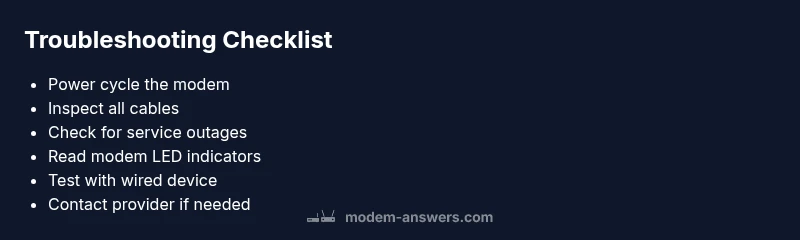
To recap, start with power, cables, and outages; verify the correct role of devices in your network; review LED indicators and admin logs; perform a controlled reset if needed; and only escalate if the problem persists beyond basic troubleshooting. By following these steps, most online outages can be resolved quickly and with minimal downtime.
Steps
Estimated time: 15-30 minutes
- 1
Power cycle the modem
Unplug the modem from power, wait 30 seconds, then plug it back in. Give the device 2–3 minutes to boot up and re-establish a connection. This simple reset fixes many misconfigurations or minor glitches.
Tip: Use a surge protector for protection and ensure the power outlet is functioning by testing with another device. - 2
Check physical connections
Inspect the coaxial or fiber line and Ethernet cable. Ensure all connectors are snug and undamaged. A loose connection is a common cause of no internet.
Tip: Disconnect and reconnect each cable firmly, paying attention to the outer shielding on coax cables. - 3
Verify service status
Visit your provider’s outage map or status page. If there’s a known outage in your area, your modem not online is likely temporary.
Tip: Sign up for outage alerts if available to stay informed without checking repeatedly. - 4
Access the modem admin page
Open a browser, enter the device’s IP (often 192.168.100.1) and check the connection status, sync speed, and error logs. Look for provisioning messages or error codes.
Tip: Take screenshots of any error codes to share with support. - 5
Test with a wired device
Connect a computer directly to the modem with an Ethernet cable and run a speed test. If wired works but Wi‑Fi doesn’t, the issue may be the router.
Tip: temporarily disable Wi‑Fi on the modem if you suspect interference. - 6
Reset to factory defaults (if needed)
If provisioning seems corrupted, reset the modem to factory settings from the admin page. This will erase custom settings like port forwards.
Tip: Only do this if you’ve noted essential settings or have easy access to reconfigure them. - 7
Check for bridge mode or PPPoE settings
If you use a separate router, ensure the modem is in bridge mode or configured for your ISP’s PPPoE if required by your service plan.
Tip: Incorrect mode can block online access even when the device appears connected. - 8
Escalate to provider or hardware support
If the problem remains, contact your ISP or hardware vendor with the steps you’ve taken, error codes, and outage status. They can re-provision or replace faulty equipment.
Tip: Have your account number and device serial handy for faster support. - 9
Consider hardware replacement
If the modem is old or repeatedly failing, upgrading to a newer DOCSIS standard device can resolve chronic issues and improve performance.
Tip: Check compatibility with your service tier before buying a new modem.
Diagnosis: Modem not online despite power
Possible Causes
- highPower issue (outlet, adapter, or power cord)
- highService outage in your area
- highLoose or damaged cables (coax Ethernet)
- mediumIncorrect modem mode or provisioning (bridge mode/PPPoE)
- lowHardware fault or overheating
Fixes
- easyPower cycle the modem and router; unplug for 30 seconds, plug back in
- easyCheck all connectors for tight fit and replace damaged cables
- easyCheck provider outage status and wait if outage is reported
- easyLog in to the modem’s admin page to verify status or reset to default settings
- mediumIf issues persist, contact provider or hardware support for provisioning/warranty review
FAQ
What should I do first when my modem won’t connect?
Start with a power cycle, check all cables, and verify there’s no area outage. Then access the modem’s status page to review provisioning and error codes.
First, power cycle and check cables. If it still won’t connect, review the status page for any provisioning errors.
Why are the modem lights blinking or red?
Blinking or red LEDs usually indicate a line fault, provisioning issue, or overheating. Check connections, then check for outages or reset if needed.
Blinking or red lights often point to a line or power issue—check cables and outage status.
How can I tell if there is an ISP outage?
Check your provider’s outage map or status page or call support to confirm. Outages can affect the entire neighborhood.
Use the provider’s outage tool or contact support to confirm if service is down in your area.
Is it safe to reset my modem to factory settings?
Yes, a factory reset can fix provisioning glitches, but you’ll need to reconfigure your settings afterwards. Backup critical info if possible.
Factory reset is safe but resets your settings; you’ll need to reconfigure after.
What if the problem persists after power cycling and testing?
If issues persist, there may be a service fault or faulty equipment. Contact your provider with details of steps taken and any error codes.
If it still doesn’t work after these steps, you may have a service fault or faulty gear—call support with details.
When should I replace my modem?
If the device is old, frequently fails, or is not compatible with current service speeds, replacement is advisable. Check warranty first.
If it’s old or keeps failing, replacing it is often the best fix.
Watch Video
Key Takeaways
- Restart first to fix most outages
- Verify both power and cables before calling support
- Check for ISP outages before hardware replacements
- Escalate promptly if provisioning or warranty issues are suspected