What to Do When Your Modem Won’t Connect
Urgent troubleshooting guide for a modem that won’t connect. Learn quick checks, a clear diagnostic flow, and practical steps to restore internet fast. Includes when to call your provider and what to prepare.


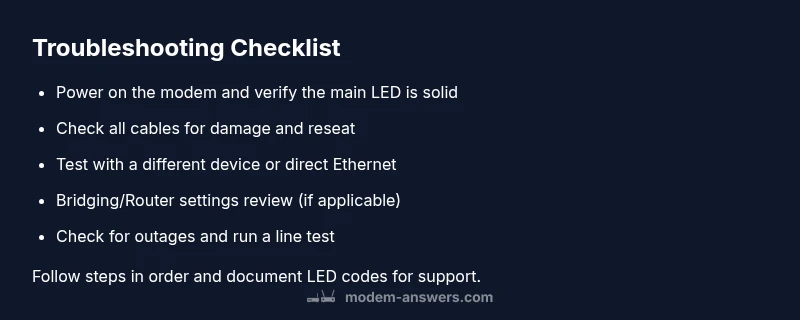
If you’re wondering what to do when your modem is not connecting, start with the basics: verify power, check all cables, and inspect the indicator lights. Try a different device or wired connection, then power cycle the modem. If the problem persists, contact your internet provider for next steps. Document any LED codes to share with support.
Start with the basics: power, cables, and indicators
The most common reason a modem fails to connect is a simple hardware or cable issue. According to Modem Answers, many reported outages or connection problems trace back to loose cables, damaged connectors, or an unpowered unit. Begin with the basics: confirm the modem is plugged in, the power LED is solid, and the power brick isn’t warm to the touch. Check all coax or Ethernet cables for kinks, fraying, or loose ends, and reseat connectors firmly. If a battery backup is used, verify it isn’t empty and that the surge protector is functioning. After verifying physical connections, perform a quick reset by unplugging the modem for 15–30 seconds and plugging it back in. Observe the LED indicators: online or sync lights should illuminate steadily; blinking or red lights usually indicate a problem beyond power. Keep a notebook handy to record any LED patterns, as these details help when you call support.
Check your devices and network settings
If the modem powers on, next check whether the issue is with a specific device or the whole network. Ensure your computer, smartphone, or tablet is set to obtain an IP address automatically (DHCP) and isn’t stuck with a static IP conflicting with the network. Verify you’re connected to the correct network SSID and that the password is accurate. Forget and reconnect to the Wi‑Fi if necessary, and disable any VPNs that could be routing traffic incorrectly. If you’re using a wired connection, test with a known-good Ethernet cable and a different port on the modem or router. Also inspect firewall settings, parental controls, or guest networks that could block access. Finally, perform a quick speed test on a device to establish a baseline and note any fluctuations.
Isolate the issue: test on different devices and Ethernet/Wi‑Fi
To determine whether the problem lies with the modem, your home network, or an external outage, test at least two devices: one connected via Ethernet and one over Wi‑Fi. If both devices cannot access the internet, focus on the modem and provider status rather than individual devices. Try a direct Ethernet connection from the modem to a laptop or desktop; if this works while Wi‑Fi remains broken, the issue is wireless. If neither wired nor wireless connections work, the problem is likely the modem, external line, or service provider. In these cases, note the time of failure, the LED status, and any error messages. Documenting these details will save time when you contact support.
Common router/modem interaction issues and how to reset safely
Many homes use a separate router in front of the modem. A double‑NAT scenario or improper bridge mode can disrupt traffic. If you’re using a separate router, ensure the modem is in bridge mode or that the router’s WAN settings are correct. Avoid repeatedly pressing the reset button on the router or modem, as this can create additional issues. Perform a safe reset by powering down both devices, waiting 30 seconds, then turning them back on in this order: modem first, then router. Allow 2–3 minutes for the devices to re-establish connections and verify the status LEDs.
Service/provider disruption: how to verify outages
Sometimes the problem isn’t in your home but with the service itself. Check your provider’s status page or outage map for your area, and look for posted maintenance windows or service alerts. If possible, run a quick online check from a third‑party outage tracker to corroborate the status. When in doubt, call the provider’s support line and ask to run a line test; they can check signal levels from their end. If an outage is confirmed, ask about estimated restoration times and whether any proactive steps (like provisioning a temporary modem) are available.
When to contact support: collecting information and what to say
If you’ve completed the basic checks and the connection still won’t come up, contact support with a concise, structured summary. Share your account number, modem model, firmware version, and serial number if available. Describe the exact LED patterns, times of failure, and the results of the tests (speed tests, device tested, and whether Ethernet or Wi‑Fi work). Note any recent changes (new router, power outages, or weather events). This information helps the technician diagnose quickly and reduces back‑and‑forth. Ask for a ticket number and a clear restoration ETA.
Steps
Estimated time: 45-60 minutes
- 1
Verify power and indicators
Ensure the modem is plugged in and the main power LED is solid. If the unit is unpowered, try a different outlet and inspect the power brick for heat or damage. Note any unusual LED colors or blinking patterns.
Tip: Write down LED codes so you can share them with support if needed. - 2
Inspect physical connections
Check that all coax cables are snug and undamaged, and that Ethernet cables are firmly connected to the correct ports. Replace any damaged cables and remove any kinks that could impede signal.
Tip: Use a known-good Ethernet cable for the test to rule out cable faults. - 3
Power cycle the modem
Unplug the modem, wait 30 seconds, then plug it back in. Allow 2–5 minutes for the device to re-establish the connection and observe the LEDs for a steady online light.
Tip: Perform the power cycle with only the modem connected to the line to minimize interference. - 4
Test with another device or connection type
Connect a laptop directly via Ethernet to the modem and run a speed test. If Ethernet works but Wi‑Fi doesn’t, focus on wireless settings or the router.
Tip: Temporarily disable VPNs and firewalls during testing to avoid false positives. - 5
Check bridging/router settings
If using a separate router, verify bridge mode on the modem or correct WAN settings on the router. A misconfigured router can block traffic even when the modem is online.
Tip: Avoid repeated resets; instead, adjust settings and test after changes. - 6
Check for outages / line tests
Visit your provider’s status page or call to run a line test. Confirm whether an outage or maintenance window explains the issue.
Tip: Ask for an estimated restoration time and any temporary solutions they offer. - 7
Review IP and DNS settings
Ensure DHCP is enabled on your device or router and that DNS servers are reachable. Manually setting an incorrect DNS can block access even when IP is assigned.
Tip: Revert to automatic settings if you’re unsure about current DNS values. - 8
Prepare for support contact
Gather account numbers, device models, firmware versions, serial numbers, LED codes, and test results. This helps support diagnose quickly.
Tip: Request a ticket number and keep a log of all interactions.
Diagnosis: Modem won't connect to the internet
Possible Causes
- highPower issue
- highLoose or damaged cables
- mediumISP outage in area
- lowOutdated firmware or misconfiguration
Fixes
- easyVerify power to the modem and replace a blown fuse or faulty power brick; ensure the outlet is functioning
- easyInspect and reseat all coax and Ethernet cables; replace frayed/damaged cables
- easyPower cycle the modem for 30 seconds, then allow re-sync and verify online status
- easyTest a direct Ethernet connection with a known-good device and confirm if Wi‑Fi remains affected
- mediumCheck for outages with your provider and request a line test if available
- mediumIf issues persist, request a technician visit or device replacement from the provider
FAQ
Why is my modem not connecting to the internet?
There are several common causes: power issues, loose cables, a service outage in your area, or a misconfiguration in your home network. Systematically checking power, cables, and device settings often resolves the problem.
Power, cables, or outages are usually the culprits. Start with the basics and work through our steps.
How can I verify if my ISP outage is the problem?
Check your provider’s status page or outage map for your area. If an outage is reported, follow the provider’s guidance and consider a temporary modem if offered.
Check the provider’s status page or outage map to confirm.
What should I do if the LED lights blink or stay red?
Blinking or red LEDs usually indicate a hardware fault or line issue. Power cycle, reseat cables, and check for provider outages before requesting service.
Blinking or red lights often mean hardware or line problems.
Is it safe to reset my modem?
Yes. A reset is safe and often effective. Do a soft reset first, then recheck connectivity before using aggressive resets.
Resetting is safe; try a soft reset first.
When should I call my ISP after trying these steps?
If the connection remains down after troubleshooting and there’s no confirmed outage, contact support for a line test or technician visit.
If it doesn’t recover, call for a line test or visit.
What information should I collect before contacting support?
Collect account details, modem model and firmware, serial number, LED patterns, times of outage, and results from any tests you performed.
Have your model, firmware, and LED codes ready.
Watch Video
Key Takeaways
- Start with power and cable checks.
- Test on multiple devices and connections.
- Differentiate home-network issues from provider outages.
- Bridge/modem settings can block traffic; adjust safely.
- Document findings before contacting support.