When to Replace Spectrum Modem: A Practical Guide
Learn how to decide when to replace your Spectrum modem, how to test performance, and a step-by-step process to upgrade smoothly for reliable home internet.


This guide helps you decide when to replace your Spectrum modem and how to do it with minimal downtime. Replace if you experience frequent disconnects, persistent slow speeds, or firmware errors that won’t resolve after troubleshooting. First verify lease status and device compatibility with Spectrum; if issues persist, choose a Spectrum-approved modem and follow activation steps.
Why replacement matters
Your home network relies on a healthy modem to translate internet service into usable home Wi‑Fi and wired connections. If your Spectrum modem is aging or showing reliability issues, you may notice more frequent outages, slower speeds, or inconsistent performance across devices. Understanding when to replace Spectrum modem helps you avoid long outages and maintain a stable connection for work, school, and streaming. This section explains the core reasons replacement becomes the best option, including hardware wear, compatibility changes, and service plan updates that can render older models suboptimal for modern usage. By recognizing these signals, you can plan ahead rather than react to a sudden loss of connectivity. The goal is a reliable, cost-effective upgrade path that minimizes downtime and maximizes your home network speed.
Incorporate a regular health check into your routine so you know when performance degrades beyond simple tweaks. Remember: a replacement is not a failure—it’s a targeted upgrade that aligns your equipment with current service capabilities and your home’s evolving bandwidth needs.
Signs your Spectrum modem is failing
Look out for several concrete indicators that your modem might be due for replacement. Frequent disconnects that spike during peak hours, persistent slow speeds that don’t respond to standard resets, and repeated firmware update errors are common red flags. If you notice a sudden drop in maximum achievable speeds or if the modem loses its link light entirely, that’s a strong signal that hardware health is compromised. White-noise-like interference on the line, frequent reboot loops, or a device that runs noticeably hotter than usual can also point to aging hardware. Finally, if your current model is no longer listed on Spectrum’s approved device list or you’ve recently moved to a plan with higher speeds that your modem can’t support, replacement should be considered. Regular checks help you distinguish temporary glitches from long-term hardware limitations.
Lease status, model compatibility, and plan considerations
Spectrum often offers a mix of leased and customer-owned modems. If your device is leased, Spectrum may require you to return or exchange it for a newer model during upgrades or plan changes. Compatibility matters—older DOCSIS standards (for example, DOCSIS 2.0 or 3.0) may not support higher speeds or newer security features available on current service tiers. Before buying a new modem, verify that the model is on Spectrum’s approved list and that it supports your chosen plan’s speeds. If you rent, compare total cost of ownership over time versus purchasing a compatible modem outright. Also consider whether your home uses a separate router; in some cases, bridging or a modem-router combo can impact performance optimization.
Performance factors: speed, latency, reliability
A reliable modem provides consistent speeds and low latency across devices. When evaluating whether to replace, consider peak-time performance, jitter, and how many devices typically connect simultaneously. A modern modem with sufficient channel bonding can improve throughput significantly for households with gamers or video producers. Firmware support and security updates also influence reliability; aging firmware can introduce vulnerabilities and stability issues. Keep in mind that your internet speed tier from Spectrum depends on service quality as well as the modem’s capabilities. If the current device caps throughput below what your plan delivers, replacement is worth exploring.
Additionally, note that even with a fast line, a poor internal network—outdated Wi‑Fi, a congested router, or bad cabling—can masquerade as modem issues. Isolating the problem by testing with a wired connection helps determine whether the modem itself is the bottleneck.
How to test your connection at home
Begin with a simple baseline: run wired and wireless speed tests using a single, closest computer or laptop. Connect directly via Ethernet to avoid Wi‑Fi variability. Compare results against your plan’s advertised speeds and the results from prior tests taken during a known good period. If wired speeds are consistently lower than expected, the issue is more likely modem- or provider-related. If wireless speeds are poor but wired speeds are fine, focus on router placement, interference, and Wi‑Fi channel optimization. Keep a log of test dates, times, and results to track patterns over days or weeks.
Document the device firmware version and the model’s current indicator lights. This documentation helps when you contact Spectrum support or decide to pursue a replacement.
Replacement process overview: before you buy
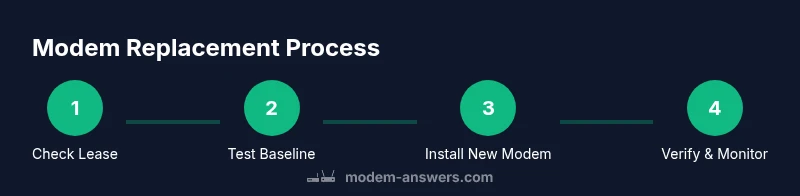
Before purchasing or renting a new modem, confirm your current lease status, check compatibility with Spectrum, and assess the total cost of ownership. If you’re renting, understand the replacement options and any charges. When you own the device, ensure it’s on Spectrum’s approved list and supports your plan’s speeds. Prepare the installation space: a clean area near the cable entry, with room for a short Ethernet run to your router. Have a notebook ready to record baseline tests, activation steps, and post‑install results. Finally, consider whether you want to update your router or keep a separate device for network management; a modern modem often pairs with a capable router for best performance.
How to choose a replacement modem
Choose a modem that is listed on Spectrum’s approved devices, supports your plan’s maximum speed, and has positive user reviews for reliability. Look for devices on DOCSIS 3.1 or newer if your plan requires higher bandwidth. Prioritize models with good heat management, stable power, and solid support resources from the manufacturer. Consider whether to buy outright or rent, factoring in upfront costs, warranty, and long-term expenses. Check for compatibility notes about your location and service tier, and if possible, opt for models with secure firmware update support to minimize vulnerabilities.
Setup after replacement and verification
Install the replacement modem by connecting the coaxial cable, power supply, and Ethernet cable to your router or device. Power on and wait for the device to boot fully, then follow Spectrum’s activation prompts. Run speed tests again to confirm you receive the expected performance and verify that all connected devices can access the network. If you notice any issues, recheck cabling connections, ensure firmware is current, and confirm the device supports your exact service tier. If problems persist, contact Spectrum support and provide your test results and device model for faster assistance.
Common myths and troubleshooting next steps
Myth: Upgrading the modem alone guarantees faster internet. Reality: A modem upgrade can improve performance, but router placement, Wi‑Fi interference, and indoor layout also matter. Myth: Replacing a perfectly functioning modem is wasteful. Reality: If the device can’t meet your current plan requirements, replacement is efficient and future‑proofing. Troubleshooting steps to try before replacing include a factory reset, checking for loose cables, and testing with a different Ethernet port. If issues persist beyond basic steps, consult Spectrum for activation checks, plan adjustments, and possible line faults.
FAQ: Quick answers to common questions
Tools & Materials
- Spectrum-approved modem(Check the Spectrum list for current approved models and your service tier compatibility.)
- Coaxial cable(Use a fresh or good-condition coax; avoid damaged connectors.)
- Power adapter for the modem(Use the original or a compatible replacement with the correct voltage/amperage.)
- Ethernet cable (Cat5e/Cat6)(One end to the modem, the other to your router or computer; avoid damaged cables.)
- Notebook or device to record steps and tests(Helpful for tracking baseline and post-install results.)
Steps
Estimated time: Total time: 30-60 minutes
- 1
Verify lease status and compatibility
Check whether your current device is leased and confirmed by Spectrum. Look up the model number and ensure it’s on the approved devices list for your service tier. This ensures you won’t face activation or compatibility issues after replacement.
Tip: Record model number, current firmware version, and last activation date for reference. - 2
Run baseline tests with wired connection
Perform a wired speed test to establish a baseline. Compare results to your plan’s advertised speeds and recent history. This helps determine whether the modem is at fault or if other factors are involved.
Tip: Use a device plugged directly into the modem with a known-good Ethernet cable. - 3
Power-cycle your existing hardware
Power off the modem and router, unplug for 60 seconds, then plug back in and allow full boot. This resets the local network and can resolve minor glitches without hardware changes.
Tip: If issues persist after a cycle, proceed to replacement planning. - 4
Acquire Spectrum-approved modem
Choose a model on Spectrum’s approved list that supports your plan’s speed. Decide whether to rent or buy based on total cost and warranty considerations.
Tip: Double-check that the model supports DOCSIS 3.1 or higher if your plan demands it. - 5
Connect new modem and power up
Connect the coaxial cable, power, and Ethernet to your router or directly to a computer for activation. Ensure all connections are snug and the device has booted completely.
Tip: Tighten connectors carefully to avoid signal loss. - 6
Activate the modem and verify service
Follow Spectrum activation prompts, either online or via app. Confirm that service is active and test speeds after activation completes.
Tip: Document activation timestamps and any on-screen instructions for future reference. - 7
Post-install tests and monitoring
Run multiple speed tests across wired and wireless setups over 24–48 hours. Monitor stability and look for unexpected drops or disconnects; if seen, contact Spectrum with test results.
Tip: Keep a log of daily results to share with support if needed.
FAQ
Do I need to return my old modem if I own it?
If you own the modem, Spectrum typically does not require return. If you are renting, you must return the device per your rental agreement. Always confirm current terms with Spectrum.
If you own the modem, you usually don’t have to return it, but renting requires returning the device. Check your rental terms to be sure.
What if my Wi‑Fi is slow but the modem seems fine?
Slow Wi‑Fi can come from router placement, interference, or coverage gaps. Test speeds wired vs wireless and optimize placement or upgrade your router if needed. If wired speeds are great, focus on the wireless network.
If wired speeds look good but Wi‑Fi is slow, check placement and interference, then adjust or upgrade your router.
Can I save money by buying my own modem instead of renting?
Buying can save money over time, but only if the model is Spectrum-approved and compatible with your plan. Calculate total cost of ownership and warranty length before deciding.
Buying can save money in the long run if the model is approved and compatible; compare costs and warranty.
Is upgrading to a newer DOCSIS standard worth it?
Newer DOCSIS standards can unlock higher speeds and better efficiency, especially on busy networks. Ensure your Spectrum plan and hardware support the upgrade.
Upgrading can improve speed and efficiency if your plan and hardware support it.
How should I activate a new Spectrum modem?
Connect the modem, follow Spectrum's activation prompts online or in the app, and verify service status after activation.
Connect and follow activation prompts; verify service after activation.
What if replacement doesn’t fix my issue?
If problems persist after replacement, there may be network faults or plan mismatches. Contact Spectrum with test results and consider further diagnostics or a technician visit.
If it still fails after replacement, there could be wider network issues; contact Spectrum with your tests.
Watch Video
Key Takeaways
- Confirm lease status and compatibility before replacing.
- Use wired tests to verify true performance after swap.
- Choose Spectrum-approved modems to ensure activation and security.
- Prepare for post-install testing over 24–48 hours.
- If issues persist, reach out to Spectrum with your test logs.