Modem Won't Connect to Internet: Step-by-Step Troubleshooting
If your modem won't connect to internet, this step-by-step guide helps you diagnose and fix common issues quickly with safe, home-friendly steps.


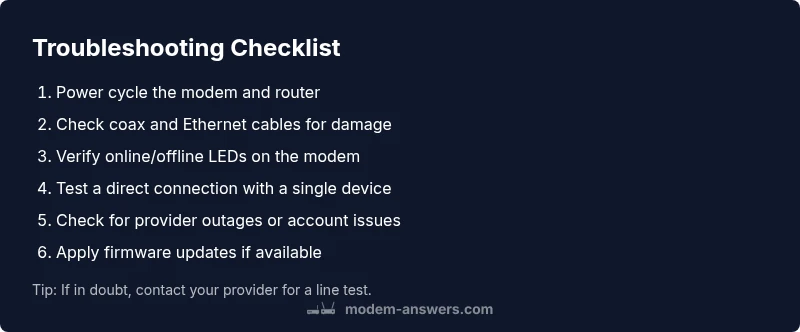
According to Modem Answers, most problems start with a simple power or cable issue. Start with a fast power cycle, check coax and Ethernet cables, and verify the modem is online with solid lights. If lights are off or you still have no internet after a reset, contact your provider for status checks.
Understanding why a modem won't connect to internet
When your modem won’t connect to internet, the likely culprits are simple and solvable from home. The most common root causes include a loose or damaged cable, a power issue, or an outage or service suspension on the provider side. According to Modem Answers analysis, outages and basic wiring problems account for the majority of non-connectivity cases. You’ll often be surprised at how quickly a fix can be found by inspecting the most obvious components first. Treat this as a process of elimination, not a single lucky guess. As you work through the steps, you’ll build a picture of what is happening on your network, which helps you avoid unnecessary replacements or service calls.
Key takeaways: focus on the hardware tangibles first (cables, power, lights) before diving into complex settings or provider calls. Keep a small checklist handy so you don’t miss a simple cause that blocks internet access.
Quick checks you can do in minutes
- Start with the simplest fixes: power cycle the modem and router. A full reboot can reestablish a broken handshake between devices and the network.
- Inspect all cables: coax, Ethernet, and any network cables. Look for nicks, kinks, or loose connectors.
- Check the indicator lights on the modem. A steady online light usually means the device is connected; red or flashing lights indicate trouble.
- Confirm service status with your provider if possible. A temporary outage or maintenance window can cause the modem to appear offline even when everything is physically correct.
- If you recently moved the device or changed furniture, recheck the router placement for optimal signal flow.
If any of these checks reveal a problem, fix it and test connectivity again. If the modem still won’t connect to internet after the basic checks, proceed to the more involved steps.
Steps
Estimated time: 30-45 minutes
- 1
Power cycle and reseat cables
Unplug the modem (and router if you have a separate unit) for 60 seconds. Reconnect all cables securely, ensuring the coax and Ethernet connectors are snug. Power the devices back on and wait 2–3 minutes for lights to stabilize.
Tip: Use the power button if available; avoid unplugging power strips that also supply other devices. - 2
Check the indicator lights
Observe the LED status on the modem. A solid online light usually means the device is connected; if lights are blinking or red, note the pattern and refer to the manual.
Tip: Document light patterns to compare with the provider’s outage guidance. - 3
Test with a direct device connection
Temporarily connect a single computer or phone directly to the modem with an Ethernet cable (or connect to the modem’s Wi‑Fi). If you have internet on the direct connection, the problem is likely router-related.
Tip: If Wi‑Fi is weak, consider router placement or upgrading the wireless hardware. - 4
Validate service status and account permissions
Log in to your ISP account or call their status line to confirm there are no outages or account suspensions affecting service.
Tip: If there’s an outage, you’ll typically be told when service is expected to resume. - 5
Attempt a factory reset (only if advised)
If the provider or manual instructs you, perform a factory reset following the device’s reset button procedure. This clears custom settings and returns the modem to default.
Tip: Back up any important configuration if you know how to reapply settings later. - 6
Check for firmware updates
Access the modem’s admin page and check for firmware updates. Install any available updates, then reboot to complete the process.
Tip: Only update using official firmware from the manufacturer.
Diagnosis: Modem won't connect to internet
Possible Causes
- highOutages or provider maintenance
- highLoose or damaged cables
- mediumPower supply or surge issues
- lowModem in bridge mode or incorrect router settings
Fixes
- easyPower cycle modem and router; unplug for 60 seconds then plug back in
- easyInspect and reseat all cables; replace damaged coax or Ethernet cables as needed
- easyCheck service status with provider; run a quick line test if available
- mediumReset modem to factory settings only if advised by provider or manual
- mediumUpdate firmware through the admin interface if an update is available
- mediumIf problems persist, request a technician visit or provider line check
FAQ
Why won't my modem connect to the internet even when it’s powered on?
Most often the cause is a simple wiring or power issue, or a provider outage. Start with a reboot, reseat cables, and verify service status before assuming the device is faulty.
A reboot and cable check fixes most issues; outages or wrong wiring are common culprits.
Is there a quick way to tell if there’s an outage or a local problem?
Check your provider’s outage map or status page; if there’s a reported outage in your area, the problem is likely external. If not, focus on your home network hardware.
Look up outages first—then troubleshoot your own setup if the service shows as up.
Should I reset my modem to factory settings?
Only reset if advised by your provider or manual. A factory reset clears custom settings and may require reconfiguration afterward.
Resetting should be a last resort when guided by support.
How long does a typical reset take to restore service?
A reset usually completes within a few minutes, but full stabilization of connections and lights can take longer. If the issue persists after reset, check for cable faults or outages.
Expect a short pause during reset, then recheck lights and connection.
Do I need a technician to fix this problem?
If basic steps don’t restore connectivity, or you suspect a line fault, scheduling a technician visit is appropriate. Your provider may perform remote tests first.
A technician is often the next step if you can’t fix it with home troubleshooting.
What should I do if I rented my modem from the provider?
Follow the provider’s reset and activation guidance. Renting means you may have limited control over settings; they can assist remotely.
Rented equipment is usually easier to reset via the provider’s app or support line.
Watch Video
Key Takeaways
- Power cycle and cable checks first
- Identify whether issue is provider or home-network related
- Isolate router from modem to diagnose Wi‑Fi problems
- Call provider if you see outages or status warnings