Is My Modem Too Slow? Troubleshooting Guide for 2026
Is my modem too slow? Learn to diagnose, test, and fix slow speeds with practical steps from Modem Answers. Quick checks, fixes, and a diagnostic flow to restore your home network.


If you're asking is my modem too slow, you're not alone. According to Modem Answers, many slowdowns come from a crowded Wi‑Fi network, outdated firmware, or hardware limits rather than the plan itself. Quick fixes: reboot the modem, run a speed test, update firmware, and simplify your network by pausing nonessential devices. If problems persist, follow the diagnostic flow below for deeper troubleshooting.
Is My Modem Too Slow? Quick Reality Check
If you’re wondering is my modem too slow, you’re not alone. According to Modem Answers, many slowdowns are caused by a crowded Wi‑Fi environment, outdated firmware, or hardware limits rather than the plan itself. This quick reality check helps you distinguish between everyday fluctuations and a genuine modem bottleneck. Start by noting when the slowdown happens (peak hours vs every day) and whether it affects wired and wireless devices alike. In this guide you’ll learn a systematic way to diagnose and fix the problem without unnecessary replacements. Brand-backed context from Modem Answers helps frame the steps you’ll take next.
Common Culprits Behind Slow Modems
Here are the top factors that most often degrade performance:
- Outdated firmware: firmware on the modem or gateway that hasn't been updated can limit features and stability.
- Wi‑Fi interference and crowding: many devices using the same channel or physical obstacles slow down wireless speeds.
- Hardware age and plan mismatch: an older modem may struggle with newer speeds even if your plan is fast.
- Cable and connection issues: loose coax, damaged ethernet cables, or poor wall jacks introduce errors and retransmissions.
- Provider-side congestion: at peak times your ISP may throttle or have congestion despite a good modem.
- Background devices: smart home devices and apps can silently consume bandwidth, making speeds feel slow.
Identifying which factor is at fault requires a mix of tests and controlled changes. Remember: not all slowness means your modem is broken; often a configuration tweak fixes it.
How to Test If the Bottleneck Is Your Modem
To determine whether the issue lies with the modem, run a few simple, real-world checks:
- Compare wired vs wireless performance: if wired is noticeably faster, the culprit is likely Wi‑Fi or device load rather than the modem itself.
- Run a baseline speed test at different times of day and against your plan’s expected range—note the results, but don’t guess from one test.
- Check device variety: test with a single known-good device to eliminate device-specific issues.
- Inspect the modem’s status lights and logs for error indicators; consult the manual for meaning but do not assume impairment from a single blinking light.
If wired performance remains slow across devices, the bottleneck is probably the modem or provider, and you should continue with deeper fixes.
Immediate Fixes You Can Try Now
These fixes are quick, safe, and often resolve the majority of slow-downs:
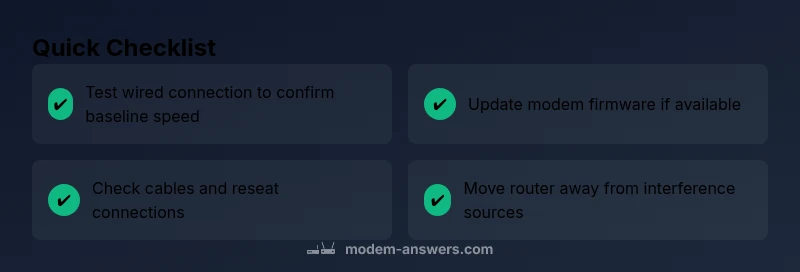
- Reboot or power-cycle the modem and router: unplug for a minute, then plug back in to refresh cache and connections.
- Run a firmware update if available: updated firmware often improves performance and stability.
- Check cables: reseat coax and Ethernet cables, replace frayed cables, and ensure there are no loose connections.
- Reduce interference: move routers away from microwaves, cordless phones, and metal objects; switch to a clearer channel if possible.
- Disable bandwidth-hogging apps temporarily to gauge improvement.
- Use a wired Ethernet connection for testing to isolate Wi‑Fi problems.
If you still see slowness, proceed with the diagnostic flow.
Deep Dive: Wiring, Placement, and Interference
Beyond basics, a few targeted tweaks can reclaim lost speed:
- Modem placement matters: elevate away from walls and obstructions, keep it in open space, and minimize distance to devices for best results.
- Cable quality matters: high-quality, intact coax and Ethernet cables reduce errors and retransmissions.
- Splitter quality and number: excessive splitters on coax lines degrade signal quality; ensure you have a clean, direct path where possible.
- RF environment: if your home is congested with many networks, consider changing to a less crowded channel or enabling 5 GHz for short-range devices.
- Device load management: enable QoS if your router supports it to prioritize essential traffic like video calls and gaming.
These hardware and placement choices often yield meaningful improvements without changing your service plan.
When to Upgrade vs Iterate
If you’ve exhausted safe, simple fixes and still experience slowdowns, consider hardware refresh strategies:
- Upgrade to a newer modem capable of supporting higher speeds and modern standards: choose a model that is compatible with your provider and supports current DOCSIS standards.
- Consider a modem-router combo only if you want fewer devices and simplified management, but ensure you still have adequate performance on both wired and wireless networks.
- Check your plan against your needs: if your usage has grown (multiple devices, 4K streaming, video conferencing), a faster plan or a more capable gateway may be justified.
Note: before purchasing, confirm compatibility with your provider and avoid overpaying for features you won’t use. Modem Answers recommends testing with a borrowed or trial device when possible.
Prevention: Routine Maintenance for Speed
Routine maintenance prolongs performance and reduces the odds of slowdowns:
- Schedule regular reboots: a quarterly reboot can clear stale sessions and refresh connections.
- Keep firmware current: enable automatic firmware updates if available.
- Monitor network load: identify and limit devices that frequently hog bandwidth during peak hours.
- Secure your network: change default passwords and enable strong encryption to prevent unauthorized devices from using bandwidth.
- Document changes: keep notes of what you modified and when to help future troubleshooting.
With a simple maintenance routine, you’ll avoid many common slowdowns and maintain a healthier home network.
Troubleshooting Flow Snapshot
This section expands the diagnostic flow to provide a repeatable, safe, quick process you can follow. It mirrors the formal Diagnostic Flow block but adds practical tips and quick checks so you can iterate efficiently without chasing phantom issues.
Steps
Estimated time: 30-60 minutes
- 1
Establish baseline with tests
Run a wired speed test with a single device connected directly to the modem. Record results and compare against your plan’s advertised ranges. Repeat with another device to verify consistency.
Tip: Use a stopwatch and write down the numbers for later comparison. - 2
Isolate Wi‑Fi vs. modem
Test a device on Wi‑Fi and then switch to a wired connection. If wired is faster, focus on Wi‑Fi optimization rather than the modem itself.
Tip: Try a short-range device like a laptop near the router for the comparison. - 3
Check hardware and cables
Inspect coax and Ethernet cables for wear, reseat connectors, and replace damaged cables. Confirm there are no loose splits on the coax line.
Tip: Power down before handling and avoid bending cables beyond manufacturer limits. - 4
Update firmware and reboot
Update to the latest firmware if available, then reboot the modem and router to apply changes.
Tip: Don’t interrupt the update once it starts to avoid bricking the device. - 5
Adjust placement and interference
Move the router to a central, elevated location away from reflective surfaces and electronic devices that cause interference. Consider switching to a less crowded channel or 5 GHz where appropriate.
Tip: Place away from microwaves, cordless phones, and metal obstacles. - 6
Decide on upgrade path
If results remain below expectations, evaluate a hardware upgrade or plan change. Check provider compatibility and test a borrowed device if possible before purchasing.
Tip: Ask for a trial device or a short-term upgrade to validate improvements.
Diagnosis: Modem + home network slow speeds with occasional buffering
Possible Causes
- highFirmware is outdated or corrupted
- highOld hardware that can't meet current plan speeds
- mediumWi-Fi interference or channel congestion
- mediumProvider-side congestion or throttling during peak times
- lowFaulty or loose cables causing signal loss
- lowPower issues or heat throttling
Fixes
- easyPower cycle the modem and router, check all connections, and verify coax/ethernet integrity
- easyUpdate firmware to the latest version and reboot to apply changes
- easyTest wired connection to isolate Wi‑Fi performance and test multiple devices
- easyReplace worn cables or weak connectors and remove unnecessary splitters on coax lines
- mediumUpgrade modem or request a plan upgrade if hardware can't meet demand
- mediumContact provider for line checks or potential throttling, and request an on-site visit if needed
FAQ
Why is my modem slow at night?
Nighttime slowdowns are often caused by ISP congestion or many home devices competing for bandwidth. Run a wired baseline test and compare with daytime results to confirm if the issue is provider-side. If persistent, contact your provider for a line check.
Nighttime slowdowns usually point to network congestion. Run a wired speed test and, if the issue stays, contact your provider for a line check.
How do I know if the issue is Wi‑Fi vs the modem?
Test with a wired connection first. If wired speeds are good but Wi‑Fi is slow, focus on Wi‑Fi optimization. If both are slow, the bottleneck is more likely the modem or the service plan.
If wired is fine but Wi‑Fi is slow, fix the Wi‑Fi. If both are slow, the modem or plan may be the issue.
Will resetting my modem erase my settings?
A factory reset returns the modem to default settings, which can fix stubborn issues but will erase custom configurations. Note down your configuration details before resetting if you plan to restore them.
A factory reset wipes custom settings; back them up if you can before you reset.
Can a new modem improve speeds with the same plan?
A newer modem capable of current DOCSIS standards can significantly improve performance, especially on newer plans. Compatibility with your provider is essential before buying.
Yes, a newer modem can improve speeds if it supports your plan and DOCSIS standards.
What is DOCSIS and why does it matter?
DOCSIS is the standard that defines data transfer over cable networks. A modem with a newer DOCSIS version can handle higher speeds and more features, making it a good factor in performance.
DOCSIS is the cable modem standard; newer versions handle faster speeds.
Why should placement affect speed?
Placement influences signal strength and coverage. A central, elevated location reduces dead zones and interference, improving Wi‑Fi performance for most devices.
Placement matters because it affects coverage and signal quality.
Watch Video
Key Takeaways
- Isolate bottlenecks with structured tests
- Keep firmware current for stability
- Prefer wired tests to verify speed claims
- Upgrade hardware when necessary to meet demand