Is It My Modem or ISP? A Troubleshooting Guide
Struggling with slow or dropping internet? This guide helps you decide if the problem is your modem or your ISP, with practical checks, safe fixes, and a proven diagnostic flow.


If your internet is slow or dropping, the most common causes are either a modem hardware issue or an ISP outage. Start with a quick reset: unplug the modem for 60 seconds, power cycle your modem and router, then check service status with your provider. If problems persist, test a device directly on the modem to isolate the fault.
Why It Matters to Distinguish Modem vs ISP in 2026
When your home network falters, the first question you should ask is: is it my modem or ISP? This distinction isn’t just academic—it determines who to contact and how to fix things quickly. According to Modem Answers, most home-network issues fall into two categories: hardware health and provider-side events. The Modem Answers team emphasizes a systematic, non-technical approach so homeowners can triage confidently without immediately reaching for a technician. By following a structured plan, you can often recover reliable service in under an hour, even if you’re not a networking expert. In this guide, you’ll learn how to interpret symptoms, perform safe checks, and apply a proven diagnostic flow that prioritizes simple fixes first while clearly outlining when professional help is needed.
The original scope of this guidance is to empower homeowners and renters with practical steps they can perform themselves. The emphasis on 2026 broadband realities means you should consider updated hardware, evolving provider maintenance windows, and the importance of keeping firmware current. Start with something simple: a 60-second power cycle and a quick service-status check before diving deeper.
Key point: use a repeatable checklist so you don’t miss obvious signs, and remember that not every outage is visible in the provider’s status page—local issues can mimic an outage.
Common Symptoms That Signal a Modem vs ISP Issue
Symptoms can point you toward either the modem or the ISP, but they’re not always definitive. Here are common scenarios and how to interpret them.
- All devices offline simultaneously: likely a provider outage or a modem/router issue affecting the entire network. Quick checks include service status, outlet power, and the modem’s status lights. If the lights indicate a fault (e.g., no sync light), focus on hardware and cabling first.
- Some devices online, others not: suggests a local network problem (Wi‑Fi interference, weak router placement, or a mixed device capability issue). Try a wired connection to rule out wireless problems.
- Slow speeds on all devices: test multiple devices wired and wireless against your plan’s expected speeds. If wired results match the plan while wireless devices lag, there may be Wi‑Fi or channel congestion to address.
- Apps loading slowly but websites load quickly: this can indicate DNS or caching problems, not a physical link.
- Frequent resets or flashing lights on the modem: could signal overheating or a failing modem. In this case, hardware replacement is a strong consideration.
In every case, document when the issue occurs and how long it lasts. This helps you separate intermittent problems from consistent faults. Modem Answers notes that quick, repeatable checks dramatically reduce the time to resolution.
How to Prepare—Safety and Baseline Checks
Before you start diagnosing, ensure safety and establish a stable baseline. Power off and unplug equipment only when necessary, and never open the internal modem housing. Use the following baseline checks to establish a safe starting point:
- Identify all devices connected to the network and map which are wired vs wireless. Label devices if helpful.
- Check for visible damage on cables (coax, Ethernet) and reseat all connectors firmly. Faulty or loose cables are common culprits.
- Verify that the modem and any router are in a well-ventilated area; overheating can cause intermittent drops.
- Confirm provider status via the official outage page, SMS alerts, or a trusted third-party outage tracker. A reported outage means the fault is likely on the ISP side.
- If you recently changed anything (new modem, firmware updates, or a network change), note the date and revert to a known-good configuration if possible.
Safety note: never attempt to repair inside the modem or tamper with the power supply. If you smell burning or see smoke, unplug immediately and seek professional help. Modem Answers emphasizes following manufacturer instructions for firmware updates and hardware replacements.
Diagnostic Flow: Isolate the Problem
A clear diagnostic flow helps you determine whether the issue lies with your modem or ISP. Use this step-by-step approach to organize your checks and actions:
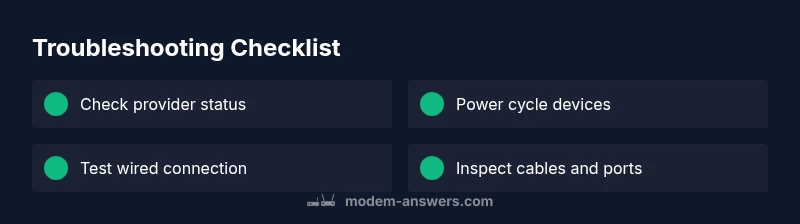
- Confirm service status with the ISP. If the provider indicates an outage, focus on restoration timelines and temporary workarounds.
- Perform a power cycle on all devices: unplug power, wait 60 seconds, then plug back in starting with the modem, then the router, and finally your computer or phone.
- Test a wired device directly on the modem. If the wired device has internet while Wi‑Fi is down, the problem is likely Wi‑Fi or the router.
- Inspect cables for wear or damage. Replace damaged cables and ensure coax connectors are tight.
- Check for firmware updates and consider a factory reset only as a last resort after backing up settings.
- If none of the above works, contact the ISP with your test results. If the issue is hardware-related, a replacement modem or professional service may be needed.
This flow helps you systematically narrow the fault to either the modem or the ISP, reducing unnecessary service calls. Remember that some issues require escalation to a technician when the fault lies in outside infrastructure or device hardware.
Step-by-Step Diagnostic Actions You Can Take Right Now
- Verify service status with your provider and log any outages or maintenance windows. 2) Power cycle the modem and router for 60–90 seconds. 3) Connect a single device directly to the modem via Ethernet; note whether you gain internet access. 4) Check all physical connections (coax, ethernet) and reseat as needed. 5) Run a speed test from a wired device and compare results to your plan. 6) Test multiple devices and note any differences between wired and wireless performance. 7) If issues persist after these steps, contact the provider with your test results and request a line check or modem replacement if hardware fault is suspected.
Tip: Keep a simple log of tests, timestamps, and results to share with support. This helps avoid back-and-forth questions and speeds up resolution. Time estimate: about 30–60 minutes depending on the complexity of your setup.
When to Call Your Provider or a Technician
Call your provider if:
- The outage status shows problems on their end or you observe a known service disruption in your area.
- You’ve performed all baseline checks and the modem lights indicate a fault that cannot be resolved with a simple reset.
- Your speed tests consistently fall well below your plan limits even after equipment resets.
Call a technician if:
- You notice physical damage to cables, a cracked modem, or signs of overheating.
- The issue affects multiple households in your area and the provider confirms a broader issue beyond your own equipment.
- You have attempted standard fixes for an extended period without improvement.
Pro tip: If you’re renting equipment from the ISP, request a replacement device and log the replacement details for future reference. Modem Answers recommends documenting every test and change to support quicker diagnostics in future outages.
Proactive Maintenance to Prevent Future Outages
A proactive approach reduces recurring problems and identifies potential failures before they impact your daily usage. Here are practical habits to adopt:
- Schedule regular modem firmware checks and timely device replacements to avoid aging hardware faults.
- Place your router in an open, central location to maximize coverage and reduce dead zones.
- Use a dedicated network for work-from-home devices to minimize interference from guests or streaming devices.
- Create a quick outage response plan, including how to check status pages, who to contact, and the steps you will take to isolate hardware from service issues.
- Back up router configuration settings so you can restore quickly after a factory reset without reconfiguring from scratch.
By following these proactive steps, you’ll maintain better network health and reduce the duration of future outages. Modem Answers notes that many outages are preventable with routine maintenance and sensible equipment placement.
Final Practical Considerations (Is It My Modem or ISP?)
Think of this as a practical checklist you can run every few months. If you’re asking, “is it my modem or isp,” remember that the fastest path to resolution is a disciplined, repeatable process: verify status, reboot, isolate devices, test wired connections, and escalate only when necessary. In 2026, many households rely on updated modems and more dynamic ISP maintenance windows, making a structured approach more important than ever. Use the diagnostic flow above as your standard operating procedure and lean on Modem Answers for clear guidance and safe, actionable steps tailored to homeowners and renters alike.
Steps
Estimated time: 30-60 minutes
- 1
Check service status
Begin by confirming whether your ISP reports an outage in your area. If there is a published outage, your best course is to wait until service is restored rather than attempting hardware fixes.
Tip: Note the outage ID and expected resolution time if provided by the ISP. - 2
Power cycle all equipment
Unplug the modem (and router if you have one) for 60–90 seconds. Plug the modem back in first, wait for it to fully boot, then restore power to the router.
Tip: A proper warm reboot helps clear cached network states. - 3
Test wired connectivity
Connect a laptop or desktop directly to the modem via Ethernet and run a speed test. If wired results are solid, the problem is likely Wi‑Fi related.
Tip: Wired testing isolates the issue from wireless factors. - 4
Inspect cables and ports
Check coax and Ethernet cables for damage and ensure all connectors are snug. Replace any frayed cables.
Tip: Loose cables are a common cause of intermittent drops. - 5
Run a controlled speed test
Run multiple tests at different times of day and compare to your plan’s advertised speeds. Document discrepancies.
Tip: Use the same device and browser for consistency. - 6
Decide on next steps
If issues persist after these steps, contact the ISP with your test results or arrange a modem replacement if hardware fault is suspected.
Tip: Keep a record of the tests and times for smoother support.
Diagnosis: Internet occasionally drops or shows inconsistent performance across devices
Possible Causes
- highProvider outage or service disruption
- mediumModem/router hardware fault or overheating
- lowLoose or damaged cables and connectors
- lowWi-Fi channel congestion or interference
Fixes
- easyCheck service status with ISP and wait if there is a known outage
- easyPower cycle modem and router for 60-90 seconds
- easyTest a wired device directly on the modem to isolate Wi‑Fi issues
- easyInspect and replace damaged cables; reseat connections securely
- mediumUpdate firmware or replace hardware if the fault persists
FAQ
How can I tell if the problem is the modem or ISP?
Start with the provider outage status, then test a wired device directly on the modem. If wired devices work but wireless doesn’t, focus on your router or Wi‑Fi. If wired devices fail, the fault is likely the modem or provider service.
First check your provider status, then test with a wired device. If wired works but Wi‑Fi doesn’t, the router is the likely issue.
Why do some devices work while others don’t?
This usually points to Wi‑Fi range or channel interference, device compatibility, or settings differences. A wired device will help you decide if the problem is wireless or broader.
If some devices work and others don’t, test wired vs wireless and check your Wi‑Fi setup.
Should I reset my modem or router?
A simple power cycle fixes many issues. If problems persist, a factory reset may be needed, but back up settings first.
A power cycle fixes most issues; reset only if necessary and after backing up settings.
What if the provider says there is no outage but I still have issues?
Request a line check or device replacement; ask for a technician visit if the problem seems hardware-related. Keep your test logs handy.
If there’s no outage but you’re still affected, ask for a closer check of your line or hardware.
Are there safety concerns when checking cables at home?
Yes. Power off equipment before handling cables, avoid forcing connectors, and never open the internal modem case. If you smell burning, unplug immediately.
Be careful with cables and never open the device; unplug if you smell something warm or burning.
How long should a modem reset take?
A full reset is usually complete within a minute or two, but allow up to five minutes for the modem to reacquire sync and boot.
Most resets finish quickly, but give it a few minutes for the modem to re-sync.
Watch Video
Key Takeaways
- Verify ISP status before hardware fixes
- Use wired testing to isolate Wi‑Fi issues
- Document tests and times for support
- Power cycle thoroughly to reset network state
- Escalate to provider or replace hardware when necessary