How to Check Modem Logs: A Practical Guide for Home Networks
Learn how to check modem logs to troubleshoot connectivity, identify errors, and improve home network reliability. This Modem Answers guide covers locating logs, interpreting entries, and best practices for homeowners.


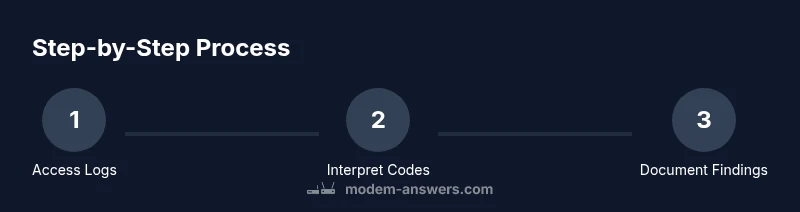
Goal: learn how to check modem logs to diagnose connectivity problems, verify uptime, and spot abnormal entries. You’ll locate logs on most modems, interpret common error messages, and document findings for support. Before you start, ensure you have admin access, a stable device, and a quiet workspace to review entries without interruption. This guide uses clear steps, practical examples, and safety reminders.
Why checking modem logs matters
According to Modem Answers, logs are the first line of visibility into how your home network behaves. They record device events, connectivity interruptions, and reboot sequences that may not be obvious from the status lights or speed tests. Regular log review helps you distinguish a transient blip from a persistent issue, and it can save you time with customer support by providing precise context. In residential setups, there are dozens of entry types across different vendors, but the core idea remains the same: timestamps, event IDs, and textual descriptions map to real world events. If you ignore logs, you risk missing root causes such as firmware hiccups, line noise, or device overheating. The practice also cultivates a baseline: knowing what normal looks like makes anomalies stand out. Start small by checking logs after a disconnect and noting any recurring messages; you can scale this into a routine for quarterly maintenance. Modem Answers emphasizes that consistent log review builds confidence in diagnosing issues and maintaining a stable network.
Understanding log basics
A modem log is a chronological record of events generated by the device to document what happened and when. Most logs include a timestamp, an event or fault code, a brief description, and sometimes the affected interface (such as WAN or LAN). Different manufacturers structure these entries in distinctive formats, but the underlying purpose is consistent: to provide a traceable sequence of actions that helps you diagnose problems. Modem Answers analysis shows that most logs capture everyday operations like link negotiations, reboot events, and impedance-related warnings, as well as error bursts that precede a service interruption. Recognizing these components makes it easier to read logs quickly and avoid chasing irrelevant lines. When you review logs, focus on repeated messages, unusual time gaps, and any codes you don’t recognize. Keeping a simple notebook or digital notes helps you compare current logs with past baselines, making changes easier to justify to your service provider.
Common log formats you’ll encounter
Log entries come in several common formats, but the essential elements remain similar: a timestamp, a category or level (info, warning, error), an event ID or code, and a human‑readable message. Some vendors use compact one‑line entries, others insert multi‑line blocks with an appended stack trace or diagnostic data. You may see phrases like “no sync,” “CRC errors,” “link down,” or “reboot initiated.” Understanding these phrases helps you translate logs into concrete actions, such as adjusting line quality, rebooting the modem, or checking cabling. For home networks, expect a mix of routine maintenance messages and occasional fault notices. When logs show recurring issues, you’ll want to correlate them with external factors like weather, line quality, or ISP maintenance windows to identify patterns.
How to locate logs on your modem and gateway
Start by connecting a device to the same network as your modem. Open a web browser and enter the device’s admin IP address (common defaults are 192.168.0.1 or 192.168.1.1); if you’re unsure, check the label on the device or the manufacturer’s support page. Log in with your admin credentials. Navigate to sections labeled System Log, Event Log, or Diagnostics. If your modem provides a mobile app, you can usually access logs under a Support or Network page there as well. Export or save the log file (often as .txt or .log) for deeper analysis or sharing with your service provider. For widgets and mesh systems, you may need to check individual node logs or a centralized management console. If you can’t locate logs, consult the vendor’s help center, since some models hide log data behind advanced settings or require enabling verbose logging first.
Interpreting entries: red flags and typical messages
Not every entry is a problem, but certain signs deserve attention. Look for repeated error lines, long gaps between events, or messages that indicate a loss of synchronization, authentication failures, or interface instability. Common red flags include frequent CRC errors, frequent reboot cycles, DNS resolution failures, and persistent “link down” events. If you see a cluster of events within a short window, note the time and correlate with other indicators such as a service outage or a router reboot. Do not panic over a single transient error; instead, compare multiple entries across different days. Keeping a log of observed issues helps you build a case when you contact your ISP or equipment vendor. Modem Answers recommends documenting the exact times, URLs or domains involved, and whether the issue affects all devices or a single client. This approach makes network troubleshooting faster and increases the likelihood of a precise resolution.
Step-by-step: preparing to inspect logs (contextual overview)
This preparatory section explains why each action matters and how it connects to a successful troubleshooting session. Before touching settings, gather your admin credentials and ensure you have a stable device for browsing. Decide on a time window to review (for example, the last 24 hours or the previous week) so you can narrow down relevant events. Clear a short period on your calendar to read entries without interruptions; noisy environments can lead to misinterpretation. Consider exporting a copy of the current log before making changes to your network or rebooting devices; this creates a baseline you can compare later. In this overview, you’ll learn how to approach logs methodically rather than scanning randomly, which saves time and reduces confusion.
Best practices: privacy, security, and routine checks
Logs can reveal sensitive details about your home network, so handle them with care. Store exported logs locally or encrypted if sharing with a technician, and delete old data you no longer need. Schedule periodic reviews (quarterly or after major changes) to detect evolving issues early. If you suspect a security breach, do not rely on casual notes; consult official guidance from your provider and relevant authorities. Finally, keep your firmware up to date and ensure logging settings are configured to balance detail with privacy. By following these practices, you improve reliability while protecting your personal information. The Modem Answers team recommends building a lightweight, consistent log-check habit as part of routine home network maintenance.
Tools & Materials
- Computer or smartphone with web browser(Used to access the modem’s admin interface and view/export logs)
- Modem or gateway with admin access(Have the admin username/password handy)
- Stable internet connection(Needed to load the admin page and export logs without interruption)
- Notebook or digital notes app(Helpful for recording findings and time stamps)
- Log export option (TXT/LOG)(Optional if you plan to share with support or analyze offline)
Steps
Estimated time: 25-45 minutes
- 1
Verify prerequisites
Confirm you have admin access and a device ready to browse. Decide the time window you’ll review, for example the last 24 hours or the last 7 days. This focuses your search and avoids information overload.
Tip: Write down your admin username and the exact modem model to reference in support tickets. - 2
Log into the modem admin page
Open a browser and enter the modem's IP address (commonly 192.168.0.1 or 192.168.1.1). Enter your credentials to access the dashboard. If two-factor authentication is enabled, complete the prompt.
Tip: If you don’t know the IP, check the device label or use a connected device’s network settings to discover the gateway. - 3
Navigate to the logs section
Look for sections named System Log, Event Log, Diagnostics, or similar. Some devices group logs under Maintenance or Tools. If you’re using a mobile app, locate Logs under Support or Network.
Tip: Export or save the log file in a text format before making any changes in the UI. - 4
Set time range and export
Select the relevant time window and export the log data. Saving as a .txt or .log file creates a portable snapshot you can analyze later or share with your provider.
Tip: Keep a copy of the current log even if you don’t plan to forward it—this preserves a snapshot before any changes. - 5
Scan for key entries
Review entries for repeated errors, link down events, DHCP or DNS failures, or reboot messages. Note timestamps and any patterns across devices.
Tip: Mark anything that appears more than once or clusters around a short time frame for closer inspection. - 6
Document findings and next steps
Create a concise log summary: time window, notable errors, suspected cause, and recommended actions. Share the report with your ISP or equipment vendor if needed.
Tip: Attach the exported log file when you contact support to speed up troubleshooting.
FAQ
What is a modem log and why is it useful?
A modem log is a chronological record of events generated by the device, including outages, reboots, and errors. It helps you diagnose issues, verify uptime, and communicate precise information to providers.
A modem log is a time-stamped record of events that helps you diagnose problems and show exact details to your provider.
How do I know which log entries are important?
Look for repeated errors, sudden reboots, loss of synchronization, or authentication failures. Cross-check these with times of outages or device activity to determine if they’re connected.
Look for repeated errors or reboots and see if they line up with outages or device changes.
Can I export logs from all modems and gateways?
Most modems offer a log export option in the admin interface or mobile app. The export is usually a text or log file that you can save and share.
Yes, most devices let you export logs as a text file for review or sharing.
Are modem logs private or sensitive?
Logs can contain device identifiers and event data. Treat them as sensitive; store them securely and share only with trusted technicians or providers.
Logs can include sensitive data, so handle them securely and share only with trusted parties.
What should I do if I can’t access logs?
If logs are hidden, check the device manual for enabling verbose logging or contact the manufacturer support. Some models require firmware updates to expose logging.
If you can’t access logs, enable verbose logging or check with the manufacturer for guidance.
How often should I check modem logs?
A practical approach is to review logs after any outage or when you notice degraded performance, and perform a quarterly check to establish a baseline.
Check logs after outages and quarterly to keep a baseline.
Watch Video
Key Takeaways
- Identify outage times from logs to speed up support.
- Export logs for sharing with providers or technicians.
- Different vendors structure logs differently; focus on timestamps and error codes.
- Create a routine to review logs quarterly or after major changes.