Cox Modem Blinking Orange: Troubleshooting Guide
A practical, step-by-step guide to fix a Cox modem blinking orange. Identify causes, perform safe checks, and restore your home internet quickly with expert, no-nonsense guidance from Modem Answers.


cox modem blinking orange usually signals a startup or service issue. The quickest fix is a safe power cycle: unplug the modem, wait 60 seconds, then plug back in. Check that all cables are snug, especially the coax and Ethernet. If the orange light persists after reboot, check Cox service status and consider contacting Cox support for account-specific diagnostics.
What the orange blinking light on a Cox modem means
When you see the Cox modem blinking orange, it typically indicates a transient startup sequence, a connection issue, or a service-related status that is not yet resolved. This light pattern is your cue that something in the home network chain—power, coax cable, or the line from Cox—needs attention. The Modem Answers team recommends treating orange blinking as a sign to perform a quick, methodical check rather than jumping straight to replacement. In many cases, the issue resolves with a simple reset or a re-seat of cables. Throughout this guide, you’ll see practical checks you can perform safely, followed by escalation steps if the problem persists. According to Modem Answers analysis, most orange-blink events are resolved without external service calls when basic connections are verified and the device is restarted.
Quick checks you can do safely
Before touching the inside of the device, run through these safe, no-tools-required checks. They cover the most common causes without risking warranty or personal safety. First, power cycle the modem by unplugging it, waiting 60 seconds, and plugging it back in. While it reboots, inspect the area for moisture or heat buildup and ensure the device sits on a stable surface with good ventilation. Next, reseat the coaxial cable at both ends and ensure the Ethernet cable is firmly connected to your computer or router. If you use a power strip, remove any daisy-chained connections and plug the modem directly into a wall outlet. Finally, verify Cox service status from the provider’s outage page or your account portal. If a service outage is active, you may simply need to wait.
Common causes of an orange blink
Several scenarios commonly produce an orange blinking light. Power issues are among the most frequent: an overloaded power strip or a loose outlet can interrupt the startup sequence. A loose or damaged coaxial cable can prevent proper signal delivery, triggering the orange indicator. Service maintenance or temporary outages at Cox’s end are also potential culprits, particularly during high-traffic periods. Firmware glitches or hardware faults, while less common, can cause persistent orange blinking if the device cannot complete its boot cycle. The key is to distinguish between a user-side problem (cables, power) and a provider-side event (outage, maintenance). Modem Answers analysis emphasizes checking for outages first, then moving through a structured hardware check.
How to test and reset safely
Testing should be systematic and non-destructive. Start with a simple power cycle: unplug, wait, replug, and allow full boot. If the light remains orange, unplug all cables and reattach one by one, starting with the coaxial connection. If you have a spare Ethernet cable, swap it to rule out a faulty LAN cable. Do not open the modem casing; avoid DIY hardware repair. If the orange light persists after a full reboot and cable reseat, use the provider’s app or website to check for local outages and firmware alerts. Resetting to factory defaults is a last resort and will wipe custom settings. This should be performed only if you have the original account credentials and are prepared to reconfigure your network.
Diagnostic flow: symptom to resolution
A clear path from symptom to solution helps you stay organized. Start with the symptom: “orange blinking light on Cox modem.” Next, verify power and cables, then check for outages. If there’s no outage, assume a hardware or firmware anomaly and proceed to a controlled reset, followed by rechecking connections. If the issue persists after reset, it’s time to escalate to Cox support with your diagnostic notes. This flow keeps you from guessing and reduces the time to restoration. Modem Answers recommends documenting timestamps of events and any changes for faster support calls.
Step-by-step troubleshooting flow
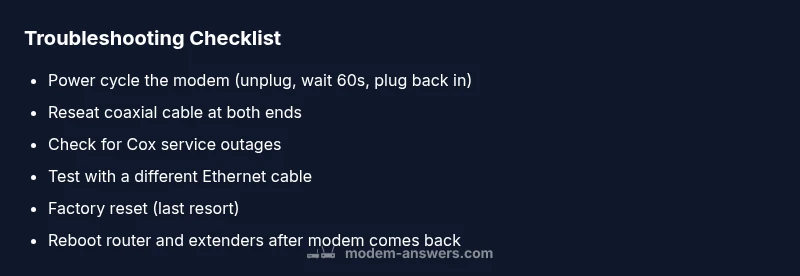
- Power cycle the modem: unplug, wait 60 seconds, plug back in. 2) Check all cables: reseat coax and Ethernet, inspect for wear. 3) Check for outages: visit Cox outage pages or your account. 4) Test with a different device: confirm issue isn’t device-specific. 5) Factory reset (last resort): reset through the admin interface, reconfigure your network settings. 6) Reboot connected devices: router, switches, and extenders. 7) Update firmware (via Cox app or portal): ensure you’re on the latest version. 8) Monitor for 30 minutes post-reset: verify if the light stabilizes. 9) If unresolved, contact Cox support with the steps you already completed. 10) Consider modem health: if the light remains orange after all steps, a hardware replacement may be needed.
Safety, warranty, and professional help
Never open the modem casing; doing so can void warranties and create safety hazards. If you rent a Cox modem, you’re typically covered by provider service calls for hardware faults. For owned devices, refer to warranty terms. If you’re uncomfortable performing any step, or if you smell burning or see smoke, discontinue attempts and contact Cox support immediately. The Modem Answers team emphasizes don’t delay professional help for signs of hardware failure or persistent outages. If the orange light does not resolve after the steps above, professional assessment is recommended.
Preventing future outages
To minimize future orange-blink events, keep cables tidy and avoid bending coaxial runs sharply. Place the modem in a cool, well-ventilated area away from heat sources and dust. Schedule periodic reboots as a maintenance habit, and check for firmware updates at regular intervals through the Cox app or account portal. Consider using a surge protector and a quality uninterruptible power supply (UPS) for power reliability. Finally, document any recurring patterns (time of day, specific devices) to help support diagnose faster next time. This proactive approach helps sustain stable home internet.
Conclusion and next steps from Modem Answers
The Modem Answers team recognizes that an orange blinking light on Cox equipment is concerning but often resolvable with structured steps. Start with power cycling and cable checks, then confirm outages before diving into resets. If you can’t restore service after following this guide, contact Cox support for a tailored diagnosis. Our guidance is designed to get you back online quickly while keeping safety and warranty considerations in mind. Modem Answers’s verdict: follow the diagnostic flow, document results, and escalate when needed to preserve your home network health.
Steps
Estimated time: Estimated total time: 45-60 minutes
- 1
Power cycle the modem
Unplug the modem from power, wait 60 seconds, then plug it back in. Allow the device to boot fully before testing the lights again.
Tip: Use a wall outlet instead of a power strip for consistent power delivery. - 2
Inspect and reseat cables
Check the coaxial cable at both ends for tightness and damage. Reconnect firmly, then verify that the Ethernet cable to your router or computer is also secure.
Tip: Look for bent or fractured connectors; replace if ends show wear. - 3
Check for service outages
Log into your Cox account or visit the outage page to see if there is a known service issue in your area.
Tip: If an outage is reported, you may simply need to wait until it is resolved. - 4
Test with a different device
Try connecting a different device directly to the modem to determine if the issue is device-specific or network-wide.
Tip: If the other device works, focus on your original device settings. - 5
Factory reset as a last resort
If no outage and cables are fine, perform a factory reset through the admin interface. Note: this will erase custom settings.
Tip: Make sure you have your account credentials ready for reconfiguration. - 6
Check for firmware updates
Use the Cox app or portal to check for firmware updates and apply them if available.
Tip: Firmware updates can improve stability and fix known issues. - 7
Reboot the network chain
Restart your router or any mesh extenders after the modem comes back online to ensure a clean start for your home network.
Tip: Wait 5–10 minutes after reboot for devices to re-establish connections. - 8
Escalate to Cox if unresolved
If the light remains orange after all steps, contact Cox support with your notes from troubleshooting.
Tip: Ask for a technician visit or a replacement modem if hardware fault is suspected. - 9
Document and monitor
Keep a log of outages, reboots, and light patterns to aid future troubleshooting and support calls.
Tip: A simple notebook or note app helps you spot recurring issues.
Diagnosis: Cox modem blinking orange
Possible Causes
- highPower issue
- highLoose or damaged coaxial cable
- mediumService outage or maintenance
- lowFirmware glitch or hardware fault
- lowOverheating or ventilation problem
Fixes
- easyCheck power outlet and unplug/plug the modem after 60 seconds
- easyReseat or replace the coaxial cable and ensure a tight connection
- easyVerify service status/outage in Cox app or outage page
- mediumPerform a factory reset if no outage is present and you can reconfigure settings
- mediumContact Cox support for advanced diagnostics or possible modem replacement
FAQ
What does an orange blinking light on a Cox modem mean?
An orange blinking light usually indicates startup or connection issues, or a service-related status. It signals you should check power, cables, and service status before taking further action.
An orange blinking light usually means the modem is having startup or connection problems, so check power, cables, and service status first.
Should I reset my Cox modem when it blinks orange?
Resetting can help if there is a temporary glitch, but it should be a last-resort step after checking power and cables. A factory reset will erase custom settings.
A reset can help if there’s a temporary glitch, but try power and cable checks first; a factory reset should be a last resort.
Can an orange blink indicate a service outage?
Yes, outages can cause the modem light to change behavior, including orange blinking. Check Cox’s outage status before replacing hardware.
Outages can cause the orange blink, so check Cox’s outage status before doing anything drastic.
Is a firmware update the fix for an orange blink?
Firmware updates can improve stability, but they are not guaranteed to resolve every orange blink issue. Use Cox’s app/portal to check for updates.
Firmware updates may help, but aren’t a guaranteed fix; check Cox’s app for updates.
When should I replace the modem?
If diagnostics indicate hardware fault and Cox confirms a replacement is needed, consider replacing the modem to restore reliable service.
If diagnostics show a hardware fault, a modem replacement may be required to restore service.
How long does it take for service to reset after a fix?
Most home networks restore within minutes after the modem and router settle, though outages may take longer depending on provider repairs.
Usually a few minutes after fixes, but outages can take longer depending on repairs.
Watch Video
Key Takeaways
- Power cycle first to reset the device
- Secure all coaxial and Ethernet connections
- Check Cox service status before hardware changes
- Factory reset is a last resort
- Escalate to Cox if the light persists after steps