Blinking White Light Cox Modem Troubleshooting Guide
Practical, step-by-step troubleshooting for a blinking white light Cox modem. Diagnose power, coax, outages, and firmware updates to restore reliable home internet quickly.


Typically, a blinking white light on a Cox modem signals startup, a firmware update, or a fault state. Begin with quick fixes: power cycle the modem, reseat coax cables, check for service outages, and verify the device has a stable power source. If blinking persists beyond 15 minutes, contact Cox support.
Understanding the blinking white light cox modem pattern
If you’re seeing a blinking white light cox modem, you’re not alone. According to Modem Answers, this pattern commonly signals startup, a firmware update, or a fault condition. The blink rate and duration often distinguish a normal boot from a problem that needs attention. In a typical home network, this light reflects power stability, signal lock, and gateway health. The Modem Answers team emphasizes that homeowners should interpret the blink pattern rather than panic at the first sign of a delay. By following a structured diagnostic path, you can often resolve the issue without a service call. This section helps you recognize normal boot behavior versus a fault state and sets the stage for safe, practical troubleshooting. Remember: calm, methodical steps beat guesswork when your internet is interrupted.
Quick checks you can perform safely
Before you dive into diagnostics, perform a few safe, no-tools-needed checks. Ensure the modem is plugged into a reliable outlet, not a surge strip, and that the power indicator is steady when plugged in. Inspect the coax cable for visible damage or kinks and tighten connectors gently to ensure a solid signal. Check Cox’s service status page or app to rule out an outage in your area. Do a quick reboot by unplugging for 60 seconds, then plug back in and watch for light behavior. If you’re renting equipment from Cox, confirm the device isn’t in bridge mode or restricted by provider settings. These basics often clear a blinking issue without further steps.
Diagnostic flow overview
A structured diagnostic flow helps you move from symptom to solution without guessing. Start with power stability and the coax signal; check for outages and verify firmware update activity. If the light remains blinking after a reboot, proceed to targeted checks: test different power outlets, reseat the coax at both ends, and try a factory reset only if you’re comfortable reconfiguring your network. Modem Answers analysis shows that most blinking-light issues resolve with power and signal checks, and outages are a frequent culprit. Escalate to Cox support if the light persists after all basic checks, especially if service has been interrupted for hours. This approach minimizes wasted time and preserves your home network’s health.
Step-by-step fixes for common causes
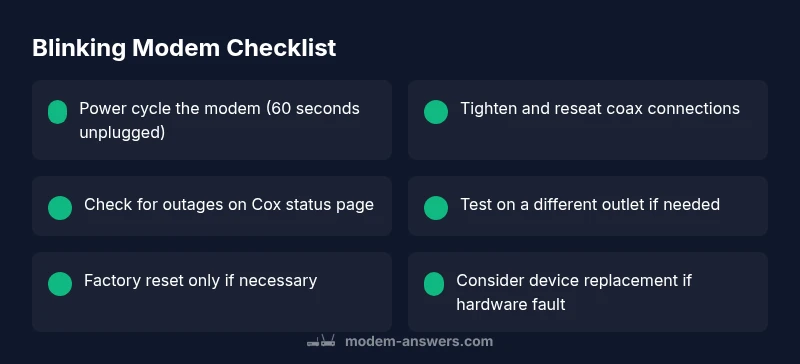
- Power cycle the modem: Unplug, wait 60 seconds, plug back in, and observe the startup sequence. 2) Check coax connections: Ensure the coax cable is snug at both the wall outlet and modem. 3) Try a different outlet: Avoid power strips and surge protectors that can cause voltage drops during startup. 4) Verify outage status: Check Cox’s outage map or status page for regional problems. 5) Firmware update wait: If a firmware update is in progress, avoid interrupting the device. 6) Reset with care: If other steps fail, perform a factory reset only if you’re prepared to reconfigure your network. 7) Consider a shorter cable run: Long runs can degrade signal integrity. 8) Test with a secondary device: A different modem can help determine if the issue is device-specific. For each step, give the modem a few minutes to settle before moving on.
Safety warnings and when to involve Cox support
Do not open the modem or attempt internal repairs—electric components can cause shock or equipment damage. Always unplug before handling cables. If you smell burning plastic, hear buzzing, or notice heat, disconnect immediately and contact Cox support. If the blinking light persists after completing all recommended steps, contact Cox within normal business hours or use the official outage tools to confirm the service status. When you call, have your account number, device model, and the exact light pattern ready to speed up diagnostics. If you rent equipment, ensure you’re using the current device sent by the provider and that it isn’t in a guest network or restricted mode.
Prevention tips to avoid future blinking lights
Use a dedicated surge-protected outlet for the modem, and keep the cable connections clean and tight. Place the modem within line of sight of the wall outlet to ensure a stable power supply and minimize the risk of accidental unplugging. Schedule periodic power cycles (every few weeks) to clear caches and refresh the device. Maintain up-to-date firmware by checking the Cox app or status page for updates and applying them promptly when advised. Keeping the coax cable free of kinks and away from large metal objects reduces interference. Finally, document any outage notices so you can compare symptoms with service status history and act quickly if it recurs.
What to expect after applying these fixes and when to escalate
If the light stabilizes after these steps, you should see a solid power light and a functioning internet connection within a few minutes. If the light is still blinking or the modem drops offline intermittently, test other devices on the same network to rule out device-specific issues. Should the problem persist, the Modem Answers team recommends contacting Cox support and providing a summary of the steps you already performed, plus your outage checks. In some cases, a replacement modem or a service visit may be necessary to restore full functionality. Staying proactive with status checks and documented steps helps you resolve problems faster and reduces downtime.
Steps
Estimated time: 25-40 minutes
- 1
Power cycle the modem
Unplug the modem from power, wait 60 seconds, then reconnect. Allow 2-3 minutes for the device to boot and re-establish the connection while watching the LED pattern.
Tip: Do not unplug during firmware update prompts. - 2
Check coax connections
Tighten all coax connectors at the wall and at the modem. Look for damaged or frayed cables and replace if necessary.
Tip: Hand-tighten; avoid over-tightening that could damage the connector. - 3
Test another outlet
Move the modem to a known-good outlet away from power strips or surge protectors, then monitor the blinking behavior.
Tip: A stable power source eliminates many reboot-related patterns. - 4
Verify outage status
Check Cox’s official outage tools or site for regional problems; confirm service status in your area.
Tip: Outages can mask as hardware issues. - 5
Factory reset if needed
If you must reset, follow the model-specific steps to avoid leaving the network broken. Reconfigure your Wi‑Fi and any port forwarding rules afterward.
Tip: Back up settings if possible before resetting. - 6
Consider replacement
If the light continues to blink after all steps, the modem may be faulty and require replacement under service terms.
Tip: Document symptoms and dates to speed up a hardware replacement if needed.
Diagnosis: Blinking white light Cox modem
Possible Causes
- highPower issue
- highCoax signal or connection problem
- mediumService outage in area
- lowFirmware update in progress
- lowHardware fault in modem
Fixes
- easyPower cycle the modem (unplug 60 seconds, plug back in)
- easyTighten and reseat coax connections at both ends
- easyCheck for a service outage via Cox status tools
- easyTest a different outlet and remove surge protection
- mediumIf required, perform a factory reset (reconfigure network)
- hardConsider modem replacement if hardware fault is suspected
FAQ
What does a blinking white light Cox modem mean?
A blinking white light typically signals startup, a firmware update, or a fault condition. It’s important to observe the blink rate and pattern to decide the next steps. If the blinking continues after basic checks, proceed with the diagnostic flow or contact Cox support.
A blinking white light usually means the modem is starting up or updating, or there’s a fault. If it keeps blinking after basic checks, you should continue troubleshooting or reach out to Cox.
Should I reset or reboot my modem first?
Always start with a simple reboot (power cycle). If that doesn’t help, perform a factory reset only if you’re prepared to reconfigure your network. Avoid resets if you’re unsure about your settings.
Start with a reboot. If needed, you can reset, but be ready to reconfigure your network.
What if there is a service outage in my area?
Check Cox’s outage status page or app. If an outage is active, waiting it out is often the fastest fix. Once service returns, the modem should stabilize without further action.
If there’s an outage, wait for it to clear. Your modem will usually recover automatically when service returns.
Is it safe to unplug the modem during a storm?
Yes. Unplugging during a storm reduces the risk of surge damage. Reconnect once the weather clears and verify the light behavior after reboot.
Yes, you can unplug during a storm to protect your equipment, then reconnect later.
When should I contact Cox support?
If the blinking light persists after all recommended steps, or if you suspect a hardware fault, contact Cox support. Have your account details and light pattern ready to speed up diagnosis.
If the light keeps blinking after following the steps, call Cox with your device details handy.
Watch Video
Key Takeaways
- Power cycle first to clear minor faults
- Check and tighten coax connections
- Verify service outages before blaming hardware
- Escalate to Cox if unresolved after steps