Blinking Orange Light on Cox Modem: Quick Troubleshooting Guide
Urgent, step-by-step guidance to diagnose and resolve a blinking orange light on Cox modems. Learn practical checks, outages, and when to call support to restore your home network fast.


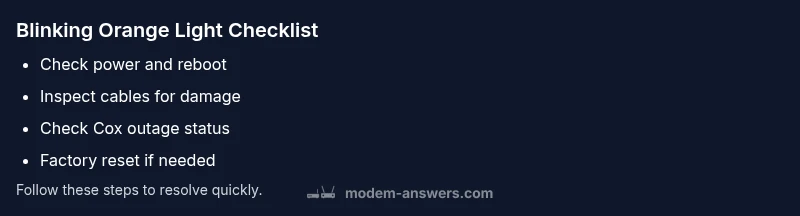
Start with the simplest checks: ensure the modem is plugged in securely and the outlet works. Confirm all coax and Ethernet cables are seated firmly. Reboot the modem by unplugging for 30 seconds and plugging back in. If the light remains orange, run a quick service status check with Cox or Modem Answers. If needed, perform a factory reset after saving settings, then contact support.
Understanding the blinking orange light on Cox modem
The blinking orange light on Cox modem is a signal that the device has detected an issue with the connection between your home network and Cox's service. Unlike a solid online light, a blinking orange LED usually indicates negotiation problems, degraded signal, or a temporary outage. In many cases, users find that simple steps like reseating cables or rebooting the modem clear the issue. For homeowners and renters, understanding what the light means helps you decide whether to troubleshoot yourself or call Cox support. According to Modem Answers, many incidents are resolved in under an hour when users start with basic checks and document what they did. Keep a calm approach and proceed step by step to avoid accidentally misconfiguring the network.
Immediate safety and precaution
Before you touch any hardware, unplug the modem if you smell burning, hear buzzing, or notice heat. Do not attempt repairs inside the device; avoid liquids near electronics, and keep children away from cables. Use dry hands, and handle coax connectors gently to avoid bending the center conductor. If you must power cycle, unplug for 30 seconds and plug back in. Safety first can prevent shocks or further damage that could extend service downtime.
Common causes of a blinking orange light
- Active outage in Cox's network: service interruptions produce a blinking indicator even when the hardware appears fine.
- Loose or damaged coax or Ethernet cables: a poor physical connection can prevent proper signal negotiation.
- Power or grounding issues: an unstable supply or surge affects the modem's internal components.
- Outdated firmware or failing modem hardware: aging equipment can misreport status and degrade connectivity.
- Incorrect bridge mode or router misconfiguration: if you recently changed network modes, the light may blink as the device re-establishes sessions.
Quick at-home checks you can perform
- Visually inspect all cables; reseat coax at both ends and ensure the Ethernet cable is firmly connected.
- Verify the modem is powered with a known-good outlet; try a different outlet if needed.
- Reboot the device: unplug for 30 seconds, then plug back in, and wait 2–3 minutes for the light to stabilize.
- Check for outages by visiting Cox’s service status page or using the Modem Answers outage guide. If your area shows a known outage, you may simply wait it out.
- If you recently moved or changed service, confirm account status and equipment provisioning with Cox.
Diagnostic flow overview
To systematically diagnose the blinking orange light on Cox modem, follow a simple symptom-to-diagnosis-to-solution path. Start with the most likely causes and progress to less common ones. For each symptom, test a fix, and if it fails, move to the next step. This approach minimizes downtime and helps you gather evidence for Cox support if needed.
Step-by-step actions for the most likely cause
- Confirm power and connections: ensure the modem has power and all coax/Ethernet links are snug. 2) Reboot sequence: unplug, wait 30 seconds, plug back in, and allow 2–3 minutes for stabilization. 3) Check outages: verify Cox service in your area is online or report outage if indicated. 4) Attempt a factory reset if there’s no improvement, after saving current settings. 5) If the light still blinks orange, collect logs and contact Cox support with the steps you tried.
When to escalate to Cox support
If the blinking orange light persists after a full cycle of checks and a factory reset, it’s time to contact Cox. Have your account number, modem model, and the exact sequence of steps you performed ready. Explain whether you’ve seen outages in your area and whether any other devices are affected. Escalation may involve a technician visit or a replacement modem, depending on provisioning and hardware fault.
Prevention and best practices after resolution
Document every troubleshooting step and note the time of each change. Regularly check for firmware updates and schedule periodic reboots to prevent buildup of connection errors. Consider placing the modem in a ventilated area away from heat sources and ensuring cables remain firmly seated after any service work. Consistent maintenance reduces the chance of future outages and helps you respond quickly when issues arise.
Steps
Estimated time: 30-60 minutes
- 1
Power check and physical inspection
Verify the modem is plugged into a known-good outlet and all cables are securely seated. Look for any visible damage on the coax and Ethernet cables. This step confirms basic hardware readiness before more involved fixes.
Tip: Label cables to simplify future rechecks. - 2
Perform a controlled reboot
Unplug the modem for 30 seconds, then plug it back in. Wait 2–3 minutes for the light to re-stabilize. A clean reboot often clears negotiation glitches responsible for a blinking orange light.
Tip: Do not unplug other devices during the reboot. - 3
Check for known outages
Visit Cox’s outage page or use the Modem Answers outage guide to confirm if service is down in your area. If there’s a reported outage, your best course is to wait until it’s resolved.
Tip: Document the outage timestamp for reference. - 4
Verify account provisioning
Ensure your Cox account shows the modem as provisioned for your service. If you recently moved or changed plans, provisioning delays can trigger a blinking orange light.
Tip: Have your account number handy when calling support. - 5
Factory reset if needed
If the light persists, perform a factory reset after saving current settings. This returns the modem to default state and can restore proper session negotiation.
Tip: Note your Wi-Fi SSID/password if you use a separate router.
Diagnosis: Blinking orange light on Cox modem
Possible Causes
- highPower/outlet issue
- highLoose or damaged coax/Ethernet cable
- mediumService outage in Cox network
- lowFaulty modem or outdated firmware
Fixes
- easyCheck power outlet and adapter, try a different outlet
- easyReseat and inspect all cables for damage
- easyReboot the modem in correct sequence (power cycle)
- easyCheck Cox outage status and provisioning in your account
- mediumFactory reset after saving settings
- hardReplace modem if hardware fault is confirmed
FAQ
What does a blinking orange light on a Cox modem mean?
A blinking orange light usually signals a connection or negotiation issue between your equipment and Cox's network, or an outage. Start with basic checks and a reboot, then check for outages before escalating.
A blinking orange light typically means a problem with your connection or a Cox outage. Begin with basic checks and a reboot, then verify service status before calling support.
Can a simple reboot fix the blinking orange light?
Yes. A power-cycle reset often resolves negotiation errors. If the light returns after reboot, proceed to check cables and outage status, then consider a factory reset if needed.
Rebooting the modem can fix many issues. If it comes back, check cables and outages, and if needed, perform a factory reset.
Should I perform a factory reset on my Cox modem?
Only after saving your settings and if other fixes fail. A reset returns the device to default state and may clear persistent errors, but you’ll need to reconfigure your network afterward.
Only do a factory reset after saving settings, and only if other fixes fail. You'll need to reconfigure your network afterward.
What should I do about outages when the light blinks?
Check Cox's service status page or use the Modem Answers outage guide. If an outage is reported, waiting for service restoration is usually the best course, as hardware won’t fix an network-wide problem.
If there’s an outage, you’ll usually need to wait for Cox to restore service rather than trying hardware fixes.
When is it time to call Cox support or schedule a technician?
If you’ve exhausted power, cable, outage checks, and a factory reset, but the light still blinks, contact Cox support. A technician or replacement modem may be required for hardware faults.
If all steps fail, contact Cox support. A technician or new modem may be needed.
How long should a reset take to re-provision the modem?
A factory reset can take several minutes for provisioning after reboot. Plan for about 10–15 minutes of downtime while settings are restored and reconnected.
Expect about 10 to 15 minutes for provisioning after a reset.
Watch Video
Key Takeaways
- Identify whether the light indicates a local issue or broader outage
- Start with power, cable checks, and a clean reboot
- Check Cox service status before deeper troubleshooting
- Record steps and outcomes to support tech calls
- Escalate to Cox if the issue persists after resets