The Ultimate Modem and Router Setup Guide for 2026
A practical, step-by-step guide to choosing, connecting, and securing a modem and router for reliable home internet in 2026.


By the end of this guide, you will set up a dedicated modem and router for a stable home network, optimize Wi-Fi coverage, and secure your devices. You will also understand how to choose compatible gear, connect it correctly, and maintain firmware. This step-by-step approach keeps things simple for homeowners and renters alike.
Understanding the roles of a modem and router
According to Modem Answers, a modem and router perform distinct but complementary roles in a home network. The modem communicates with your internet service provider, converting the external signal into a digital feed your home can use. The router takes that feed and creates a local network, assigning IP addresses, routing traffic, and broadcasting Wi‑Fi. Together, they form the backbone of online life, from streaming to smart home control. In many households, people rely on a single box labeled 'modem/router' that combines both tasks; while convenient, this can limit flexibility and complicate troubleshooting. A deliberate setup that separates the two devices often yields clearer performance tuning, simpler diagnostics, and easier upgrades.
Foundation matters: when you pair a modern modem with a capable router, you can tailor coverage to your home’s layout. A well-chosen modem connects reliably to the ISP’s network and handles necessary upstream throughput, while a quality router manages local traffic, mitigates interference, and supports the latest Wi‑Fi standards. The result is stronger signal in far corners, fewer dead zones, and more consistent experiences during video calls or online gaming. As your home tech evolves, this separation also makes it easier to swap one device without replacing the whole ecosystem. The Modem Answers team emphasizes planning for future needs rather than chasing the newest hype.
How a modem and router differ and work together
A modem and router are not the same thing, but they are designed to work in harmony. The modem is the gateway to your internet provider’s network; it translates the provider’s signal into a data stream that your home devices can understand. The router then takes that data stream and creates a local network, assigns local IP addresses, and routes traffic between devices, the internet, and smart gadgets. Early home networks often used a single device that handled both roles, but modern setups frequently separate the tasks to improve reliability and scalability. A key concept to understand is NAT (network address translation) and DHCP (dynamic host configuration protocol): the router typically handles these, keeping your local devices organized behind a single public address. Sometimes users encounter a double NAT scenario when an ISP-provided gateway combines both functions; the fix is usually simple but requires careful configuration. With properly configured devices, you gain predictable performance, easier guest-network management, and clearer security controls.
Choosing the right modem and router for your home
Choosing the right modem and router starts with knowing your ISP’s compatibility and your household needs. For the modem, check which DOCSIS standard your provider supports (for example, DOCSIS 3.0 vs 3.1) and whether the service requires a compatible modem; for fiber connections, an active ONT with a router may be needed. For the router, prioritize dual-band or tri-band Wi‑Fi, strong coverage in your home’s largest rooms, and security features like WPA3. Modem Answers research suggests focusing on a model that supports current Wi‑Fi standards, robust QoS options, and easy firmware updates. If you’re in a multi‑story home or have many smart devices, consider a router with multiple antennas or a mesh-capable system to reduce dead zones. Always verify explicit ISP approval for a third‑party modem, and plan for future speed upgrades by choosing devices with headroom rather than just the minimum spec.
Planning placement for optimal performance
Placement is often the difference between decent and stellar Wi‑Fi. Place the router in a central, elevated location away from walls, metal obstacles, and large appliances that can cause interference. Aim for a height around chest to shoulder level and avoid hiding the router inside cabinets or behind televisions. Keep the modem and router near primary power outlets and away from direct sunlight or heat sources. If your home has thick walls or many devices, a simple mesh extender or a second access point can dramatically improve coverage without creating dead zones. Remember that the modem should have a stable line connection; the router’s position primarily determines how well that signal travels through your living space.
Setup: connecting devices and initial configuration
With your equipment on hand, start by connecting the modem to the incoming line (cable, fiber, or DSL as appropriate). Power up the modem and allow it to reach an online state. Next, connect the router to the modem via a wired Ethernet link and power it on. Access the router’s admin panel from a computer or smartphone on the same network and follow the quick setup wizard. During setup, configure your primary Wi‑Fi network (SSID and strong password) and enable essential security features. If your ISP provided a gateway, you may need to enable bridge mode on that device or disable its Wi‑Fi to avoid conflicts. Finally, give your network a memorable, non-guessable name and document the credentials in a safe place. ”,
Security, firmware, and network hygiene
Security starts with fundamentals: change all default usernames and passwords, disable default guest access if not needed, and enable WPA3 encryption where available. Regularly check for firmware updates on both devices and enable automatic updates if possible. Use a unique SSID for your network to avoid default exposure, and consider a separate guest network for visitors. Disable features you don’t use, such as WPS, and set a reasonable guest access limit. Keeping a clean layout in your admin interfaces helps prevent accidental exposure of sensitive settings. Periodically review connected devices; revoke access for unfamiliar items and rotate passwords every year or after a household change.
Troubleshooting common issues without calling tech support
When connectivity falters, start with the basics: check all cables are firmly connected, and perform a power cycle by unplugging both devices for about a minute before reappearing. If Wi‑Fi seems weak in certain rooms, reposition the router, reduce interference from microwaves, cordless phones, and metal furniture, and adjust channel settings if your router supports it. If devices report no internet despite a strong link, verify that the modem has a stable upstream connection and that the router’s WAN interface is online. Double NAT is a common pitfall; if you detect a double NAT situation, enable bridge mode on the existing gateway or place the router in an access point mode. For persistent issues, consult your ISP’s status page or Modem Answers guidance and keep logs of any changes you make to help accelerate a resolution.
Maintenance schedule and future-proofing your home network
Treat your home network as a living system. Set a reminder to check for firmware updates quarterly and review security settings at least twice a year. Consider refreshing hardware every few years to keep pace with new Wi‑Fi standards, increased device counts, and evolving security requirements. Maintain a simple backup of your current router settings to speed up recovery after a reset. Finally, adopt a scalable mindset: if your home expands with new devices, plan for easy expansion by keeping a spare ethernet port in accessible locations and a plan to upgrade to higher performance hardware when needed.
Real-world examples and quick-start checklists
In a typical two‑story home with several smart devices and family members streaming at peak times, a well-placed router handles most duties while a reliable modem keeps the connection clean. A practical quick-start checklist includes: verify ISP compatibility, connect modem to the line, boot both devices, configure primary Wi‑Fi, enable WPA3, set a guest network, test coverage in all key rooms, and document settings. Your setup should also include a routine for firmware upgrades and a plan for occasional re‑positioning to adapt to furniture changes or new devices. This approach minimizes interruptions and supports a better overall user experience.
Advanced features you may not know about
Modern modems and routers offer advanced options that many households overlook. Explore QoS (quality of service) to prioritize work devices or video calls, and consider parental controls if children’s screen time is a concern. Use port forwarding or UPnP with caution to support gaming or servers, and remember that a bridging mode can turn a modem/router combo into a pure modem for deep customization. If your internet plan evolves to higher speeds, check that your gear supports the upgraded throughput and re‑run a speed test to confirm you’re getting the expected performance.
A practical 60-minute quick-start plan
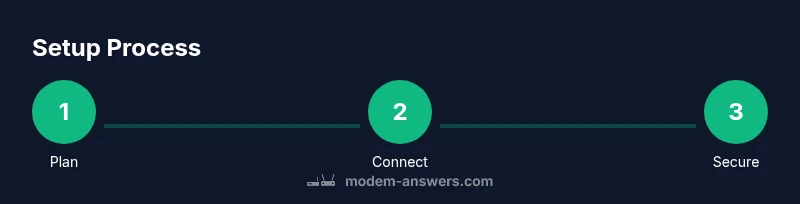
If you’re aiming for a fast, reliable setup in under an hour, follow this practical blueprint: 1) Gather gear and verify ISP compatibility; 2) Connect the modem to the incoming line and bring it online; 3) Attach the router via Ethernet and boot both devices; 4) Run through the router’s setup wizard and enable WPA3; 5) Place the router centrally and test in all rooms; 6) Set up a guest network and enable automatic firmware updates. The Modem Answers team recommends keeping a simple, repeatable setup process so you can reproduce it if you replace hardware in the future.
Tools & Materials
- High-speed modem(DOCSIS 3.1 recommended for cable; confirm compatibility with your ISP)
- Dual-band router(Wi-Fi 2.4 GHz and 5 GHz; supports WPA3; consider mesh if home is large)
- Ethernet cable (Cat 5e or better)(For wired backhaul and initial setup)
- Coaxial/DSL line and power adapters(Depends on your connection type)
- Smartphone or computer(For configuration and admin access)
- Surge protector (optional)(Protects equipment from power surges)
- Pen and paper or notes app(Record credentials and network details)
Steps
Estimated time: 60-90 minutes
- 1
Unbox and inspect equipment
Unbox the modem and router, verify all components are present, and check for visible damage. This prevents delays later and ensures you have everything needed for a clean installation.
Tip: Keep accessories organized and review the quick-start guides in the boxes. - 2
Check compatibility and gather materials
Confirm your ISP supports third‑party devices and collect the required cables. Verify you have an Ethernet cable ready for the initial wired connection and a device for configuration.
Tip: Phone a friend or consult your ISP’s compatibility list if unsure. - 3
Connect the modem to the incoming line
Attach the coaxial/DSL line to the modem and ensure a snug connection. Power the modem and wait for it to become online, indicated by a stable status light.
Tip: Avoid powering up adapters in a crowded power strip to reduce interference. - 4
Connect the router to the modem
Use an Ethernet cable to connect the router’s WAN/Internet port to the modem. Power on the router and wait for the admin interface to become reachable.
Tip: A direct wired link reduces setup complexity and avoids initial Wi‑Fi misconfigurations. - 5
Access the router’s admin page and run setup
Open the router’s admin URL on a connected device and follow the setup wizard. Create the primary Wi‑Fi network name and a strong password, then save settings.
Tip: Use a password manager to store your credentials securely. - 6
Secure your network with strong settings
Enable WPA3 where available, disable WPS if possible, and set a separate guest network for visitors. Update firmware if prompted during setup.
Tip: Avoid using common names; choose a unique SSID that doesn’t reveal personal info. - 7
Update firmware on both devices
Check for and install the latest firmware on the modem and router. This patches security flaws and improves performance.
Tip: Set automatic updates if the option is available to minimize manual checks. - 8
Test coverage and optimize placement
Walk the home to identify weak zones. Move the router or add a mesh node to improve coverage in dead spots.
Tip: Thermal and physical obstructions can affect signal; reposition if needed. - 9
Configure network features you’ll use
Set up a guest network, parental controls if needed, and any port forwarding or QoS rules relevant to your devices.
Tip: Document any rules you implement for easy future changes. - 10
Create a quick recovery plan
Document settings, save a backup configuration, and note how to perform a factory reset. This helps you recover quickly after unexpected issues.
Tip: Keep a current backup accessible but secure. - 11
Review and share your setup
Summarize the configuration for household members and agree on maintenance steps. This ensures everyone understands how to connect and who to contact if problems arise.
Tip: Regularly revisit the plan as devices are added or moved.
FAQ
Do I need a separate router if my modem has built‑in Wi‑Fi?
Not always. A separate router can offer better performance, advanced features, and easier upgrades, but a modern modem with good Wi‑Fi may suffice for small homes. Evaluate your coverage area and device count when deciding.
A separate router can improve performance if you have many devices or need advanced features; in small spaces, a good built‑in Wi‑Fi modem might be enough.
What is bridge mode and when should I use it?
Bridge mode turns off the router functions in your gateway so a separate router handles all routing. Use it if you want full control over your network or need to avoid double NAT.
Bridge mode lets your second router take charge of routing, useful for advanced setups or avoiding double NAT.
How often should I update firmware on my devices?
Check for updates monthly or enable automatic updates if available. Regular updates fix security flaws and improve stability.
Update firmware whenever possible, and enable automatic updates to stay protected.
Why is my Wi‑Fi slow in certain rooms?
Signal strength drops with distance, walls, and interference. Try central placement, reduce interference from electronics, and consider mesh extenders or a second access point for dead zones.
Weak signals in far rooms are common; move the router or add a mesh node to fix it.
Should I enable a guest network?
Yes. A guest network isolates devices from your main network, improving security while providing easy access for visitors.
A guest network keeps your main devices safer by isolating visitors’ devices.
What basic security steps should I take after setup?
Change default passwords, enable WPA3, and keep devices updated. Disable unnecessary features like WPS to reduce exposure.
Change the defaults and keep things updated for a safer setup.
Watch Video
Key Takeaways
- Set apart modem and router for easier upgrades
- Place the router centrally for best coverage
- Enable WPA3 and update firmware regularly
- Document network credentials and settings
- Test and adjust to eliminate dead zones