How to Turn Off Modem from Phone: A Practical Guide
Learn how to turn off your modem from your phone using official apps or smart plugs. This guide covers prerequisites, step-by-step actions, safety tips, and common pitfalls for homeowners and renters.


Turn off your modem from your phone by using your service provider’s app, the modem manufacturer app, or a compatible smart plug. This quick method relies on remote management features, so ensure you have access to your account and a supported device. The steps below walk you through setup, actions, and safety considerations.
Why turning off the modem from your phone can be convenient
According to Modem Answers, turning off your modem from your phone can be convenient in several everyday scenarios: you’re troubleshooting connectivity, you want to reset your home network remotely, or you’re leaving home and want to conserve energy. Remote management makes it possible to power down without walking to the device, which is especially helpful for larger homes or when the modem sits in a hard-to-reach place. Keep in mind that turning off the modem also suspends Wi‑Fi for all devices connected to that gateway, which can affect work, schooling, and streaming. If you later need to turn power back on, most apps provide a simple toggle to power the device back up. This approach is safe when used as directed by the manufacturer, but avoid frequent power cycling as a troubleshooting substitute, as it can create startup delays for connected devices. The Modem Answers team notes that if you frequently power cycle, you may want to schedule outages or use a controlled reboot instead to minimize disruption.
Prerequisites and safety considerations
Before attempting to turn off the modem from your phone, gather a few prerequisites. You’ll need active access to your account (ISP or modem manufacturer) and a smartphone with internet access to run the official app. Ensure remote management is enabled in the app’s settings, and that you’re signed into the correct account for the device you want to control. Safety-wise, avoid turning off the modem during important calls or tasks that rely on internet connectivity, and never unplug the device while data is being transmitted if you’re unsure. If you share your network with others, inform household members to avoid confusion. Modem Answers recommends performing a quick reboot only when you suspect a temporary fault, not as a substitute for addressing persistent connection problems.
Methods to turn off the modem from your phone
There are several reliable paths to power down a modem from a mobile device. The most dependable are using the official app provided by your internet service provider (ISP) or the modem manufacturer. If your gateway supports remote management, you can toggle power or disable the internet connection directly from the cloud-enabled app. As an alternative, a smart plug can cut power to the gateway when you want a physical shutdown, useful if cloud-based controls are slow or unavailable. Note that turning off your modem will also pause Wi‑Fi for all devices, and you should re-enable it when needed. For many users, this approach reduces downtime when diagnosing connectivity issues and makes it easier to coordinate outages with family.
Step-by-step overview for using the ISP or manufacturer app
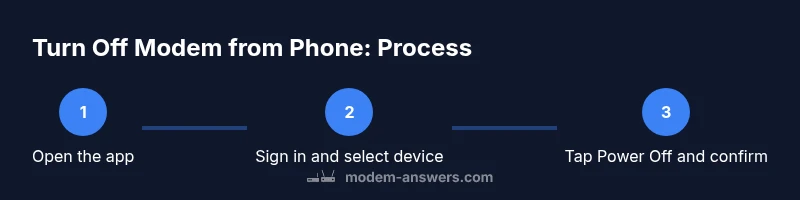
Using an app to power off your modem follows a consistent flow: sign in to your account, locate the gateway, select the power-off option, confirm, and verify. Brands label these controls differently, including 'Power off', 'Disable Internet', or 'Turn Off'. The device may reboot after power is cut, and the Wi‑Fi status will disappear temporarily. Always log out when finished for security, and avoid sharing credentials. Modem Answers emphasizes using the official app for reliability rather than ad-hoc, unverified tools.
Troubleshooting common issues
If the remote off doesn’t work, start with basic checks: verify your account status, ensure you’re controlling the correct device, and confirm remote management is enabled. A paused outage or cloud-service outage can also prevent remote power-down. If the app remains unresponsive, try signing out and back in, or reinstall the app. As a fallback, a smart plug provides a physical power cut, but remember this should be a last resort if the app is unavailable. Modem Answers reminds readers to avoid frequent power cycling as a substitute for addressing root connectivity problems.
Authority sources
- FCC: https://www.fcc.gov
- CISA: https://www.cisa.gov
- FTC: https://www.ftc.gov
Tools & Materials
- Smartphone or tablet with internet access(iOS or Android with latest app version)
- Active ISP or modem manufacturer account(Credentials ready for login)
- Official app from ISP or modem manufacturer(Download from App Store or Google Play)
- Optional: Smart plug or smart power strip(To power-cycle the modem manually if app control is unavailable)
- Stable internet connection(Ensure your device remains online during the process)
Steps
Estimated time: 15-25 minutes
- 1
Open the app and sign in
Open the ISP or modem manufacturer's app on your phone and sign in with your account credentials. If you’re already logged in, skip to the next step. Ensure you’re using the correct app for the device you want to control.
Tip: Use biometric login for quicker access and keep credentials secure. - 2
Select the correct gateway
From the device list, choose the gateway or modem you want to turn off. If you have multiple devices, verify the device name and location to avoid powering down the wrong device.
Tip: Double-check the device model or location to prevent accidental outages. - 3
Tap Power Off or Disable Internet
Look for a power toggle or 'Power off' button, or an option labeled 'Disable Internet'. If labels differ, choose the option that stops the gateway’s network. Some apps require you to confirm the action.
Tip: If there’s no obvious Power Off option, choose a related setting that blocks traffic first. - 4
Confirm the action
Confirm the shutdown in the dialog that appears. The app may show a countdown or status change. Wait for the action to complete before proceeding.
Tip: If you don’t see a change within a minute, refresh the app or retry login. - 5
Wait and verify the shutdown
Allow 60-120 seconds for the modem to power down completely and for network lights to extinguish. Use the app to check the device status as offline.
Tip: Do not unplug the device during shutdown if the app confirms power off. - 6
Optionally plan reactivation
If you want a scheduled or planned outage, use the app’s scheduling feature (if available) or set a reminder to power the device back on.
Tip: Scheduling helps coordinate outages with other household members. - 7
Alternative: use a smart plug
If remote app controls fail, cut power to the gateway using a compatible smart plug. This provides a physical shutdown independent of the app.
Tip: Label the plug clearly so you know which outlet to re-enable. - 8
Power back on when ready
When you’re ready to restore service, use the app to power the modem back on and verify connectivity on a connected device.
Tip: Give 2-3 minutes for the gateway to boot fully and reconnect devices.
FAQ
Can I turn off my modem from my phone without internet access?
Remote control features typically require internet access. If the phone or app can’t reach the device, you won’t be able to power it off remotely. In that case, use the physical power button or unplug the modem if you must.
Remote controls usually need internet access; if you’re offline, you’ll need the physical button or unplug the modem.
Will turning off the modem from my phone stop Wi‑Fi for all devices immediately?
Yes. Powering down the modem stops all services it provides, including Wi‑Fi. All connected devices lose internet until the modem is powered back on and reconnected.
Turning off the modem stops Wi‑Fi for all devices until you turn it back on.
What should I do if the app won’t connect to my modem?
Check that remote management is enabled, verify you’re using the correct account, and try restarting the app or the phone. If needed, log out and back in or reinstall the app.
If the app won’t connect, verify settings and try a fresh login or reinstall the app.
Is powering off via the app the same as a factory reset?
No. Powering off stops service temporarily without changing settings. A factory reset restores defaults and erases saved configurations—use it only when you need to reconfigure from scratch.
Powering off is not a reset; a factory reset clears all settings.
Can I schedule automatic shutdowns from the app?
Many apps offer scheduling or automation features. If your app doesn’t, you can use a smart plug with a timer to create a manual outage window.
Yes, if your app supports scheduling, or you can automate with a smart plug.
Is it safe to power cycle a modem?
Power cycling is generally safe when done as intended. Allow a short wait after powering back on to ensure the device boots properly and reconnects.
Power cycling is usually safe; give the device a moment to boot after turning it back on.
Watch Video
Key Takeaways
- Use official apps first for reliability
- Turning off power stops Wi-Fi for all devices until re-enabled
- Smart plugs offer a backup power-off option
- Verify power state after action and re-enable when needed