Cable, WiFi, Router: The Complete Modem Setup Guide
Learn how to set up your cable modem and WiFi router for reliable home networking. This step-by-step guide covers placement, wiring, basic configuration, and common troubleshooting tips from Modem Answers.


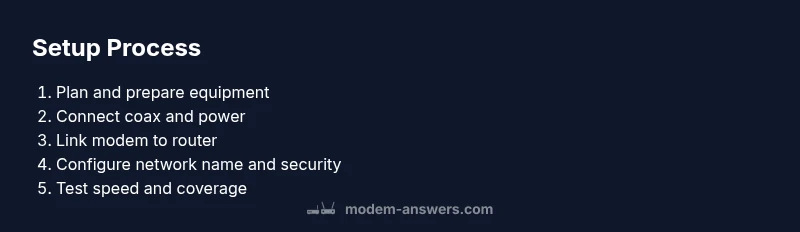
Goal: successfully set up your cable modem, WiFi router, and gateway for reliable home internet. You’ll plan placement, connect coax and power, link devices, configure the network name and password, enable security, and run a speed test. Essential gear includes coax, Ethernet cable, a computer or phone for setup, and access to your ISP account.
Understanding Cable Modem, Router, and Gateway Roles
According to Modem Answers, understanding the distinct roles of a cable modem, router, and gateway helps you optimize performance, security, and future upgrades for your home network. A cable modem translates your ISP's signal into a workable internet connection, while the router creates your local network and distributes WiFi. A gateway combines both functions in a single device, which can simplify setup but may limit flexibility. Recognizing these roles helps homeowners decide whether to buy separately or opt for a modem-router combo. If you already own a high-quality router, you can add a standalone modem to enhance flexibility. Throughout this article we’ll focus on practical, homeowner-friendly steps to achieve reliable performance with clear, repeatable settings.
Planning Your Installation: Location, Cabling, and Interference
Your setup location drastically affects performance. Place the modem and router in a central, elevated spot away from walls that could block signals. Avoid proximity to microwaves, cordless phones, and metal cabinets, which cause interference. Keep coaxial cable runs short and use quality RG6 coax when possible. Plan cable routes so you won’t be forced to unplug devices frequently, and label cables to prevent confusion during future maintenance. A tidy, dimly lit workspace makes the configuration process smoother and reduces the risk of accidental disconnections.
Hardware Options: Modem, Modem-Router Combo, and Standalone Router
There are three common paths for home networks: (1) a standalone modem with a separate router, (2) a modem-router combo that provides WiFi from a single device, and (3) a modern gateway from some ISPs that combines both functions. Standalone solutions typically offer maximum flexibility and may provide better performance due to choice of routers. Combo devices simplify the setup but can complicate upgrades if you need to replace one component without the other. When choosing, consider your home size, internet plan, and whether you prefer easier maintenance or more granular control over WiFi settings.
Basic Wiring: Coax, Power, and Ethernet Essentials
Start by turning off power to avoid shocks and disconnecting devices from power. Connect the coaxial cable from the wall outlet to the modem, ensuring a snug fit with minimal kinking. If you’re using a separate router, run an Ethernet cable from the modem’s LAN port to the router’s WAN/Internet port. Connect the modem and router to power, then wait for the status lights to stabilize. Keep the coax, power, and ethernet cables organized with labels so you can trace connections later.
Configuring Modem Settings: Bridge vs Router Mode, DHCP, and NAT
Most modern setups benefit from using the router as the primary firewall and network manager, with the modem in bridge mode if supported by your ISP. Bridge mode disables the modem’s built-in routing to prevent double NAT, but it also requires you to configure the router for WAN. If bridge mode isn’t available, you’ll rely on the modem’s DHCP and NAT features with the router operating in AP or router mode. Access the modem’s admin page via a connected device, follow ISP guidance, and save changes before rebooting.
Setting Up Your Wireless Network: SSID, Passwords, and Security
Choose a unique SSID (network name) and a strong password that’s different from your WiFi guest network if you have one. Use WPA2-AES or WPA3 if available, and disable WPS to reduce risk of unauthorized access. For households with guests or visitors, enable a separate guest network with its own password and restrictions. Document your settings in a safe note for future reference but avoid sharing sensitive details publicly.
Improving Coverage: Placement, Channels, and Repeaters
WiFi coverage depends heavily on placement and channel selection. Place the router high and away from large metal objects, ideally in the center of your home. Use the 2.4 GHz band for longer reach and the 5 GHz band for higher throughput close to the router. If you have dead zones, consider a mesh system or a single-range extender that matches your router’s standards. Regularly check for interference from neighboring networks and adjust channels if needed.
Security and Privacy Best Practices
Keep firmware up to date and enable automatic updates when possible. Use a unique admin password for the router’s web interface and change it periodically. Disable UPnP if you don’t need it and consider limiting remote management. Regularly review connected devices and remove unknown access points. A layered approach, including firmware updates and strong passwords, reduces the risk of network compromise.
Troubleshooting Common Scenarios
When connections drop, first verify the physical connections, lights, and power status. A simple reboot often resolves many issues, but if the problem persists, run a speed test to determine if the issue is with your internal network or your ISP. Check for firmware updates and confirm your device’s DNS settings. For WiFi issues, relocate the router or switch to a less congested channel. If you’re still stuck, consult your ISP’s outage page and Modem Answers for guidance.
Maintenance and Upgrades: Firmware, Restarts, and Monitoring
Set a routine to check for firmware updates monthly or quarterly and schedule automatic reboots if your devices support it. Maintain tidy cable management to prevent accidental unplugging. Monitor network performance with occasional speed tests and bandwidth checks to catch degradation early. When you need more range, plan an upgrade to a higher-capacity router or a mesh system to maintain reliability as your devices multiply.
Final Quick-Reference Checklist
- Confirm coax and power are stable; lights should indicate connectivity.
- Set a unique SSID and a strong password; enable WPA3 if possible.
- Document your network details for future reference.
- Run a quick speed test from multiple rooms to verify coverage.
- Schedule firmware updates and periodic reboots for safety and performance.
Tools & Materials
- Coaxial cable (RG6)(In good condition, minimal kinks; avoid damaged connectors)
- Ethernet cable (Cat5e/6)(Cat5e or higher; 5-10 ft recommended for a clean setup)
- Cable modem (or gateway)(Ensure compatibility with your ISP)
- WiFi router (standalone or combo)(Support dual-band (2.4/5 GHz) and current standards)
- Power strip with surge protection(Protect equipment; avoid daisy-chaining via unprotected outlets)
- Computer or mobile device for setup(Browser or app access to admin pages)
- Labeling supplies (masking tape, marker)(For future maintenance)
- ISP account info (username/password)(Helpful for auto-install and activation)
Steps
Estimated time: 45-60 minutes
- 1
Prepare your workspace and gather gear
Clear a clean area near a power outlet and your main coax wall outlet. Gather the modem, router, Ethernet cable, coax, and a computer or mobile device. Check that you have ISP activation details handy if needed.
Tip: Label cables before you connect to avoid confusion later. - 2
Connect the coax from the wall to the modem
Gently screw the coax cable onto the modem’s coax input until snug. Do not overtighten to avoid damaging connectors. Verify there is a signal from the wall to the modem by watching the status lights.
Tip: If you have a splitter, ensure the signal levels are within acceptable range. - 3
Power up and let the modem initialize
Plug the modem into a surge-protected outlet and wait for the lights to stabilize. This can take a couple of minutes as the device syncs with your ISP.
Tip: Do not press factory reset during this phase. - 4
Connect the router to the modem with Ethernet
If using a separate router, connect the router’s WAN/Internet port to the modem’s LAN port with a standard Ethernet cable. Ensure the router is powered on before making the connection.
Tip: Use a short Ethernet cable to reduce clutter. - 5
Access the admin pages and set up the network
From a connected device, open your router’s admin page and the modem’s status page if needed. Create a unique SSID, set a strong password, and select WPA2 or WPA3 security.
Tip: Write down the credentials and store them securely. - 6
Enable security and optimize wireless settings
Choose the recommended encryption (WPA2/WPA3), enable automatic updates if available, and consider turning off WPS. Configure separate guest network if needed.
Tip: Disable remote management unless you require it. - 7
Test your connection and coverage
Run speed tests from multiple rooms to gauge coverage. Check both 2.4 GHz and 5 GHz bands and adjust channels to minimize interference.
Tip: If speeds are low, try rebooting both devices first. - 8
Document settings and plan future upgrades
Record SSID, password, admin credentials, and firmware versions. Consider future improvements like mesh extenders for larger homes.
Tip: Keep a note in a secure location for quick reference.
FAQ
What is a cable modem router combo?
A combination device includes both a cable modem and router in one unit. It’s convenient but limits upgrade options. For best performance, many homeowners pair a separate modem with a high-quality router.
A combo device has both modem and router in one box. It’s convenient, but you may prefer separate components for flexibility and performance.
Do I need to bridge my modem to use my own router?
Bridge mode disables the modem’s routing functions, letting your own router handle network duties. It prevents double NAT, which can improve gaming and VPN performance. If your ISP supports it, using bridge mode is often beneficial.
Bridge mode lets your router manage the network. If supported, it helps avoid double NAT issues.
How can I improve WiFi coverage in a large home?
Start with optimal router placement and appropriate channel settings. For larger homes, consider a mesh system or a single higher-quality router with a strong antenna array. Extenders can help but may reduce throughput.
Best is a good placement or a mesh system; extenders work but can slow speeds.
Should I enable a guest network?
Yes. A guest network isolates visitors from your main devices and data. Use a separate password and restrict access to local resources.
Yes—use a separate guest network with its own password.
What security settings should I enable?
Enable WPA2 or WPA3, keep firmware up to date, disable WPS, and review connected devices regularly. Use a strong admin password for the router’s interface.
Turn on WPA2/WPA3, update firmware, and monitor connected devices.
How often should I update firmware?
Check for updates monthly and install when available. Automatic updates are preferable if the device supports it.
Check for updates monthly and enable auto-updates when possible.
Key Takeaways
- Plan placement for strong coverage.
- Separate modem and router if you need flexibility.
- Secure your network with strong passwords.
- Test speed and adjust channels for best performance.
- Document settings for future maintenance.