Cable Modem to Router: Step-by-Step Setup (2026)
A practical, 2026-ready guide to connect a cable modem to a router, configure NAT or bridge mode, and optimize your home network with clear steps and pro tips.


You’ll learn how to connect a cable modem to a router, select NAT or bridge mode, and optimize your home network. Required gear includes a coaxial cable, a router with a WAN port, and a stable admin console. According to Modem Answers, plan for solid placement and timely firmware updates to maximize reliability.
Why a clean cable modem to router setup matters
A well-planned cable modem to router configuration is the foundation of a fast, stable home network. By separating the devices, you gain control over IP addressing, Wi‑Fi performance, and security. The Modem Answers team emphasizes a methodical approach: confirm compatibility, update firmware, and place gear optimally to minimize interference. Clear cabling and labeled ports save time during future tweaks. A robust setup also makes it easier to troubleshoot a slower connection or a flaky Wi‑Fi signal, because you can pinpoint issues at the router or modem level rather than guessing across devices.
Understanding the roles: modem vs router
A cable modem connects your home to the ISP’s network, translating the external signal into a digital stream. A router distributes that signal to all devices, creates a local network, and manages traffic through NAT, DHCP, and Wi‑Fi. In most homes, using separate devices gives better performance and flexibility than a combo device. When you separate functions, you can upgrade one component without replacing the other, which saves money and reduces downtime during maintenance.
Before you start: prerequisites and planning
Before you plug anything in, gather the essentials: a coaxial cable, a router with a WAN port, a quality Ethernet cable, and access credentials for both devices. Check that your modem is provisioned by your ISP and is compatible with your chosen router. If you’re renting the modem from your provider, verify whether you’re allowed to use a third‑party router. Planning the layout—near the main service outlet but away from obstructions—helps optimize signal distribution and reduces interference from appliances.
Bridging vs NAT: choosing the right mode for your network
NAT mode (the default) creates a private network behind the router, with the router handling IP addresses and firewall rules. Bridge mode disables the router’s NAT, allowing the modem to function as a bridge and letting the separate router handle all routing tasks. Bridge mode can simplify certain setups, improve performance for complex networks, and simplify port forwarding, but may reduce built‑in firewall protections. Consider your needs, such as gaming, smart home devices, and parental controls, when deciding which mode to use.
Step-by-step hardware installation
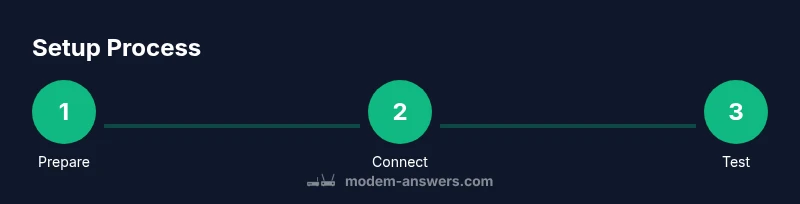
- Prepare your workspace and power sources. 2) Connect the coaxial line from the wall outlet to the modem and power it on. 3) Connect the modem to the router’s WAN port with an Ethernet cable. 4) Power on the router and wait for the status lights to indicate a healthy connection. 5) Access the router’s admin interface from a computer on the network to begin configuration. 6) If you plan to bridge, follow the ISP or router’s bridge setup steps. 7) If using NAT, enable DHCP, set a strong Wi‑Fi password, and name your network. 8) Run a speed test and verify devices obtain IP addresses.
Accessing the router and modem admin pages
To configure settings, use a web browser or mobile app. Enter the router’s default gateway (commonly 192.168.0.1 or 192.168.1.1) and login with the default credentials found in the manual. Change the admin password immediately and enable WPA3 or at least WPA2‑AES on the Wi‑Fi network. Save changes, then reboot the router if prompted. For the modem, you may need to access its page or rely on the router to handle the connection depending on whether you’re in NAT or bridge mode.
Configuring WAN/LAN, DHCP, and Wi‑Fi
In NAT mode, configure WAN to obtain an IP via DHCP unless your ISP provides a fixed IP. Ensure the LAN subnet is distinct from the modem’s internal network to avoid clashes. Enable DHCP on the router to assign IPs to devices automatically, and set a strong SSID and password for your Wi‑Fi. For higher performance, enable 802.11ax (Wi‑Fi 6) or the latest supported standard, and consider band steering to automatically switch clients between 2.4 GHz and 5 GHz networks for optimal coverage.
Security considerations when bridging or routing
Security starts with strong credentials, updated firmware, and a properly configured firewall. Keep UPnP disabled if possible to reduce exposure to threats, and enable guest networks for visitors. Regularly review connected devices and set MAC address filtering as an additional layer of control, though not a sole security measure. If you bridge, you’ll need to rely on the router’s security features; in NAT, the modem’s security is minimal, so strengthen the router instead.
Testing, monitoring, and performance optimization
After setup, test download and upload speeds with a wired connection first, then wirelessly. Use a variety of devices to ensure consistent performance across the network. If speeds are slower than expected, move the router to a central location, update firmware, and check for interference from microwaves, cordless phones, or metal shelves. Use channel analysis tools to optimize Wi‑Fi channels and reduce overlap with nearby networks.
Troubleshooting common issues and quick fixes
If you can’t load the router page, verify you’re connected to the router’s LAN, and confirm you’re using the correct IP address. If devices don’t obtain IP addresses, check DHCP settings and ensure there are no IP conflicts. If the modem doesn’t synchronize, reboot the modem first, then the router. For intermittent Wi‑Fi drops, reboot the router, verify firmware, and check for interference or weak power supply.
Maintenance and when to upgrade your setup
Regularly update firmware on both modem and router to patch vulnerabilities and improve stability. Reevaluate your network if you add many new devices or plan to support new services. Consider upgrading to a higher‑performance router or adding a mesh system for large homes. Keep cables organized and labeled to simplify future changes.
Advanced tips for future-proofing your home network
Plan for growth by selecting a router with multi‑gigabit WAN, robust QoS for gaming and streaming, and extra Ethernet ports for wired devices. Use a fast Ethernet or fiber backhaul if available, and consider dual‑band or tri‑band solutions for dense environments. Maintain a clean network topology by documenting device names, IP schemes, and port mappings to ease future upgrades.
Tools & Materials
- Coaxial cable (outlet to modem)(Use the provider’s outlet; inspect for wear and replace if damaged)
- Router with WAN port(Gigabit WAN port recommended for faster downstream)
- Ethernet cable (Cat5e or better)(Cat6 or shielded if possible for reduced interference)
- Power adapters for modem and router(Power strip with surge protection advised)
- Laptop, tablet, or smartphone(Needed to access admin interfaces and update firmware)
- ISP account information(Have activation or account details handy)
Steps
Estimated time: 30-60 minutes
- 1
Prepare workspace and power
Clear a clean space for modem and router. Ensure access to outlets and a stable surface for the devices. This reduces risk of accidental disconnections during setup.
Tip: Keep a small note with port labels and default IPs for quick reference - 2
Connect the coax and power the modem
Attach the coax from the wall to the modem and plug it in. Allow the modem to fully boot; status lights should stabilize before proceeding.
Tip: If the modem doesn’t boot, try unplugging and replugging after 30 seconds - 3
Link the router to the modem via Ethernet
Connect the router’s WAN/Internet port to the modem’s Ethernet port using a fresh Ethernet cable. This creates the path for internet traffic to flow to your network.
Tip: Use a dedicated cable and avoid daisy‑chaining through other devices - 4
Power cycle devices in order
Power on the modem first, allow it to fully initialize, then power on the router. Give both devices a couple of minutes to boot and establish a connection.
Tip: If you see a solid online light on the router, the connection is active - 5
Access the router admin page
From a connected device, open the router’s admin page (commonly 192.168.1.1 or 192.168.0.1) and login with the default credentials found in the manual.
Tip: Immediately change the admin password to a strong, unique one - 6
Configure WAN settings and choose mode
If you’re using NAT, set WAN to DHCP. If bridging, follow the specific bridge setup steps provided by your ISP or router. Save changes and reboot if prompted.
Tip: Mark which mode you’re using and keep a record of the settings - 7
Set up Wi‑Fi name and security
Create a unique SSID for each band (2.4/5 GHz) and set a strong password with at least WPA2‑AES or WPA3. Consider enabling guest networks for visitors.
Tip: Disable WPS for better security - 8
Test and validate performance
Run wired and wireless speed tests, check for consistent IP allocation, and confirm all devices connect reliably.
Tip: Test from multiple devices in different rooms to gauge coverage
FAQ
What is the difference between a modem and a router?
A modem connects your home to the ISP, converting signals for internal use. A router creates your home network, assigns IP addresses, routes traffic, and provides Wi‑Fi. Many homes use separate devices to maximize control and performance.
A modem talks to your internet provider; a router shares the internet with your devices and wires up your home network.
Do I need to bridge my modem to use a separate router?
Bridge mode disables the router’s own routing features on the modem, letting your dedicated router handle all routing tasks. NAT mode keeps the modem in control and the router behind it. Bridge can simplify some setups but may reduce built‑in protections.
Bridge mode lets your router take over, but NAT mode is usually simpler and safer for most homes.
Can I use my old modem with a new router?
If the modem is compatible with your ISP and supports bridge or standard NAT configurations, you can use it with a new router. Verify activation requirements with your provider and ensure firmware is up to date.
Yes, as long as it’s compatible and activated with your service.
Why is my internet not working after setup?
Check that the modem and router are powered on, the modem has synced with the ISP, and the router is receiving a proper WAN IP. Verify login credentials, DHCP settings, and ensure there are no IP conflicts.
First, check power and syncing lights, then review WAN settings and DHCP.
How can I improve Wi‑Fi coverage in my home?
Place the router high and central, away from walls and metal objects. Use the 5 GHz band for close devices and 2.4 GHz for longer reach. Consider a mesh system if coverage gaps persist.
Position the router in a central, elevated spot and use both bands or a mesh kit for larger homes.
Should I enable guest networks?
Yes. Guest networks isolate visitors from your primary devices, improving security. Use a separate password and enable time-limited access if available.
Guest networks keep visitors off your main network for better security.
Watch Video
Key Takeaways
- Plan hardware layout before wiring
- Choose NAT or Bridge mode based on needs
- Secure Wi‑Fi with strong credentials
- Test wired and wireless performance after setup