tmobile home internet modem upgrade: A practical, step-by-step guide
Learn how to upgrade your tmobile home internet setup with a practical, step-by-step approach. Discover compatibility considerations, how to choose better hardware, and best practices for faster, more reliable home Wi‑Fi.


This guide explains how to perform a tmobile home internet modem upgrade to maximize speed, reliability, and coverage. You'll learn which devices work with TMOBILE Home Internet, how to choose a replacement, and the safest steps to upgrade with minimal downtime. Use the steps and tips to improve your home network without overhauling your plan.
Why upgrading a tmobile home internet modem matters
According to Modem Answers, a tmobile home internet modem upgrade can significantly improve stability and coverage in larger homes or spaces with multiple devices. The idea isn’t just faster speeds on a speed test; it’s a more consistent experience for video calls, streaming, and gaming across every room. A well-planned upgrade also reduces dead zones in basements, attics, or rooms far from the gateway. When you pursue a tmobile home internet modem upgrade, you’re investing in better home Wi‑Fi management, fewer buffering events, and a more reliable connection during peak usage periods. Remember that the gateway provided by the carrier remains a central component of the network, so your upgrade strategy should focus on optimizing your router placement, Wi‑Fi coverage, and network hygiene around that gateway.
Key considerations include your home layout, the number of connected devices, and the speed tier your plan supports. If you live in a multi-story home or an open-plan layout, a strong router with a robust mesh setup can dramatically improve performance, even if the primary modem/gateway remains the same. Keep expectations realistic: even with a strong router, wireless performance depends on interference, building materials, and how close devices sit to the gateway. A thoughtful upgrade plan balances hardware capabilities with practical placement and simple configuration tweaks to deliver noticeable results.
Understanding the TMOBILE network and what you’re upgrading
TMOBILE Home Internet is delivered to a fixed gateway that acts as the primary modem/router for your home network. In many cases, customers can improve overall Wi‑Fi experience by adding a capable router behind the gateway or adopting a mesh system that extends coverage. The goal of a tmobile home internet modem upgrade is not simply purchasing the most expensive modem, but selecting a router with features that align to your home’s needs, such as better range, advanced QoS, and stronger security settings. This approach helps you maximize the value of the gateway while keeping setup simple and safe. Modem selection should emphasize compatibility with your gateway’s LAN interface and the ability to support up-to-date Wi‑Fi standards for modern devices.
For most households, the upgrade path centers on optimizing the Wi‑Fi network through a strong router and strategic placement rather than replacing the carrier gateway itself. If you’re considering options, look for devices that provide robust coverage, reliable stability, and straightforward activation through your TMOBILE account. Always verify that your plan supports the features you want, and be aware of any carrier policies regarding third-party equipment.
Compatibility and what to expect with TMOBILE Home Internet
Compatibility is a critical concern when planning a tmobile home internet modem upgrade. The TMOBILE gateway is a carrier-provided device, and direct replacement with a consumer modem isn’t typically supported. Instead, many users choose to improve their network by parameterizing a high-quality router behind the gateway or adding a mesh system to extend coverage. When selecting equipment, prioritize a router with a strong processor, ample memory for streaming and gaming, and multiple high-speed Ethernet ports for wired devices. If you plan to place the router in a central location, ensure the device supports modern Wi‑Fi standards (Wi‑Fi 6 or 6E) and offers simple management, guest networks, and reliable security features. Before purchasing, review the latest TMOBILE policies or contact support to confirm any limitations or activation steps.
Practically, this means you should look for a router that can handle your speed tier and the number of connected devices, while understanding that the gateway remains the central control point for the service. A well-placed router can dramatically improve in-home performance even when you cannot swap the gateway itself. By focusing on placement, coverage, and security, you can achieve a noticeable uplift in daily network experience without violating provider terms.
How to choose a router for a tmobile home internet modem upgrade
When choosing a router for a tmobile home internet modem upgrade, start with your coverage needs and device count. A tri‑band Wi‑Fi 6/6E router with a strong quad-core processor offers reliable throughput for several devices streaming simultaneously. Ensure the device has at least two Ethernet LAN ports for wired peripherals and a robust management interface for troubleshooting and guest networks. Consider features such as band steering, QoS, motherboard-level security options, and easy firmware updates. If your home has thick walls or multiple floors, a mesh system or a high‑quality mesh router can help eliminate dead zones. Finally, verify compatibility with TMOBILE’s activation workflow; while you don’t replace the gateway itself, you’ll manage your local network performance through the router settings and placement.
Step-by-step upgrade process (high-level overview)
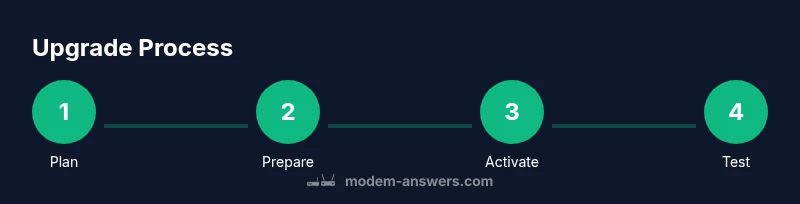
A well-planned upgrade typically follows a simple workflow: assess, prepare, connect, activate, test, and secure. Start by determining whether you will place a secondary router behind the gateway or implement a mesh system. Then gather your devices and ensure firmware is up to date. After you connect the new router to the gateway via an available Ethernet port, activate the router within its app or web portal, and then test speeds in multiple rooms. Finally, configure security settings and network naming, and keep an eye on bridge mode or double NAT considerations to ensure smooth operation with your TMOBILE service.
Troubleshooting and common issues during a tmobile home internet modem upgrade
Upgrading can introduce temporary instability while devices renegotiate IP addresses, DNS, and routing paths. If you experience slower speeds after installation, start with a quick cycle of rebooting the gateway and router. Check for firmware updates on both devices, review your Wi‑Fi channel selection, and try repositioning the router to minimize interference from walls and appliances. If you see persistent dropouts or devices failing to connect, confirm that the router is receiving a strong WAN signal from the gateway and that there are no rogue devices consuming excessive bandwidth. For persistent problems, consult TMOBILE support to confirm activation status or any service-area limitations.
Security, privacy, and maintenance best practices
A successful upgrade includes ongoing security and maintenance. Enable WPA3 on your router, use a strong unique password for both your Wi‑Fi and admin interfaces, and regularly update firmware. Segment networks with a guest SSID for visitors, keep firmware up to date, and monitor connected devices for unusual activity. Regularly test your network performance and back up configurations to recover quickly after a reset. A well-maintained network is less susceptible to interference and intrusions, ensuring your upgrade delivers consistent value over time.
In summary, a thoughtful approach to upgrading your tmobile home internet setup emphasizes practical steps, careful equipment selection, and ongoing maintenance rather than chasing the latest hardware for its own sake. By focusing on coverage, security, and compatibility, you can achieve meaningful improvements with a measured investment.
Tools & Materials
- Compatible router or mesh system(Should support Wi‑Fi 6/6E and have 2+ Gigabit Ethernet ports)
- Coaxial cable (RG-6)(In good condition; avoid sharp bends)
- Ethernet cable (Cat5e or better)(For wired connections between gateway and router/mesh node)
- Power strip with surge protection(Protects equipment from power surges)
- TMOBILE My account login details(Needed for activation steps and configuration checks)
- Optional mesh nodes (if using mesh system)(Improves coverage in large or multi‑story homes)
Steps
Estimated time: 30-60 minutes
- 1
Verify compatibility and plan
Confirm you’re upgrading within TMOBILE’s policy and pick a router or mesh system that complements the gateway’s performance. Map high‑demand areas and identify dead zones to guide placement.
Tip: Check TMOBILE policy on third‑party equipment to avoid activation issues. - 2
Power down and gather gear
Power off the gateway and unplug it. Gather your new router, cables, and activation credentials. Have notes of current network names and password in case you need to revert.
Tip: Label cables to prevent mix‑ups during reassembly. - 3
Connect the new router to the gateway
Connect the router’s WAN/Internet port to the gateway’s Ethernet port using a Cat5e cable. Keep the gateway plugged in to provide power to the rest of the network while you configure the new device.
Tip: Use a short, high‑quality Ethernet cable for a stable link. - 4
Power on and initialize the router
Power on the router and follow the setup wizard in its app or web interface. Create a new admin password and set a strong Wi‑Fi password.
Tip: Update the router firmware before making other changes. - 5
Activate the device
Use the router’s activation flow or the UT/mobile app to register the device with your TMOBILE service. Ensure the gateway recognizes the new device and that internet connectivity is established.
Tip: Document activation steps in case you need to repeat the process. - 6
Test connectivity and performance
Run speed tests in multiple rooms and check wired devices for stability. Verify DNS resolution, streaming quality, and online gaming responsiveness.
Tip: If speeds are inconsistent, adjust router placement or channel settings. - 7
Configure security and privacy
Enable WPA3, set up guest networks, disable WPS if available, and keep admin access restricted to trusted devices.
Tip: Turn on automatic firmware updates whenever possible. - 8
Document settings and monitor
Save a configuration backup, note your network name (SSID) and password, and monitor devices connected to the network over the next week.
Tip: Schedule periodic rechecks of firmware and security settings.
FAQ
Can I replace the TMOBILE gateway with a third‑party modem?
Most TMOBILE Home Internet plans rely on a carrier-provided gateway, and direct replacement with a consumer modem isn’t supported. You can typically improve your network by adding a capable router behind the gateway, or a mesh system to extend coverage.
Usually you can’t swap the gateway, but you can boost your network by adding a strong router behind it.
What features should I look for in a router for this setup?
Look for Wi‑Fi 6/6E support, multiple Gigabit LAN ports, strong processing power, and solid security controls like WPA3. Ensure the router can be managed easily and receives regular firmware updates.
Get Wi‑Fi 6/6E, several Ethernet ports, and good security features.
Does upgrading affect my TMOBILE service?
Upgrading the network hardware generally doesn’t change your plan, but expect a brief downtime during activation. If you experience issues, contact TMOBILE support for activation and configuration guidance.
There may be a short activation downtime; contact support if issues arise.
Do I need bridge mode after the upgrade?
Bridge mode is often not supported for consumer setups with carrier gateways. If you require a simple single‑network experience, keep the gateway and use a strong router behind it. If your provider supports it, use it only after confirming official guidance.
Bridge mode is usually not available; use a router behind the gateway unless officially supported.
How long does a typical upgrade take?
A well-planned upgrade typically takes about 30 to 60 minutes, depending on home size and network complexity. This includes setup, activation, and initial testing.
Most upgrades take half an hour to an hour.
What steps ensure ongoing security after upgrading?
Enable WPA3 on your router, use a strong, unique password for your Wi‑Fi and admin interfaces, and enable automatic firmware updates. Regularly monitor connected devices for unfamiliar activity.
Use strong passwords, WPA3, and keep firmware updated.
Can I use my existing mesh system with TMOBILE?
In many cases, you can add an existing mesh system behind the gateway to improve coverage. Check that the mesh supports your chosen router’s configuration and that activation steps align with TMOBILE's requirements.
Yes, you can often add mesh behind the gateway; confirm activation steps with TMOBILE.
Watch Video
Key Takeaways
- Choose equipment that complements the gateway, not replaces it.
- Prioritize coverage and security features over raw wattage or price.
- Test performance room-by-room and adjust placement as needed.
- Activate and update firmware promptly for best results.
- Document settings to simplify future upgrades.