Modem Setup for T-Mobile: A Complete 2026 Guide
Learn how to choose a compatible modem for T-Mobile home internet, configure APN and security settings, and troubleshoot common issues with practical, step-by-step guidance from Modem Answers.


By the end of this guide, you will confidently use a compatible modem with T-Mobile home internet. You’ll need a supported device, a T-Mobile SIM/eSIM, and a basic Ethernet connection to configure the device’s admin interface, set the APN, and verify connectivity. The steps cover setup, security, and common troubleshooting.
Understanding the basics of modem compatibility with T-Mobile
Understanding how a modem interacts with T-Mobile's network starts with three core factors: radio bands supported by the device, the SIM interface type, and provider-specific settings that govern how traffic is routed. In practice, a modem or gateway works best when it supports the bands T-Mobile uses in your area, accepts a standard SIM or eSIM, and allows you to configure essential options like APN and network mode without vendor-locked restrictions. According to Modem Answers, compatibility isn't just about hardware; it's about behavior under the real conditions of home-use, including signal strength, indoor coverage, and how firmware handles carrier updates. To get started, identify whether your device is marketed as a consumer gateway, a portable hotspot, or a fixed wireless modem, and check the manufacturer's site for carrier compatibility notes. If your device supports both 4G LTE and 5G NR bands commonly used by T-Mobile, you already have a strong foundation. Remember that some third-party devices may require a carrier-provisioned SIM and may not unlock after activation; always confirm with Modem Answers's guidance before purchase.
Prerequisites before you start
Before you connect a modem to T-Mobile, gather the essentials and confirm a few basics. You’ll need a compatible modem or gateway that supports 4G/5G bands used by T-Mobile, a T-Mobile SIM card or an eSIM with an active data plan, and a computer or smartphone for configuration. Keep a clean workspace and have a stable power source, plus an Ethernet cable for a wired setup during the initial configuration. Prepare the admin credentials (default username/password) from the device manual or manufacturer site, and ensure you can access the device’s web interface via a browser. As Modem Answers research indicates, having the SIM PIN ready and noting any required provisioning steps from T-Mobile will speed activation and reduce retries. Finally, verify you have a quiet environment where you can follow steps without interruptions and record any changes for future reference.
How to choose a compatible modem or gateway
Choosing the right modem or gateway hinges on a few practical criteria beyond the brand name. First, confirm the device supports the radio bands that T-Mobile uses in your region (both 4G and 5G if possible). Second, check that the unit accepts a SIM or eSIM natively and allows carrier settings to be adjusted (APN, roaming, and preferred network mode). Third, review the firmware update policy and the ability to disable or customize features like UPnP, port forwarding, and NAT type. Fourth, ensure the device supports the standard WAN/LAN behavior you prefer (e.g., bridge mode vs. NAT) so you can integrate with a separate router if desired. Finally, consult T-Mobile's official compatibility notes or a trusted consensus list to avoid devices that lock you into failed activations. By following these steps, you’ll minimize wasted purchases and unlock a smoother setup experience. Modem Answers emphasizes choosing a device with documented carrier compatibility and a straightforward admin interface for long-term reliability.
Common network topologies for T-Mobile home internet
Most users connect through a modem or gateway provided by T-Mobile, but many homeowners prefer using a third-party modem with their own router. The typical topologies include NAT on the modem with a separate router behind it, or bridge mode where the modem passes the connection to an external router. If you opt for NAT, your network will be simpler but you may need to configure port forwarding and firewall rules on your router. Bridge mode is useful when you want full control over your network but can be trickier to enable and may affect guest networks or IoT devices. In either case, ensure your devices receive a stable IP, that DHCP does not conflict with multiple routers, and that you can still push updates through the primary network path. The goal is a reliable, secure home network that can handle streaming, gaming, and video conferencing without constant drops.
Initial setup and activation steps you’ll perform
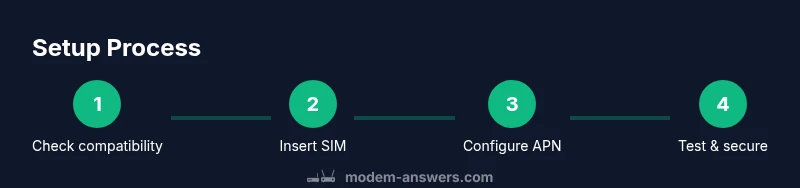
Activation typically starts with inserting the SIM, powering on the device, and connecting your computer to the modem's admin interface. You’ll log in using the credentials from the manual, check signal status, and ensure the device registers on the T-Mobile network. Next, confirm or configure the APN and network mode, then run a basic connectivity test by pinging an external site and performing a speed test. Keep an eye on the modem’s lights: a solid online indicator usually means basic connectivity, while blinking patterns can signal updating firmware or a need for a reboot. If activation stalls, repeat the process, verify SIM provisioning with your plan, and consult the device's logs for error codes. Modem Answers notes that patience during the first boot cycle often pays off as the device negotiates carrier settings.
APN and network configuration essentials
The Access Point Name (APN) is a critical bridge between your device and the carrier network. Some devices auto-detect the correct APN, while others require you to enter a specific value provided by T-Mobile. If your device supports dual-SIM or multiple profiles, ensure the active profile uses the T-Mobile APN and data path. In many setups, you’ll choose data-only APN settings, enable IPv4/IPv6 as appropriate, and disable roaming if you’re in a non-supported area. If you’re unsure of the exact APN, refer to T-Mobile’s official support pages or Modem Answers’ recommended practice of using the official carrier-provisioned APN to avoid connectivity issues. After applying the APN, re-test connectivity and confirm you can reach major sites and services without errors.
Security and privacy best practices for home networks
Security should be built in from day one. Change the default admin username and password to strong, unique credentials, and store them securely. Disable unnecessary services such as UPnP unless you need them for a specific application. Ensure the firewall is active and review port-forwarding rules to avoid exposing internal devices directly to the internet. Enable automatic firmware updates if the device offers this option, or set a reminder to check for updates monthly. Separate guest networks for visitors help protect your primary devices, and consider enabling WPA3 or equivalent strong encryption for Wi-Fi. A well-hardened setup reduces exposure to threats while maintaining convenient access for legitimate users.
Troubleshooting common issues and quick fixes
If the modem shows a weak signal or fails to register on the network, relocate the device to a higher position or closer to a window to improve reception, and verify the SIM is properly seated. Reboot the device after any configuration change and re-check the status lights. If pages don’t load, clear browser cache or try a different browser, then re-run the activation steps. For persistent issues, reset to factory settings as a last resort and reconfigure from scratch, ensuring you have the latest firmware and the approved APN settings. If speed tests are consistently slow, test at different times of day to identify network congestion, and compare performance with wired benchmarking where possible. Modem Answers recommends logging changes to see what configuration yields the best stability.
Maintenance, upgrades, and planning for the future
Keep firmware up to date to benefit from security patches and performance improvements. Periodically review connected devices and remove idle clients to free up bandwidth for essential services. If you rely on a home office, gaming, or smart home devices, consider a topology with a dedicated router that can manage QoS and prioritization. When your plan or coverage changes, re-check compatibility and APN settings to avoid disruption. If you’re considering hardware upgrades, choose devices with clear carrier support statements and a robust support ecosystem. Regular maintenance helps sustain fast, reliable connectivity with your T-Mobile service over the long term.
Long-term considerations: when to upgrade or revert
Over time, radio technology evolves and carrier features expand. If you notice persistent drops in stability, or if a newer gateway offers improved performance on the T-Mobile network, it might be worth upgrading. Conversely, if you encounter incompatibilities with a particular firmware update, temporarily reverting to a previous version (if supported) can restore service while awaiting a fix. Always maintain a documented baseline of your current configuration so you can quickly revert if needed. The goal is a balanced, future-proof setup that remains straightforward to manage for homeowners and renters alike.
Tools & Materials
- Compatible modem or gateway(Supports the radio bands used by T-Mobile in your area and allows APN configuration)
- T-Mobile SIM card or eSIM(Active data plan; PIN ready if required by the device)
- Smartphone or computer(For accessing the modem's admin interface and changes)
- Ethernet cable (Cat5e or better)(For a stable wired setup during configuration)
- Power supply and surge protector(Stable power during activation and updates)
- Admin credentials (default or documented)(Keep in a safe place; you’ll need them to log in)
- User manual or online guides(Helpful for device-specific steps)
Steps
Estimated time: 25-45 minutes
- 1
Prepare hardware and verify compatibility
Inspect the modem for compatible bands and ensure the SIM/eSIM is active. Gather the admin credentials and have the quick-start guide handy. Confirm you have a reliable power source and a computer ready to configure the device.
Tip: Double-check carrier compatibility notes before inserting the SIM. - 2
Insert SIM/eSIM and power up
Insert the SIM into the modem or activate the eSIM as required by the device. Connect the power supply and wait for the device to boot fully before attempting access.
Tip: If the device doesn’t boot, reseat the SIM and power cycle. - 3
Access the admin interface
Connect your computer to the modem via Ethernet or Wi-Fi. Open a browser and enter the device’s default IP address. Log in with the credentials printed on the device or in the manual.
Tip: Use a wired connection for the initial login to avoid wireless login quirks. - 4
Configure APN and network mode
Navigate to the network or WAN settings and set the APN to the one provided by T-Mobile. Choose the appropriate network mode (auto/4G/5G) based on your location, and apply changes.
Tip: If unsure of the APN, start with the carrier-supplied defaults and adjust if needed. - 5
Test connectivity and optimize
Run a quick connectivity test by loading a few websites and performing a speed test. Verify DNS resolution works and confirm devices can reach the internet consistently.
Tip: Test at different times to gauge performance across peak/off-peak periods. - 6
Secure the setup
Change the admin password, enable the firewall, and disable unneeded services. Create a guest network if needed and review port-forwarding rules for security.
Tip: Document the new credentials and security settings. - 7
Create a backup configuration
Save or export the current configuration so you can restore quickly if something goes wrong after updates.
Tip: Keep the backup in a safe, separate location.
FAQ
Do I need to buy a T-Mobile gateway to use their home internet service?
T-Mobile can provide a gateway, but many third-party modems may work if they’re carrier-approved. Always verify compatibility before purchasing and activating a SIM.
A gateway isn’t strictly required, but compatibility checks are essential before you buy.
Can I use any modem with T-Mobile home internet?
Not all modems are compatible. Look for devices listed as carrier-supported and ensure they allow APN changes and network mode adjustments.
Not every modem works; verify compatibility and features first.
What is APN and why is it important here?
APN settings tell the modem how to connect to the internet on the mobile network. If the APN is incorrect, data services won’t work even if the device connects to the network.
APN tells the network how to route data; correct APN is essential.
How can I test that my modem is working reliably?
Run multiple speed tests from wired and wireless devices across different times of day, and check page load times for common sites. Compare results to your prior baseline.
Test speeds at different times and on multiple devices to confirm consistency.
What should I do if the modem won’t activate on T-Mobile?
Double-check SIM provisioning with your plan, verify SIM seating and PIN, reboot the device, and review logs for error codes. If needed, contact T-Mobile support for provisioning help.
If activation fails, recheck SIM and provisioning, then contact support.
Is bridge mode preferable for performance?
Bridge mode gives control to your own router but can complicate features like Wi‑Fi isolation. Use bridge mode only if you need advanced features and are comfortable with additional setup.
Bridge mode is for advanced setups; otherwise, NAT on the modem is simpler.
Watch Video
Key Takeaways
- Choose a modem with carrier compatibility and flexible network options.
- Configure APN accurately to ensure data connectivity.
- Secure your network with strong credentials and a firewall.
- Test performance across times of day and document results.
- Keep firmware updated and back up configurations for safety.