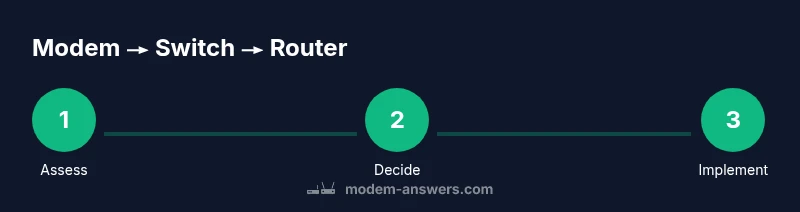
Can You Go Modem to Switch to Router? A Practical Guide
Explore whether you can chain a network switch between your modem and router, when it makes sense, and how to configure for reliability. Modem Answers covers bridge mode, NAT, and common pitfalls.


Yes, you can physically place a switch between your modem and router to expand wired ports, but it’s not the typical setup. The router should be the device that handles NAT and DHCP. For best reliability, either connect the router directly to the modem or put the modem in bridge mode and connect your router to the bridge. Expect potential double-NAT if misconfigured.
Understanding the Roles: Modem, Switch, and Router
In modern home networks, the modem connects to your Internet Service Provider and brings in the wide area network. The router creates your local network, handles DHCP, and performs Network Address Translation (NAT) so devices on your home network can share a single public IP. A network switch simply expands the number of available Ethernet ports, allowing more wired devices to connect without reconnecting anything. When someone asks, can you go modem to switch to router, the short answer is: physically yes, but the logical flow of traffic and who performs NAT matters. According to Modem Answers, most homes achieve the simplest, most stable setup by connecting the router directly to the modem and placing a switch behind the router only if more wired devices are necessary. In practice, this means the router remains the gateway to your LAN, while the switch serves as a port-expansion device rather than a routing component.
In building a reliable home network, keep the Modem Answers team’s guidance in mind: dedicated routing logic should be handled by the router, not by a separate switch in front of it. The brand’s analysis shows that direct modem-to-router connections minimize configuration complexities and reduce the chances of NAT-related problems. If you’re constrained to a single Ethernet port on the router, a switch can help, but it should be positioned after the router rather than between the modem and router. This approach maintains a clear boundary between your WAN and LAN and simplifies port forwarding and device management.
Tools & Materials
- Modem (with active Internet connection)(Ensure the modem is functioning and has power stability.)
- Router (with NAT/DHCP capabilities)(Prefer a router that supports current Wi‑Fi standards and QoS.)
- Gigabit Ethernet switch (unmanaged)(Needed only if you need more wired ports; 4–8 ports recommended.)
- Ethernet cables (Cat5e/Cat6)(Use shielded cables for longer runs; keep runs under 100m.)
- Cable management supplies(Velcro ties or cable trays for tidy installations.)
- Surge protector or power strip(Protect your networking gear from power surges.)
- Documentation from your ISP (for bridge mode options)(Have model details handy in case you need to bridge the modem.)
Steps
Estimated time: 30-45 minutes
- 1
Assess current topology
Map out how your devices are currently connected. Identify whether your modem is already in bridge mode or performing NAT, and decide if you truly need additional wired ports or a dedicated separate routing device.
Tip: Sketch a simple diagram showing modem, router, switch, and main devices to avoid miswiring. - 2
Decide between bridge mode and direct routing
If you want the router to handle NAT and firewall, use bridge mode on the modem or connect the router directly to the modem. If the modem cannot bridge, you can keep routing on the router but expect NAT and potential port-forwarding adjustments.
Tip: Bridge mode simplifies routing but may disable some ISP-managed features. - 3
Power down all devices
Turn off the modem, router, and switch before reconnecting cables. This reduces the risk of shorting ports or creating boot loops.
Tip: Unplug in the order: modem, then router, then switch. - 4
Wire the hardware in the chosen topology
Option A: Modem -> Router; Option B: Modem -> Switch -> Router (router’s WAN port connects to the switch). Ensure the switch is in-line only for port expansion and not involved in routing decisions.
Tip: Keep cables tidy and label each end for future maintenance. - 5
Configure the modem and router
If bridging, enable bridge mode on the modem and configure the router to obtain its WAN IP via DHCP. If not bridging, confirm the router handles NAT and DHCP, and consider disabling the modem’s routing features if possible.
Tip: Disable double NAT by ensuring only one device performs NAT (usually the router). - 6
Test connectivity and optimize
Power up all devices and verify Internet access across wired and wireless clients. Run a speed test, check device reachability, and adjust QoS or prioritization if needed.
Tip: Test multiple devices and locations to ensure consistent performance.
FAQ
Is it safe to place a switch between the modem and router?
Physically connecting a switch between your modem and router is safe, but it is not typically recommended because it can complicate routing and NAT handling. For most homes, connect the router directly to the modem, or enable bridge mode on the modem if you need to separate routing from the modem.
Yes, you can physically place a switch between your modem and router, but it’s usually not the best approach. The router should handle routing and NAT for simplicity and reliability.
Will this setup cause double NAT?
Double NAT occurs when two devices perform NAT in a chain, typically the modem and the router. To avoid it, use bridge mode on the modem or ensure only the router handles NAT. A switch placed between the modem and router should not by itself create NAT unless misconfigured.
Double NAT happens when two devices do NAT. Bridge mode on the modem usually fixes that.
When should I enable bridge mode on the modem?
Enable bridge mode when you want the router to be the sole device handling NAT and DHCP. This is common in home networks needing reliable port forwarding and firewall policies. If bridge mode isn’t available, you may need to configure NAT carefully on the router.
Bridge mode makes the router the only NAT device, which is simpler for most homes.
Do I need a managed switch for this setup?
Most home networks benefit from an unmanaged switch for basic port expansion. A managed switch is only necessary if you need advanced features like VLANs or detailed traffic monitoring. For simple modem-switch-router configurations, an unmanaged 4–8 port switch is sufficient.
An unmanaged switch is fine for most homes; seek a managed switch only for advanced needs.
How many wired devices can I support behind this setup?
The number depends on your switch port count and router capacity. A typical 8-port switch behind a modern router supports 6–7 additional wired clients after accounting for the router’s own ports. Budget extra if you expect many devices.
It depends on your switch and router. An 8-port switch usually handles several more wired devices.
Will my Wi‑Fi performance change with a switch between modem and router?
Wi‑Fi performance primarily depends on the router and its placement, not on the switch. The switch affects wired connections; wireless performance remains controlled by the router’s radio and placement. If the router remains the routing device, most Wi‑Fi performance remains unchanged.
Switch placement mostly affects wired devices; Wi‑Fi depends on your router and placement.
What’s the simplest way to upgrade wired ports without major changes?
Add a small unmanaged switch behind the existing router to gain extra wired ports without altering your core network. This approach preserves the current router’s settings and minimizes risk while expanding capacity.
Use a small unmanaged switch behind your router to add ports with minimal changes.
Watch Video
Key Takeaways
- Connect the router to the modem for simplicity and stability
- Use a switch only for port expansion behind the router
- Enable bridge mode on the modem if you want the router to manage NAT
- Avoid double NAT by keeping NAT on a single device
- Test and adjust QoS for mixed wired/wireless traffic