4G Modem for Laptop: A Complete Buying Guide
Learn how to choose and set up a 4G modem for your laptop, covering features, compatibility, data plans, and step-by-step setup for reliable mobile internet on the go.


Looking to stay connected on the go? This guide explains how to pick a 4G modem for laptop, what features matter, and how to set it up with your device. You’ll learn about compatibility, data plans, and practical steps to get online quickly. From USB dongles to embedded modems, and from SIM cards to eSIM options, we cover the essentials so homeowners and renters can confidently choose and configure mobile broadband.
What is a 4G modem for laptop and who should use one
A 4G modem for laptop is a compact device that provides cellular data access to a computer, independent of fixed home broadband. It can take the form of a USB dongle, an embedded modem inside a laptop, or a portable hotspot that you connect to your laptop. The primary users include remote workers, travelers, students in areas with limited Wi-Fi, or households needing a reliable backup connection during outages. According to Modem Answers, mobile broadband remains a flexible option for staying online when fixed networks aren’t available, and it’s especially valuable for keeping productivity uninterrupted on commutes or work trips. When you’re evaluating options, focus on how easily the device plugs into your laptop, which cellular bands it supports, and whether you’ll use a physical SIM or an eSIM for data access. Your choice should align with your typical locations, speed expectations, and budget, so you can avoid overpaying for features you won’t use.
How 4G connectivity works with laptops
A 4G modem for laptop connects to a mobile data network via a SIM card, using the same LTE technology that smartphones rely on. The laptop communicates with the modem through USB or embedded interfaces, and the modem converts cellular signals into a usable internet connection. Carrier networks periodically update bands and speeds, so a modem that supports a wide band set offers better futureproofing. Practical considerations include whether you will use a single-user USB dongle or share connectivity via a hotspot, how data is billed, and what roaming options are available if you travel outside your home region. This section emphasizes understanding signal strength, plan limits, and the difference between true 4G LTE and newer 5G options, so you can choose a device that remains useful as networks evolve.
Key features to compare in a 4G modem for laptop
Key features include compatibility with your OS, support for the carrier bands in your region, available SIM options (physical SIM vs eSIM), form factor (USB dongle, integrated modem, or portable hotspot), battery life if portable, and any bundled software that helps you monitor data usage. A practical way to compare is to list the top three use cases and verify that the modem handles them: fast startup, reliable connections indoors and outdoors, and straightforward driver installation. Look for devices with multiple antennas or MIMO support for better signal quality, and check if the device can operate as a USB modem that your laptop recognizes without extra apps. Finally, review warranty terms and firmware update policies to ensure long-term support.
Choosing between USB dongle, embedded modem, and mobile hotspot
USB dongles are inexpensive, portable, and easy to swap between devices; they’re ideal for laptops that don’t have built‑in cellular hardware. Embedded modems are built into more premium laptops and offer clean setups but limit upgrade options. Portable hotspots distribute connectivity to multiple devices and can be a better choice if you frequently work with tablets or phones. When deciding, consider your need for portability, the number of devices you’ll connect, and whether you prefer a single‑device solution or a shared network. Compatibility with your device’s USB ports (A or C) and driver availability are essential checks before purchase.
Data plans and carrier considerations
Data plans vary in how data is priced, capped, and managed. For laptop users, look for plans that offer predictable billing, favorable roaming terms, and options to add or remove devices without penalties. Paired with a modem, you’ll want to confirm the provider’s coverage maps and the availability of the LTE bands your device supports. If you travel, investigate whether the plan supports roaming or prepaid options in other regions. A practical approach is to start with a month-to-month plan to validate coverage and performance before committing to a longer term contract. The Modem Answers team emphasizes testing in your typical work zones to avoid overpaying for underused data.
Setup and configuration on your laptop
Connect the modem to your laptop, insert the SIM if required, and install any necessary drivers or management software from the manufacturer. On Windows, you may see the device appear under Network Adapters, where you can configure APN settings and naming. macOS offers similar network preferences for new interfaces, and Linux users may need to install vendor‑provided drivers or rely on generic modem support. After installation, enable the modem as your primary or backup network and run a speed test to confirm connectivity. If the modem is recognized but cannot connect, double-check APN settings and ensure the data plan is active with your carrier. For physical SIMs, ensure a secure SIM tray and proper orientation.
Troubleshooting common issues and pitfalls
Common issues include the modem not powering up due to insufficient USB power, driver conflicts, or software conflicts with other network adapters. If you experience disconnects, test with different USB ports or cables and verify that your firewall or VPN clients are not blocking connections. Signal problems can be mitigated by moving closer to a window or using a different USB port that provides better power and reception. If the modem is not recognized, re-install drivers, update firmware, and confirm that the SIM has an active data plan. Avoid purchasing devices based solely on advertised peak speeds; real-world performance depends on location, carrier, and plan.
Security and privacy best practices
Using a 4G modem requires the same security practices as any internet connection. Enable firewall protections, apply firmware updates promptly, and use strong passwords for any service accessed over mobile broadband. When sharing the connection with others via a hotspot, set a strong WPA2/WPA3 password and disable WPS if possible. Be mindful of data usage monitoring, since some plans offer data only for personal use. Consider employing a virtual private network (VPN) when connecting to public networks, and avoid accessing sensitive work systems over networks you don’t control.
Real-world scenarios and performance expectations
In everyday scenarios, you should expect stable connectivity for tasks like email, document editing, and video calls with modest bandwidth needs. In remote locations, signals may dip during peak hours, so a backup option can prevent interruptions. When traveling and using a hotspot, you’ll likely see improved reliability if you keep the modem within an area with good cellular reception and avoid metal obstructions. The best practice is to perform a live speed test at your common work locations to set expectations and adapt your plan as needed. This section helps you translate coverage maps into realistic performance expectations for a 4G modem for laptop.
Future-proofing and maintenance
To keep your 4G modem useful over time, regularly check for firmware updates, keep your drivers current, and re-evaluate your data plan every few months as your usage patterns shift. If your laptop is aging, confirm that the modem remains physically compatible with USB ports and driver support. Consider documenting your setup so you can reproduce it if you upgrade to a new device. Finally, track changes in carrier networks or regulatory policies that could affect roaming and data pricing. A proactive approach helps ensure your 4G modem for laptop remains a reliable connectivity option for years to come.
Tools & Materials
- 4G modem device (USB dongle or embedded module)(Choose a model that matches your laptop's ports (USB-A or USB-C) and supports your carrier bands.)
- Compatible SIM card with a data plan(Consider a plan with data rollover or a short-term data option for testing.)
- Laptop with a supported OS and available drivers(Windows/macOS/Linux compatibility varies by model; verify driver availability.)
- USB-C to USB-A adapter (if needed)(Useful for newer laptops with USB-C only ports.)
- Driver software from the modem manufacturer(Some devices rely on generic OS drivers; check the vendor site.)
- Emergency backup plan (another connected device or hotspot)(Helpful if your primary modem is temporarily unavailable.)
Steps
Estimated time: 30-45 minutes
- 1
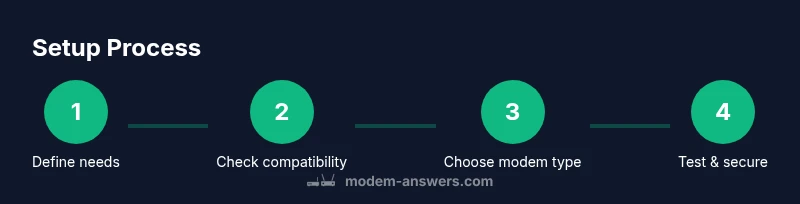
Define your connectivity needs
Assess how you’ll use the modem: travel frequency, typical locations, and expected data usage. Clear goals help you pick the right modem and plan.
Tip: Write down your top 3 use cases to guide your choice. - 2
Check device compatibility
Confirm your laptop supports USB modems or eSIM if available, and verify driver support for your OS.
Tip: Look for USB-C or USB-A compatibility and check for Linux support if applicable. - 3
Choose the modem type
Decide between a USB dongle, an embedded modem in the laptop, or a portable hotspot that can share connectivity with other devices.
Tip: USB dongles are cheapest and easiest to swap; hotspots are great for multi‑device use. - 4
Select a data plan and SIM option
Pick a plan that matches your monthly needs; consider SIM vs eSIM depending on hardware and carrier support.
Tip: If possible, start with a 1–2 month plan to validate coverage. - 5
Install the modem and drivers
Insert the SIM, install the vendor drivers if required, and connect the modem to your laptop.
Tip: Restart the computer after driver installation to ensure proper detection. - 6
Configure network settings and test
Open network preferences, select the modem connection, and run a speed test to verify performance.
Tip: Test in multiple locations to gauge signal strength and stability. - 7
Secure your connection and plan for maintenance
Enable a firewall, keep drivers updated, and monitor data usage to avoid overages.
Tip: Set up a data usage alert if the modem supports it.
FAQ
Do I need a SIM card to use a 4G modem for laptop?
Most 4G modems require a data SIM or eSIM. Some devices support a data-only microSIM, while others rely on an embedded SIM. Check your device specs and your carrier requirements.
Yes, you typically need a data SIM or eSIM for mobile connectivity, unless the device uses a built-in cellular module with a preloaded plan.
Will a 4G modem work with Linux?
Linux support varies by model and driver availability. Look for devices with open-source drivers or strong community documentation. If in doubt, test device compatibility before buying.
Linux users should verify driver support and community-tested configurations before purchasing.
Can I use a 4G modem with my existing router?
Some USB modems can be connected to compatible routers that support USB modems. If not, you can use a dedicated laptop or a mobile hotspot to share connectivity.
Yes, but only with routers that support USB modems or with a separate hotspot device.
What speeds can I expect?
Speeds depend on signal, network congestion, and plan; expect variable performance. Use a speed test in your typical locations to set realistic expectations.
Expect variable speeds based on signal and plan; test in common locations for a realistic view.
Hotspot vs dedicated modem: which is better?
Hotspots are convenient for sharing with multiple devices; dedicated USB modems are lighter and often more power-efficient. Choose based on multi‑device needs and portability.
Hotspots are great for multiple devices; USB modems are lighter and often more reliable solo.
How should I secure a 4G connection?
Enable firewall protections, keep firmware updated, and use strong passwords for any service accessed over mobile broadband. When sharing the connection via hotspot, use a strong WPA2/WPA3 password and disable WPS if possible.
Keep software updated, enable basic security features, and monitor data usage for safety.
Watch Video
Key Takeaways
- Define your connectivity needs before buying
- Check OS and device compatibility first
- Choose the modem form factor that matches your usage
- Test with a small data plan before committing
- Keep drivers updated and secure the connection