Why Modem WiFi Not Working: Urgent Troubleshooting Guide
A fast, step-by-step guide to diagnose and fix Wi-Fi problems caused by your modem. Learn safe checks, a diagnostic flow, and practical tips to prevent future outages.


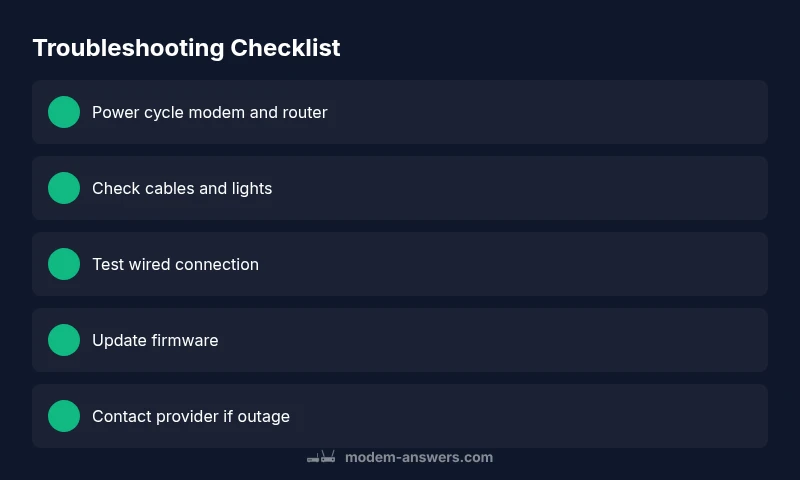
Start with the simplest fixes: power cycle your modem and router, check all cables, and note LED indicators. If you still have no Wi‑Fi, verify service status with your provider and confirm your device is connected to the correct network. This fast, 2‑minute check solves most home outages. If not, follow the diagnostic flow below from Modem Answers.
Understanding the problem: why modem wifi not working
When your Wi-Fi suddenly vanishes, the first step is to differentiate between a modem issue and a local device problem. The phrase why modem wifi not working is usually caused by a connectivity fault at the modem, a faulty router, or a service outage. According to Modem Answers, most home network outages arise from simple misconfigurations, power issues, or aging equipment rather than complex, unseen faults. Recognizing the symptoms helps you pick the right path: is the modem powered on, are the lights indicating a healthy connection, and can you access the modem's admin page? The Modem Answers team has found that a large share of problems can be traced back to a single point of failure: the coax or Ethernet cable that connects the devices or the router's Wi‑Fi settings. By validating these elements first, you can rapidly verify whether the problem is temporary or something that requires escalation.
Start with the basics: safety and reset
Before you dive into deeper diagnostics, make sure you are working safely and aren’t creating new problems. Power down your modem and router, unplug from power, and inspect all cables for wear or loose connections. Re-seat coaxial and Ethernet cables firmly where they connect to the modem and router. When you power them back up, watch for the sequence and steadiness of the lights. In many homes, a simple reset clears transient cache issues and re-establishes a clean link. If you rent a modem, verify you are using the device provided by your ISP. According to Modem Answers, basic reboots resolve a surprising share of outages within minutes.
Common issues that mimic a true outage
Some symptoms look like a full outage but stem from misconfiguration, interference, or service status rather than hardware failure. Weak Wi-Fi coverage in large homes, overcrowded channels, or a router placed behind walls can produce slow speeds or dropped connections, even when the modem shows online status. A misconfigured SSID, wrong security settings, or an expired password can also block access. On the provider side, a temporary outage or a line fault can mimic a home problem. Distinguishing between these causes is key to avoiding unnecessary repairs and wasted time.
The diagnostic flow you should follow
Adopt a simple, repeatable flow: observe symptoms, test connectivity, isolate components, and apply targeted fixes. Start by confirming the modem and router are powered, then test a wired connection to rule out a Wi‑Fi problem. If wired works but wireless does not, focus on wireless settings and channel interference. If wired also fails, check for outages with your provider and inspect the line. This flow helps you avoid chasing phantom problems and speeds up resolution.
Quick checks you can do now
- Restart the modem and router in the correct order, then re-test.
- Check all cables for wear and reseat connections firmly.
- Try a wired connection to determine if the issue is Wi‑Fi specific.
- Forget and reconnect to the Wi‑Fi network; re-enter the password.
- Check for any firmware updates on the modem and router admin pages. If you can access the admin interface, back up settings before updating.
When to escalate to your provider or professional help
If you have completed the quick checks and the problem persists, you may be dealing with an outage on the provider’s end or a hardware fault requiring replacement. Contact your ISP to confirm line integrity and request a technician visit if the signal shows weak or fluctuating levels. If the device is old or warm to the touch and lights indicate error codes, replacing the modem or router may be the prudent next step. Keep a record of times, messages, and steps taken to speed up support.
Steps
Estimated time: 20‑40 minutes
- 1
Power cycle the devices
Turn off the modem and router, wait 60 seconds, then turn them back on in the same order. This refreshes sessions and clears minor glitches.
Tip: Avoid unplugging from outlets during a reset to prevent power surges. - 2
Check cables and LED indicators
Inspect coaxial and Ethernet cables for wear; reseat connections firmly. Note LED colors to gauge link status and signal health.
Tip: If a red or blinking light appears, note it for support. - 3
Test with a wired connection
Connect a computer directly to the modem with an Ethernet cable to verify if the issue is Wi‑Fi or a general connectivity problem.
Tip: If wired works, focus on wireless settings next. - 4
Forget and reconnect your Wi‑Fi network
On your devices, forget the saved network and reconnect with the password to clear stale credentials.
Tip: Try another device to confirm if the issue is device-specific. - 5
Check for firmware updates
Access the modem/router admin page and check for available firmware updates; install if offered.
Tip: Back up current settings before updating. - 6
Escalate if problems persist
If the above steps don’t restore service, contact your provider for line tests or consider a technician visit.
Tip: Document symptoms and failed steps to speed resolution.
Diagnosis: Wi-Fi not working despite modem power light on
Possible Causes
- highISP outage
- highPower or hardware issue
- mediumMisconfigured router/settings
- lowOutdated firmware or hardware fault
Fixes
- easyCheck service status with your provider
- easyPower cycle modem and router
- easyInspect and reseat cables
- mediumReset modem to factory settings if necessary
- mediumUpdate firmware on modem/router
FAQ
What should I do first when Wi‑Fi stops working?
Start with a power cycle of the modem and router, check cables and lights, then test a wired connection. If needed, verify your service status.
Begin with a power cycle, check cables, and test a wired connection; if it still fails, review service status.
What does a blinking or red modem light mean?
A blinking or red light often signals a hardware problem or signal loss. Check connections and try a reset; if unresolved, contact support.
Blinking or red usually means a hardware or signal issue—start with checks and call for help if needed.
Can firmware updates fix Wi‑Fi problems?
Firmware updates can resolve bugs and improve stability, but apply with care and back up settings first.
Updating firmware can help, but back up settings before you proceed.
Is it safe to reset the modem?
Factory resets erase custom settings; use reset as a last resort and reconfigure afterward.
Resetting is a last resort; you may lose personalized settings.
When should I call my provider?
If outages persist after basic steps or if outage indicators exist, contact your ISP for line testing and potential fixes.
If issues persist after basic steps, contact your provider for line tests.
Watch Video
Key Takeaways
- Restart first to resolve many outages.
- Differentiate outages from device problems before hardware changes.
- Document symptoms to streamline support.