Why Is My Modem Blinking Blue? Troubleshooting Guide
Diagnose why is my modem blinking blue with a practical, step-by-step guide for homeowners. Learn common causes, quick fixes, and when to call your provider.


If your modem is blinking blue, the most common causes are a firmware update in progress, a device reboot, or a temporary ISP outage. Start with a power-cycle (unplug, wait 60 seconds, plug back in) and observe the blink pattern for 5–10 minutes. If the blue blink persists, follow the diagnostic flow below.
why is my modem blinking blue
If you're staring at a blue blinking light on your modem, you’re not alone. why is my modem blinking blue is a common question homeowners ask when the connection seems unstable. According to Modem Answers, blue blinking is often part of a normal boot or update sequence, but it can also signal a temporary fault. The clue is in the cadence: slow single blinks differ from rapid bursts, and both have different meanings. In many cases, the cause is simple: a firmware update in progress, a routine reboot, or a short service interruption. The fastest way to start is to observe the pattern for 5–10 minutes and note the cadence. If the blue blink continues beyond this window, proceed with a structured troubleshooting flow. Stay focused on one variable at a time, and avoid aggressive resets unless you’re sure a reset is safe for your model.
What blue blinking signals mean across models
Blue blinking patterns can vary by model and provider. In many consumer modems, a slow, regular blue blink during startup indicates the device is negotiating with the network or applying a firmware update. A fast or irregular blink might signal a fault or a temporary outage. Modem Answers analysis shows that most blue-blinking issues are resolved with basic actions like power cycling, checking power outlets, and confirming service status. When you see blue blinking, try to map the cadence to a likely stage: boot, update, reconnect, or error. Always check your provider’s outage page and your account portal for notices. If you recently changed equipment, there may be a re provisioning window where a blue blink is expected. Not every blink means disaster, but persistent blinking requires systematic troubleshooting.
Common blue-blink patterns and their meanings
Lights communicate status. Here are typical patterns and what they imply:
- Slow single blink every ~1 second: the device is booting or provisioning.
- Rapid bursts of blue every few seconds: firmware update or reconfiguration in progress.
- A steady blue with intermittent pauses: normal boot sequence or temporary reconnect. Across models, the exact cadence differs, so consult your user guide if possible. For homeowners, the key is consistency: if the cadence changes suddenly or never settles, that signals you should escalate the troubleshooting process. Throughout this guide, we reference the practical approach used by the Modem Answers team, which emphasizes safety and methodical testing over random resets.
Diagnostic check: pattern to problem mapping
A disciplined diagnostic approach helps avoid guesswork. Start by noting the exact pattern: what triggers the blink (idle, during boot, after a reset) and how long it lasts. Then map to primary causes in order: firmware activity, connectivity outages, power/cable issues, and finally hardware fault. This structured mapping makes it easier to verify fixes in the right order and prevents unnecessary resets that can complicate diagnostics. The flow outlined below aligns with best practices from Modem Answers for quick, reliable results.
Quick fixes you can try now
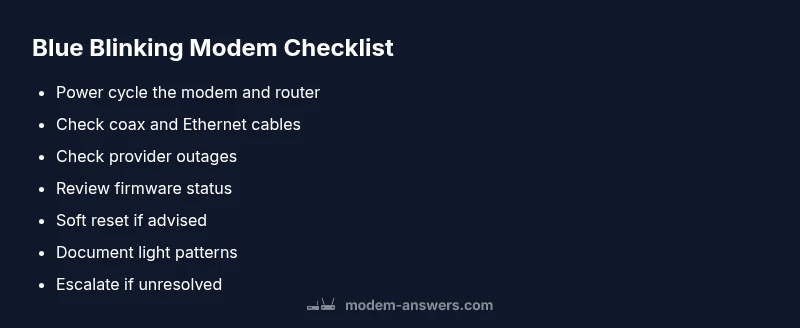
- Power-cycle the modem and router: unplug both devices, wait 60 seconds, then plug the modem back in first.
- Check all cables: ensure the coax, Ethernet, and power cables are secure and undamaged.
- Verify service status: visit your provider’s outage page for any reported issues in your area.
- Log in to the modem’s admin page to inspect firmware status and error logs.
- If your model supports it, perform a soft reset rather than a factory reset.
- Note the light pattern and timing; this helps when you contact support.
- If the blue blink persists after these steps, move to more detailed fixes below.
Step-by-step fixes for the most common causes
- Firmware update in progress: allow it time to complete; avoid interrupting power during the update. If it stalls, reboot gently after 20–30 minutes.
- ISP outage or provisioning: confirm outages and any re-provisioning windows with the provider; wait for status to update.
- Power or grounding issues: try a different outlet, check for surge protection, ensure the power supply matches the device requirements.
- Hardware fault or overheating: ensure the modem is in a well-ventilated location and not covered.
- Login/config issues: reset only if instructed by support; back up settings where possible.
- Replacements and warranty: if issues persist, arrange a replacement through your provider if covered by warranty.
Safety tips and common mistakes to avoid
- Do not open the modem enclosure unless you are trained and the device is unplugged.
- Avoid using damaged cables; replace frayed coax or Ethernet cables promptly.
- Do not force firmware updates by unplugging the device; this can brick the modem.
- Always confirm outages with your provider before performing multiple resets in a row.
- If you smell burning or hear buzzing, disconnect immediately and seek professional help.
Prevention: keep blue blinking at bay with proactive maintenance
- Schedule occasional reboots as needed; too frequent resets can erase settings or trigger provisioning loops.
- Keep firmware up to date by enabling automatic updates if available.
- Optimize your network layout: avoid long daisy-chains, keep the modem in a ventilated area, and use quality cables.
- Maintain a spare power adapter and a basic toolkit for quick swaps.
- Create a simple troubleshooting log to capture light patterns, outages, and fixes tried for future reference.
When to escalate: professional help and hardware replacement guidance
If the blue blinking persists after all the steps above, contact your provider or a qualified technician. Persistent blinking can indicate a failing modem, a broader outage, or a misconfiguration that requires professional tools to diagnose. Warranty coverage may offer a hardware replacement. Document your light patterns, outage notices, and attempted fixes so the support agent can resolve the issue quickly. The Modem Answers team emphasizes patience and a systematic approach to minimize downtime.
Steps
Estimated time: 25-45 minutes
- 1
Power-cycle the modem and router
Unplug both devices, wait 60 seconds, then plug the modem back in first. This resets network negotiation and can clear transient faults that cause blue blinking.
Tip: Label cables so you know which device you’re reconnecting first. - 2
Check physical connections
Inspect coaxial cable, Ethernet cables, and the power cord for damage or loose connections. A poor connection can trigger a fault-indicator blink.
Tip: Tighten connections firmly but don’t over-tighten. - 3
Check for outages or provisioning
Visit your provider’s status page to see if there’s a known outage or a provisioning hold affecting your area.
Tip: Note outage durations and scheduled maintenance windows. - 4
Log in to the modem admin page
Access the device’s admin interface to review firmware version, error logs, and current connection status.
Tip: Have your account and device credentials ready. - 5
Try a soft reset if safe
If the guide allows, perform a soft reset to refresh settings without losing configurations.
Tip: Back up important settings before resetting. - 6
Escalate if unresolved
If there’s still a blue blink after the above steps, contact support or request a replacement unit.
Tip: Provide the exact light pattern and timestamps when you call.
Diagnosis: Blue blinking light on modem after boot
Possible Causes
- highFirmware update in progress
- highISP outage or provisioning
- mediumPower outlet or grounding issue
- lowHardware fault or overheating
Fixes
- easyPower-cycle the modem and router
- easyCheck all connections and power source
- easyCheck for outages on provider status page
- mediumLog into admin page to review firmware status and logs
- mediumIf persists after steps, contact provider or request replacement
FAQ
What does a blue blinking light on my modem usually indicate?
A blue blink typically signals booting, a firmware update, or a temporary outage. If the pattern persists, follow a structured troubleshooting flow rather than random resets.
A blue blink usually means the modem is booting or updating, or there may be a temporary outage. If it sticks, use a step-by-step troubleshoot approach.
Is a blue blink during startup normal?
Yes, a blue blink during startup can be normal as the device provisions itself with the network or applies updates. Only persistent, long-duration blinking requires further checks.
It can be normal during startup, but if it keeps blinking, you should investigate further.
Should I reset my modem to fix blue blinking?
Only reset if you’ve exhausted other steps and the manual instructions indicate it’s safe. A factory reset will erase custom settings and should be a last resort.
Only reset if advised by support; a factory reset is a last resort.
Can an outage cause blue blinking?
Yes, an outage or provisioning issue can cause the modem to reboot and blink blue while reconnecting. Check your provider’s outage status page for confirmation.
Outages can cause it to blink blue while the modem reconnects.
When should I replace my modem?
If the blue blinking persists after all troubleshooting, or the device is outdated and no longer supported, replacement may be the best option.
If it keeps blinking after trying fixes, you may need a replacement.
Key Takeaways
- Power-cycle first to clear most blue-blink issues
- Check for outages before aggressive resets
- Match blink pattern to probable stage (boot, update, reconnect)
- Keep firmware up to date for long-term reliability