What Causes a Modem to Get Hot? A Troubleshooting Guide
Urgent guide to diagnose and fix modem overheating: airflow, dust, placement, firmware, and safety tips from Modem Answers.


The most common causes are blocked airflow, dust buildup, and poor placement. Ensure vents are clear, give the modem 2–3 inches of clearance, and keep it away from other heat sources. If it still overheats, reboot, update firmware, and consider replacement if the issue persists.
What actually causes a modem to get hot
In plain terms, what causes a modem to get hot are airflow restrictions, dust buildup, and poor placement. When vents are blocked or the device sits flush against a wall or furniture, heat cannot escape and the internal components work harder. According to Modem Answers, these conditions are the most common reasons a modem becomes unpleasantly warm during normal operation. Recognizing this helps you act quickly before performance degrades or a hardware fault develops.
Common overheating culprits
- Blocked vents: A dusty cabinet, cable clutter, or a shelf behind the modem can trap heat.
- Dust inside: Dirt collection on heatsinks or fans reduces cooling efficiency.
- Tight spaces: Enclosures or proximity to other electronics raise ambient temperature.
- Heavy or continuous traffic: Prolonged high data usage can cause sustained load on the modem processor.
- Faulty power supply: A failing adapter can waste energy as heat and cause instability.
- Firmware glitches: Occasionally, software bugs trigger higher CPU usage, generating extra heat. (Modem Answers notes that firmware updates often address this.)
Safe setup and airflow improvements
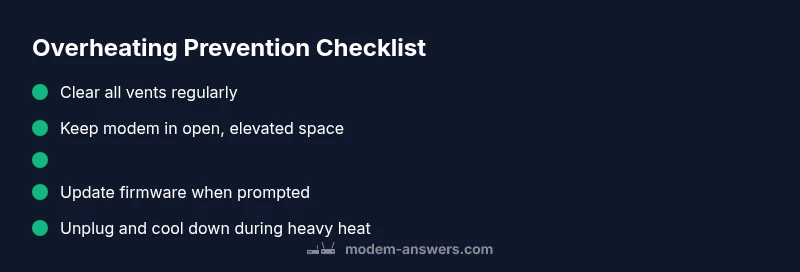
Position your modem in a well-ventilated area, not inside a cabinet. Leave at least a couple of inches on all sides and avoid direct exposure to sunlight or heating vents. Elevating the unit slightly and keeping it off carpets helps airflow. For added safety, place the modem on a hard surface rather than on fabric, and use a USB-powered fan only if needed and safe. Modem Answers recommends routine housekeeping: wipe dust from vents with a soft brush and unplug before cleaning.
How to diagnose overheating vs normal warmth
A modem that runs hot may still function, but persistent warmth can shorten its life. Check for: a noticeably warm exterior after hours of use, frequent reboot loops, or reduced speeds during peak times. If the device feels unusually hot to the touch, unplug it, wait a few minutes, and recheck. Compare temps after cleaning and repositioning to determine if the behavior is improving.
DIY checks you can perform safely
Before touching any internals, unplug the modem and remove all cables. Inspect the vents for dust and debris and gently remove with a soft brush. Reposition the modem away from walls and heat sources, and ensure there is airflow from the sides. If you notice signs of damage, or if you have to use external fans, stop and proceed with professional help.
When to seek professional help
If overheating persists after cleaning, repositioning, and firmware updates, it may indicate a hardware fault or aging hardware. Contact your service provider or the manufacturer for warranty options or replacement guidance. The Modem Answers team recommends documenting symptoms and dates of events to speed up troubleshooting and avoid potential data loss.
Steps
Estimated time: 30-60 minutes
- 1
Power down and unplug
Shut off the modem and remove all cables before inspecting vents or cleaning. This prevents shorts and protects you from shocks during handling.
Tip: Always unplug at the wall outlet, not just the power strip. - 2
Improve airflow around the unit
Move the modem to a higher, open-shelving location with space on all sides. Avoid placing it on fabric or inside cabinets.
Tip: Use a small stand if needed to elevate the device. - 3
Clean vents and exterior dust
Gently remove visible dust from vents with a soft brush. For stubborn dust, use a can of compressed air in short bursts while keeping the nozzle away from sensitive components.
Tip: Do not use a vacuum directly on the electronics. - 4
Check cables and power adapter
Inspect the power adapter for warmth and ensure cables are firmly connected. A damaged or cheap adapter can waste energy as heat.
Tip: If the adapter feels unusually warm, replace it with the recommended model. - 5
Test firmware and reboot
Update the modem firmware from the official settings page and perform a clean reboot.
Tip: Note the exact firmware version before updating in case you need to roll back. - 6
Assess after reassembly
Reconnect everything and monitor the device for heat. If warmth persists, proceed to the next step or contact support.
Tip: Keep a log of times and symptoms for reference.
Diagnosis: Modem feels hot to the touch after extended use
Possible Causes
- highBlocked vents or restricted airflow
- mediumDust buildup inside the unit
- lowPlacement near heat sources or enclosed space
Fixes
- easyMove to a well-ventilated area with at least 2-3 inches of clearance
- easyVacuum or brush dust from vents and exterior with the device unplugged
- easyUpdate firmware and reboot the modem
- hardReplace the unit if overheating persists after steps
FAQ
What are the most common signs my modem is overheating?
Common signs include a hot exterior, random reboots, slow performance during peak use, and fans or LEDs running continuously. If these occur, begin with ventilation checks and firmware updates.
Look for a hot surface, random reboots, and slow speeds when the network is busy.
Can I keep using a warm modem safely?
If the device feels warm but not dangerously hot, monitor it closely and avoid heavy usage until you improve ventilation. Persistent warmth warrants steps to fix or replace.
If it's just a little warm, monitor it and boost airflow; if it stays hot, stop using it until you fix it.
How often should I clean modem vents?
Clean vents every few months or sooner if you notice dust buildup or reduced cooling performance. Always unplug the device before cleaning.
Clean the vents every few months or when you see dust buildup, and unplug first.
Should firmware updates fix overheating?
Firmware updates can fix heat-related bugs and improve efficiency. Check for updates in the modem's admin page, then reboot after installing.
Yes, firmware updates can address heat issues by improving efficiency.
Is it safe to unplug and power cycle during overheating?
Yes. Unplug, wait a minute, then plug back in. If the device still heats, avoid further cycles and seek help.
Unplug, wait, and plug back in. If it stays hot, get help.
Do heat issues indicate a hardware fault?
Persistent overheating after all checks often indicates a hardware fault or aging hardware. Contact support for warranty or replacement options.
Repeated overheating usually means hardware may be failing; contact support.
Watch Video
Key Takeaways
- Keep the modem in a ventilated area.
- Clear vents and regularly dust the unit.
- Update firmware to fix heat-related bugs.
- If heat persists, seek professional help.
- Document symptoms for faster support.