Problem Modem Troubleshooting Guide
Urgent, step-by-step guide to diagnose and fix a problem modem. Learn practical checks, common causes, and proven fixes to restore reliable home internet fast.


If your internet is failing and your modem shows unusual lights or no connection, the most likely culprits are power or cable issues, a temporary ISP outage, or a stalled firmware update. Start with a power cycle, reseat cables, and check service status with your provider. If the lights don’t settle within minutes, proceed with the full diagnostic flow.
Understanding the 'problem modem' and its impact on home connectivity
When we talk about a problem modem, we mean a gateway device that fails to provide a stable internet connection to your home network. Symptoms vary from a completely dark modem with no lights to blinking LEDs, frequent disconnects, or unusually slow speeds. A modem is a critical hub in your home network; when it misbehaves, every connected device—from phones to smart TVs—feels the impact. According to Modem Answers, most problem modems trace their origins to simple, fixable issues first: power, cables, or a temporary service outage. By recognizing the common LED patterns and symptoms, you can triage quickly and avoid unnecessary calls. In our analysis, basic observations—whether the WAN light is steady, blinking, or off—often point to the right next step, especially if you also hear unusual hardware sounds or notice overheating. A methodical approach reduces frustration and speeds up restoration of service, which is crucial for households juggling remote work, streaming, and smart-home devices.
Why the term 'problem modem' matters and how it affects your network
A problem modem disrupts not only internet access but also the local network. Devices on Wi‑Fi or Ethernet can lose IP addresses or show 'no internet' icons, which can cascade into failed video calls, dropped online orders, and stuttering gaming. The root cause is rarely exotic: it’s often the result of power fluctuations, loose connections, or a provider-side issue. For homeowners, understanding this helps you triage without panicking. In short, treat the problem modem as a signal for a chain of simple checks rather than a mysterious device fault. The Modem Answers team emphasizes keeping a calm, stepwise plan so you don’t overlook the obvious.
Quick checks you can do in minutes to narrow down the cause
First, look at the LED indicators: is the power light solid? Do you have a steady online or offline status on the WAN port? If the modem has a red or amber light, that usually signals an error state that requires a restart or configuration check. Next, inspect your cables: ensure the power adapter is fully seated, the coaxial cable is tightened, and the Ethernet line to your router or computer is secure. Swap in a known-good cable if you can. Finally, verify your service status with your internet provider. A temporary outage can mimic many hardware faults, and it’s the easiest fix to confirm. Keep a small notebook to record light patterns and timestamps for each test; this helps if you need to escalate.
Safety considerations to prevent harm while diagnosing a problem modem
Always unplug the device before unplugging or reseating cables if you smell burning plastic or see scorching marks. Do not open the modem casing; internal components can retain high voltage and risk electric shock. If you’re renting a modem from your ISP, contact support before attempting a reset that might affect service provisioning. Use dry hands and a clean surface to avoid static damage. If you feel unsure at any point, stop and reach out to a professional. Safety is the top priority when you’re troubleshooting live equipment in a busy household.
A structured troubleshooting approach you can print or save
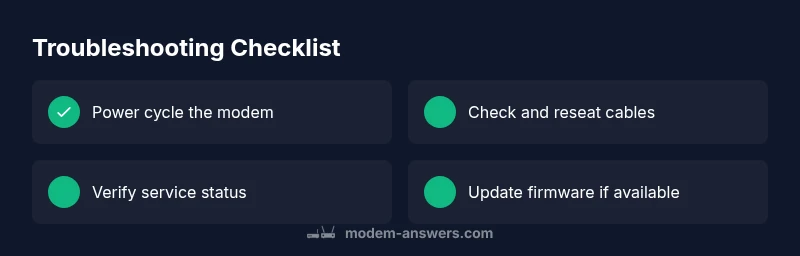
Use a simple flow: confirm power and cables → check for outages → perform a controlled reset → test after each step. If the problem persists, upgrade to a firmware check and consider a factory reset as a last resort (and only after saving your settings). This approach aligns with best practices from Modem Answers, who recommend documenting LED patterns and steps taken to support faster help if you escalate to your provider. A documented process reduces back-and-forth and speeds up a resolution.
The role of firmware and configuration in resolving a 'problem modem'
Firmware glitches can cause sudden drops or poor performance. Check whether your modem reports a firmware version and whether updates are available from your provider. If a new version exists, apply it following the provider’s instructions, as firmware improvements often address stability issues. If updating isn’t available, a factory reset might be suggested by support—but you should back up essential settings first. Remember that firmware updates can temporarily disrupt service, so plan for a maintenance window. Modem health is a long-term investment in household connectivity.
How to structure the troubleshooting session for best results
Block out 30–60 minutes for the full routine, including testing after each fix. Have your account details handy, plus your modem’s model, MAC address, and current LED patterns. This preparation helps you communicate clearly with support if the issue requires escalation. Keep end-user devices offline while making changes that could affect network settings to avoid accidental interference. A calm, organized session yields faster restoration and less stress for you and your household.
When to involve the service provider and what to expect
If you’ve exhausted basic checks and the problem remains, contact your ISP. They may perform a remote reset, check the service status in your area, or dispatch a technician if the issue is outside your home. Have your modem’s serial number, MAC address, and LED-status history ready to speed up diagnostics. Providers can also verify if you’re in a known outage or if your account requires a hardware swap. By following our structured approach, you’ll present a concise case that helps support resolve the issue faster.
Steps
Estimated time: 30-45 minutes
- 1
Power cycle all devices
Unplug the modem and router from power, wait 60 seconds, then plug them back in starting with the modem. Let the lights stabilize for 2–3 minutes. This simple reset fixes many transient glitches.
Tip: If you use a surge protector, try plugging directly into the wall outlet to avoid power-filter effects. - 2
Inspect and reseat cables
Check the coaxial cable at both ends for snug fit and no kinks. Verify the ethernet cable to the router is fully seated, and replace any damaged cables. Loose connections are a common cause of intermittent drops.
Tip: Tighten connectors with gentle pressure; avoid overtightening as that can damage the port. - 3
Check service status with your provider
Visit your ISP’s status page or call support to see if there’s a known outage in your area. Even if your device seems fine, an outage can cause ‘no service’ symptoms.
Tip: Document the outage time window for reference if you need a service credit later. - 4
Test with a direct modem connection
Connect a computer directly to the modem with an Ethernet cable and test internet access. If it works, the issue likely lies with the router or Wi‑Fi configuration.
Tip: Disable any VPNs during testing to avoid misinterpreting connectivity results. - 5
Reset to factory settings (if needed)
If problems persist, perform a factory reset on the modem. Note the custom settings (PPPoE, VLAN, DNS) and reconfigure after the reset. This step often resolves stubborn config issues.
Tip: Only reset when you can re-enter essential network credentials; otherwise you may lose access temporarily. - 6
Update firmware and recheck
Check for firmware updates through your provider’s app or portal. Apply updates if available, then reboot once more and re-test connection. Firmware fixes can address stability and security issues.
Tip: If no update is available, a call to support may reveal if your device is nearing end-of-life.
Diagnosis: Internet connectivity is down or unstable despite power on
Possible Causes
- highPower supply issue
- mediumLoose or damaged cables (coax/ethernet)
- highISP outage or service interruption
- mediumOutdated firmware or corrupted modem config
Fixes
- easySwap to a known working outlet and test with a different power adapter
- easyCheck and reseat all cables; replace damaged coax or Ethernet cable
- easyPower cycle the modem and router together for 60 seconds
- easyReset modem to factory settings if issues persist (note: you'll need to reconfigure)
- mediumContact ISP to verify outage or perform remote reset; check firmware version and apply updates if available
FAQ
What exactly is a 'problem modem' and why does it happen?
A problem modem is one that fails to provide a stable connection. Common causes include power issues, loose cables, or a temporary provider outage. Understanding these typical causes helps you triage quickly and avoid unnecessary replacements.
A problem modem means your gateway isn’t delivering a stable connection. Most often it’s power, cables, or a provider outage—triage step by step to fix it fast.
Why does my modem reboot when I power cycle it?
Rebooting clears temporary memory and resets the device state. If the reboot is accompanied by new or unusual LED patterns, note them for support. If problems persist after a reboot, proceed with the next steps in the diagnostic flow.
A reboot clears memory and can fix glitches. If you see unusual lights, write them down and continue with troubleshooting.
Do I always need to reset my modem to fix issues?
Not always. Start with power cycling and cable checks. Reset is a last resort when configurations seem corrupted or updates fail. Remember to back up settings like connection type before reset.
Reset is a last resort if simple fixes don’t work; back up settings before doing it.
How can I tell if there is an ISP outage affecting me?
Check your provider’s outage map or status page, and look for reported incidents in your area. You can also call support for confirmation and expected restoration times. Outages affect many users and can mimic hardware problems.
Look up outages on your provider’s site or ask support for status in your area.
Is replacing the modem necessary for persistent problems?
Not necessarily. Most issues are fixable with the steps in this guide, including firmware checks or configurations. If your device is old or frequently fails even after fixes, replacement might be warranted.
Replacement isn’t always needed; try all fixes first. If it keeps failing, consider a replacement.
Watch Video
Key Takeaways
- Identify symptoms quickly and triage first.
- Power cycle and reseat cables as the first fix.
- Check provider outages before hardware swaps.
- Document changes and LED patterns for support.
- Escalate to a pro if symptoms persist beyond basic fixes.