Modem Problem No Internet Access: Quick Troubleshooting Guide
Urgent, practical steps to diagnose and fix a modem problem no internet access. From quick resets to provider checks, learn how to restore service fast and safely with Modem Answers.


A modem problem no internet access is most often caused by an outage, a loose cable, or a gateway misconfiguration. Start with a quick power cycle, check all coax and HDMI/ethernet connections, and confirm the router mode matches your setup. If the issue persists, contact your provider for outage verification and diagnostics.
Understanding the No Internet Situation
According to Modem Answers, a modem problem no internet access is a signal that your home network can see the modem but can't reach the wider internet. The most common suspects are an ISP outage, a loose or damaged cable, a misconfigured gateway, or a hardware fault. Distinguishing between a service outage and a local issue helps you act quickly and avoid unnecessary calls. If several devices are affected, the problem is likely upstream; if only one device is affected, focus on the device’s network settings and physical connections. In any case, stay calm and follow a methodical plan to verify each potential cause one by one.
Quick Checks You Can Do Right Now
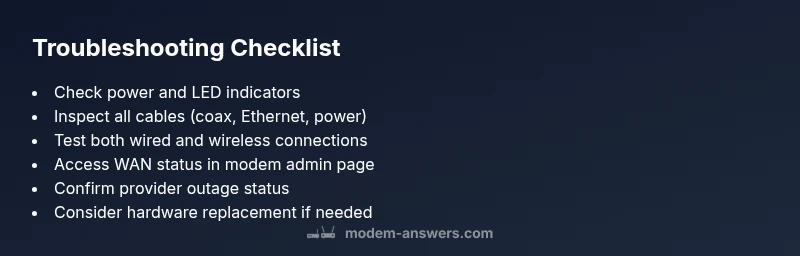
Before you dive into advanced troubleshooting, perform these fast checks. Verify the modem is powered on and the power/online LED indicators are steady (not flashing erratically). Inspect all cables: coax, ethernet, and power cord should be firmly connected with no visible damage. If you recently moved the equipment, reconnect cables to their original ports. If you use a separate router, ensure it’s powered and connected to the modem correctly. These steps often resolve simple issues and restore service without technician visits.
Is the Issue Local to Your Home Network?
If multiple devices can’t access the internet while wired devices also fail, the problem is likely at the modem or the ISP’s network edge. If only one device is affected, the fault may lie with that device’s Wi‑Fi settings or network adapter. To test, try a wired connection from a laptop to your modem, then a different device. If the wired connection works but wireless does not, focus on your router’s settings or a Wi‑Fi channel interference issue. If neither wired nor wireless works, the problem is probably upstream or with the modem itself.
Check for Service Outages and Status
An outage is a common cause of no internet access. Check your service provider’s outage page or social channels for real-time status. If an outage is confirmed, you can usually restore service only after the provider resolves the issue. If your area is not listed as having an outage, proceed with more isolated checks. Keeping notes on outage windows helps you communicate clearly with support when you reach out.
Verify Modem Admin Interface and WAN Status
Access your modem’s admin page (typical addresses are 192.168.0.1 or 192.168.1.1). Look for WAN status or online indicators to determine if the modem is connected to the provider. If the WAN shows disconnected or limited, try re-authenticating or rebooting the modem. If you see red or amber alerts, note them for support calls, as they point to line or login issues that require provider intervention.
Common Causes in Plain Terms and How to Confirm
Outages: ISP reports downtime; confirm via status pages. Loose or damaged cables: reseat or replace the coax and Ethernet cables. Gateway misconfiguration: confirm if your setup uses bridge mode or gateway mode; incorrect mode can block traffic. Hardware fault: power cycles and resets fail; hardware replacement may be needed. By testing each item, you’ll narrow the root cause with minimal guesswork.
When to Call Your Provider or Replace Hardware
If you’ve exhausted basic checks and still have no internet, contact your provider to confirm outages and run line tests. If the provider confirms outage but your device shows no service recovery, you may need a technician visit or a modem replacement. If the outage is not the cause, but your modem or gateway hardware is old or degraded, consider upgrading to a newer model or renting equipment from the provider. Proactively scheduling a service call can prevent extended downtime.
Proactive Maintenance to Keep You Connected
Regular checks help prevent future outages. Schedule periodic reboots, update firmware when prompted by your modem, and keep cables labeled and organized. Use surge protection on your modem and router to guard against power spikes. Maintain a small spare set of cables (coax and Ethernet) and document your network layout for quick fixes if problems recur. A routine, calm approach reduces downtime and speeds restoration.
Steps
Estimated time: 30-45 minutes
- 1
Power cycle the modem (and router, if applicable)
Unplug the modem (and router) for 60 seconds, then plug back in starting with the modem. Wait for the lights to stabilize before testing connectivity on a connected device.
Tip: Label the power button on your device to avoid confusion during resets - 2
Check all physical connections
Inspect the coaxial input, Ethernet cables, and power cord for any sign of wear, looseness, or damage. Reseat cables firmly and replace any frayed cords.
Tip: Use cable ties to prevent accidental unplugging - 3
Test with a wired connection
Connect a laptop directly to the modem with an Ethernet cable to rule out Wi‑Fi issues. If wired works but wireless doesn’t, focus on router settings or interference.
Tip: Temporarily disable any VPN to rule out routing problems - 4
Check the modem’s admin page
Open the browser to the modem’s IP address (common: 192.168.0.1). Look for WAN/Internet status and error messages. Re-enter credentials if prompted.
Tip: If you don’t know the admin password, try the default or contact your provider - 5
Confirm service status with your provider
Visit the provider’s status page or call support to check for outages or line issues in your area. Follow any recommended steps from the provider.
Tip: Document outage reference numbers and times for future reference - 6
Consider a hardware replacement
If tests indicate a hardware fault after retries, discuss a replacement modem or gateway with your provider or consider purchasing a compatible model.
Tip: Avoid buying a device that is not compatible with your service
Diagnosis: No internet access across devices after modem power-on
Possible Causes
- highService outage or maintenance
- highLoose or damaged cables
- mediumGateway/modem misconfiguration
- lowHardware failure (modem/router)
Fixes
- easyPower cycle the modem and router, then re-test connectivity
- easyVerify all connections (coax, Ethernet, power) are secure and undamaged
- easyCheck the modem’s admin page for WAN status and re-authenticate if needed
- easyIf outage is confirmed, wait for provider restoration; if not, replace cables or contact support
FAQ
Why is there no internet even though the modem shows online?
This can happen if the provider has a local outage, the DNS servers are unreachable, or the router is misconfigured. Check for outages first, then verify WAN status in the admin page and ensure your router mode is set correctly.
If your modem shows online but you still have no internet, start by checking for outages and WAN status in your admin page, then verify the router setup.
Should I reset the modem to factory settings?
Factory resetting can resolve software glitches but will erase custom settings. Try a soft reset first and only perform a factory reset if the issue persists after all other steps, and you have the necessary configuration details to restore service.
Only consider a factory reset if other steps fail and you can reconfigure your network afterward.
How can I determine if the issue is with my service provider?
Check the provider’s status page or call support to confirm outages in your area. If they report an outage, your internet should be restored once the issue is fixed on their side.
Check the service status page or call support to confirm if the outage is on your provider’s end.
What steps should I take if the problem persists after an outage ends?
If service returns but the issue persists, re-run the diagnostic flow, verify WAN status, and consider hardware replacement. If everything fails, request a technician visit.
If the outage is over but you’re still down, re-test everything and consider replacement or a technician visit.
Can a faulty coax cable cause no internet access?
Yes, a damaged or loose coax can block signal reaching the modem. Inspect and replace coax cables if you notice wear or kinks, and ensure tight connections.
A bad coax cable can stop your internet—check and replace it if worn.
Is it important to have both modem and router in the same room?
Placement affects Wi‑Fi performance but not the basic internet connection. Keep devices in a central location, away from interference, and ensure ventilation.
Placement helps Wi-Fi, but you’ll still want a solid wired connection for reliability.
Watch Video
Key Takeaways
- Power cycle first, then verify cables
- Determine if outage or local issue is at fault
- Use the admin page to check WAN status
- Call provider if outage is confirmed or if hardware faults are suspected
- Maintain a simple troubleshooting log to speed future fixes