Is My Spectrum Modem Bad? A Practical Troubleshooting Guide
Is my Spectrum modem bad? Quick checks, a diagnostic flow, and step-by-step fixes to restore service. Learn how to distinguish outages, cabling issues, and hardware faults with practical tips from Modem Answers.


Most Spectrum modem problems stem from outages, loose cables, or a failed reboot. Check service status, secure all connections, reboot, and reset if needed. If issues persist, contact Spectrum support for diagnostics.
Is my spectrum modem bad? A reality check
If you’re asking is my spectrum modem bad, you’re not alone. In many homes, the issue isn’t a dead device but a temporary outage, a loose cable, or a simple software hiccup. According to Modem Answers, the most common causes of modem-related outages are service interruptions in your area, power supply glitches, or coaxial cables that have loosened over time. A quick outside check can save you time and a service call: verify there’s no outage in your neighborhood, ensure the modem is plugged in, and confirm the coax and power cables are snug. This article guides you through a practical, step-by-step approach to diagnose and fix the issue without guessing. By following a logical flow, you’ll distinguish between a true hardware failure and a solvable setup problem, so you can restore internet access faster.
Start with quick wins: outages, power, and cables
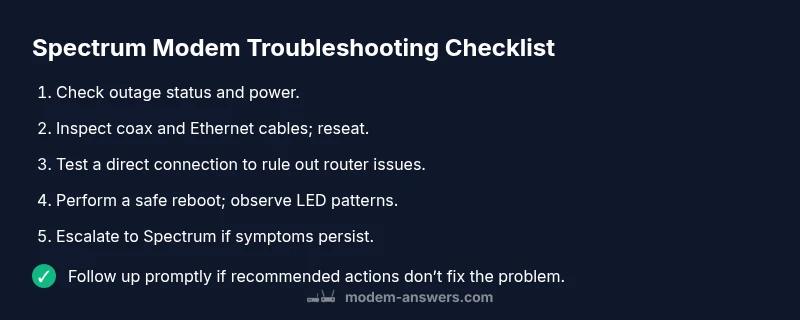
Before diving into more complex troubleshooting, begin with three easy checks that solve most cases of is my spectrum modem bad. First, confirm outage status via Spectrum's service-status page or your provider's app; network problems can mimic hardware failures. Second, verify the modem’s power: ensure the device is on, receiving power, and not overheating. If the power light is unstable or off, try a different outlet or power strip. Third, inspect both coaxial and Ethernet connections: finger-tight, undamaged cables are common culprits. If the modem has multiple lights, compare the pattern to the model’s guide to determine whether the issue is a connection problem or a device fault. Completing these quick checks often resolves the issue without requesting a technician.
Diagnosing symptoms and what they mean
A modem that never connects versus one that drops intermittently or delivers slow speeds tells a different story. If the device cannot reach the online page at all, outages or a faulty power supply are likely culprits, along with loose coax connections. If websites load slowly or streaming buffers, you might be facing Wi‑Fi interference, an overburdened router, or a weak signal in parts of your home. If the modem reboots by itself or the LED indicators flash in a specific sequence, this can indicate firmware updates, signal loss, or hardware failure. Keep a simple log: time of day, affected devices, and whether the issue is constant or intermittent. This contextual data is valuable if you need to escalate with Spectrum support, and it aligns with guidance from Modem Answers on how to interpret lights, status pages, and performance metrics.
Distinguishing modem vs router issues and bridge mode confusion
Many home networks rely on a separate router, and users sometimes blame the modem when the router is the real bottleneck. To isolate the problem, perform a test by connecting a single device directly to the modem (bypassing the router) and run a speed test or loading a page. If the direct connection works and the problem disappears, the router or Wi‑Fi configuration is likely the source. If it does not, the issue is more likely on the modem or the line itself. For gateways or hybrid devices, check if bridge mode is enabled, which can prevent the router from obtaining a public IP and cause confusion about device health. Clear labeling and a brief reset of the gateway settings can help you confirm where the fault lies.
The reboot and reset playbook: step-by-step evaluation
Rebooting and resetting are your first-line tactics. A safe reboot clears temporary firmware issues and refreshes network learning. If the device remains unresponsive after a reboot, a factory reset (as a last resort) can restore default settings but will erase custom configurations. Before resetting, capture your Wi‑Fi name (SSID) and password, as you’ll need them after the reset. If you’re using a separate router, you’ll want to reconnect to the modem directly and reconfigure any needed port forwarding and security settings post-reset. Never open the modem housing or modify internal components; this can be dangerous and void warranties. If problems persist after reset, proceed to contact Spectrum support with your observed symptoms and the diagnostic notes you’ve collected.
When to replace the modem and how to talk to Spectrum support
If the modem is several years old, exhibits repeated failures after all troubleshooting steps, or shows signs of hardware damage (burning smells, excessive heat, or visible damage), replacement is a sensible option. Check warranty status or Spectrum rental options, and consider upgrading to a newer model that supports your service tier. When contacting support, provide the symptom log, test results from the direct connection, and the exact LED error patterns you observed. This helps the agent diagnose quickly and determine whether a hardware fault or service issue is the root cause. Modem health is a moving target influenced by usage patterns, environmental factors, and network changes, so regular reboots and firmware checks can prevent future interruptions.
Steps
Estimated time: 30-45 minutes
- 1
Check for outages and power
Start by confirming there isn’t a known Spectrum outage in your area. Check the service page or app and note any maintenance notices. Then verify the modem is plugged in securely and powered on; look for solid lights indicating power and activity.
Tip: Having outage confirmation before hardware checks saves needless rewiring and resets. - 2
Inspect cables and connections
Ensure the coax connector is snug at both the wall and modem, and that Ethernet cables are firmly seated. Look for any visible damage or kinks in the coax that could degrade signal quality.
Tip: Replace frayed cables or try a known-good Ethernet cable to isolate the issue. - 3
Power cycle the modem
Disconnect the modem from power, wait 30 seconds, reconnect, and allow it to boot fully. Observe the LED sequence to ensure normal startup; this clears temporary firmware glitches.
Tip: Do not rush the boot; give the device ample time to initialize. - 4
Test with a direct connection
Connect a single device directly to the modem (bypassing the router) and run a speed test or load a webpage. If this works, the router or Wi‑Fi is likely the bottleneck.
Tip: Note the exact devices affected to help isolate Wi‑Fi vs wired issues. - 5
Reset settings if necessary
If direct testing fails, consider a factory reset after saving your network credentials. This returns the modem to default settings and can fix stubborn configuration problems.
Tip: Remember to re-enter your network name and password after reset. - 6
Escalate to Spectrum if unresolved
If the issue persists after these steps, there may be a hardware fault or line problem. Contact Spectrum support and share your symptom log, tests, and LED patterns for faster diagnosis.
Tip: Document timestamps and results before calling for smoother troubleshooting.
Diagnosis: Spectrum modem shows offline or there is no internet access with or without wifi
Possible Causes
- highArea outage or service disruption
- highLoose or damaged coax/Ethernet cables
- mediumModem power issue or failed reboot
- lowRouter misconfiguration or bridge mode causing a clash
Fixes
- easyCheck outage status with Spectrum and confirm service is up
- easyInspect coax and Ethernet cables; reseat or replace as needed
- easyPower cycle the modem (unplug, wait 30 seconds, plug back in) and verify lights
- easyTest a direct connection by skipping the router; if it works, troubleshoot router settings
- mediumIf issues persist, perform a factory reset after saving important settings
- mediumContact Spectrum support for advanced diagnostics if hardware fault is suspected
FAQ
What should I do first when my Spectrum modem seems offline?
Begin by checking for a service outage, confirming power, and ensuring coax cables are tight. If the outage isn’t the cause, perform a reboot and test with a direct connection to rule out router issues.
First check for outages, then verify power and coax connections. Reboot and test with a direct connection to rule out router issues.
Is it safe to reset my modem?
A factory reset is safe but should be a last resort. Save your Wi‑Fi credentials and port forwards before resetting. After reset, reconfigure your settings carefully.
A factory reset is safe but should be last resort. Save credentials first, then reconfigure carefully.
How can I tell if the modem itself is failing?
Indicators include persistent offline status after power cycles, unusual LED patterns, or hardware smells. If uncertain, contact Spectrum support for diagnostics or a hardware inspection.
Look for persistent offline status after reboot and unusual LED patterns, then contact Spectrum if unsure.
Should I replace the modem or rent one from Spectrum?
Consider age, warranty, and performance. If the device is old or repeatedly failing, renting or upgrading via Spectrum may be more reliable than repair.
If the modem is old or keeps failing, renting or upgrading through Spectrum can be more reliable.
What if the issue is only with Wi-Fi?
Wi‑Fi problems can stem from router placement, interference, or channel congestion. Test wired connections and optimize router placement before replacing equipment.
Wi-Fi issues often come from placement or interference; test wired connections and adjust placement first.
When should I contact Spectrum support?
If outages are ruled out and you’ve performed basic troubleshooting without improvement, contact Spectrum for diagnostics and potential device replacement.
If basic troubleshooting doesn’t fix it, contact Spectrum for diagnostics and possible replacement.
Watch Video
Key Takeaways
- Start with outages, power, and cables checks.
- Differentiate modem from router issues with direct connection tests.
- Use a structured diagnostic flow to avoid guesswork.
- Back up important settings before resets and escalate when needed.
- Regularly monitor LED indicators and service status for proactive maintenance.