How to Fix Modem No Power: A Practical Step-by-Step Guide
Discover safe, practical steps to diagnose and fix a modem that won't power on. Learn outlet tests, adapter checks, power supply swaps, and when to contact your ISP for a speedy resolution.


Goal: restore power to a modem that won’t turn on. This quick guide outlines essential safety checks, outlet testing, adapter inspection, and practical fixes you can perform before contacting your provider. By following these steps, you’ll determine whether the issue is a simple power supply, a loose connection, or a deeper hardware fault.
Understanding Why a Modem May Lose Power
A modem that won’t power on can disrupt home internet for hours. Before you panic, remember that most no-power problems aren’t catastrophic—they’re often simple electrical or connectivity issues. According to Modem Answers, many no-power problems begin at the power source or with the power supply, not with the big board inside. This section explains what ‘no power’ typically means and how to approach it safely. We’ll differentiate between a completely dead unit (no LEDs) and a unit that shows faint indicators but refuses to boot, because each scenario calls for a slightly different sequence of checks. You’ll learn how to interpret basic symptoms, identify likely culprits, and set up a safe workspace. By understanding where the fault lies, you can avoid unnecessary replacements and keep your home network humming. The goal is to determine quickly whether you can fix the issue yourself or if a professional replacement is warranted. If you’re dealing with a rented modem or one owned by your provider, the steps and options may vary slightly based on your warranty and service terms. Always start with safety.
Safety First and Quick Outlet Tests
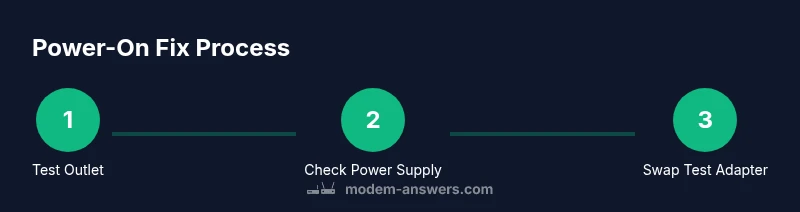
Safety should come first when dealing with any electrical appliance. Unplug the modem from the wall before touching cables, and avoid working near water or on a damp surface. Check that the outlet is live by plugging in a small lamp or phone charger. If the outlet is controlled by a wall switch or fuse box, switch it on and verify power at the outlet using a simple tester. If the modem has a surge protector, temporarily bypass it by plugging directly into the wall to test whether the protector is the fault. Note any signs of wear like frayed cords, discoloration, or a warm feel at the plug—the latter can indicate overload or a failing adapter. If you observe sparking or a burning smell, stop immediately and disconnect power. Record the results so you have a clear history for when you contact support.
Inspecting the Power Supply and Cables
Next, inspect the modem’s power supply and the connecting cables. Visually inspect the AC adapter for cracks, bent plugs, or melted insulation. Check that the DC plug is firmly seated in the modem’s power jack and that the cable isn’t kinked or pinched. If your adapter has interchangeable tips, ensure you’re using the correct one for your model. Look for discoloration on the adapter or a soft, mushy area indicating internal damage. If LEDs on the adapter or the modem flicker when you touch the cord, it can indicate a loose connection or a failing supply. If you have a spare adapter with the same voltage and current rating, you can perform a controlled swap to see if the modem powers up.
Testing with a Known-Good Power Adapter
A known-good power adapter is the fastest way to confirm a faulty supply. Obtain an adapter that matches the modem’s input voltage (often printed on the power brick) and the current rating. Do not exceed the amperage rating; using a higher-current adapter is usually safe, but never use a lower-current one. Connect the adapter securely, then plug the modem back into the outlet. Observe whether the LEDs illuminate and whether the device boots normally. If there is no change, the problem may lie with the modem’s internal circuitry or power jack. If the modem powers up with a spare adapter, replace the original adapter and monitor for stability before deciding on further steps.
Checking the Modem for Internal Issues (Careful with Warranty)
Some no-power issues are internal, involving the power jack, motherboard, or related circuitry. If you own the modem and it’s out of warranty, you may choose to open the case to inspect components. Only proceed if you are comfortable with basic electronics and you have the right tools. Power down, then remove the outer shell to access internal connectors. Check for loose power connectors, swollen capacitors, or evidence of water ingress. If you notice obvious damage, do not attempt to power the device; instead, consult a technician or request an exchange from your provider. If you’re under service terms, contact your ISP before attempting internal work, as many providers restrict access to their equipment and may require a professional replace.
When to Use a Surge Protector or UPS and Why It Helps
Sudden power surges and outages can damage embedded circuitry and lead to no-power conditions. A high-quality surge protector can absorb spikes, protecting both the modem and your home network gear. Consider using an uninterruptible power supply (UPS) for critical devices; a UPS keeps the modem powered briefly during brownouts, giving you time to pause and save work or perform a controlled reset. Ensure the surge protector or UPS is rated for the total load of your devices, and avoid chained power strips that can reduce voltage. If you frequently experience outages, arrange a service backup plan with your ISP to minimize downtime and coordinated outages.
Replacing or Repairing: What to Expect
If none of the above steps restore power, you may need a replacement or repair through your ISP or hardware manufacturer. Check your warranty status before initiating a claim and gather the model number, serial, and purchase date. Some providers offer a like-for-like exchange while others provide credit toward a new unit. In many cases, the cheapest and fastest option is a straightforward replacement with a refurbished unit. If your modem is owned by you and is past its usable life, replacement can be a cost-effective option compared with professional repair. When you replace, verify compatibility with your service plan and obtain a new power adapter if needed. Always back up network settings if the device stores custom configurations.
Preventive Steps to Avoid No-Power Problems in the Future
Finally, implement preventive steps to reduce the chances of no-power scenarios. Use a sturdy, correctly rated power adapter; avoid cheap third-party bricks that don’t meet voltage specs. Place modems on a stable surface away from heat and moisture; route cables to avoid pinching. Regularly inspect the power cord and adapter for signs of wear, and replace them every 1-2 years if you notice aging. Periodic reboots can help keep the device responsive and extend the life of the power jack. Consider labeling the power supply and cord to simplify future troubleshooting, especially if multiple devices share the same outlet. With proper care, your modem will remain powered and your home network resilient.
Tools & Materials
- Replacement power adapter with matching voltage and current rating(Check label on modem or original brick for specs (e.g., 12V 1A))
- Outlet tester or small lamp(To verify the outlet is live)
- Alternative known-good power adapter(Same specs as original for a controlled swap)
- Multimeter (optional)(For measuring voltage safely if you have one)
- Screwdriver set (Phillips/flathead)(If you need to remove shell for internal inspection (only if you own the device and warranty allows))
- Non-conductive pry tool(Use to avoid damage when opening case)
- Cable ties or organizers(To keep cables from stressing the jack)
Steps
Estimated time: 60-90 minutes
- 1
Power-cycle the modem
Unplug the modem, wait 60 seconds, then plug back in firmly. This clears minor firmware glitches and forces a clean boot. Observe the power LED for any response and listen for startup sounds to confirm activity.
Tip: Even a brief 60-second power-down can reset internal components and resolve blocked boot sequences. - 2
Test the outlet and remove power strips
Plug the modem directly into a known-good wall outlet to rule out a faulty strip or switched outlet. If you must use a strip, ensure it’s rated for the modem’s load and test with another device on the same outlet to verify power delivery.
Tip: Avoid daisy-chaining strips; a single, solid outlet reduces voltage drop and fault risk. - 3
Inspect the AC adapter and cord
Look for cracks, bent plugs, or melted insulation on the power brick. Ensure the DC connector fits snugly and isn’t loose. Check the cord for kinks or signs of damage that could interrupt power.
Tip: If you see any damage, stop using the adapter and replace it with a known-good one. - 4
Swap in a known-good adapter
If available, connect a spare adapter that matches the original voltage and current. If the modem powers on with the spare, the original adapter is faulty. If not, the issue may be internal to the modem or the power jack.
Tip: Only use adapters with identical or higher current rating; avoid lower-rated substitutes. - 5
Bypass or test the surge protection
Disconnect the surge protector and plug the modem directly into the wall to test whether the protector is causing the no-power condition. If it powers up, replace the protector.
Tip: Surge protectors can degrade over time; test periodically to avoid hidden faults. - 6
Consider internal checks (careful-with-warranty)
If you’re comfortable, power down and remove the shell to inspect internal connectors. Check for loose power cables or visibly damaged components. Do not proceed if your device is under warranty or if you’re unsure.
Tip: Opening the device may void warranty; always check terms before proceeding. - 7
Plan next steps with your ISP
If power remains dead after tests, contact your ISP to request a replacement or repair under warranty. Provide model number, serial, and dates from your records to speed the process.
Tip: Document all tests and results to support a fast service call. - 8
Document results and decide on replacement
Summarize what you tested, which adapters worked, and whether the issue persists. Decide whether to replace with a new modem or continue service with a loaner through your provider.
Tip: Keep a record of all steps for future troubleshooting.
FAQ
What should I do first if my modem shows no power?
Start with safety: unplug the device, test the outlet, and inspect the power adapter for signs of damage. Swap in a known-good adapter if available and test again. If there’s still no power, consider bypassing surge protection and contacting your ISP.
First, unplug, test the outlet, and inspect the power adapter. Swap in a known-good adapter to test. If still no power, bypass surge protection and contact your ISP.
Is it safe to open my modem to check the power jack?
Opening the modem can void warranties and pose shock risks. Only proceed if you’re confident, the device is out of warranty, and you have the proper tools. If unsure, contact the provider for a replacement.
Opening the modem can void warranties. Only proceed if you’re confident and out of warranty; otherwise contact your provider.
Can a faulty surge protector cause a no-power modem?
Yes. A failing surge protector can starve the modem of power even when the wall outlet is fine. Test by plugging the modem directly into the wall and see if it powers on.
A faulty surge protector might cause no power. Plug directly into the wall to test.
What if I don’t have a spare power adapter?
If you don’t have a spare adapter with matching specs, contact your ISP for a replacement or loaner unit. Avoid using unsuited adapters that could damage the modem.
If you lack a matching spare, contact your ISP for a replacement or loaner unit.
When should I contact customer support for my modem?
Call customer support if the modem still has no power after the basic checks, if you suspect warranty issues, or if the device is leased from the provider. Have model/serial numbers ready.
If the device still won’t power after checks, or if it’s leased, contact support with your model and serial numbers.
Watch Video
Key Takeaways
- Power-cycle to reset electronics and test basic boot behavior
- Verify outlets, strips, and adapters before assuming modem failure
- Use a known-good adapter to isolate the fault source
- Open hardware only if you’re comfortable and outside warranty terms
- Coordinate with your ISP for replacement options when needed