How hot is too hot for a modem: safe temperatures and cooling tips
Discover how hot is too hot for a modem, safe operating temperature ranges, how heat affects performance and longevity, and practical cooling tips tailored for homes and apartments.


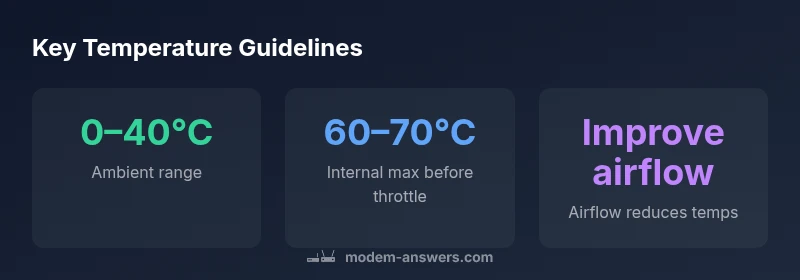
The general rule is: avoid exposing a modem to sustained operating temperatures above about 60°C internally or ambient temperatures over 40°C. Prolonged heat can trigger performance throttling, increased error rates, and shorten lifespan. If you notice high temps, improve ventilation, relocate away from heat sources, or use a cooling fan.
Understanding the temperature question
When homeowners ask how hot is too hot for a modem, the answer depends on two temperatures: ambient room temperature and the device's internal heat. The modem is designed to operate within a safe temperature window, but sustained heat can degrade performance over time. In this guide, we outline general ranges, explain why heat matters for signal quality and longevity, and offer practical steps you can take in a typical home network setup. Throughout, we reference Modem Answers analysis from 2026 to provide a data-informed baseline while recognizing model-to-model variation. Remember: temperatures outside the safe zone can affect reliability, especially during peak usage in warm rooms or enclosed spaces.
Safe ambient operating ranges and what they mean
Most consumer modems are designed to function reliably when the surrounding environment stays within roughly 0°C to 40°C. Within this band, electronics stay within expected tolerances, and cooling is typically passive (natural convection). Exceeding this ambient range, even briefly, increases the chance of thermal throttling and creeping instability in modulation, error rates in data transmissions, and subtle Wi‑Fi performance degradation. Modem Answers analysis, 2026, emphasizes that model-specific specs vary, so checking the manufacturer’s datasheet for the exact ambient rating is still essential, but these ranges provide a practical starting point for most homes.
Internal temperature and throttling thresholds
Beyond ambient conditions, the modem’s own internal temperature matters. Internal temperatures around 60–70°C are commonly cited as a threshold where thermal protection mechanisms may kick in, aiming to prevent component damage. Because manufacturers rarely publish exact throttling curves, the takeaway is to avoid sustained internal temperatures in that range. Good ventilation, unobstructed vents, and not placing the device in sealed cabinets help keep internal heat in check and preserve performance during heavy download or upload activity.
How to measure and interpret temperature readings
To gauge temperature in a real home environment, you can rely on built-in indicators on some modems or use a non-contact infrared thermometer aimed at exposed vents. When no built-in gauge is available, monitor performance signals: increasing latency, sporadic disconnects, or slower speeds during peak hours can be a sign of overheating. Make a note of the ambient temperature and the device’s location to see whether placement is exacerbating heat buildup. The goal is to keep readings within a safe band while ensuring the device breathes freely.
Practical cooling strategies for common spaces
Where you place your modem has a bigger impact than you might expect. Avoid placing it in a closet, cabinet, or enclosed shelf where warm air stagnates. Elevate the device a few inches off a solid surface, ensure there’s space around vents, and keep nearby electronics from radiating heat directly onto it. If your space tends to stay warm, consider a small desk fan or an adjustable stand to increase airflow across the unit. Finally, clean dust from vents regularly; clogged dust filters dramatically raise surface temperatures.
When to Seek changes in placement or setup
If temperatures routinely approach the upper end of the safe range, it’s time to rethink the setup. Simple changes—moving the router away from heat sources (sunlight, heaters, electronics), switching to a less obstructive furniture arrangement, or relocating to a cooler room—often yield noticeable benefits. For apartments with limited options, adding a discreet stand or shelf with ventilation can be enough to reduce heat buildup without a costly upgrade.
Ways airflow and ambient room health improve performance
Airflow is a silent performance booster. Even modest enhancements, such as open space around the modem, cable management that don’t block vents, and a tidy room that doesn’t trap warm air, can lower surface temps by a meaningful margin. A well-ventilated space stabilizes signal quality because modems can maintain stable modulation and coding schemes instead of hot-spot throttling. In extreme cases, a professional cooling solution may be warranted, but most homes can achieve results with simple placement changes.
Real-world scenarios: apartments, homes with attics, and shared spaces
In small apartments, devices tucked under desks or behind entertainment centers are prone to heat buildup. In multi‑story homes, devices in attic spaces face direct sun exposure and higher ambient temperatures. Shared spaces, like basements with limited airflow, can also trap heat. In all cases, the practical rule remains straightforward: keep the modem out of direct heat, give it room to breathe, and monitor performance for any heat-related drifts during peak usage.
Debunking myths and common misconceptions about modem heat
A frequent misconception is that “more power equals better signal.” In reality, sustained heat undermines reliability and accelerates wear, even if speeds seem fine in the short term. Another myth is that external heat lamps, warm rooms, or cold weather automatically harm a device—it's the duration of exposure and internal temperatures that matter most. By focusing on safe ambient ranges, vent clearance, and placement, you can protect your modem well into the device’s typical lifespan.
Temperature guidelines for modems
| Factor | Typical Guidance | Notes |
|---|---|---|
| Ambient Operating Range | 0–40°C | General guideline; avoid heat exposure |
| Internal Throttling Threshold | 60–70°C | Common threshold before protection kicks in |
| Humidity Guidance | 20–80% RH | Non-condensing environment recommended |
| Ventilation Tip | Open space around vents | Keep vents unobstructed to maximize cooling |
FAQ
What is considered a safe operating temperature for modems?
Most modems operate best in typical room temperatures, but always check your model's datasheet. If in doubt, err on the cooler side around ambient 0–40°C.
Most modems run best in room temperatures; check your model's specs and keep it cool.
How can I tell if my modem is overheating?
Look for unusually warm surfaces, high fan noise, poor Wi‑Fi performance during heat, or latency spikes. Use a thermometer or built‑in indicators if available.
If it feels hot to touch or performance drops during hot days, it may be overheating.
Does overheating permanently damage a modem?
Sustained high temperatures can shorten component life and reliability. Most devices have thermal protection, but repeated overheating is not ideal.
Yes, prolonged heat can shorten life; avoid letting it stay hot.
What quick steps can I take to cool a hot modem?
Move the unit away from heat sources, improve airflow, and ensure vents are clear. If needed, elevate it and add gentle airflow.
Move it to a cooler spot and blow air across it.
Should I use a fan or other cooling device for my modem?
A small, unobtrusive fan can help if placement changes don’t reduce temps. Do not block vents and monitor for dust buildup.
A small fan can help if temps stay high; just don’t block vents.
“Overheating is not just a quick glitch—it accelerates wear and can degrade reliability over time. Keeping temperatures in the safe range protects performance and longevity.”
Key Takeaways
- Keep modems in cool, ventilated spaces.
- Aim for ambient 0–40°C; monitor internal temps.
- Improve airflow before using extra cooling devices.
- Relocate or adjust placement if temps stay high.