EN2251 Activation Error: Quick Fixes and Deep Diagnostics
A practical, step-by-step guide to identify and fix EN2251 activation errors on modems. Quick diagnostics, actionable repairs, and prevention tips from Modem Answers.


EN2251 is an activation/authentication error that blocks your modem from completing provisioning with the provider. It often results from incorrect account details, provisioning hiccups, or firmware glitches. The quickest fix is to reboot, verify credentials, and trigger a fresh provisioning attempt. This error is common across several providers and devices, so a universal approach is helpful. If the quick reboot doesn’t resolve EN2251, proceed to check APN/settings, ensure SIM/line provision, and contact support if provisioning servers show outages.
What EN2251 Means in Practice
EN2251 is a modem activation error that interrupts provisioning with your service provider. Think of EN2251 as a lock on your device's ability to authenticate your account and establish a working connection. In real-world terms, you may see the error when the gateway refuses to complete the renewal of service or when the carrier cannot verify your SIM and plan. According to Modem Answers, EN2251 commonly arises during initial setup or after a firmware update, and it often clears with a simple restart or a fresh provisioning attempt. Homeowners and renters should treat this as a signal to recheck credentials, device state, and provider status rather than assuming the hardware is defective. A calm, methodical approach usually resolves the issue quickly and minimizes downtime for critical home networks.
Why Activation Errors Happen
Activation errors like EN2251 typically stem from a mix of provider-side provisioning hiccups and client-side misconfigurations. Common triggers include incorrect account credentials or PINs, misapplied APN or settings for the XBOX/IoT dongle ecosystems, SIM provisioning delays on prepaid plans, and occasional firmware mismatches after updates. Modem Answers analysis shows that many EN2251 cases trace back to a mismatch between the device’s provisioning request and the carrier’s current records. External outages at the provider or DNS routing problems can also trigger the error, particularly during peak hours when servers are stressed. Staying calm and methodical helps you separate transient outages from permanent configuration gaps.
Quick Diagnostic Checklist
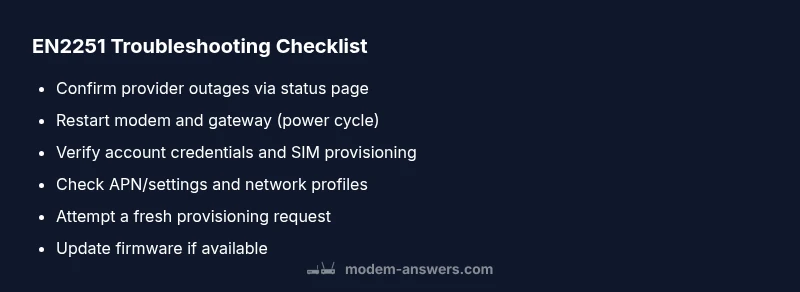
Start with a fast screen of symptoms and status indicators to narrow down causes. Check the LED lights on the modem; a red or blinking amber light often signals provisioning problems or a failed activation. Verify that the device is getting a valid WAN IP and that the gateway’s admin page shows an active session. Use the provider’s network status page to confirm there are no outages in your area. If you recently updated firmware, confirm the version is compatible with your provider. Finally, re-run the provisioning request from the provider’s portal or customer app. If you still see EN2251, proceed with a controlled restart and credential verification. Modem Answers emphasizes keeping a log of timestamps for retries to spot patterns and reduce frustration.
Step-By-Step Repair Guide (overview)
This section provides a high-level roadmap. It is followed by a detailed, numbered set of steps in the dedicated STEP-BY-STEP block to avoid duplication. The goal is to establish a repeatable process you can apply to most EN2251 scenarios, including those caused by an outage. If you are uncomfortable performing any action, skip to contacting your provider for live provisioning support. The Modem Answers team recommends documenting every step taken so you can share precise details with support if needed.
Common Provider Scenarios and What to Do
Providers occasionally suspend provisioning for security or compliance checks, which can trigger EN2251. If you recently changed plans, ports, or SIM cards, contact support to confirm you’re on the correct provisioning profile. In some cases, the activation server may be temporarily unreachable; in those moments, your best action is to wait a short period and retry after confirming no outages. If your SIM is inactive or has been misplaced, request a reissue or a new SIM with proper provisioning. When a device has multiple network profiles stored, a mis-match can trigger EN2251; removing unused profiles can restore a clean provisioning request. The Modem Answers team suggests testing with a known-good SIM if available to isolate the issue to the SIM or the account.
Safety, Warnings, and When to Call a Pro
Always unplug the modem before opening any chassis panels to avoid shock or damage to delicate circuitry. Do not force firmware updates or factory resets without backup of configuration data. If you continue to see EN2251 after two or more provisioning attempts and no outages are reported, contact your provider’s technical support. They can pull provisioning logs and run live tests to verify the account status and SIM provisioning. For business-critical networks, consider scheduling a service call with your ISP or a certified technician to prevent extended downtime.
Pro-Tips to Prevent EN2251 Recurrence
Keep firmware up to date and avoid frequent, unnecessary resets. Maintain an off-site backup of your modem configuration and ensure your account details are current with the provider. Regularly check the provider status page during peak times and configure automatic retries with a safe delay to avoid rapid-fire requests that can flag the device as suspicious. If you use multiple devices, isolate the activation channel for troubleshooting to prevent cross-interference. According to Modem Answers, adopting a small routine of pre-checks before attempting provisioning can significantly reduce recurrence.
Steps
Estimated time: 15-30 minutes
- 1
Power cycle the equipment
Unplug both the modem and gateway from power. Wait at least 60 seconds, then plug back in. This clears transient provisioning errors and forces the device to re-provision on startup.
Tip: Label the power cycle times to track how long before retrying the provisioning request. - 2
Verify credentials and SIM provisioning
Log in to your provider’s portal to confirm the account is active and the SIM is provisioned for the correct plan. If you recently changed plans, ensure the new profile is assigned to the device.
Tip: If you’re unsure about credentials, use a secure password reset and re-link the device. Do not reuse old tokens. - 3
Trigger a fresh provisioning request
Initiate a new provisioning cycle from the device interface or provider app. Ensure the device has a stable connection to the provider’s network before retrying.
Tip: Disable and re-enable the WAN interface if the UI allows it during provisioning. - 4
Check for firmware updates
If a newer firmware version is available, apply it and re-check provisioning. Some EN2251 cases are caused by post-update incompatibilities.
Tip: Back up settings before updating in case you need to revert. - 5
Factory reset as a last resort
If all else fails, perform a factory reset and re-provision from scratch. This can resolve stubborn mismatches but will erase custom configurations.
Tip: Note the current configuration options so you can re-create essential settings after reset.
Diagnosis: EN2251 activation error blocks provisioning
Possible Causes
- highIncorrect account credentials or SIM provisioning data
- mediumProvider provisioning outage or server-side issue
- lowFirmware mismatch after update or incompatible settings
Fixes
- easyPower cycle modem and router (wait 60 seconds) and reattempt provisioning
- easyVerify account credentials and SIM provisioning with the provider
- easyCheck for provider outages and verify device settings (APN, IP passthrough)
- hardReset to factory settings and re-provision if other steps fail
FAQ
What does EN2251 mean in simple terms?
EN2251 is an activation error indicating the modem couldn't complete provisioning with the carrier. In plain terms, the device failed to authenticate your account or SIM data so service activation cannot finish. This often resolves with a restart and re-provisioning, but may require provider assistance if outages or account issues exist.
EN2251 means the modem couldn't activate with the carrier. Restart and re-provision, or contact your provider if outages or account issues are involved.
Can EN2251 happen after a firmware update?
Yes, firmware updates can temporarily disrupt provisioning, causing EN2251. If the error appears after an update, check for a newer patch, roll back if possible, and re-run provisioning after the device reboots. Provider logs can reveal whether the update introduced incompatibilities.
Yes, updates can trigger EN2251. Reboot, check for patches, and re-provision; provider logs can confirm if the update caused the issue.
Is EN2251 provider-specific or device-specific?
EN2251 can be triggered by both provider provisioning issues and device-side misconfigurations. Confirm that your account, SIM provisioning, and device settings align with the carrier’s requirements, and check provider outage pages before assuming the fault lies with your hardware.
It can be both provider- and device-related. Check account, SIM provisioning, and device settings, and verify provider status.
What if EN2251 persists after a restart?
If EN2251 persists after a restart, verify credentials and SIM provisioning with the provider, check for outages, and consider a factory reset as a last resort. Collect logs from the device to share with support for quicker diagnostics.
If it stays after restart, check credentials and outages, and consider a factory reset as a last resort.
How long should provisioning take?
Provisioning can take from a few minutes up to 30 minutes in typical cases. If it extends beyond that after multiple retries, contact support to review account activation and SIM provisioning.
Provisioning usually takes a few minutes, but can take up to 30 minutes. If it takes longer, contact support.
When should I call a professional?
Call a professional if EN2251 persists after all standard steps, especially if provider outages are ruled out and you cannot access provider logs. A technician can verify provisioning handoffs and SIM provisioning at the hardware level.
Call a professional if it won’t resolve after standard steps and outages are ruled out.
Watch Video
Key Takeaways
- Verify provider status before deep troubleshooting
- Restart and re-provision before firmware checks
- Document retry times for faster support
- If unresolved, escalate to provider with logs