CenturyLink Modem Blue Light Troubleshooting: A Fast-Track Guide
Urgent troubleshooting guide to fix a CenturyLink modem flashing blue. Learn quick steps, safety tips, and prevention to restore internet and protect your home network.


Blinking blue on a CenturyLink gateway is usually part of booting, provisioning, or a firmware update in progress. Try a power cycle, check all cables for secure connections, and verify service status with your provider. If the light persists after 15-20 minutes or internet remains down, contact CenturyLink support for live assistance.
What the blue light on a CenturyLink modem usually indicates
The phenomenon described by many as centurylink modem flashing blue often points to routine boot sequences, provisioning with the service provider, or a firmware update in progress. In some homes, a blue blink can also mean the device is attempting to establish a connection with CenturyLink's network. While this status is common, prolonged blinking without an internet connection warrants a structured check to rule out simple issues first and avoid unnecessary service calls. Understanding these signals helps homeowners act quickly and safely to restore service.
Safety and readiness before troubleshooting
The first rule of troubleshooting is safety. Unplug devices only when you can reach the power outlet safely, and avoid pulling on cables. Keep the modem away from moisture, heat sources, and devices that generate strong magnetic interference. If you have a surge protector, consider plugging the modem directly into the wall outlet to rule out protector-related issues. If you share a power strip with high-draw devices, remove the strain by re-plugging the modem to a dedicated outlet. These precautions minimize the risk of electrical faults while you diagnose the issue.
Quick checks you can do right now
Before diving into deeper steps, perform these fast checks. Confirm the power indicator is steady or blinking in a known pattern and verify the power cable is snugly connected. Inspect all Ethernet and phone line cables for visible damage, and re-seat them firmly. Check for any loose or damaged wall jacks, and ensure the service outage status in your area reflects operational service. If devices connected to the modem show inconsistent activity, note times and lights to share with support.
Step 1: Power cycle and cable sanity check
Power cycling is the most reliable first action. Unplug the modem from power, wait 60 seconds, then plug it back in. While it boots, inspect the coaxial or phone line entering the modem for tight connections. If you have a separate router, temporarily remove it and connect a computer directly to the modem with an Ethernet cable to determine if the issue is at the gateway or behind the router. This step often resolves blinking blue when the issue is a simple provisioning or signal hiccup.
Step 2: Verify service status and provisioning
If the light continues to blink blue after a cycle, verify whether CenturyLink is performing maintenance or there is a known outage in your area. Check CenturyLink’s service status page or social media updates from your provider. If outage or maintenance is reported, the fix may be waiting on the provider's end. If there is no outage, continue with targeted checks. Document the time you noticed the issue and any changes you made so you can report them accurately if needed.
Step 3: Firmware updates and factory reset cautions
A blue light can signal firmware activity. Allow 10-20 minutes for updates to complete, avoiding power interruptions during this window. If the light remains blue and no internet is available after updates complete, consider a non-destructive reset option (if offered by CenturyLink) or a full factory reset as a last resort. Note that factory resets will erase custom settings, so back up any critical configuration first if your setup relies on specific VLANs or PPPoE credentials.
Step 4: Advanced network settings and device placement
If you have a combined modem-router, ensure the router isn’t overloading the gateway or creating a loop. Verify that the modem is placed in a well-ventilated area, not enclosed behind furniture, and has at least a few inches of clearance around vents. For advanced users, double-check any required bridge mode or VLAN tagging settings provided by CenturyLink. Incorrect settings can cause provisioning delays or a persistent blinking blue until the device re-provisions.
When to suspect hardware fault or service outage
If none of the above steps restore the connection and the blue light pattern remains unchanged, you may be facing a hardware fault within the modem or a provider-side provisioning error. In this case, contact CenturyLink support with your diagnostic notes, including the light behavior, times you attempted steps, and any outage reports you checked. A replacement device or technician visit may be necessary to restore service.
Prevention: best practices to avoid future blue-light incidents
Keep firmware up to date and avoid frequent power cycling. Place the modem in a stable, ventilated location, away from heat sources and large metal objects that can interfere with signals. Regularly check for service outages before proceeding with self-troubleshooting, and maintain a simple network layout to reduce the chance of cascading failures. Document your configuration, so you can quickly revert to a known-good state after any changes.
Quick-reference checklist for centurylink modem flashing blue
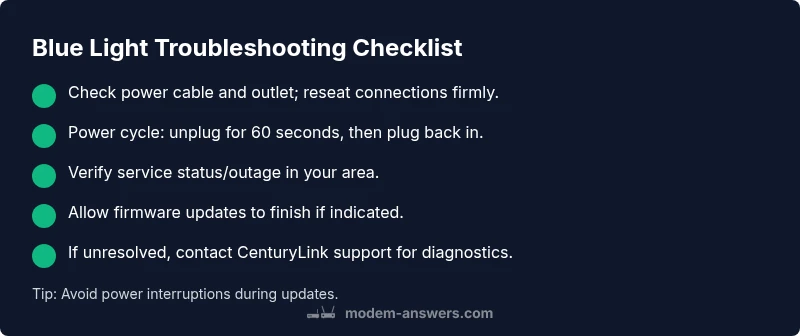
- Confirm power is stable and cables are secure
- Restart the modem and test with a wired connection
- Check for service outages in your area
- Allow firmware updates to complete if indicated by the light
- If unresolved, contact CenturyLink support for further diagnostics
Steps
Estimated time: 60-90 minutes
- 1
Power cycle and cable check
Unplug the modem, wait 60 seconds, plug back in. Confirm all coax/phone and Ethernet cables are firmly seated and undamaged. If you use a surge protector, try bypassing it to rule out a protector fault.
Tip: A loose cable is the most common cause of a blinking blue light. - 2
Verify service status
Visit CenturyLink’s status page or your provider’s outage map. Note any regional outages or maintenance noted during your troubleshooting window. If an outage is reported, minimum patience is needed until the service is restored.
Tip: Document the outage status and your times to share with support. - 3
Allow firmware activity to complete
If the light is blinking due to an update, give the process time to finish. Avoid power cycling during this period to prevent corrupting the update.
Tip: Do not unplug or press reset during firmware updates. - 4
Test with a direct wired connection
Disconnect any secondary router and connect a computer directly to the modem via Ethernet. If the computer accesses the internet, the issue may lie with the router or wireless settings.
Tip: Testing wired helps isolate gateway vs. wireless problems. - 5
Check for resets or factory reset as a last resort
If you proceed with a reset, be prepared to re-enter PPPoE/VPN credentials and your Wi‑Fi settings. This is a last resort for persistent issues.
Tip: Back up important configuration before resetting. - 6
Re-provision or bridging considerations
If your setup uses a separate router, consider putting modem in bridge mode if supported, or ensure proper double NAT handling. Incorrect bridge settings can cause persistent provisioning loops.
Tip: Follow manufacturer guides for bridge mode to avoid conflicts. - 7
Monitor after changes
After each change, observe the light pattern for 10-15 minutes and test internet connectivity from multiple devices.
Tip: Keep a brief log of changes and results. - 8
When to escalate
If the blue light remains after all steps, call CenturyLink support for advanced diagnostics or a possible device replacement.
Tip: Have your account number and outage notes ready. - 9
Document outcomes
Record the final status, light behavior, and any steps taken. This helps support teams diagnose more quickly if you reach out.
Tip: A concise report speeds up the restoration process.
Diagnosis: CenturyLink modem blinking blue with no internet
Possible Causes
- highPower or cable issue
- mediumFirmware update in progress
- highService outage or provisioning delay
- lowHardware fault
Fixes
- easyPower cycle the modem and reseat all cables
- easyCheck service status outage and provisioning pages
- easyAllow firmware updates to complete (wait 10-20 min) without power interruption
- mediumFactory reset only if supported and you can reconfigure
- easyContact CenturyLink support for device replacement or advanced diagnostics
FAQ
What does a blue blinking light on my CenturyLink modem mean?
A blue blinking light often signals booting, provisioning, or a firmware update. If it lasts too long without internet, proceed with the troubleshooting steps outlined above.
A blinking blue light usually means the modem is starting up or updating. If it sticks, follow the steps in the guide.
Why is there no internet even though the blue light is blinking?
This can indicate an outage, provisioning delay, or a simple wiring issue. Check for outages first, then verify cables and try a power cycle.
No internet even with a blue blink could be an outage or a wiring issue. Start with simple checks and then contact support if needed.
Can I fix a blue light by resetting the modem?
Resetting can help if settings are corrupted, but it erases custom configurations. Use a reset only after other steps and reconfigure carefully.
Resetting can help, but you’ll need to reconfigure settings afterward.
Should I contact CenturyLink if the problem persists?
Yes. If the blue light persists after all steps, contact CenturyLink support for advanced diagnostics or a possible device replacement.
If the issue continues, contact CenturyLink for expert help or a replacement.
Is there any risk in leaving the modem powered on for long periods?
Keeping the modem on is normal, but ensure it has proper ventilation. Power cycling occasionally is fine when troubleshooting, but avoid frequent resets.
Keeping it on is fine, just ensure ventilation; don’t reset too often while diagnosing.
Watch Video
Key Takeaways
- Start with power and cable checks.
- Never interrupt firmware updates.
- Check for local outages before deeper troubleshooting.
- Document steps and results to speed support.
- Consider device replacement if faults persist.