What Modem to Use with a Nighthawk Router
Discover which modem works best with your Netgear Nighthawk router. Learn DOCSIS compatibility, how to verify ISP approval, setup steps, and tips to avoid common mistakes for reliable home networking.


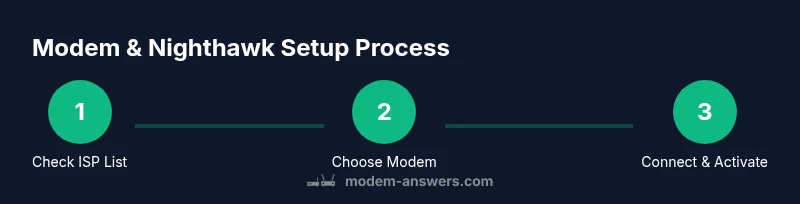
To use a Nighthawk router, choose a DOCSIS cable modem approved by your ISP and connect it to the router with an Ethernet cable. Start with a modem on the ISP’s compatible list, then activate the device and log in to the Nighthawk admin page to finish setup. The right modem boosts reliability and speeds without double NAT.
Understanding the Nighthawk Router ecosystem
The Nighthawk line from Netgear is a popular choice for households that want strong Wi‑Fi coverage and reliable performance. When you pair it with a compatible modem, you essentially create a two-device backbone: the modem (which talks to your ISP over coax or fiber) and the router (which distributes Wi‑Fi inside your home). For many homes, you will connect the modem to the Nighthawk router with an Ethernet cable, then configure SSIDs and security on the router. The question 'what modem to use with nighthawk router' has a practical answer: pick a modem that is approved by your ISP and supports the necessary DOCSIS standard for your service. The Modem Answers team notes that understanding provider compatibility, DOCSIS version, and channel bonding is the quickest path to a smooth setup. This guidance is designed to help homeowners and renters get reliable service with minimal frustration.
Modem types you can pair with Nighthawk router
There are three broad options: a standalone DOCSIS cable modem, a modem-router combo unit, or a fiber ONT connection followed by your Nighthawk router. For typical cable Internet, a DOCSIS 3.0 or 3.1 modem connected to the Nighthawk router gives you full control over Wi‑Fi. If you already own a modem-router combo, you can use the Nighthawk solely as the Wi‑Fi access point and place the combo in bridge mode. DSL users will need a separate DSL modem. The key is to match device type to your service and use a model from a reputable brand that is listed as compatible by your ISP. This approach reduces setup friction and ensures stable performance. In all cases, verify the modem supports the plan you subscribe to and that the router can handle your preferred Wi‑Fi standards.
How to verify compatibility: steps
To confirm you have the right hardware, start by checking your ISP's official list of approved modems online. Look for modems that support the DOCSIS standard your plan requires and note the maximum downstream/upstream channels. Then verify you can activate the modem on your account and that the modem supports bridge mode if you want to use your Nighthawk for routing only. Finally, if you are uncertain, contact support and provide your service address and plan details. By following these steps, you’ll minimize surprises during activation and avoid buying a modem that won’t work with your Nighthawk router. Modem Answers emphasizes sticking to provider-approved models to avoid activation delays.
Best practices for choosing a modem
When comparing modems, prioritize DOCSIS 3.0 or 3.1 support and check that the device is listed as compatible by your ISP. Consider your expected plan speeds and future-proofing needs: more advanced modems with higher channel bonding may perform better on faster plans, but they come at a higher upfront cost. Look for reputable brands with solid firmware support and avoid off-brand devices that lack timely updates. Also consider whether you want to keep your existing Wi‑Fi on the modem or rely entirely on the Nighthawk router. In most homes, using the Nighthawk for Wi‑Fi while the modem handles connectivity to the Internet provides the best balance of performance and control. Modem Answers' guidance consistently favors choosing a provider-approved modem and pairing it with a capable router for stable, scalable home networking.
Bridge mode vs modem-router combo: when to use
Bridge mode disables the router functionality in the modem-router combo, turning the Netgear Nighthawk into the primary router handing out Wi‑Fi. Use bridge mode if you want to avoid double NAT and you need more advanced networking features on the Nighthawk. If your primary goal is quick setup and simple management through the Nighthawk app, you may keep the modem-router combo in router mode and use the Netgear as your main Wi‑Fi system. The decision depends on your network needs, the complexity of your home, and whether you require features like guest networks, QoS, or VPN support.
How to avoid common mistakes
Common missteps include buying a modem not approved by your ISP, choosing a device with outdated DOCSIS support, or neglecting activation steps. Another frequent error is leaving the modem’s Wi‑Fi enabled while the Nighthawk is also routing, creating interference or a double NAT situation. Always verify compatibility first, then follow a clean activation sequence: connect, power cycle, activate with the ISP, and complete Nighthawk setup. Finally, document your network layout so future changes don’t derail your performance.
Cost ranges and value picks
Standalone cable modems generally fall into a broad price range depending on DOCSIS support and feature set. Expect to see commonly recommended models in a mid-range tier; premium devices with multi-gig capabilities can be significantly more expensive. For many homes, a DOCSIS 3.1 modem with solid firmware support offers a good balance of price and performance. If you’re on a tight budget, look for a well-reviewed DOCSIS 3.0/3.1 modem that’s officially supported by your ISP. Always compare current official compatibility lists before purchasing, since ISP updates can change which modems are approved.
Expert tips from Modem Answers
According to Modem Answers Team, the most reliable way to ensure a smooth experience with a Nighthawk router is to start with your ISP’s approved list and then verify the modem’s DOCSIS capabilities and software support. A well-chosen modem minimizes activation issues and avoids common setup delays. Modem Answers recommends keeping firmware updated on both devices and testing a wired connection before switching to Wi‑Fi to isolate potential bottlenecks.
Quick-start setup checklist
- Confirm your ISP is active and you have your account credentials ready.
- Choose a DOCSIS 3.0/3.1 modem that is ISP-approved and supports your plan.
- Connect the modem to the wall outlet with a coaxial cable and run an Ethernet cable to the Nighthawk router.
- Power cycle the modem first, then the router, and wait for stable lights on both devices.
- Activate the modem with your ISP using the activation portal or phone support.
- Access the Nighthawk admin page to configure your network name (SSID) and password, and enable security features (WPA3 if available).
- If you plan to use bridge mode, disable the modem’s Wi‑Fi and assign static IPs if needed.
- Run a speed test and adjust the router settings to optimize coverage for your home layout.
Common provider-specific considerations
Different providers have their own quirks when pairing a modem with a Nighthawk router. Comcast Xfinity, Spectrum, Cox, and other cable providers generally require you to use an ISP-approved modem. Fiber customers will often use an ONT (optical network terminal) device and then connect the Nighthawk to that device with Ethernet. Always check the provider’s activation steps and ensure the modem is listed on their compatibility page. If you encounter activation issues, contact your provider’s technical support and reference your modem’s MAC address and model number during the call.
Tools & Materials
- Nighthawk router(Model specifics don’t matter for compatibility; ensure it has a standard Ethernet WAN/LAN port)
- DOCSIS cable modem(DOCSIS 3.0 or 3.1; check ISP compatibility list)
- Coaxial cable(One end to wall outlet, other to modem)
- Ethernet cable (Cat5e/Cat6)(Connect modem to Nighthawk router)
- Computer or smartphone(For activation and router settings)
- ISP account information(Account number, login, activation details)
- Activation PIN or password (if required)(Some ISPs require it during activation)
- Optional: network layout map(Helpful for larger homes to optimize placement)
Steps
Estimated time: 30-60 minutes
- 1
Verify service compatibility
Check your ISP’s plan to confirm you are using a modem that is approved and that DOCSIS version matches your service tier. This saves you from activation delays and ensures you get the speeds you pay for.
Tip: If in doubt, call support with your service address and plan details before buying a modem. - 2
Choose a compatible modem
Select a DOCSIS 3.0/3.1 modem listed on your provider’s approved device list. Ensure it supports the speeds you expect and that the modem is not end-of-life for firmware updates.
Tip: Prefer a modem with recent firmware updates and a good track record for reliability. - 3
Physically connect the modem to the Nighthawk
Connect the coaxial cable to the modem, then run an Ethernet cable from the modem to the WAN port on the Nighthawk router. Place the devices where airflow is unobstructed and cables aren’t strained.
Tip: Keep cables tidy and avoid running them under rugs to prevent wear. - 4
Power cycle and activate
Power on the modem first, wait for initialization (all status lights stable), then power on the Nighthawk. Use your computer or phone to access the activation site or dial your provider to register the modem.
Tip: If activation stalls, try a 30-second reboot of both devices and retry. - 5
Configure the Nighthawk
Open the Nighthawk admin page, set or confirm your SSID and password, and enable the latest security protocol (WPA3 if available). You can also set up guest networks and QoS rules.
Tip: Write down the admin password and SSID for future use and share access with household members as needed. - 6
Decide on bridge mode
If you want the Nighthawk to handle all routing, enable bridge mode on the modem-router combo (or leave the modem out of the picture if you’re using a pure DOCSIS modem).
Tip: Bridge mode reduces double NAT and often improves advanced features like VPN and port forwarding. - 7
Test and optimize
Run speed tests on wired and wireless devices, then adjust channel selection, band steering, and placement to maximize coverage.
Tip: If coverage is patchy, consider a mesh extension or repositioning the router away from obstacles.
FAQ
Can I use any modem with a Nighthawk router?
Only modems approved by your ISP and that support the required DOCSIS standard will work reliably. Always check the provider’s official compatibility list before buying.
Use only ISP-approved modems and check the compatibility list first.
What is the difference between a modem and a modem-router combo?
A modem connects to the Internet service, while a router distributes Wi‑Fi. A modem-router combo includes both devices in one box; a standalone modem paired with a separate router gives you more control.
A modem connects you to the Internet; a router spreads Wi‑Fi. A separate router usually provides more features.
Do I need to bridge mode to use a Nighthawk router?
Bridge mode is optional and depends on your network goals. It reduces double NAT when you want the Nighthawk to manage routing entirely.
Bridge mode is optional; it helps if you want the Nighthawk to handle routing.
Will a higher-end modem improve my Nighthawk performance?
A better modem can improve reliability and peak throughput on fast plans, but overall performance also depends on your ISP, plan, and router settings.
A better modem can help reliability, but speed also depends on your plan and router setup.
How can I tell if my modem is approved by my ISP?
Check the provider’s official list of compatible modems and confirm the model and firmware support before purchase.
Check the ISP’s compatibility list for your model and firmware.
What should I do if my modem shows a flashing online light?
Power cycle both devices: unplug, wait 30 seconds, plug back in, and retry activation. If the light persists, contact your ISP.
Power cycle and contact support if the light keeps flashing.
Watch Video
Key Takeaways
- Check ISP compatibility before buying.
- Prefer DOCSIS 3.0/3.1 modems with provider approval.
- Use Ethernet to connect modem to Nighthawk for best reliability.
- Choose bridge mode only if you need advanced routing features.
- Test and tune Wi‑Fi placement for optimal coverage.