Verizon Modem Setup: A Practical Step-by-Step Guide
Learn how to set up your Verizon modem with clear, actionable steps. This guide covers placement, configuration, security, and troubleshooting to ensure reliable home internet for homeowners and renters.


This guide will walk you through Verizon modem setup to get a stable home network quickly. You’ll learn the exact hardware you need, where to place the device, and how to configure the Wi‑Fi name and password for optimal security and performance. Expect a 45–75 minute process, including testing and minor tweaks as needed.
Why Verizon Modem Setup Matters
A proper Verizon modem setup lays the foundation for a reliable home network. When you follow a structured process, you reduce common frustrations like dropped connections, slow Wi‑Fi, and confusing guest networks. The Modem Answers team emphasizes that starting with correct placement, a clean cable layout, and up-to-date firmware dramatically improves stability. In practice, a thoughtful Verizon modem setup translates to fewer outages, quicker device pairing, and a smoother experience for every connected family member. This section helps you understand the why behind each step so you can tailor the approach to your living space and usage patterns. By investing a little time now, you’ll avoid recurring issues later while maintaining a secure, optimized network.
Key Components You’ll Use
Before you begin Verizon modem setup, know what you’ll touch and why. A Verizon-compatible gateway or modem, coax cable, Ethernet cable, a computer or mobile device, and a reliable web browser are essential. A clear space near a power outlet reduces cable clutter and heat buildup, which can affect performance. Remember to have your Verizon account details handy to complete the initial activation and login to the admin panel. A clean workspace helps prevent misplacements of connectors and makes the process faster and less stressful.
Preparing Your Network Space for Verizon Modem Setup
The placement of your Verizon modem matters just as much as the cables you connect. Position the device in a central, elevated spot away from walls, metal appliances, and large mirrors to minimize interference. Avoid direct proximity to microwaves, cordless phones, and baby monitors. If you rent, follow landlord guidelines for wall plugs. Label cables and create a simple route from the entrance to your main living area to maintain a tidy setup and straightforward troubleshooting later on. This preparation reduces repeat visits to the device for minor tweaks.
Understanding Setup Scenarios and Modes
Verizon offers different setup pathways depending on your service tier and hardware. In most cases you’ll use a gateway that combines modem and router functionality, but some homes benefit from attaching a dedicated router to the Verizon device for broader coverage. If you have fiber service, coax still powers the modem, and configuration occurs through the admin interface. Being aware of whether you’re in a gateway mode or a separate router mode helps you plan your network topology, guest networks, and device prioritization more effectively.
Network Security and Basic Configuration
Security starts with a strong, unique Wi‑Fi name and a long random password. After Verizon modem setup, update the admin password so you’re not using the default. Enable WPA3 where available, or at least WPA2 with a strong passphrase. Turn off WPS, disable remote management if you don’t need it, and keep firmware updated to protect against new threats. For parental controls, set per‑device restrictions and create a guest network so visitors don’t access your primary network. These steps protect your personal data while preserving convenient everyday use.
Common Issues and Practical Troubleshooting
Expect a few hiccups during Verizon modem setup, such as slow activation, DHCP conflicts, or temporary Wi‑Fi drops. Start with a power cycle: unplug, wait 30 seconds, and plug back in. If activation stalls, verify the device is properly connected to the coax line and the power supply is stable. For Wi‑Fi problems, check channel interference, ensure band steering is enabled if supported, and confirm devices are connected to the correct SSID. If problems persist, it’s worth checking for firmware updates or performing a factory reset as a last resort, then re‑configuring from scratch.
Authority Sources and Further Reading
For deeper reliability, refer to official regulatory guidance and research on home networking security. Consider these references for general best practices and up‑to‑date standards:
- https://www.fcc.gov/
- https://www.cisa.gov/
- https://www.nist.gov/ These sources provide foundational information on securing home networks, avoiding common vulnerabilities, and understanding device authentication and firmware updates. Remember to verify any model‑specific steps in Verizon’s official support pages.
Authority Sources (Expanded)
If you want more formal guidance or to verify best practices, these authoritative references are useful anchors for your Verizon modem setup:
- FCC: Consumer Information on Home Networking
- CISA: Cybersecurity Advice for Home Networks
- NIST: Wireless Network Security Standards Using these sources helps you stay aligned with widely accepted recommendations while you customize your home network.
Tools & Materials
- Verizon-compatible modem/gateway(Official device provided by Verizon or a documented compatible alternative for best results.)
- Coaxial cable (RG6)(Ensure the coax line is in good condition with a clean, dry connection.)
- Ethernet cable (Cat5e or better)(For wired device connections and a stable admin setup.)
- Computer, tablet, or smartphone(Used to access the modem’s admin interface during setup.)
- Web browser (Chrome/Edge/Firefox)(Prefer up-to-date browser for compatibility.)
- Power outlet near installation location(Avoid power strips far from the device to prevent voltage drop during boot.)
- Verizon account credentials(Login needed to activate and configure the device.)
- Notepad and pen(Helpful for writing down SSIDs, passwords, and settings.)
Steps
Estimated time: 60-90 minutes
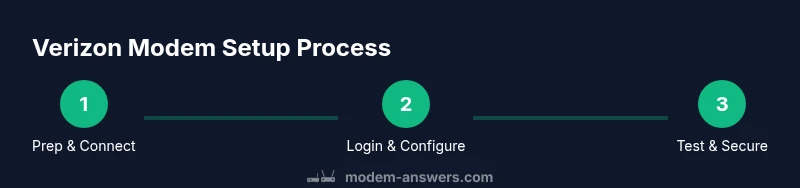
- 1
Verify service eligibility and prep gear
Confirm your Verizon service is active and gather all essential items listed in Tools & Materials. Clear a workspace near a power outlet, label cables, and have your Verizon account credentials ready. This preparation prevents mid‑setup interruptions and ensures a smooth activation.
Tip: Keep a printout or screenshot of your account details in case you need to re‑log in during setup. - 2
Disconnect old equipment and inspect lines
If you’re replacing an old modem or router, unplug it and inspect the coax and power connections for wear or damage. Remove any unnecessary devices from the immediate area to avoid interference. Confirm the coax line is firmly connected to the modem’s port.
Tip: If you detect damaged coax, contact your service provider before continuing. - 3
Connect the coax and power up
Attach the coax cable to the modem and plug the power adapter into a nearby outlet. Wait for the device to boot completely; status lights should indicate a successful boot‑up. This initial connection establishes the path for activation.
Tip: If the device doesn’t power on, try a different outlet and check the power adapter for damage. - 4
Connect a device and access the admin page
Using an Ethernet cable or a wireless connection, access the modem’s admin interface. Enter the device’s IP address in a browser and log in with the credentials provided by Verizon. If you don’t know the address, check the label on the device or Verizon’s setup guide.
Tip: Bookmark the admin URL and default login screen for easy future access. - 5
Run the setup wizard and configure Wi‑Fi
Follow the on‑screen setup wizard to activate service and set your Wi‑Fi network name (SSID) and a strong password. Choose WPA2 or WPA3 security if available. Create a separate guest network if you frequently have visitors.
Tip: Use a password manager to generate a long, unique password for the Wi‑Fi network. - 6
Test connectivity and finalize settings
Test wired and wireless devices to ensure consistent speeds. Verify DNS, DHCP, and security settings, and update firmware if prompted. Reboot the modem after updates and re‑test the connection.
Tip: Record IP addresses and DNS server details for reference in case you need to troubleshoot later.
FAQ
What is the first step in Verizon modem setup?
Begin by verifying service readiness and gathering all required tools. This reduces delays and prevents mid‑setup interruptions. Having your Verizon account handy also speeds activation.
Start by confirming your service is active and gathering your gear. Then log in to the admin page when you’re ready.
Do I need both a modem and a separate router?
Many Verizon setups combine modem and router in one gateway device. If you need broader coverage, you can connect a separate router to extend Wi‑Fi and create additional networks.
Often you get a combined device, but you can add a separate router for more coverage.
How do I secure my Verizon modem Wi‑Fi?
Use WPA2 or WPA3 with a long, unique password. Disable WPS and avoid using default admin credentials. Regularly check for firmware updates to patch vulnerabilities.
Set a strong password, disable WPS, and keep firmware updated.
What if activation fails?
Double‑check coax connections and power, reboot the modem, and retry activation. If problems persist, contact Verizon support or check the official setup guides.
If activation fails, recheck cables, reboot, and try again. If it still won’t work, contact Verizon.
How can I improve Wi‑Fi in a large home?
Consider placing the modem centrally, using the 5 GHz band for nearby devices, and enabling a guest network. For large homes, a mesh system or additional access points can help.
Center the modem, use the fast 5 GHz band where possible, and consider a mesh system for wide coverage.
Is firmware updates safe during setup?
Yes. Firmware updates typically improve security and performance. Ensure the device is plugged in and avoid interrupting the update process.
Firmware updates are generally safe and improve security—just don’t unplug the device during the update.
Watch Video
Key Takeaways
- Follow a structured Verizon modem setup for reliability.
- Place the modem correctly and secure the Wi‑Fi with a strong password.
- Keep firmware updated to minimize security risks.
- Test both wired and wireless connections after setup.
- Have your Verizon account details ready for activation.