Phone to Modem Setup: Practical Step-by-Step VoIP Guide
A practical guide to connecting a phone to a modem with built-in voice ports or VoIP support. Learn compatibility checks, required cables, setup steps, and troubleshooting for homeowners.


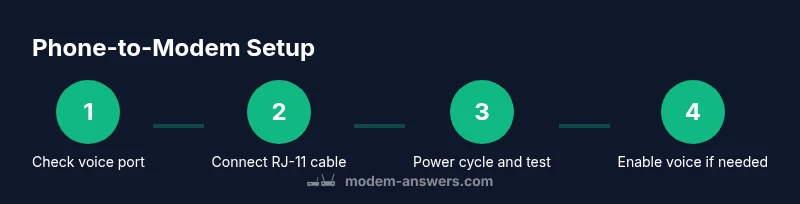
To use a phone with your modem, first confirm the modem has a built-in voice/POTS port or supports VoIP. Then connect the phone to the modem using a standard RJ-11 cable, power cycle the device, and verify dial tone. If your service requires, enable voice settings in the modem’s admin page or bridge mode to separate functions. Follow the on-screen wizard for final activation.
Understanding Phone-to-Modem Basics
Phone-to-modem connections are common when a gateway provides both data and voice services. In modern homes, a single device may handle internet access and telephone service via a built-in voice port or through VoIP. According to Modem Answers, the most reliable setups start by confirming port availability and service compatibility before wiring anything. If a modem lacks a dedicated voice port or VoIP capability, you will need a separate VoIP adapter or a different gateway recommended by your provider. This section clarifies the essential concepts so you can identify the right hardware and avoid busywork when you begin wiring.
Key idea: your modem must explicitly advertise a voice/POTS port or SIP/VoIP support to carry a telephone signal.
Compatibility and Limitations
Not every modem supports phone connections. Many consumer gateways include a dedicated POTS port, while others rely on a VoIP service delivered by the ISP. Before attempting any wiring, double-check the device specifications, your service type, and whether you need an extra ATA (Analog Telephone Adapter) or a bridge to separate network functions. Modem Answers analysis shows that users frequently encounter issues from treating a data-only modem as a voice gateway. If your model lists Voice, POTS, or SIP, you’re likely in good shape. If not, plan alternatives through your provider or an ATA accessory.
Practical takeaway: the critical step is confirming voice capability in writing from the manufacturer.
Hardware, Cables, and Safety
Gather the right hardware before you start. You’ll need an ordinary landline telephone, a standard RJ-11 telephone cable, and a modem that supports voice or VoIP. If you’re bridging a separate router, you may also need a bridge-capable modem or an ATA. Always power down equipment before connecting cables and avoid forceful insertion of connectors. Use a surge protector to guard against power surges, which can protect both the modem and your phone. This section will help you assemble everything you need without surprises.
Safety note: never plug a live telephone line into non-voice-capable ports; disconnect power before handling equipment, and consult your provider if you’re unsure about support.
Configuration Scenarios: Built-in VoIP Port vs Bridge Mode
There are two common setups for phone-to-modem configurations. The simplest is to use a modem with a built-in VoIP/POTS port; you plug the phone in, and the gateway handles signaling. A more advanced scenario is bridge mode, where you disable router features on the modem to let a separate router manage network duties while the modem still provides voice connectivity through its bridge. Choose the path that matches your existing equipment and provider requirements. If you’re unsure, start with the built-in voice port and only switch to bridge mode if necessary for networking performance.
Tip: bridging can improve network performance if you’re offloading routing to a separate device, but it adds setup steps.
Step-by-Step Wiring and Activation
This section walks you through the practical wiring and activation process. First, locate the modem’s voice port or SIP-enabled jack. Then connect the RJ-11 cable from the phone to the port, ensuring a snug fit. Power cycle the modem and listen for a dial tone. If dial tone is absent, verify port status in the admin interface, confirm service activation with your provider, and re-test. In some cases you’ll need to enable voice features or configure SIP credentials. Finally, perform a quick test call to confirm both incoming and outgoing calls work reliably.
Note: if the provider requires SIP credentials, have them on hand before you begin; these are often supplied by the provider when setting up VoIP.
Troubleshooting Common Issues
If the phone produces no dial tone after setup, start with the simplest checks: re-seat the RJ-11 cable, verify the port selection, and confirm the modem recognizes voice service in the admin panel. If dialing out fails, check if the provider flagged the line or if a bridge mode change disrupted voice paths. Inconsistent call quality may stem from bandwidth constraints or QoS settings; prioritize voice traffic on your router if possible. If problems persist, contact your provider for port provisioning or update the modem’s firmware.
Authority Sources and Further Reading
For formal guidance on voice services and device compatibility, consult these sources:
- FCC: VoIP guidance and consumer information
- ISP provider support guides for voice services
- Manufacturer manuals for your specific modem model
These sources help verify that your hardware and service plan align with current telecommunications standards and ensure a stable home voice experience.
Authority Sources
- FCC: https://www.fcc.gov/consumers/guides/voip-service
- National Telecommunications and Information Administration: https://www.ntia.doc.gov/
- Manufacturer support for your modem model (check the product page)
Tools & Materials
- RJ-11 telephone cable(Standard landline cable; use a straight-through type and a length that reaches from the modem to the phone comfortably)
- Analog telephone handset(Your regular home or office phone)
- Modem with voice port or VoIP capability(Verify that the model lists Voice, POTS, or SIP support)
- RJ-11 to RJ-11 adapter (if needed)(Only if your wiring setup requires splitting lines or connecting multiple devices)
- Access to modem admin page or app(Needed to enable voice features or bridge settings if your setup requires it)
- Surge protector or power strip(Provides power protection for modem and phone equipment)
Steps
Estimated time: 20-40 minutes
- 1
Verify modem compatibility
Check the modem’s labeling or manual to confirm a voice port or SIP/VoIP support. If there’s no voice port, plan to use an ATA or a compatible gateway from your provider.
Tip: If in doubt, contact your service provider to confirm compatibility before purchasing adapters. - 2
Identify the correct port
Look at the rear panel of the modem and identify the jack labeled PHONE or VOICE. Ensure it is a standard RJ-11 connector, not an RJ-45 data port.
Tip: If you’re unsure, reference the modem’s diagram in the manual or on the manufacturer’s site. - 3
Connect the phone
Plug one end of the RJ-11 cable into the PHONE/VOICE port and the other end into the telephone. Use a snug fit with no wiggle.
Tip: Do not use adapters that reduce the shield or alter the conductor count. - 4
Power cycle and test dial tone
Power cycle the modem after connecting the phone, wait for the startup sequence, then pick up the handset to check for a dial tone.
Tip: If there’s no dial tone, wait a couple of minutes for provisioning and retry. - 5
Configure voice settings if required
Open the modem admin page and navigate to the Voice or SIP section if your provider requires credentials. Enter any required information or re-enable the voice port.
Tip: Keep credentials secure and avoid sharing them in insecure channels. - 6
Test call quality and finalize
Make several test calls to verify both incoming and outgoing lines, and check for consistent quality. If problems persist, try bridge mode or consult your provider.
Tip: Document any settings changes for future troubleshooting.
FAQ
Can every modem support a phone connection?
No. Only modems with a built-in voice port or SIP/VoIP capability can carry a telephone signal.
Not all modems support phones. Check the specs for a voice port or SIP/VoIP features.
What is bridge mode, and do I need it for phone?
Bridge mode disables the modem’s routing features, letting a separate router handle network traffic while voice continues through the gateway.
Bridge mode separates voice from data, which helps if you’re using another router.
Why is there no dial tone after setup?
Possible miswiring, port disabled in the admin panel, or provisioning not completed by the provider.
Check the port status and provider provisioning; re-test after adjustments.
Do I need a SIP account?
Some providers require SIP credentials; others deliver voice through the ISP gateway. Contact your provider for specifics.
Some setups need SIP credentials; many are automatic via the provider.
Can I connect multiple phones to one modem?
If your modem offers multiple POTS ports, you can connect more than one phone. Otherwise, use an analog telephone adapter.
You may be able to connect several phones if multiple ports exist; otherwise, use an adapter.
Will enabling bridge mode affect internet speed?
Bridge mode shifts routing duties to a separate router; as long as your router handles traffic well, internet speed remains stable.
Bridging changes how devices connect but usually doesn’t slow your internet if you have a capable router.
Watch Video
Key Takeaways
- Verify modem voice capability before wiring
- Use a proper RJ-11 cable and the correct port
- Test dial tone and call quality after setup
- Consult provider for SIP credentials if needed