Modem for FiOS: IP Passthrough and Your Own Router
Learn how to use your own router with Verizon FiOS by enabling IP Passthrough. This practical guide covers setup, security, and troubleshooting for a faster, more flexible home network.


With FiOS, you can’t swap in a pure standalone modem. Instead, use your own router behind Verizon’s gateway by enabling IP Passthrough (and disable the gateway’s Wi‑Fi). The fiber ONT stays in place and passes public IP to your router via Ethernet. Requirements: active FiOS service, a compatible router, an Ethernet cable, and admin access to the FiOS gateway.
What FiOS expects and why a true
modem
isn't always the right word for FiOS
For most residential FiOS deployments, the service is delivered through a fiber ONT (optical network terminal) that connects to a gateway router provided by Verizon. In practice, this means a dedicated box that handles fiber termination, routing, and Wi‑Fi. A traditional cable modem, designed for coax networks, cannot attach to a fiber line in a standard home. The takeaway from Modem Answers is that FiOS setups are best approached as a gateway plus optional second‑party router rather than a single “modem only” device. This distinction matters because it informs how you structure your network and whether you should replace the gateway with a third‑party device at all.
Key differences between FiOS gateway and a standalone modem/router
- FiOS relies on an ONT and a gateway that can route, NAT, and manage wireless networks.
- A third‑party modem typically won’t work on a fiber line without an ONT in front of it.
- You can still use your own router by putting the FiOS gateway into IP Passthrough or bridge-like modes and letting your router handle DHCP/NAT.
This approach preserves the provider’s fiber termination while giving you control over Wi‑Fi naming, guest networks, and advanced features. According to Modem Answers, the majority of home networks benefit from moving the router duties to a device you own, with the gateway acting as a bridge rather than a primary router.
The IP Passthrough approach: a practical mental model
IP Passthrough hands the public IP address obtained from the FiOS gateway to your own router. The gateway remains in the network path but passes the external address to the downstream router, which then handles NAT, firewall, and Wi‑Fi (if you use your own APs). In this configuration, the FiOS gateway essentially becomes a pass‑through device, not the central router. This is the most reliable path to use a modern, capable router while still receiving FiOS service.
Common misconceptions resolved
- You don’t need to abandon FiOS entirely to upgrade your home network. You can keep the fiber connection intact while optimizing your LAN with a robust router.
- If you want to conserve hardware, you can configure a gateway‑plus‑router setup rather than replacing the ONT entirely, which isn’t practical for most homeowners.
How this affects Wi‑Fi and mesh systems
If you plan to use a different Wi‑Fi solution (mesh system or a high‑end router), IP Passthrough lets you centralize Wi‑Fi management on your own device. Disable the FiOS gateway’s Wi‑Fi to avoid interference and use your router’s SSID and security settings. This typically yields cleaner signal, more consistent speeds, and easier guest network management.
A note on security and firmware
Using your own router gives you direct control over firewall rules, VPN support, and firmware updates. However, you’ll want to keep firmware current and consider enabling automatic updates or a scheduled maintenance window. The Modem Answers team recommends documenting changes and maintaining a backup configuration so you can restore settings if needed.
Tools & Materials
- Active FiOS service(Ensure service is live and you can access the FiOS gateway admin interface)
- Compatible router with WAN port(Prefer a router with modern security features and good VPN support)
- Ethernet cable (Cat5e or better)(Used to connect the gateway to your router)
- Access credentials for FiOS gateway(Admin username/password needed to enable IP Passthrough)
- Power strip with surge protection(Power reliability helps prevent network drops)
Steps
Estimated time: 20-40 minutes
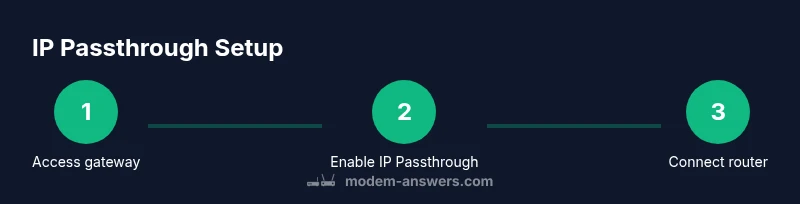
- 1
Access the FiOS gateway admin
Log in to the FiOS gateway admin interface using a wired device. Look for the IP Passthrough or Bridging section. This initial step confirms you can reach the gateway and prepares you for the next configuration changes.
Tip: Take a screenshot or write down the current settings before changing anything. - 2
Enable IP Passthrough
Within the gateway, enable IP Passthrough and select the device you want to pass the WAN IP to (your router's MAC address). This keeps the gateway in the circuit but hands the public IP to your router.
Tip: If you don’t see IP Passthrough, check for firmware updates or search for the term in the help section. - 3
Disable gateway Wi‑Fi
Turn off the gateway’s wireless radios to avoid double NAT and Wi‑Fi interference with your own router. Keeping Wi‑Fi off on the gateway reduces confusion for devices.
Tip: If your own router has a guest network, enable it there instead of using the gateway Wi‑Fi. - 4
Connect your router
Use an Ethernet cable to connect the gateway’s LAN port to your router’s WAN/Internet port. This physically places your router after the gateway in the network path.
Tip: Use a short, quality Ethernet cable and avoid looping cables around heat sources. - 5
Configure your router’s WAN settings
In your router’s settings, set WAN to obtain an IP automatically (DHCP) or to use the public IP provided by the gateway, depending on the router’s capabilities. This step ensures you receive a routable address.
Tip: Disable any conflicting features like double NAT on the router; refer to the manual for your specific model. - 6
Test and secure
Verify internet connectivity on both wired and wireless devices. Update firmware, enable a strong firewall, and configure your preferred security settings.
Tip: Run a quick speed test and check your router’s admin interface for connected devices.
FAQ
Can I use any modem with FiOS fiber service?
No. FiOS uses an optical network terminal and a gateway. A traditional modem won’t work on a fiber line. You can use IP Passthrough to run your own router behind the FiOS gateway, but you’ll still need the provider’s hardware in the path.
You can’t replace FiOS fiber with a standard modem. Use IP Passthrough to run your own router behind the gateway.
What is IP Passthrough, and why would I use it?
IP Passthrough forwards the public IP address from the FiOS gateway to your own router, letting you manage DHCP, NAT, and firewall on your device. It provides more control, better features, and can improve LAN performance.
IP Passthrough lets your router handle the internet address and features, giving you more control.
Will enabling IP Passthrough disable the gateway's Wi‑Fi entirely?
Typically, yes. Enabling IP Passthrough usually means turning off the gateway’s Wi‑Fi to avoid conflicts and ensure the downstream router manages wireless networks.
In most setups, the gateway’s Wi‑Fi is disabled when IP Passthrough is active.
What if my network uses MoCA or a mesh system?
IP Passthrough works with most wired routers. If you’re using MoCA adapters or a mesh system, place the gateway in passthrough and connect the MoCA or mesh nodes to your router as normal.
Passthrough works with most setups; connect your MoCA or mesh devices to the main router.
How do I know if my router is compatible with FiOS IP Passthrough?
Most modern routers support DHCP WAN, WAN IP passthrough, or bridge modes. Check the user manual for IP Passthrough or bridge features and ensure firmware is current.
Most current routers support the necessary passthrough modes; check the manual.
Are there any long‑term considerations for renting vs owning a modem/router with FiOS?
Owning your own router typically provides more control and features, but you’ll rely on support for IP Passthrough setup. Renting may simplify support, but you’ll have fewer customization options.
Owning gives control but may require more setup; renting simplifies support.
Watch Video
Key Takeaways
- Enable IP Passthrough to use your own router with FiOS.
- Disable gateway Wi‑Fi to prevent interference.
- Connect via Ethernet and configure DHCP on your router.
- Keep firmware updated and secure your network.