How to Install a Modem Router Combo: A Complete Guide
A practical, educational guide to installing a modem router combo, configuring Wi‑Fi, and optimizing performance for a reliable home network. Includes safety tips, a tools list, step-by-step actions, troubleshooting, and maintenance.


You will learn how to install a modem router combo, connect it to your internet service, and verify a stable wireless network. This integrated device reduces clutter, simplifies setup, and provides a single management point. You’ll cover selecting a compatible model, mounting or placement for best coverage, initial configuration, and immediate testing to ensure reliable home connectivity.
What a modem router combo is and why it matters
A modem router combo (also known as a gateway) combines a cable/phone line modem and a wireless router into a single device. If you’re wondering how to install a modem router combo, this integrated solution can reduce clutter, simplify setup, and provide a single point of management. According to Modem Answers, consolidating devices can streamline firmware updates and parental controls, while keeping your network simple to troubleshoot. The key is to pick a model that matches your service and home size, and to place it where signals can reach most rooms without obstruction. This approach is especially appealing for renters and homeowners who want a cleaner setup without sacrificing performance.
Key features to look for when choosing a model
When evaluating a modem router combo, focus on compatibility with your internet plan, supported Wi‑Fi standards (at least Wi‑Fi 5 or Wi‑Fi 6), built‑in security features, and the number of Ethernet ports. Look for guest network support, parental controls, and easy firmware updates. A compact form factor can help with placement, while a robust antenna design improves coverage in larger homes. Modem Answers analysis shows that most homeowners prefer devices with reliable auto-updates and straightforward setup. Keep in mind that performance depends on the plan you subscribe to and the home layout.
Checking compatibility with your internet service
Before buying or installing, confirm that your provider supports the specific modem router combo model. Most providers offer a list of approved devices or a compatibility checker on their support pages. If you already have service, you can use the model’s model number to check for DOCSIS compatibility (for cable) or VDSL/ADSL support (for fiber or DSL). If unsure, contact your provider’s technical support for a quick validation. Confirm whether your service requires a specific username/password for activation and whether you can use a self‑install option or need technician support.
Preparing your space for optimal signal
Place the device in a central, elevated location away from large metal appliances and thick walls. Avoid sealed cabinets, mirrors, and devices that emit interference. If possible, keep the unit at least a foot off surfaces for ventilation and ensure there is adequate airflow. Elevation and unobstructed lines of sight matter more for 2.4 GHz than 5 GHz, so plan based on your floor plan and device count. If you have multiple floors, aim for a midpoint position to balance coverage across levels and minimize dead zones.
Safety and safety checks before powering on
Unpack the modem router combo and inspect for any visible damage. Verify the power adapter matches the rating on the label. Do not power the device during storms or power surges. If you rely on a surge protector, use one with a grounded connection. Keep liquids away from the device, and avoid stacking the unit with heavy objects that could block vents. If you notice a burning smell, unplug the device immediately and consult support.
Wiring and physical setup basics
Connect the device to the incoming line (coax, fiber ONT, or DSL line) using the correct input port. Then connect the provided Ethernet cable from the device’s LAN port to a computer for initial configuration, or use a tablet/phone if you prefer. Power up and wait for the status lights to stabilize. Refer to the user manual for LED indicators and typical startup times. Keep the wiring tidy to prevent accidental unplugging and to keep cables from obstructing airflow.
Initial configuration: accessing the admin interface
Using a computer or mobile device, connect to the modem router combo’s default network and navigate to the built‑in admin page (usually at an IP like 192.168.0.1). Enter the default username and password found in the manual. Run the setup wizard if available, and choose your region, time zone, and language. Update the device name (SSID) and admin password to begin. Write down the new credentials in your notes for future reference.
Securing your network: passwords, encryption, guest networks
Change default credentials immediately to prevent unauthorized access. Use WPA3 if supported, or WPA2 at minimum, and disable WPS if your device supports it. Create a strong, unique SSID and password for your main network, and consider a separate guest network for visitors. Regularly update firmware to patch known vulnerabilities. Enable automatic security updates if the option exists so you don’t have to remember to check.
Performance tuning: channels, band steering, QoS
For best results, use 2.4 GHz for range and 5 GHz for speed, and enable band steering if available to help devices switch to the best band. Manually selecting a channel can reduce interference in crowded environments. If your devices require streaming or gaming, enable QoS (Quality of Service) rules to prioritize latency‑sensitive traffic. Consider testing different channel settings during peak usage times to optimize throughput across your home.
Troubleshooting common issues after install
If you cannot reach the admin page, check the connection from the modem to the router, reboot in safe order, and verify the device is getting a public IP from your ISP. Slow speeds or intermittent Wi‑Fi may indicate interference, outdated firmware, or a misconfigured security setting. Recheck LED indicators and consult the support page for error codes. If problems persist, try a factory reset while noting your custom settings so you can reconfigure quickly.
Next steps: maintenance and firmware updates
Keep the firmware up to date by enabling automatic updates when possible. Periodically sign in to review connected devices and adjust parental controls or guest networks as household needs change. If you upgrade your service or reorganize your home network, repeat the placement and channel checks to preserve performance. The Modem Answers team recommends reviewing your network layout annually and documenting changes for quick future reference.
Tools & Materials
- Modem router combo device(Ensure it is compatible with your service and supports your speed tier)
- Coaxial or fiber optic cable depending on service(Have extra length on hand for flexible placement)
- Ethernet cable (Cat5e or better)(Use for initial wired setup)
- Power adapter and outlet with surge protection(Check rating matches device label)
- Computer or smartphone for configuration(Connect during setup to admin page)
- Notepad or digital note app(Record SSID, password, and settings)
- Optional: network analyzer app(Helps diagnose signal strength and interference)
Steps
Estimated time: Total time: 40-60 minutes
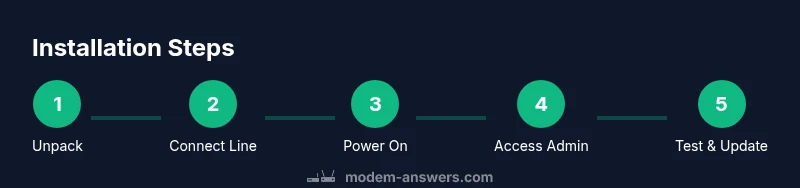
- 1
Unpack and inspect the package
Open the box, verify all parts are present, and inspect for damage. Compare contents against the packing list and manual to avoid missing items.
Tip: Take photos of the packing in case you need to reference them later - 2
Connect the incoming line to the device
Attach the coax/line from the wall to the modem router combo’s input. Ensure a snug fit but do not over-tighten.
Tip: Make sure the signal is active before proceeding - 3
Attach power and boot the device
Plug in the power adapter and press the power button if available. Allow the device to boot; this may take a few minutes.
Tip: Avoid unplugging during boot; interruptions can corrupt setup - 4
Connect a computer for setup
Using an Ethernet cable, connect a computer to a LAN port or join the device’s temporary Wi‑Fi network for initial configuration.
Tip: Using a wired connection can prevent configuration dropouts - 5
Access the admin interface and run setup
Open a browser and enter the device’s default IP address. Log in with the default credentials and follow the setup wizard to configure internet, Wi‑Fi, and security settings.
Tip: Update the admin password immediately after login - 6
Configure Wi‑Fi name and security
Set a unique SSID and a strong passphrase. Choose WPA3 if available, otherwise WPA2. Disable WPS if supported.
Tip: Use a passphrase that is a mix of letters, numbers, and symbols - 7
Test connectivity and update firmware
Run a speed test and verify devices can connect. Check for firmware updates and apply them if available.
Tip: Enable automatic updates if the option exists
FAQ
What is a modem router combo and who should use one?
A device that combines a modem and a router into a single unit. It's ideal for simplifying setup and reducing clutter for most home networks.
A single device that combines a modem and a router, great for simple home networks.
Do I need to call my ISP before installing?
It's not always required, but checking compatibility and service requirements with your ISP can prevent issues during activation.
Usually not required, but it helps to confirm compatibility.
How can I improve Wi‑Fi speed throughout the house?
Place the modem router combo central to your living area, use a strong password, update firmware, and consider adjusting channels or enabling QoS.
Try central placement and updating firmware to boost speed.
What if I can’t access the admin page?
Check the Ethernet/Wi‑Fi connection, confirm you are using the device’s default IP, and ensure your browser isn’t blocking the login page.
Check connections and the device’s default address.
Should I use guest networks?
Yes, a separate guest network improves security by isolating devices used by visitors.
Yes, a separate guest network helps keep your main network secure.
Watch Video
Key Takeaways
- Choose a compatible modem router combo to simplify installation.
- Position the device centrally for optimal coverage in a typical home.
- Secure Wi‑Fi with strong credentials and up‑to‑date encryption.
- Regularly check for firmware updates to maintain performance and security.
- Test connectivity after setup and keep documentation for future changes.