How Is Modem Connected to Router: A Practical Guide
Learn how is modem connected to router and build a reliable home network. This guide covers wired and wireless setups, common configurations, and troubleshooting tips for homes and apartments in 2026.


In this guide you’ll learn how is modem connected to router and how to set up a dependable home network. You’ll identify the gear you need, wire up both devices, and configure basics for wired and wireless access. The steps work for most cable, fiber, and DSL services and cover common variations like bridge mode when needed.
How the modem and router fit in a home network
Understanding the roles of each device is the first step in answering the question of how is modem connected to router. A modem translates the signal from your internet service provider into a data stream that your home devices can use. A router distributes that data to all connected devices, manages local IP addressing, and handles traffic between devices and the internet. In many homes, a single box combines these roles (a modem-router combo), but the typical best practice is to keep the modem and router as separate devices. This separation gives you more control over security, features, and future upgrades. When you know how is modem connected to router, you can optimize placement, choose the right Wi‑Fi channels, and reduce latency for video calls, gaming, and streaming. In this section, we’ll also cover terminology like DHCP, NAT, and IP addressing, which help you understand how devices obtain addresses and communicate on your network. The bottom line: a clear distinction between the modem (connection to the ISP) and the router (local network manager) makes it easier to troubleshoot and scale your home network over time. According to Modem Answers, most households see noticeable improvements when they separate the gateway functionality from the modem and enable a dedicated router with modern Wi‑Fi support.
Key terms to know:
- Modem: Converts ISP signal to digital data.
- Router: Creates a local network and assigns IPs.
- DHCP: Dynamic assignment of IP addresses.
- NAT: Network address translation that keeps your devices private.
- Bridge mode: A mode that turns off router functions in a gateway to avoid double NAT.
Why this matters: choosing the right setup can improve speed, reduce interference, and enhance security. If you’re using a modem-router combo, you can still apply best practices by enabling guest networks, changing default credentials, and planning for future upgrades.
tip
Tools & Materials
- Modem(A device provided by or compatible with your ISP that connects to the internet line (coaxial for cable, fiber ONT, or DSL line).)
- Router(Prefer a modern router with dual-band or tri-band Wi‑Fi 6/6E support for better range and fewer interruptions.)
- Ethernet cable (Cat5e/6a or better)(Used to connect the modem to the router’s WAN/Internet port. A longer cable may help in placing equipment optimally.)
- Coaxial cable (if using cable Internet)(Only needed if your service uses a separate coaxial entry; some setups use fiber or a dedicated line.)
- Power outlet(s) and surge protector(Protects equipment and ensures stable power during setup and operation.)
- Optional: Network switch or additional access points(Useful if you have many wired devices or need extended Wi‑Fi coverage in large homes.)
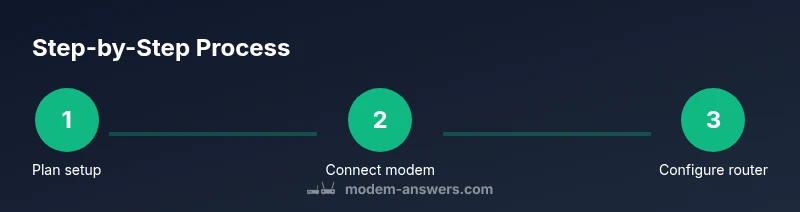
Steps
Estimated time: 45-75 minutes
- 1
Inspect gear and plan layout
Take a minute to map where your modem and router will sit. Place them away from walls or metal objects that can block signals. Decide whether you’ll use a separate router or a modem-router combo and note any service-specific requirements (like activation steps from your ISP).
Tip: Label cables and keep a simple diagram of which device connects to which port to avoid confusion later. - 2
Power off and prep devices
Unplug power from both the modem and router before making any connections. This reduces the risk of short circuits and protects device settings during setup.
Tip: If you’re currently online, briefly note current settings before power-down so you can revert if needed. - 3
Connect the modem to the internet line
Connect the ISP line to the modem using the appropriate entry (coaxial, fiber, or DSL). Ensure the line is firmly connected. Once connected, power the modem back up and wait for the status lights to indicate a stable link.
Tip: Give it 2–5 minutes; the modem may take longer if you’re provisioning a new service. - 4
Link the router to the modem
Use an Ethernet cable to connect the router’s WAN/Internet port to the modem’s Ethernet port. Avoid using a LAN port on the router for this connection. Power up the router after the modem has established a connection.
Tip: If you’re using a gateway (modem-router combo) and you want a separate router, set the gateway to bridge mode or disable its router features as directed by your ISP. - 5
Access the router’s admin page
From a connected computer or phone, open a browser and enter the router’s IP address (commonly 192.168.0.1 or 192.168.1.1). Create or confirm your admin credentials and ensure DHCP is enabled.
Tip: Change the default admin and Wi‑Fi passwords to something unique and strong. - 6
Configure basic Wi‑Fi and security
Set an SSID for your network, choose a strong WPA3 or WPA2-Personal security setting, and enable a guest network if desired. For best results, select 2.4 GHz and 5 GHz bands with appropriate channel optimization.
Tip: Turn off WPS to reduce potential security vulnerabilities. - 7
Test connectivity and finalize
Test wired and wireless devices to confirm internet access. Check IP addresses, run a speed test, and ensure devices obtain correct DNS settings.
Tip: Record your network name and password and keep this information in a secure place.
FAQ
Do I need a router if I have a modem-router combo?
If you have a modem-router combo, you can use it as-is, but for better control and upgrades, connect a separate router. If you choose to use a separate router, you may need bridge mode on the combo to avoid double NAT.
You can use the combo device, but for more control, add a separate router and use bridge mode if needed.
Can I connect more than one device directly to the modem?
Most modems offer a single Ethernet port; connecting multiple devices directly isn’t practical. Use a router (or a switch) to share the connection and manage IP addresses.
Usually not. Use a router to manage multiple devices efficiently.
What is bridge mode and when should I use it?
Bridge mode disables the gateway/router features on a modem-router device, turning it into a pure modem. Use bridge mode when you want a single upstream router to handle all routing tasks.
Bridge mode makes your ISP device act as a modem only; use it if you want a separate router handling the network.
What should I do if I can’t access the router’s admin page?
Verify you’re connected to the network, use the correct IP address, and ensure you’re using a device connected to the router. If forgotten, reset to factory settings and reconfigure.
Make sure you’re online, check the address, and reset if needed.
How are IP addresses assigned in a home network?
DHCP on the router assigns IP addresses dynamically to devices. If you need static addresses for a device, you can reserve an IP in the router setup.
DHCP assigns IPs automatically; you can reserve static IPs if needed.
Watch Video
Key Takeaways
- Separate modem and router for better control
- Wired WAN connection is more reliable than wireless-only links
- Secure your network with strong passwords
- Bridge mode can eliminate double NAT in gateway setups
- Test and document settings for easy future changes