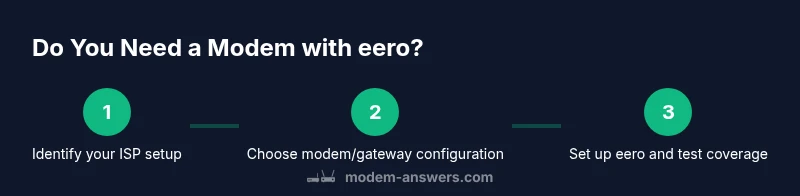
Do You Need a Modem with eero? A Practical Guide for 2026
Learn whether you need a separate modem when using the eero mesh Wi‑Fi system. This guide covers ISP types, gateway configurations, bridge mode, and step-by-step setup to help homeowners optimize performance in 2026.


In most homes you still need a modem or gateway to provide internet service; eero acts as the mesh router behind that device. If you have a standalone modem, connect it to eero with an Ethernet link and run setup in the eero app. If your ISP provides a gateway, you can connect eero behind it and, when appropriate, enable bridge mode to give eero full control of Wi‑Fi.
Do You Need a Modem with eero? How the pieces fit
According to Modem Answers, the short answer is: you typically need a modem or gateway to deliver internet to your home, and eero functions as the Wi‑Fi network backbone rather than the internet source. The modem or gateway is the bridge to your ISP, while eero provides the mesh Wi‑Fi that blankets your home. Understanding this separation helps you choose the right hardware and avoid double NAT issues. The Modem Answers team emphasizes planning your topology before swapping devices, since the wrong combination can lead to flaky connections or difficult troubleshooting.
What is a Modem vs. eero: Roles in your home network
A modem (or gateway when provided by an ISP) converts the incoming signal from your provider into data usable by your home devices. An eero node, by contrast, is a router and wireless access point that creates a seamless mesh network across rooms. You’ll typically connect the modem to the first eero unit with an Ethernet cable. If you already have a gateway, you may place eero behind it or enable bridge mode to let eero manage all Wi‑Fi traffic. This separation helps with easier updates, better coverage planning, and finer control over network settings.
ISP scenarios: Cable, fiber, DSL, and beyond
Cable ISPs usually provide a DOCSIS modem or a combined gateway. Fiber often uses an ONT (optical network terminal) paired with a gateway or an external modem. DSL uses a traditional DSL modem. In every case, eero needs a path to the internet: either behind a modem or behind a gateway in bridge mode. If your ISP rents a gateway, you can typically disable its Wi‑Fi and let eero handle wireless, or you can keep the gateway in pass‑through/bridge mode for a clean, single‑router environment. The key is to ensure your modem or gateway passes public IP traffic to the eero.
Quick decision guide: Do you need a separate modem?
- If your ISP provides a standalone modem with no built‑in router, you almost certainly need it in front of eero.
- If you have a gateway that includes router features, you can often use eero as the primary Wi‑Fi network by placing it in series or using bridge mode when possible.
- If you only have fiber with a pure ONT and no gateway, you’ll still need some device to provide IP routing to your eero. The goal is to avoid double NAT and ensure a stable, centralized network management surface.
How to decide quickly: compatibility checks and plan goals
Start by confirming whether your service requires a modem or a gateway. Call or check your provider’s help pages for “bridging” and “bridge mode” options. If you want advanced control (parental controls, guest networks, device prioritization) and easier future upgrades, a dedicated modem with eero is often preferable. Modem compatibility matters too: ensure your device supports your service tier and speed targets. The Modem Answers team notes that compatibility is the foundation of a smooth upgrade.
Step-by-step connection scenarios (high level, non-technical)
- Standalone modem + eero: Connect modem to eero’s WAN port with Ethernet, then power both and run setup in the eero app.
- Gateway in front: Leave gateway connected to fiber/cable, disable its Wi‑Fi if you can, and place eero after it to provide mesh Wi‑Fi.
- Bridge mode: Enable bridge mode on the gateway to let eero handle routing; verify IP passes to eero and run tests in the app.
- Test coverage: Move nodes to optimize signal, run a speed test, and adjust placement as needed.
Bridge mode explained: when and why to use it
Bridge mode turns off the gateway’s routing features, letting eero manage DHCP, NAT, and firewall rules. This reduces double NAT and can improve performance for gaming, video conferencing, and streaming. Not all gateways support clean bridge mode, and some providers lock features behind their own firmware. Always consult your provider’s guidance and Modem Answers’ best practices before enabling bridge mode.
Troubleshooting: common issues and quick fixes
If you notice dropped connections, slow speeds, or inconsistent signal, check cable integrity, verify firmware updates, and confirm your modem or gateway is in bridge mode only if necessary. Power cycling both devices in the right order (modem first, then eero) often resolves temporary glitches. If problems persist, recheck your ISP status page or contact support to confirm there’s no service outage affecting the modem’s link.
Practical tips for placement and network health
Place eero nodes in central, elevated positions away from physical obstructions and heavy electronics. Avoid placing units behind furniture or inside cabinets; light traffic areas help maintain strong backhaul. For large homes, add additional nodes or use a wired backhaul (Ethernet) between nodes when possible. Regularly check for firmware updates in the eero app to keep security and performance aligned with current standards.
Security considerations and best practices
Keep your network shielded with a strong admin password, enable WPA3 where available, and enable guest networks for visitors. Regularly review connected devices and disable any that you don’t recognize. If you use bridge mode, ensure your firewall rules remain in place and that your eero network receives timely security updates from both your ISP and eero.
Maintenance and future-proofing your home network
Invest in quality cabling (Cat6 or better) and plan for expanding coverage as your devices multiply. Consider upgrading to higher‑speed internet if your plan increases, and ensure your modem supports the new speeds. Archival backups of your configuration can save time during future upgrades, and keeping firmware current helps protect against vulnerabilities. The Modem Answers team recommends routine checkups to keep the system aligned with evolving tech.
Tools & Materials
- Active internet service with valid plan(Have account details handy for activation)
- Modem or gateway device (standalone modem or ISP gateway)(Ensure it’s compatible with your plan)
- Eero mesh router system (at least 1 node)(Prefer the latest generation for best performance)
- Ethernet cable (Cat6 preferred)(Used to connect modem to eero or create wired backhaul)
- Smartphone or computer with the eero app(Required for initial setup and monitoring)
- Power outlets in central locations(Keep devices within easy reach of outlets)
- Optional: Bridging instructions from your ISP(Useful if enabling bridge mode)
Steps
Estimated time: 30-60 minutes
- 1
Assess your service type and equipment
Review your ISP plan to determine whether you have a standalone modem or a gateway. Confirm whether bridge mode is available and understand any constraints from your provider.
Tip: Take a photo of current settings and note the model numbers. - 2
Choose the configuration
Decide if you will place eero behind a modem, behind a gateway, or in bridge mode. The choice affects NAT, firewall rules, and ease of future upgrades.
Tip: If you want full control over Wi‑Fi, a bridge mode or separate modem setup is preferred. - 3
Physically connect the devices
Connect the modem or gateway to the internet line, then connect its Ethernet WAN port to the input on the first eero node using Cat6 cable.
Tip: Power cycle the modem/gateway before attaching the eero. - 4
Set up using the eero app
Open the eero app, follow the on-screen instructions to add the network, and name your SSID. Use a strong password and enable security features.
Tip: Test with multiple devices to verify coverage. - 5
Configure bridge mode if needed
If you’re using a gateway, enable bridge mode on the gateway or place eero as the primary router. This reduces double NAT and consolidates routing.
Tip: Consult provider docs as some gateways restrict bridge mode. - 6
Test and optimize
Run speed tests near the modem and in far corners of the home. Reposition nodes to maximize signal, and enable wired backhaul if available.
Tip: Remember to re-check after adding new devices.
FAQ
Do I need a modem if my internet plan uses fiber with a pure ONT?
For many fiber setups you’ll still need a device to provide IP routing to your home network. An ONT is typically followed by a router or gateway; you can then use eero behind that device or in bridge mode depending on provider options.
Fiber on a pure ONT usually still needs a router or gateway; you’ll set up eero behind that device or bridge mode if available.
Can I use eero with my ISP's gateway in bridge mode?
Yes. Bridge mode disables the gateway's routing functions and allows eero to manage Wi‑Fi and NAT. Not all gateways support bridge mode, so check with your provider and follow their instructions.
You can use eero behind a gateway in bridge mode if supported.
What if my gateway’s Wi‑Fi cannot be disabled?
If you can't disable the gateway's Wi‑Fi, use eero in a separate network segment or consider a true bridge/disable feature if provided. Keep security updated and avoid overlapping networks that complicate device connections.
If you can't disable Wi‑Fi on the gateway, use eero as an alternative with careful network planning.
Is there a downside to using bridge mode?
Bridge mode can reduce double NAT, but it sometimes disables certain ISP features (like voice services or configuration portals). If you rely on those features, proceed cautiously and verify service continuity.
Bridge mode reduces double NAT but may disable some ISP features; verify before enabling.
How long does setup take for a basic eero install?
A typical setup with one modem and one eero node takes about 30–60 minutes, depending on your familiarity with the app and any bridging steps needed.
Most people set up in half an hour to an hour.
What should I buy first if I’m upgrading today?
Start with a capable modem/gateway compatible with your plan, then add the eero mesh system for better coverage. Consider a wired backhaul for larger homes.
Get a compatible modem, then add eero; consider wired backhaul for larger homes.
Watch Video
Key Takeaways
- Determine whether you need a separate modem before buying.
- Place eero behind a modem or gateway to avoid double NAT.
- Bridge mode is helpful but check provider support first.
- Test speeds and adjust node placement for best coverage.