att modem settings: A Homeowner's Guide to Reliable Internet
Learn how to configure AT&T modem settings for stable home internet. Step-by-step setup, safe defaults, troubleshooting tips, and security practices for homeowners and renters.


This quick answer explains att modem settings to improve Wi‑Fi performance, NAT, and security. You’ll learn how to access the gateway, apply safe defaults, and make targeted tweaks for better reliability. Before you begin, you’ll need a computer or mobile device, a working connection to the AT&T gateway, and login credentials for your account.
What att modem settings are and why they matter
According to Modem Answers, getting att modem settings right is a practical way to unlock steadier home internet without buying new hardware. AT&T gateways blend a modem and router in one device, and the settings you adjust control essential parts of your network: the local area network (LAN), the wireless network (Wi‑Fi), and the way traffic travels to and from the internet. When you optimize these options, you reduce interference, tighten security, and improve overall speeds for everyday tasks like streaming, work video calls, and smart-home devices. The goal is not to overfit the defaults but to tailor foundational features to your home layout, number of devices, and internet plan. In this guide, att modem settings are explored in plain, actionable terms so that homeowners and renters can confidently make changes that stick. Expect practical examples, clear safety notes, and a plan you can reuse if you upgrade equipment later.
Remember: any configuration change can momentarily disrupt service. Plan changes for a low‑traffic time if possible, and keep a backup of your original settings so you can revert if something doesn’t work as expected.
Default vs customized settings
Most AT&T gateways come with a solid baseline that favors safety and compatibility over peak throughput. Default settings often enable features such as NAT, firewall, and a basic Wi‑Fi network with a generic SSID and password. For many households, this is perfectly adequate, but as you add devices, streaming, gaming, or a smart home, you may benefit from subtle customization. Custom settings can improve stability by avoiding channel conflicts, reducing interference from neighboring networks, and isolating devices to protect your network from threats. Modem health and performance often hinge on making a few well‑considered changes rather than a complete overhaul. Importantly, you don’t need to abandon the defaults entirely; instead, adopt a small, incremental approach—test a change, measure its impact, and proceed if it helps.
From a reliability standpoint, the key is predictable behavior: stable Wi‑Fi across rooms, consistent upload/download speeds, and a firewall that blocks unsolicited traffic while allowing necessary services. If you’re unsure where to start, begin with your Wi‑Fi name, password, and security level, then consider channel selection and bridge mode only if you’re pairing a separate router with the gateway.
In line with Modem Answers’ guidance, document each adjustment so you can reproduce or revert as needed. Keeping a brief changelog helps you track which settings contributed to improvements and which caused instability. This measured, iterative approach protects your home network from unnecessary disruption while delivering results you can rely on.
Understanding key terms you need to know
Before diving into changes, it helps to know the core terms that influence att modem settings: SSID (the network name broadcast by your Wi‑Fi), password (the key that secures access), WPA/WPA2/WPA3 (the security protocol), NAT (how your devices share a single public IP address), and bridge mode (a mode that disables the gateway’s router functionality so another router handles traffic). You’ll also encounter DHCP (automatic IP assignment), DNS (domain name resolution), and port forwarding (exposing a service to the internet). Understanding these basics makes it easier to decide what to adjust and what to leave alone. When in doubt, make incremental changes and verify each one’s impact on coverage, speed, and stability.
If you’re new to home networking, treat this as a learning process. Start with safe defaults—use a strong password, enable WPA3 where available, and choose a non‑matching SSID so you can distinguish your network at a glance. As you gain confidence, you can experiment with more advanced options like QoS (Quality of Service) to prioritize traffic for video calls or gaming, and separate guest networks to keep visitors isolated from your primary devices.
Finally, remember that a strong security posture protects everyone in your household. Use a long, unique password for your Wi‑Fi, enable automatic firmware updates when possible, and disable features you don’t use (such as remote management) to reduce exposure to threats.
How to approach changes safely
A careful plan makes att modem settings changes less risky. Start by documenting your current configuration—screenshots or a written backup of each page helps you revert if something goes sideways. Use a wired connection during setup when possible to avoid dropouts, then complete changes one at a time so you can isolate their effects. Create a minimal, testable change: for example, update the Wi‑Fi password before changing the SSID, so you don’t lose access during the process. If you must adjust firewall rules or port forwarding, test connectivity with a couple of representative devices right away to confirm functionality remains intact.
If you’re changing bridge mode, understand that this typically disables the gateway’s routing features. When bridge mode is enabled, connect your own router to the gateway’s LAN port and configure it to handle DHCP and NAT. This tends to reduce double NAT issues and can improve compatibility with certain devices or advanced network setups. Always leave local access and remote management disabled unless you have a specific need for them. Finally, after applying changes, reboot the gateway and your primary devices to ensure all components renegotiate the new settings cleanly.
As you proceed, keep Modem Answers’ best practices in mind: apply changes gradually, verify each result, and keep a record of what you did. This disciplined approach minimizes downtime and helps you learn how your home network behaves under different configurations.
Practical tweaks for better home performance
If you’re looking for meaningful gains without overhauling your network, several targeted tweaks tend to yield noticeable results. First, ensure your Wi‑Fi uses the 5 GHz band where possible, and enable 2.4 GHz only where needed for longer range on older devices. Choose a channel with the least interference by scanning a few nearby networks and selecting a clear option—auto channel selection is convenient, but manual tuning often improves consistency in crowded neighborhoods. Consider segmenting devices by purpose: keep video streams and conferencing on the more stable 5 GHz, while using 2.4 GHz for lower‑bandwidth devices like voice assistants or simple sensors.
Next, set a robust security standard. If WPA3 is available, enable it; otherwise, WPA2‑AES is a solid fallback. Disable WPS, a feature sometimes exploited by attackers, and ensure the gateway’s firewall is enabled. If you have a lot of smart devices, prioritize a strong, unique password for your admin account and enable two‑factor authentication if the gateway supports it. QOS (Quality of Service) can help prioritize important traffic such as work calls or gaming; set rules that favor real‑time applications over bulk downloads during peak hours.
For households with many devices, battery backup for critical networking gear can improve reliability during power outages. If your home has thick walls, you might place the gateway in a central location to balance coverage. Minor changes like moving the router out of a cabinet, elevating the device, and avoiding nearby metal objects or microwaves can reduce signal loss. Finally, consider creating a guest network to keep visitors’ devices separate from your main network, reducing risk and traffic load on your primary LAN.
Troubleshooting common issues after changes
Despite best efforts, you may encounter occasional glitches after adjusting att modem settings. If the Wi‑Fi drops or devices fail to obtain an IP address, start with a quick reboot of the gateway and connected devices. Confirm you didn’t accidentally disconnect a cable or disable the DHCP server. When issues persist, test with a single device on the new setup to determine whether the problem is device‑specific or network‑wide. If you suspect channel interference, temporarily revert to a default channel and reassess.
Double NAT is a frequent pitfall when you’re adding a second router. If you notice strict NAT or streaming issues, check whether bridge mode is enabled correctly and that your second router is handling NAT instead of the gateway. In some cases, disabling firewall features temporarily can reveal whether a rule is too strict; re‑enable them with refined settings if access works. If you can’t connect to the admin page, ensure you are connected to the gateway’s network, check that you’re using the correct IP address, and try a factory reset if necessary as a last resort.
Finally, when speeds look inconsistent, perform a simple speed test from a wired device and compare it to Wireless AC results on both 2.4 GHz and 5 GHz bands. If inconsistency persists, you may want to update firmware or contact your ISP for guidance. Modem Answers emphasizes patience: small, well‑documented tweaks often outperform sweeping changes.
Security and privacy best practices
Protecting your home network starts with solid basics. Always use a unique, long password for both your Wi‑Fi SSID and your admin account, and enable WPA3 if your hardware supports it. Disable remote management unless you require it, and keep firmware updated to mitigate newly discovered vulnerabilities. Consider enabling a guest network to keep visitors’ devices separate from your main network, reducing risk to critical devices like work laptops or home automation hubs. Periodically review connected devices and remove any you do not recognize.
A well‑secured network is not only about encryption. It also includes careful device management, strong DNS practices, and regular backups of configuration data. If you’re using a separate router, ensure it receives timely firmware updates and that security features like firewall rules and automatic updates are enabled. Lastly, maintain a simple, repeatable process for future changes, so you can apply the same secure practices every time you modify att modem settings.
Authority sources
For additional, external guidance on responsible home‑network practices, consider the following sources:
- https://www.fcc.gov/
- https://www.cisa.gov/
- https://www.nist.gov/
These sources provide foundational guidance on internet access, security best practices, and general network management that complements practical, step-by-step instructions for att modem settings.
Tools & Materials
- AT&T modem/router device(Your provided gateway (e.g., Pace, NVG, Arris) if applicable)
- Ethernet cable(Cat5e or better for initial setup)
- Computer or mobile device(Wi‑Fi or wired to access admin page)
- Web browser(Chrome/Edge/Safari or equivalent)
- AT&T account access (myAT&T)(Needed for login and firmware checks)
- Optional: notes or backup plan(Document current settings and changes)
Steps
Estimated time: 20-40 minutes
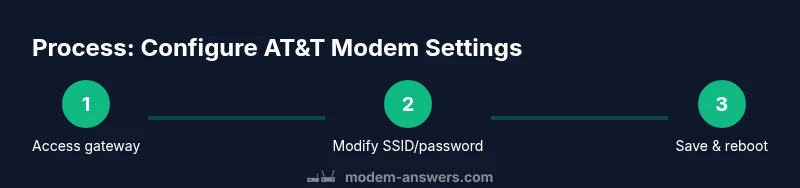
- 1
Connect to the gateway
Use a wired Ethernet connection from a computer to the gateway, or connect via Wi‑Fi to the gateway’s network. This ensures stable access during the configuration process and reduces the risk of losing connection mid‑change.
Tip: Prefer a wired link for reliability; wireless can drop during configuration. - 2
Open the admin page
In a browser, enter the gateway IP address listed on the device label or your manual. This is commonly 192.168.1.254 or a similar local address. If you’re unsure, check the gateway label and your router’s documentation.
Tip: If the page does not load, verify you’re on the same network and try a different browser. - 3
Log in with admin credentials
Enter the admin username and password provided by your provider or found on the device label. If you never changed these, use the default credentials outlined by your gateway vendor and then update them to a strong, unique password.
Tip: If you forget the password, use the label or contact support before attempting a factory reset. - 4
Back up current configuration
Before making changes, save or export the current settings. This gives you a precise restore point if anything goes wrong and helps you compare before/after results.
Tip: Take screenshots of each page and note the exact values you plan to change. - 5
Change Wi‑Fi name and password
In the wireless settings, update the SSID to a unique name and set a strong password. Avoid obvious defaults and ensure the password length and complexity meet modern standards.
Tip: Use a different SSID for guests to keep your main network more secure. - 6
Set security and band options
Enable WPA3 if available; otherwise use WPA2‑AES. Disable WPS if it’s present. If you have both 2.4 GHz and 5 GHz bands, confirm security settings match on both networks.
Tip: If your devices don’t support WPA3, ensure the 5 GHz network uses WPA2‑AES or better. - 7
Configure bridge mode if using a separate router
If you plan to use your own router, bridge mode disables the gateway’s routing to avoid double NAT. Connect the second router to the gateway and configure it to handle DHCP/NAT.
Tip: Only enable bridge mode if you have a reputable secondary router ready; otherwise you may lose essential features. - 8
Save changes and reboot
Apply the changes, reboot the gateway, and then reboot primary devices to re‑establish connections under the new settings.
Tip: After reboot, test several devices to confirm stability and coverage in common areas.
FAQ
What are the essential att modem settings to change first?
Start with admin password, SSID, and security type. Then consider changing the Wi‑Fi channel and enabling a guest network for visitors. These changes usually yield immediate, tangible benefits.
Change the admin password, set a strong Wi‑Fi password, and enable a secure network. Start with the basics before moving to advanced features.
Should I use bridge mode with my own router?
If you have a separate router, bridge mode can reduce double NAT and improve compatibility for advanced features. Ensure your own router handles DHCP/NAT and that your devices reconnect properly.
Bridge mode can help when you’re using your own router, but make sure your router is set up to handle DHCP and NAT.
How do I access the AT&T gateway admin page if I can’t connect?
Verify you’re on the correct network, try a wired connection, and double‑check the gateway’s IP address. If needed, perform a factory reset following manufacturer instructions and reconfigure from scratch.
Make sure you’re connected to the gateway’s network and use the correct IP. If needed, reset to factory settings and start over.
What if I forget my admin password?
Use the device label for default credentials or contact the provider. If necessary, perform a factory reset and re‑secure the gateway with new admin credentials.
If you forget the admin password, check the label or contact support. Factory reset as a last resort.
How often should I check for firmware updates?
Check for updates monthly or enable automatic updates if available. Keeping firmware current helps protect against security vulnerabilities and improves stability.
Check monthly for firmware updates or turn on automatic updates to stay protected and stable.
Watch Video
Key Takeaways
- Identify gateway IP and login credentials.
- Secure Wi‑Fi with a strong password on WPA3/WPA2.
- Decide between router mode and bridge mode based on your equipment.
- Test connectivity after each change.
- Document settings for future reference.