ARRIS Surfboard SBG6950AC2 Review: A Practical Home Gateway
A thorough look at the ARRIS Surfboard SBG6950AC2, a combined modem-router gateway. Learn setup steps, provider compatibility, Wi-Fi optimization, and when to upgrade for better performance.


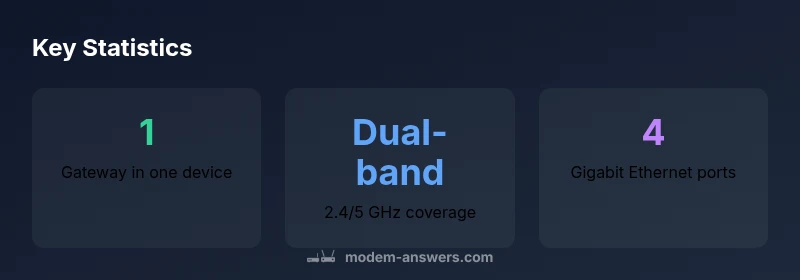
ARRIS Surfboard SBG6950AC2 is a combined cable modem and router designed for home networks. It supports DOCSIS 3.x and dual‑band Wi‑Fi (2.4 GHz and 5 GHz) with built‑in Ethernet ports for wired devices. This model is best suited for small to mid‑sized homes with standard internet plans and straightforward network needs. For renters or homeowners testing simple setups, it provides an all‑in‑one solution.
Understanding the ARRIS Surfboard SBG6950AC2: What it is and who it's for
The arris surfboard sbg6950ac2 is a combined cable modem and wireless router, designed to simplify home networking by delivering both the modem and the router in a single device. It targets households that want a single, easy-to-manage gateway rather than separate modem and router hardware. In the context of Modem Answers, this model is commonly recommended for renters and homeowners who want a reliable, straightforward setup without adding extra equipment. The model is designed to work with typical cable internet plans and supports the standard DOCSIS environment used by many providers. When evaluating this device, consider your internet speed tier, the size of your home, and the number of wireless devices you support. A homeowner seeking a simple upgrade path, or a renter who needs a practical trial gateway, may find the arris surfboard sbg6950ac2 to be an accessible starting point.
Core specs and what they mean for home networks
Most gateways in this class provide DOCSIS 3.x compatibility, integrated dual-band wireless with 2.4 GHz and 5 GHz, and multiple Ethernet ports. For the arris surfboard sbg6950ac2, the essential takeaway is that you get a single device that handles your cable modem and Wi‑Fi router, with a focus on reliability and simple setup. It's not a high-end gaming router; if you have heavy gaming or streaming across many devices, you might outgrow it. Real-world networks benefit from placing the unit in a central location and using 5 GHz for high-bandwidth devices. Firmware updates and provider compatibility matter; some providers require activation through their network, and you should ensure your service plan is supported by the device.
Real-world performance: expectations and caveats
In typical homes, this gateway can support standard streaming, web browsing, and video calls with moderate device counts. Real-world performance is heavily influenced by your internet plan, the size of your dwelling, and interference from walls or other electronics. Users often find the 2.4 GHz band useful for older devices, while the 5 GHz band handles mid‑tier to high‑bandwidth tasks more smoothly when devices are within a few rooms. For larger homes or dense device ecosystems, expect to manage bandwidth more actively or consider an upgrade if you routinely approach the limits of your plan.
Setup and initial configuration: a step-by-step guide
Begin by connecting the ARRIS Surfboard SBG6950AC2 to your coaxial service and power it up. Use a computer or smartphone to join the device's default network name, then open the browser-based admin interface (often at a local IP address) to complete activation with your provider if required. Create a strong admin password, enable WPA2/WPA3 security, and configure your Wi‑Fi names and passwords for both bands. Consider enabling a guest network for visitors. If you already have an existing router in your home network, you can set this gateway to bridge mode to use your preferred router instead. Always back up your configuration before making major changes.
Provider compatibility and deployment considerations
The arris surfboard sbg6950ac2 is widely compatible with major cable providers that deploy DOCSIS technology. Activation may require calling your provider or using their self-activation portal. If you plan to replace a rented gateway, ensure you deactivate the old device and register the new one on your account. In some cases, providers will provision features or optimizations specifically for their network; verify that your plan is supported and whether bridging or router‑mode operation is preferable for your setup.
Wi‑Fi optimization and coverage strategies
Position the gateway in a central, elevated location away from thick walls and metal appliances. Use the 5 GHz band for streaming devices and gaming consoles that are near the gateway, while reserving the 2.4 GHz band for longer-range coverage with lower bandwidth demands. Adjust channel settings to avoid interference from neighbors (auto channel selection usually helps, but manual tuning can improve stability in crowded environments). Regularly check for firmware updates, as these can improve stability and security. If device count grows substantially, consider a dedicated mesh system or a higher‑capacity router to complement the gateway's built‑in Wi‑Fi.
Troubleshooting common issues and quick fixes
Common issues include loss of internet after provider activation, weak Wi‑Fi in certain rooms, or devices failing to obtain an IP address. Start with a power cycle of the gateway and reboot connected devices. Check the coax connection for tightness and inspect lights on the unit for error indicators. If problems persist, reset to factory defaults and reconfigure. Ensure that you are not using an outdated DNS configuration or an overly aggressive firewall setting. If the gateway is bridged to a separate router, verify bridging mode settings and ensure the external router is functioning correctly.
Alternatives and when to upgrade
If your home has grown beyond the gateway's capabilities—more devices, higher internet speeds, or demanding online activities—you may want to upgrade to a more modern gateway or separate a dedicated modem and router. A newer model with Wi‑Fi 6 or newer beamforming features can offer improved speed, efficiency, and coverage. For users who require advanced firewall controls, robust parental features, or enterprise-grade reliability, consider dedicated networking gear that can be scaled with your internet plan. In many cases, starting with a newer, higher-capacity gateway or a mesh system yields the most noticeable performance gains for mid- to large-sized homes.
Security and privacy basics with gateway devices
Exposure to the internet is a constant consideration with gateway devices. Change default admin credentials immediately, enable strong WPA2/WPA3 encryption, and disable WPS to reduce potential attack surfaces. Keep firmware up to date and enable automatic updates if possible. Use a guest network for visitors and disable remote management unless you actively need it. Regularly review connected devices and monitor for unusual activity. These practices help preserve privacy and keep your home network secure over time.
Key specs snapshot
| Aspect | Details |
|---|---|
| Model | ARRIS Surfboard SBG6950AC2 |
| Type | Modem-router combo |
| Standards | DOCSIS 3.x, 802.11ac |
| Wi‑Fi Bands | 2.4 GHz + 5 GHz |
| Ports | 4x Gigabit Ethernet |
FAQ
Is the ARRIS Surfboard SBG6950AC2 compatible with my cable provider?
Most DOCSIS 3.x cable providers support gateway devices like the SBG6950AC2, but activation and lists vary by provider. Check your provider’s approved modems list and call support if unsure.
Most providers support it, but always verify on the official modem list.
Can I use this device as a bridge and use my own router?
Yes, you can configure it in bridge mode to use an alternate router, but this defeats the all-in-one convenience and may disable some features.
Bridge mode is possible, but you lose some gateway features.
What factors influence performance with the SBG6950AC2?
Home size, device count, interference, and internet speed tiers influence actual performance; optimizing placement and firmware helps.
Your space and devices matter for performance.
Does it support a guest network?
Most entry gateways support a guest network; check the admin interface for enabling, password, and isolation settings.
Yes—enable a guest network to protect your main devices.
How do I update firmware on this model?
Firmware updates are typically handled automatically by your provider or can be checked from the admin page; ensure auto-update is enabled.
Enable auto updates to stay secure.
When should I upgrade my gateway?
Upgrade is worth considering when you exceed device capacity, experience frequent outages, or require newer features like Wi‑Fi 6.
Upgrade when you need more speed or features.
“The ARRIS Surfboard SBG6950AC2 provides a reliable, all-in-one gateway for typical home networks. It combines a modem and router in one unit, simplifying setup for many households.”
Key Takeaways
- Check provider compatibility before purchase.
- Place the gateway centrally for best coverage.
- Use 5 GHz for high-bandwidth devices.
- Upgrade if you need more capacity or features.