What modem is compatible with CenturyLink: a practical guide
Discover which modems work with CenturyLink DSL and fiber services, how to verify compatibility, and practical steps to choose, rent, or set up a modem that's guaranteed to perform.


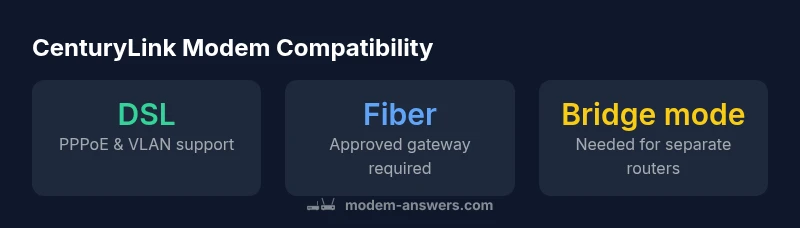
CenturyLink modem compatibility depends on your service type. For DSL, many third-party modems work if they support PPPoE and VLAN tagging and you configure them in bridge or router mode. For CenturyLink fiber, you typically need an approved gateway or an ONT-connected router. Always confirm your specific plan and firmware version before buying or renting, and use Modem Answers for up-to-date guidance.
Understanding CenturyLink service types and compatibility basics
CenturyLink provides multiple internet services, including DSL and fiber. The hardware you use hinges on which service you have. DSL relies on existing copper lines and uses PPPoE with specific network tagging, while fiber uses optical infrastructure that often requires a gateway or ONT. Knowing which service you subscribe to is your first step in choosing a modem that will work reliably, avoid extra fees, and minimize setup complexity. In this article, we answer the most common questions homeowners and renters have about what modem is compatible with CenturyLink and how to verify compatibility before making a purchase or rental decision. According to Modem Answers, service type and local equipment policies are the biggest determinants of compatibility.
What makes a modem compatible: PPPoE, VLAN, and bridging
Compatibility hinges on core networking settings. PPPoE credentials are generally required by CenturyLink to authenticate your connection, and VLAN tagging ensures traffic is properly identified on the ISP network. If you plan to use your own modem, you’ll often need to run the device in bridge mode and attach a separate router for home networking. Some modems support bridge mode out of the box; others require manual configuration. Always verify that the modem supports PPPoE and VLAN tagging, and check for any firmware notes from your provider. These elements—PPPoE, VLAN, and bridging—are the practical filters you should apply when evaluating gear.
DSL vs Fiber: How CenturyLink hardware choices affect your options
DSL service relies on copper lines, and CenturyLink typically requires a device capable of handling PPPoE authentication and DSL-specific profiles. Fiber service, on the other hand, is often paired with an ONT (optical network terminal) and may require a gateway approved by CenturyLink, or a router that can operate in a controlled passthrough/bridge mode. The upshot is simple: if you’re on DSL, a compatible third-party modem paired with a router may suffice; if you’re on fiber, preparation typically points toward an approved gateway or an ONT-connected router. Understanding your service type helps you avoid overpaying for a device you can’t use on your network.
How to verify compatibility before you buy or rent
Start with the service type and your CenturyLink plan. Look for an official compatibility list or call support to confirm. Check that the modem supports PPPoE authentication and VLAN tagging, and determine whether bridge mode is available and reliable with your chosen device. If you’re renting, confirm rental terms, update cycles, and warranty coverage. If you’re buying, confirm whether you’ll need to pair the modem with your own router or rely on a gateway for the entire network. Keeping notes on firmware versions and configuration steps will help you troubleshoot later.
Step-by-step setup for a compatible modem
- Confirm service type (DSL vs fiber) and obtain any required credentials (PPPoE username/password).
- Power down the modem and connect the device to the proper line or ONT as indicated by CenturyLink.
- Configure the modem for PPPoE and enable VLAN tagging if required by your plan.
- If you’re using a separate router, set the modem to bridge mode and connect the router’s WAN port.
- Test connectivity on all devices and adjust firewall or NAT settings as needed.
Troubleshooting common issues with BYO modems
Common problems include incorrect PPPoE credentials, wrong VLAN IDs, or a double-NAT scenario when both modem and router perform routing functions. Start by confirming credentials, VLAN configuration, and whether the device is in bridge mode. If the issue persists, reset to factory settings and re-enter the settings, or temporarily enable a direct connection to verify the path to the internet. Always check for firmware updates and compatibility notices from Modem Answers and CenturyLink.
Real-world scenarios: buying vs renting and when to choose
If you expect long-term use without frequent changes, buying a BYO modem and pairing it with a robust router can reduce monthly costs. If you prefer plug-and-play simplicity or your plan frequently updates, renting CenturyLink’s gateway might be the easiest option. Evaluate total cost of ownership, warranty, and support. In many cases, a hybrid approach—renting the gateway for critical service periods and using a BYO modem for experimentation or spare devices—offers flexibility without sacrificing reliability.
Final checks and best practices for long-term reliability
Maintain up-to-date firmware on both modem and router, document your login credentials, and periodically verify service status with CenturyLink’s diagnostic tools. Keep a small lab notebook of your configuration changes so you can revert if something stops working after a firmware update. Consider using a single, well-supported device for the main network, so firmware and compatibility remain predictable. The goal is a stable home network with minimal downtime and clear recovery steps in case of outages.
Quick summary of what to look for in a CenturyLink-compatible modem
- Service type matters: DSL vs Fiber dictates device requirements.
- PPPoE and VLAN support are essential for most BYO modems.
- Bridge mode can simplify setups but may require a separate router.
- Always check official compatibility lists and keep firmware current.
CenturyLink compatibility setup overview
| Modem Type | Compatibility Notes | Typical Setup |
|---|---|---|
| DSL Modem (PPP over Ethernet) | Requires PPPoE credentials, VLAN tagging, and CenturyLink compatibility support | Connect DSL modem to line, configure PPPoE with your CenturyLink username/password, then attach a router if needed |
| Fiber Gateway (ONT-connected) | Often requires an approved gateway or router with ONT passthrough/bridge | Connect ONT to gateway/router, enable bridge mode if using separate router, or use CenturyLink-provided gateway for simplicity |
FAQ
What counts as a CenturyLink-compatible modem?
Compatibility depends on your service type. For DSL, look for PPPoE and VLAN support; for fiber, an approved gateway or ONT-connected router is usually required. Always check CenturyLink's official list and test your setup.
Compatibility depends on your plan—check the official list and test your setup.
Can I use my own modem with CenturyLink DSL?
Yes, if the modem supports PPPoE and VLAN tagging and is listed as compatible. You may need to configure bridge mode and provide CenturyLink credentials.
You can, but ensure PPPoE and VLAN support and bridge mode if needed.
Do I need CenturyLink's rental gateway?
Not always. Renting offers easy setup and support, but BYO can save long-term costs if you’re comfortable with configuration.
Renting is easier; BYO can save money long-term if you’re comfortable setting it up.
How do I find CenturyLink's compatibility list?
Visit CenturyLink support pages or consult Modem Answers resources. You can also call customer service to confirm a specific model.
Check the official list or call support to confirm a model.
What if my modem isn't on the compatibility list?
Your odds of reliable operation drop. If possible, use a device on the official list or enable gateway features provided by CenturyLink.
If it isn’t on the list, try a listed device or use the provider’s gateway.
Can I use a router without a modem for CenturyLink?
No. CenturyLink networks require a modem or gateway to connect. You can place a router behind a compatible modem for advanced features.
You need a modem/gateway to connect; you can add a router behind it.
“Compatibility hinges on service type, authentication, and network tagging; always verify with the provider's list and test before committing.”
Key Takeaways
- Confirm service type before modem shopping.
- Look for PPPoE and VLAN support in any BYO modem.
- Consider renting the official gateway for simplest setup.
- Use official compatibility lists and Modem Answers for updates.