How to Know If Your Modem Is Compatible With Your ISP
Learn how to verify if your modem works with your internet service provider, including approved modem lists, DOCSIS requirements, and activation steps for 2026. A clear, actionable guide for homeowners and renters.


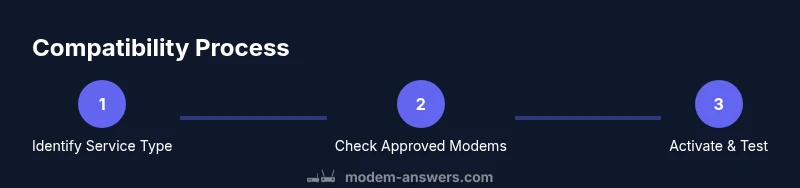
According to Modem Answers, how to know if modem is compatible with isp is a practical, step-by-step guide. You’ll confirm your service type (cable, DSL, or fiber), check your ISP’s approved modem list, verify DOCSIS (for cable), and run a quick connection test after setup. By the end, you’ll know exactly which modems your ISP supports.
Why Compatibility Matters
For homeowners and renters, using a modem that isn’t compatible with your ISP can mean slower speeds, login failures, or even no service at all. Compatibility ensures you get the promised plan speeds, stable connection, and timely activation without surprises. In 2026, providers increasingly enforce list-based approvals and firmware checks to prevent non-compliant devices from destabilizing their networks. A compatible modem also reduces energy use and protects your home network from misconfigurations. The Modem Answers team emphasizes keeping documentation handy—model numbers, MAC addresses, and activation steps—so you can quickly resolve issues with customer support if needed.
Key takeaway: compatibility isn’t optional. It’s the foundation of reliable home internet.
Understanding ISP Service Types and Device Roles
ISPs categorize service in a few common ways: cable (DOCSIS), DSL (digital subscriber line via phone lines), and fiber (often using an ONT rather than a traditional modem). A DOCSIS modem is designed to work on cable networks and must be on the provider’s approved list. DSL requires a DSL modem that matches the provider’s technology, not a generic cable modem. Fiber connections frequently require an Optical Network Terminal (ONT) supplied by the ISP, with a router handling home networking. Knowing which service you subscribe to determines whether you need a standard modem, a DSL modem, a fiber gateway, or a combo device. This distinction matters for both compatibility checks and activation steps.
Pro tip: if you’re unsure, start by identifying your plan name and service type on your bill or the ISP’s account portal.
How to Check Your ISP’s Approved Modem List
Every major ISP maintains an updated list of compatible modems. Start at the provider’s official site and search for “approved modems” or “compatible modems.” Pay attention to model numbers (not just brands) and the required DOCSIS version. Some ISPs also require activation through their portal after you connect the device. If your model isn’t listed, you have two safe options: upgrade to a listed model or contact customer support to confirm compatibility. Keeping notes of the exact model, MAC address, and firmware version can speed up verification and activation.
Note: Always rely on the ISP’s official list rather than third-party recommendations for accuracy.
DOCSIS Standards: Why They Matter for Cable Modems
DOCSIS is the backbone of many cable internet services. DOCSIS 3.0 supports a broad range of speeds, while DOCSIS 3.1 enables higher throughput, better efficiency, and improved network performance. If your plan advertises gigabit speeds, a DOCSIS 3.1 modem is typically required or strongly recommended. Some ISPs offer upgraded tiers that demand newer DOCSIS capabilities, and older devices may be limited to lower speeds. When choosing a modem, verify the DOCSIS version on the model’s label and compare it against your plan’s speed tier. Firmware compatibility with the provider’s network is another factor the official list will reveal.
Bottom line: DOCSIS compatibility is a practical gatekeeper for function and performance.
A Practical Step-by-Step Verification Checklist
Use this condensed checklist when you’re physically confirming compatibility:
- Identify service type (cable, DSL, fiber).
- Look up the ISP’s approved modem list and locate your model.
- Confirm the DOCSIS version if you’re using cable service.
- Gather MAC address and model number from the device label.
- Connect the modem to the service line and power, but don’t activate yet.
- Use the ISP portal to activate and register the MAC address.
- Run a speed test and compare results to your plan’s advertised speeds.
If problems occur, note error messages and contact your ISP with your modem details for faster troubleshooting.
Special Cases: Fiber, DSL, and Mixed Networks
Fiber often uses an ONT, so a consumer modem alone may not suffice. In some hybrids, you’ll use a bridge mode or a router behind an ONT for home networking. With DSL, ensure the modem supports the provider’s DSL standard (ADSL/VDSL) and is approved for the service tier you’ve subscribed to. In rare cases, providers offer “gateway” devices that combine modem and router functionality and require activation through the ISP. Always confirm whether you need a separate router or a gateway device.
If you’re renting equipment from the ISP, double-check lease terms and activation timelines to avoid service interruptions.
Activation, Testing, and Post-Setup Tips
After you’ve confirmed compatibility and registered the MAC address, activation usually happens through the ISP’s online portal or over the phone. Expect to wait a few minutes for provisioning; some providers require a full reboot after activation. Once active, run multiple speed tests at different times of day to verify stability. If speeds don’t meet expectations, consider rechecking your cable connections, replacing the Ethernet cable with a higher-quality one, and confirming there are no service outages in your area. Document your results for future reference.
This proactive approach minimizes repeat calls and speeds up support if you encounter issues.
AUTHORITY SOURCES
- FCC: Choose Internet Service Provider guide: https://www.fcc.gov/consumers/guides/choose-internet-provider
- CableLabs: DOCSIS standards and modem compatibility: https://www.cablelabs.com/
- NTIA: Internet access and policy resources: https://www.ntia.gov/
These sources provide official guidance on service types, equipment compatibility, and activation processes to help you validate your modem choice.
Tools & Materials
- ISP-approved modem (model number match to list)(Select a model listed on your ISP's official approved devices page.)
- Coaxial or Ethernet cable(Use at least a high-quality RG6 coax or Cat6 Ethernet for reliability.)
- Power supply for modem(Ensure the power adapter is the correct voltage and plug type.)
- MAC address and model information(Found on the modem label; helps with activation and registration.)
- ISP account details(Account name, service plan, and login for activation portals.)
- Router (optional but recommended)(For best home Wi‑Fi coverage, pair with a separate router.)
Steps
Estimated time: 25-45 minutes
- 1
Identify service type
Check your bill or ISP account to confirm whether you have cable, DSL, or fiber service. This determines which device you’ll need and which compatibility checks apply.
Tip: If you’re unsure, contact support to confirm service type before purchasing a modem. - 2
Check the ISP’s approved modem list
Visit the ISP’s official site and locate the approved devices page. Compare your model’s exact number and DOCSIS version against the list.
Tip: Document the model, MAC, and firmware version for quick reference. - 3
Verify DOCSIS version (for cable)
Read the model label to confirm DOCSIS 3.0 or 3.1. If you’re aiming for higher plan speeds, DOCSIS 3.1 is usually necessary.
Tip: Choose 3.1 if your plan advertises gigabit speeds. - 4
Gather device details
Note the modem’s model number and MAC address labeled on the device. You’ll need these during activation.
Tip: Double-check spelling of the model number to avoid activation delays. - 5
Connect the modem to the service line and power
Attach the coax or fiber/interface to the service drop, then plug in the power. Do not activate yet until you’re ready.
Tip: Use a stable surge-protected outlet and avoid daisy-chaining devices. - 6
Activate the modem with the ISP
Open the ISP activation portal or call support to register the MAC address and complete provisioning.
Tip: Have your account number and modem serial/MAC ready to minimize wait times. - 7
Run speed tests and verify performance
Once activated, run multiple speed tests at different times of day to confirm you meet or exceed your plan’s advertised speeds.
Tip: If speeds fall short, reboot the modem and check for outages in your area.
FAQ
Do I need to use only an ISP-approved modem?
In most cases, yes. ISPs publish a list of approved modems to ensure firmware compatibility and activation success. Using a non-approved modem can lead to limited functionality or service denial until approved.
Most providers require an approved modem for activation. Check the list, then contact support if yours isn’t listed.
Can I use a gateway modem/router with my ISP?
Gateway devices can work if they are on the ISP’s approved list and support your plan’s speed. Some ISPs restrict gateway devices to certain models, so confirm before purchasing.
Gateways are fine if approved by your ISP; otherwise you might run into activation issues.
What if my modem isn’t on the approved list?
If your model isn’t listed, contact your ISP to confirm compatibility. Some providers authorize specific firmware revisions or offer a firmware update that enables compatibility.
If it isn’t on the list, ask your provider—sometimes a firmware update can help, otherwise choose an approved model.
Do I need a DOCSIS 3.1 modem for gigabit plans?
For many 1 Gbps or higher plans, a DOCSIS 3.1 modem is recommended or required. Check your plan details and the approved list to be sure.
For gigabit plans, a DOCSIS 3.1 modem is usually a good fit and often required.
What information should I have ready for activation?
Have the modem’s MAC address, model number, account name, plan name, and preferred activation method ready. This speeds up provisioning and reduces delays.
Grab your MAC, model, and account details before you start activation.
What if fiber is my service?
Fiber usually uses an ONT rather than a traditional modem. A router can connect to the ONT to provide home networking, but you typically don’t replace the ONT with a standard modem.
If you have fiber, you’re likely using an ONT with a router; confirm with your ISP.
Watch Video
Key Takeaways
- Verify service type before buying equipment
- Consult the ISP’s approved modem list for accuracy
- DOCSIS version matters for speed tiers
- Activate with the ISP and test performance