Can You Use Any Modem with Telstra? A Practical Guide
Learn whether Telstra allows third‑party modems, what makes a modem compatible, and a step‑by‑step setup approach for a reliable home network in 2026.


fact: You can usually use a compatible third‑party modem or router with Telstra for many NBN plans, but it isn’t universal. Some Telstra plans require the Telstra-supplied gateway or must be used in bridge mode. Always check your plan’s terms and confirm compatibility with Telstra before buying a new device.
Can you use any modem with Telstra? Key considerations
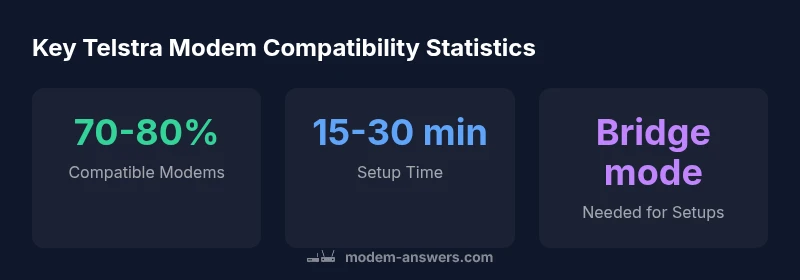
For many households, the core question isn’t a simple yes or no to can you use any modem with telstra; it’s more about which modems actually work with Telstra’s service architecture. Telstra’s network spans multiple access types, including NBN-based connections and copper/fibre upgrades, and the equipment rules vary by plan and location. According to Modem Answers, the safest path is to treat Telstra as a provider with a managed gateway for many plans; you may be allowed to substitute a third‑party device, provided it’s compatible and used correctly. The first step is to confirm your plan type and any device restrictions in the service agreement; even if a device is technically capable, Telstra’s support policy may limit the troubleshooting you receive. In practice, most households on standard NBN plans can run a separate modem/router behind the Telstra gateway, using the gateway in bridge mode so the router handles the local network features. But you should confirm with Telstra whether bridge mode is supported on your specific plan. The goal is to balance reliability with flexibility while avoiding double NAT and service gaps.
What makes a modem compatible with Telstra networks
Compatibility hinges on understanding the connection type your Telstra plan uses (PPPoE, dynamic IP, or VLAN requirements), and whether the plan permits using a third‑party device. A compatible modem or router typically supports the WAN authentication method your plan requires, can operate in bridge mode when used with a primary gateway, and handles modern wireless standards for home networks. It’s also important to verify that the device uses the correct hardware settings for your service region and plan. Telstra’s own documentation and the approved devices list are invaluable here, and if in doubt, contact Telstra support to confirm fit before purchase. For users craving more control over features like parental controls, guest networks, and advanced QoS, a high‑quality third‑party router paired with the Telstra gateway in bridge mode can deliver both performance and flexibility while preserving support channels for basic connectivity issues.
Step-by-step guide to using a third‑party modem with Telstra
- Identify your plan type and any device restrictions in your account details or service agreement.
- Check for a Telstra approved list of compatible modems or run a quick compatibility check with Telstra support.
- If using a third‑party router, configure the Telstra device to bridge mode (if supported on your plan) so the device can manage NAT, DHCP, and Wi‑Fi.
- Set up PPPoE or dynamic IP as required by your plan and enter login credentials if provided by Telstra.
- Connect your router via Ethernet to the Telstra gateway and test internet, Wi‑Fi coverage, and device routing.
- Run a speed test at different times of day to confirm consistent performance; if issues arise, disable IPv6 or adjust QoS settings as needed.
- Document your settings for future troubleshooting and keep the Telstra support channel informed if you encounter disconnections or degraded performance.
Common mistakes and troubleshooting tips
Common mistakes include leaving bridge mode off when required, double NAT creating routing conflicts, or using a modem that lacks the necessary VLAN tagging support. If you encounter dropped connections, ensure the gateway and modem are using updated firmware and that your firmware version supports your service region. Double‑check cabling, power cycles, and reset procedures. If Telstra won’t assist with non‑Telstra devices, focus troubleshooting on your router’s settings, including firewall rules, port forwarding, and DNS configurations. If speed is inconsistent, try testing with different Ethernet ports and minimizing wireless interference by adjusting channel and placement. By planning ahead and aligning hardware with your plan’s requirements, you can minimize service interruptions and enjoy a stable home network.
When Telstra’s gateway is the best option
In some scenarios, sticking with Telstra’s gateway is the simplest path to reliability, especially on plans that require advanced support or have limited bridge mode compatibility. For households with complex home networks, or where Telstra’s support team isn’t confident in non‑Telstra devices, using Telstra’s gateway can simplify diagnostics and reduce setup friction. It also avoids warranty concerns and potential service limitations when using unsupported hardware. If you value proactive monitoring and faster help from your provider, the Telstra gateway remains a solid choice while you assess longer‑term hardware flexibility.
Real-world scenarios and setup checklists
Consider a family with multiple streaming devices and a home office. A well‑chosen third‑party router behind a Telstra gateway can deliver robust Wi‑Fi coverage and strong security features, provided bridging is supported. For renters, a compact router with a strong guest network is ideal, while homeowners with a larger property may prioritize mesh networking compatibility. In both cases, keep a simple setup checklist: confirm plan type, verify compatibility, enable bridge mode if allowed, configure WAN settings (PPPoE or dynamic), test wired and wireless performance, and maintain a documented record of settings for future updates.
Sample Telstra modem compatibility by plan type
| Plan Type | Compatibility Status | Notes |
|---|---|---|
| NBN Fixed Wireless | Typically compatible | Check with Telstra for gateway/bridging requirements |
| NBN Fibre (FTTP) | Often compatible with bridge mode | Some services may require Telstra gateway |
| Telstra Cable (HFC) | Usually requires gateway | Consult Telstra support before buying hardware |
FAQ
Can I use any modem with Telstra?
Not all modems work with every Telstra plan. While many NBN setups allow third‑party devices, some plans require Telstra’s gateway or must be used in bridge mode. Always verify compatibility with Telstra before purchasing a device.
Not every modem will work with Telstra—check your plan and confirm compatibility before you buy.
Do I need Telstra's gateway if I use a third‑party modem?
It depends on your plan. Some Telstra plans allow you to use a third‑party modem in bridge mode, while others require the Telstra gateway for authentication or service continuity.
It varies by plan; bridging can let a third‑party modem work, but confirm with Telstra first.
How can I confirm a modem works with Telstra?
Check Telstra’s approved devices list, look for your exact model in the plan documentation, or contact Telstra support. Ensure the device supports your connection type (PPPoE, VLAN tagging, etc.).
Look up the approved devices list or ask Telstra support to confirm compatibility.
What is bridge mode and why does it matter?
Bridge mode disables the gateway’s routing features so your own router handles NAT and Wi‑Fi. It’s essential when you want to use a third‑party modem/router without double NAT interferes with performance.
Bridge mode switches off the gateway’s routing, letting your router manage the network.
What happens if my modem is not compatible?
If your modem isn’t compatible, you may have no internet or limited services. Telstra support typically won’t troubleshoot non‑Telstra devices, so you risk ongoing connectivity issues.
If it’s not compatible, you could lose service or get poor performance; use an approved device.
“A reliable setup comes from understanding both your plan and your hardware; compatibility is not guaranteed across all Telstra services, so verify with your provider before purchasing.”
Key Takeaways
- Check plan restrictions before buying a modem
- Bridge mode can enable third‑party routers with Telstra
- Some plans require Telstra gateway—verify first
- Test speeds and avoid double NAT
- Use Telstra's approved devices list when possible