Does eero Need a Modem? A Practical Guide
Discover whether the eero mesh Wi‑Fi system requires a modem, how to connect it behind an ISP gateway, and when to use bridge mode. Practical guidance from Modem Answers for homeowners and renters.


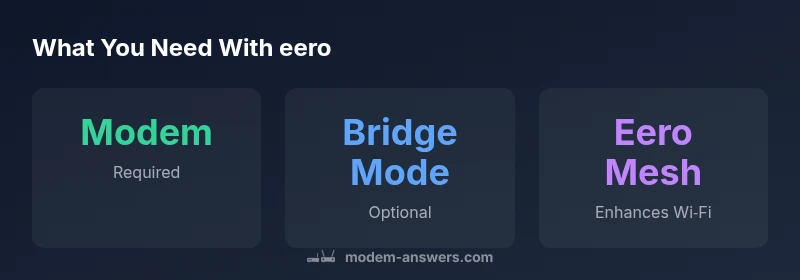
Yes, does eero need a modem? In practice, eero does not replace a modem. It is a router and mesh Wi‑Fi system, so you still need a modem or gateway provided by your ISP to access the internet. If your ISP supplies a modem-router gateway, you can connect the eero behind it and use bridge mode to manage your own network.
Understanding the Modem vs Router Relationship
The question does eero need a modem is a common one among homeowners planning a home network. In essence, a modem is the device that converts your internet service into a usable data signal over Ethernet, while a router (and a mesh system like eero) distributes that signal wirelessly throughout your home. The eero family specializes in creating fast, reliable Wi‑Fi coverage by using multiple access points, but it does not replace the modem’s role. According to Modem Answers, a typical Internet setup places the modem (or gateway) first, followed by the eero router to handle local distribution. If your service uses fiber, you may have an ONT (optical network terminal) that serves as the modem, with the eero connected downstream. The distinction matters during planning and can prevent common setup errors, such as attempting to power the eero directly from the fiber terminal without a proper Ethernet path.
The Basics: Modems, Gateways, and ISP Equipment
Most households access the internet through a modem or a gateway device supplied by the ISP. A gateway often includes both a modem and a router in one box, while a stand‑alone modem provides only the signal conversion, leaving routing to your own equipment. When you add eero, you’re layering a more advanced router and mesh network on top of the existing connection. This separation gives you better control over your Wi‑Fi footprint, guest networks, and device management. The important takeaway is that the eero does not magically generate an internet signal—there must be a modem or gateway in the chain for service to reach your network.
How eero Works as a Router and Mesh System
Eero acts as a high‑performance router that creates a seamless mesh network. Each eero node communicates with others to extend coverage, reduce dead zones, and maintain consistent speeds across rooms. It relies on a stable internet connection provided by the modem or gateway, and it can operate behind a traditional modem or behind a gateway set to bridge mode. In most homes, the eero is deployed in “router mode” for user‑friendly management, but it can also be set up in bridge mode if you want to let a separate router handle advanced features. The practical effect is better coverage and easier management, not a replacement for the ISP‑provided access point.
Connecting eero Behind a Modem or Gateway
To connect your eero, start with a powered, functional modem or gateway. Connect an Ethernet cable from the modem’s LAN/Ethernet port to the eero’s WAN/Internet port. In the eero app, follow setup prompts to create your network name and password. If you’re using an ISP gateway and you want the eero to manage routing, you may enable bridge mode on the gateway or place it in IP Passthrough, depending on the model. In bridge mode, the gateway passes the public IP to the eero, allowing the mesh network to take full control of routing and firewall functions. If you’re on a pure modem‑only setup, simply place the eero behind the modem and configure normally.
Bridge Mode, IP Passthrough, and When to Use Them
Bridge mode (or IP Passthrough on some devices) disables the gateway’s routing features and allows your eero to handle them instead. This is ideal if you want to use the eero’s mesh capabilities, parental controls, and advanced QoS. Bridge mode does not disable internet access; it only removes the router‑level functions from the gateway. Use bridge mode when: you already have a competent router (like eero) and you want to prevent double NAT; you’re troubleshooting VPNs or gaming latency; or you want more granular control over network settings. Check your gateway’s manual or ISP resources, because the terminology and steps vary by device.
Internet Types and Common Scenarios
Cable, fiber, and DSL each present unique considerations. Cable modems commonly support dynamic IP and require downstream routing from a separate device. Fiber ONTs deliver the connection to a gateway or router; the eero sits in the path after the ONT. DSL often uses a separate modem gateway combo. In all cases, the eero’s role remains to optimize wireless performance, while the modem/gateway ensures the internet signal arrives. Planning ahead—knowing whether your service uses a standalone modem, an ISP gateway, or an ONT—helps avoid compatibility headaches.
Tips for a Smooth Setup
- Confirm your ISP equipment supports bridge mode or IP Passthrough if you plan to use the eero as the primary router.
- Update the firmware on both the modem/gateway and the eero after installation.
- Place at least one node in a central location and avoid obstructions that impede signal.
- Use the eero app to create guest networks, run speed tests, and manage devices.
- Label your network name and password clearly and keep backups of configuration changes.
Troubleshooting Common Issues
If you don’t get an internet connection after connecting the eero, verify the modem is online and that the Ethernet cable is securely seated. Double‑check that the eero is receiving power and that the WAN port is used. If you’ve enabled bridge mode, ensure the gateway is truly in bridge mode and that the IP passthrough is configured correctly. Sometimes a reboot of both the modem/gateway and the eero is required. If you continue to experience issues, contact your ISP to confirm the device is compatible and that you are on the correct service profile.
Final Setup Checklist and Recommendations
- Verify you have a functioning modem/gateway that supports your service tier.
- Decide whether to place the gateway in bridge mode and connect the eero downstream.
- Complete the eero setup via the app and secure your network with a strong password.
- Label devices and keep documentation handy in case you need to reconfigure later.
- Periodically check for firmware updates on both systems.
Comparison of common setups with eero
| Scenario | Need Modem? | Eero Function | Notes |
|---|---|---|---|
| Cable Internet (dynamic IP) | Yes | Router behind modem | Connect eero to modem via Ethernet |
| Fiber Internet (ONT) | Yes | Eero behind gateway/ONT | ONT terminates fiber; gateway may provide routing |
| DSL Internet | Yes | Use modem/DSL gateway before eero | Bridge mode may simplify routing |
| ISP Gateway with Modem | Depends | Place eero behind gateway | Bridge mode recommended for eero routing |
FAQ
Do I need a modem if my internet uses fiber?
Yes. Even with fiber, you typically need an ONT or a fiber gateway to terminate the signal. The eero then provides the Wi‑Fi network, not the conversion from fiber to Ethernet. Bridge mode on the gateway can let the eero handle routing if desired.
Fiber still needs a terminator device. The eero provides the Wi‑Fi, not the fiber termination.
Can I use eero with my ISP's gateway in bridge mode?
Yes, bridge mode (or IP Passthrough) is commonly used when you want the eero to manage routing. Enable bridge mode on the gateway and set up the eero as the primary router to maximize mesh performance.
Bridge mode lets the eero handle routing for better control and performance.
What is bridge mode and why would I use it?
Bridge mode disables the gateway’s routing features, letting the eero manage DHCP, NAT, and firewall. Use it when you want a clean, single router control with the mesh network.
Bridge mode turns off the gateway’s router functions so the eero runs the show.
Will using eero replace my modem or gateway entirely?
No. The eero cannot replace a modem. It requires a modem or gateway to provide internet access. You can replace routing with eero by configuring bridge mode on your gateway if desired.
No, it won’t replace your modem; it can replace the gateway’s routing in bridge mode.
Is eero compatible with all modems?
Eero is generally compatible with most standard modems and gateways, but some ISP gateways combine multiple functions that can complicate setups. Check your ISP’s docs for bridge mode and IP passthrough support.
Most modems work, but check bridge mode and passthrough support with your provider.
How do I know if my gateway is in bridge mode?
Refer to your gateway’s admin interface or contacter your ISP. Look for terms like bridge mode, IP passthrough, or external router mode. A reboot may be required after changing modes.
Check the gateway settings for bridge mode or IP passthrough and reboot if needed.
“A strong mesh network depends on a reliable upstream modem or gateway. The eero adds coverage and management, but it does not magically replace the device that provides internet access.”
Key Takeaways
- Know your modem vs. router roles before setup
- Use bridge mode to let eero manage routing when desired
- Connect eero downstream from a modem or gateway via Ethernet
- Fiber ONTs still require a modem/gateway to feed the eero
- Regularly update firmware on both devices