Do You Need to Connect Router to Modem? A Practical Setup Guide
Learn when you should connect a router to a modem, how to configure separate devices, and best practices for a reliable home network. A Modem Answers step-by-step guide.


If you’re asking do you need to connect router to modem, the short answer is usually yes for separate devices: the modem provides internet, while the router creates a home network and Wi‑Fi. In some setups, a modem-router combo eliminates the need for a separate router. This guide walks you through when and how to connect.
Do you need to connect router to modem? Key principles
In most home networks, the relationship between a modem and a router is what lets you access the internet on multiple devices. According to Modem Answers, a separate router is typically needed when you want Wi‑Fi, guest networks, and advanced features, because the modem by itself mainly acts as a bridge to the internet. If you are using a modem-router combo, this single device can provide both internet access and wireless connectivity, which means you may not need a second router. The decision depends on your home size, the number of devices, speed tier, and whether you want features like parental controls or USB sharing. This overview lays the groundwork so you can decide your topology with confidence.
Basic topology: how everything fits together
At its core, a simple home network involves three primary elements: the internet coming from your provider, a modem that translates that signal for your devices, and a router that distributes that connection to your devices via wired Ethernet or Wi‑Fi. When the router is separate from the modem, the device typically performs network Address Translation (NAT) and DHCP, assigns private IPs to devices, and manages wireless settings. If you’re using a modem-router combo, the device often handles all three roles in one box. Understanding this layout helps you anticipate where to modify settings and how to avoid common misconfigurations.
Separate router vs modem-router: pros and cons
Separate router pros:
- Greater control over Wi‑Fi performance and security
- Easier to upgrade components independently as needs change
- Ability to place access points for wider coverage
Separate router cons:
- More cables and potential for double NAT if not configured correctly
- Slightly more complex setup for beginners
Modem-router combo pros:
- Simpler setup with fewer devices to manage
- Adequate for small apartments or basic needs
Modem-router combo cons:
- Limited customization and fewer advanced features
- Upgrading one component (modem or router) may require replacing the whole unit
What you’ll need before you start
Before you begin, gather the essentials so you don’t pause mid-setup:
- A modem provided by your ISP (or a standalone modem you own)
- A separate router (if using a split topology) or a modem-router combo device
- A wired Ethernet cable (Cat5e or better) and the appropriate power adapters
- A computer, tablet, or smartphone to access the router’s admin interface
- Your preferred Wi‑Fi name (SSID) and a strong password
- Basic knowledge of your current network plan (internet speed, number of devices, etc.)
Understanding DHCP, NAT, and IP addressing in home networks
DHCP (Dynamic Host Configuration Protocol) assigns private IP addresses to devices on your network automatically. NAT (Network Address Translation) translates those private IPs to a public IP used on the internet. When you have a dedicated router, NAT and DHCP are typically handled by the router, leaving the modem to pass the internet signal through. If you’re bridging a gateway, NAT can be disabled on the modem to avoid double NAT, which can cause connectivity issues for some applications. Grasping these concepts helps you diagnose issues quickly and choose the right setup for your home.
Step-by-step connection overview
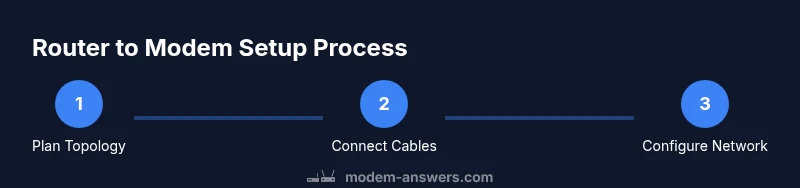
This section provides a high-level flow of the connection process without replicating the step-by-step instructions that follow:
- Confirm your modem and router are compatible and powered off before connecting.
- Connect the router to the modem using an Ethernet cable on the router’s WAN/Internet port.
- Boot the modem first, then the router, and allow time for devices to obtain IP addresses.
- Access the router’s admin interface to set up Wi‑Fi, security, and admin credentials.
- Test connectivity by connecting a device and loading a webpage.
- If you encounter issues, review cable connections, power cycles, and IP settings.
Common mistakes and how to avoid them
Common mistakes include using a long or damaged Ethernet cable, placing the router in a poor location (obstructed by walls, metal, or appliances), and leaving default passwords in place. Avoid double NAT by enabling bridge mode on the gateway or by using a dedicated modem and router in a split topology. Always assign a unique SSID and strong password, and update firmware to protect against known vulnerabilities. Planning your network layout before you begin saves time and reduces frustration.
Security basics for home networks
Security should be a core part of any networking setup. Change the default admin username and password on your router, enable WPA3 (or at least WPA2) encryption, disable remote administration unless necessary, and keep firmware up to date. Segment guest networks for visitors to avoid giving access to your main LAN. Regularly review connected devices and revoke access for unfamiliar hardware. These steps help protect your devices and data from common home network threats.
Quick checks after setup and when to reset
After completing setup, verify that your devices can access the internet and see the correct network name. Check that your devices obtain IP addresses, and run a speed test to confirm your plan’s performance. If problems occur, perform a power cycle of both devices, verify cabling, and re-check settings in the admin dashboard. If issues persist, consider resetting to factory defaults and starting over with a clean configuration.
Tools & Materials
- Modem (ISP-provided or owned)(Power on/off with proper sequence; if using bridge mode, consider disabling NAT on the modem.)
- Router (separate or combined)(Ensure compatible with your internet speed and supports current encryption standards.)
- Ethernet cable (Cat5e or better)(Use short, high-quality cables for reliability.)
- Power adapters for modem and router(Have them handy before starting.)
- Computer or mobile device(Used to access the router admin page.)
- Pen and paper or digital notes(Record SSID, password, and important settings.)
Steps
Estimated time: 20-40 minutes
- 1
Power down all equipment
Unplug the modem and the router. If using a gateway, power it down as well. Wait 30 seconds to clear residual power before reconnecting. This reset helps avoid conflicts and ensures the devices boot cleanly.
Tip: This simple reset often fixes many initial setup issues. - 2
Connect modem to router
Plug one end of the Ethernet cable into the modem’s LAN port and the other end into the router’s WAN/Internet port. Use a working cable and avoid boosting the signal with adapters.
Tip: Ensure you’re using the correct ports to avoid a dead connection. - 3
Power on the modem, then the router
Reconnect power to the modem first, wait for its indicator lights to stabilize, then plug in the router and wait for its status lights to settle. This sequencing helps the devices negotiate a stable connection.
Tip: Stability matters more than speed during boot. - 4
Access the router’s admin interface
From a connected device, open a web browser or dedicated app and enter the router’s IP address or setup URL. Log in with the default credentials if you haven’t changed them yet.
Tip: Change the default password immediately for security. - 5
Configure Wi‑Fi and security
Create a unique network name (SSID) and a strong password. Select WPA3 if available, or WPA2 as a fallback. Enable essential features like a guest network if you want to isolate visitors.
Tip: Avoid using easily guessable SSIDs or passwords. - 6
Test the network
Join the new Wi‑Fi network on a device and load a page. Check wired devices too by connecting via Ethernet. Confirm upload and download speeds are close to your plan.
Tip: If speeds are far from expectations, test with a wired connection to isolate wireless issues. - 7
Optional: enable bridge mode if needed
If you’re using a separate modem and router and want the router to handle NAT, enable bridge mode on the modem gateway. This helps avoid double NAT and simplifies management.
Tip: Bridge mode can change how your devices obtain IPs; recheck DHCP range after enabling.
FAQ
Do I always need a router if my modem has built-in Wi‑Fi?
If your modem includes reliable built‑in Wi‑Fi and you don’t need advanced features, you may not require a separate router. However, dedicated routers typically offer stronger coverage and more control.
If your modem already provides solid Wi‑Fi and basic needs, you may skip a separate router.
What is bridge mode and when should I use it?
Bridge mode disables the routing functions on your gateway so the separate router can handle NAT and DHCP. Use it when you want a single point of management for your home network or to avoid double NAT.
Bridge mode lets your router take control of the network, which helps in certain setups.
What is double NAT, and why does it matter?
Double NAT occurs when two devices perform NAT simultaneously, often causing issues with online gaming, VPNs, or port forwarding. Bridging or using a single router helps avoid this problem.
Double NAT can complicate online activities; bridging often solves it.
Do I need a static IP for home use?
Most home networks use dynamic IPs assigned by DHCP. A static IP is only necessary for running servers or certain business applications requiring a fixed address.
Usually you don’t need a static IP at home unless you run specific services.
What should I do if there’s no internet after setup?
Check cable connections, reset devices, verify that the correct Wi‑Fi network is selected, and confirm your ISP service is active. If problems persist, reboot in a controlled sequence and review DHCP settings.
If you lose internet, recheck cables and power, then verify your gateway is configured correctly.
Can I use my phone as a hotspot instead of a home router?
A phone hotspot can work for light use but is not a substitute for a full home network for multiple devices or stable Wi‑Fi coverage. Use it as a temporary option, not a long‑term solution.
A phone hotspot is okay briefly, but a proper router gives reliable coverage.
Watch Video
Key Takeaways
- Use a dedicated router for robust Wi‑Fi control and features.
- Bridge mode can prevent double NAT and simplify routing when using a modem-router pair.
- Always power cycle after changes to ensure new settings take effect.
- Test connectivity on wired and wireless devices to confirm a healthy network.