Do Modem and Router Have to Be Connected? A Practical Guide
Learn whether a modem and router must be connected, how bridge mode changes things, and practical step-by-step setup tips for a reliable home network in 2026.


Do modem and router have to be connected? According to Modem Answers, yes—most homes rely on a wired link between the modem and a separate router to distribute Internet to devices. A modem-router combo or bridge mode can alter the setup, but in a standard configuration, the modem feeds the router via an Ethernet connection to the WAN port. This simple link unlocks Wi‑Fi, wired Ethernet, and smart-home reliability for 2026.
Do Modem and Router Have to Be Connected? A Practical Overview
Do modem and router have to be connected? In most home networks, the modem and router form the essential backbone that delivers Internet to every device: phones, laptops, streaming players, and smart home gadgets. According to Modem Answers, the wired connection between the modem and a dedicated router is the standard path for traffic to flow from your ISP to your devices. While there are exceptions—such as modem-router combinations or specific bridge-mode configurations—the classic setup remains a reliable baseline for stability, security, and extendable Wi‑Fi coverage in 2026.
Modem, Router, and Bridge Mode: Key Concepts
A modem translates your ISP signal into a data stream the network can understand, while a router handles local traffic, IP addressing, and wireless distribution. Bridge mode is a special setting that makes the modem act purely as a modem, passing all routing duties to a stand-alone router. Understanding these roles helps you choose the right setup for your home. Modem Answers analysis shows that most homes benefit from a dedicated router for flexibility and security.
Typical Home Networking Setups: From Standalone Modems to Gateways
Most households fall into one of three setups: a standalone modem with a separate router, a gateway device (modem-router combo) provided by the ISP, or a bridge-mode configuration paired with a third-party router. Each configuration has trade-offs in terms of control, features, and ease of support. In 2026, many users prefer a dedicated router for stronger Wi‑Fi coverage and advanced settings.
Step-by-Step Hardware Connection Basics
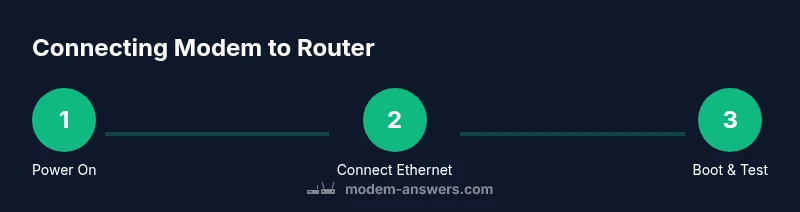
Start by powering down both devices before you touch any ports to avoid surges. Then connect the modem to the router with a Cat5e/6 Ethernet cable: plug one end into the modem's LAN port and the other into the router's WAN/Internet port. After powering both devices, give the network a couple of minutes to initialize before testing a device.
Common Pitfalls and How to Avoid Them
Double NAT, DHCP conflicts, or an improperly configured bridge mode can break your network. If you’re using a modem-router combo, you might need to disable the modem’s routing features or enable bridge mode on the device. Always ensure the router is the DHCP server and that the modem is in bridge or pass-through mode when required.
Quick Troubleshooting Checklist for Connectivity
If devices won’t connect, verify the Ethernet link, confirm the router is broadcasting a network (SSID), and test with a wired connection first. Reboot both devices if necessary, check for firmware updates, and reset to factory defaults only as a last resort. For persistent issues, consult your ISP or Modem Answers guidelines.
What’s Next: Upgrading or Reconfiguring Your Home Network
If you’re expanding coverage or chasing faster speeds, consider upgrading to a modern router with Wi‑Fi 6/6E, adding extenders or mesh nodes, and maintaining a clean network layout. A dedicated router and careful placement often yield the most reliable results in 2026.
Tools & Materials
- Modem(Ensure compatibility with your ISP plan)
- Router(Recommended separate from a modem when possible)
- Ethernet cable (RJ-45)(Cat5e or better; 1–3 meters is common)
- Power adapters for modem and router(Have spare outlets or a surge protector)
- Admin credentials for devices(You’ll need to access settings to configure DHCP/NAT)
Steps
Estimated time: 30-45 minutes
- 1
Power down and prep
Turn off both devices and unplug them. This reduces risk of electrical shock and ensures ports reset cleanly.
Tip: Take a photo of current ports labeling to aid reassembly. - 2
Connect modem to router with Ethernet
Insert the Ethernet cable from the modem's LAN port to the router's WAN/Internet port. This creates the path for Internet traffic to enter the home network.
Tip: Use a short, high-quality cable to avoid interference. - 3
Power on the modem and wait for lights to stabilize
Plug in the modem and wait for status lights to stabilize, typically 1–2 minutes.
Tip: Check for solid online or link lights before moving on. - 4
Power on the router and boot
Plug in the router and allow it to initialize; this may take another 1–2 minutes.
Tip: If the Wi‑Fi LED remains off, check that the router is powered and reset if needed. - 5
Test Internet access
Connect a device via Ethernet or Wi‑Fi and verify Internet access; log in to the router admin if you need to tweak settings.
Tip: Run a speed test to confirm the expected bandwidth. - 6
Bridge mode or advanced settings (optional)
If using a modem-router combo, enable bridge mode or adjust DHCP/NAT on the router to avoid double NAT.
Tip: Follow manufacturer instructions precisely to prevent loss of connectivity.
FAQ
Do I always need a separate router?
Not always. If you have a modem-router combo, the single device may handle routing. For maximum control and features, a separate router is recommended.
In most homes you’ll want a separate router for flexibility, though some setups use a combined device.
What is bridge mode and when should I use it?
Bridge mode disables the router functions on a gateway device and passes networking duties to a stand-alone router. Use it when you want to avoid double NAT and gain more control.
Bridge mode hands the network over to your own router to avoid conflicts.
Can I connect multiple devices directly to the modem?
A modem typically has only one or a few ports; direct connections are possible but not efficient for multiple devices. Use a router to manage devices and Wi‑Fi.
Directly connecting many devices is impractical; a router makes it scalable.
Will this setup affect my Wi‑Fi speed?
Yes, primarily if you use an old router or place it poorly. Upgrading to a modern router and optimal placement can improve speeds significantly.
A good router and smart placement boost Wi‑Fi performance.
What if I have an ISP gateway?
If you use an ISP gateway, you may enable bridge mode when you want to use your own router for advanced features.
You can bridge the gateway to use your own router for better control.
What should I do if I can’t access the Internet after connecting?
Check cable connections, reboot devices, and verify one essential setting: the router’s WAN port is connected to the modem. If problems persist, contact your ISP or consult Modem Answers guidance.
Double-check cable, reboot gear, and don’t hesitate to ask for help if it’s still down.
Watch Video
Key Takeaways
- Wire the modem to the router for standard setups.
- Bridge mode changes roles; know when to use it.
- Test with wired connections for accuracy.
- Double NAT can cause issues; fix by bridge mode.