Telus WiFi Modem T3200M Guide: Setup, Performance, and Troubleshooting
A comprehensive guide to the Telus WiFi Modem T3200M, covering setup, optimization, firmware updates, and troubleshooting for reliable home internet. Learn best practices from Modem Answers.


The Telus WiFi Modem T3200M is a carrier-provided gateway that merges a DSL/VDSL modem with a dual-band Wi‑Fi router, designed for Telus Home Internet. It serves as an all‑in‑one solution for many households, offering convenient setup, built‑in Wi‑Fi, and basic security features. According to Modem Answers, most residential users appreciate the simplicity of being able to manage both modem and router from one device. This gateway is typically shipped by Telus to customers who subscribe to home internet services and expect plug‑and‑play operation, with additional options for bridging or using an alternate router if desired. In practice, the T3200M is best viewed as a starting point for reliable in‑home coverage, rather than a perfect fit for every network scenario.
What the Telus WiFi Modem T3200M is and who it's for
The Telus WiFi Modem T3200M is a carrier-provided gateway that combines a DSL/VDSL modem with a dual‑band Wi‑Fi router, designed for Telus Home Internet. It serves as an all‑in‑one solution for many households, offering convenient setup, built‑in Wi‑Fi, and basic security features. According to Modem Answers, most residential users appreciate the simplicity of being able to manage both modem and router from one device. This gateway is typically shipped by Telus to customers who subscribe to home internet services and expect plug‑and‑play operation, with additional options for bridging or using an alternate router if desired. In practice, the T3200M is best viewed as a starting point for reliable in‑home coverage, rather than a perfect fit for every network scenario.
Setup basics and first-time configuration
Getting started with the Telus T3200M involves a few straightforward steps. Begin by ensuring your Telus service is active and the device is powered off before you connect any cables. The WAN port goes to the service line provided by Telus (fiber or copper, depending on your plan). Then power on the gateway and use the default admin page shown on the device sticker or in the setup guide to sign in. Follow the on-screen prompts to choose your network name (SSID) and a strong password. If you already own a separate router, you can opt to enable bridge mode later to bypass NAT on the T3200M, though this may affect Telus TV and phone services. Record the default credentials for future reference.
Optimizing wireless coverage in typical homes
Placement matters. Position the T3200M in a central, elevated spot away from walls and large metal objects. For most homes, using the 5 GHz band for devices near the router and reserving the 2.4 GHz band for farther rooms yields the best balance of speed and range. Enable WPA2/WPA3 security, pick a unique password, and create a guest network if you share your home Wi‑Fi with visitors. If interference is an issue, try changing channels or reducing interference from microwaves and Bluetooth devices. In many layouts, enabling beamforming features on the device helps maintain stable connections as you move through living spaces.
Bridging the T3200M with your own router
If you want to deploy your own high‑end router, bridging the T3200M can reduce double NAT and unlock advanced features. Bridge mode disables the T3200M's routing functions, turning it into a pure modem. After enabling bridge mode, restart both devices and set your personal router to take over DHCP. Be aware that bridging may impact Telus TV, voice services, and certain mass‑market features offered by the carrier. Consult Telus support if you rely on those services.
Advanced features you should know (guest networks, QoS, parental controls)
The T3200M typically includes features like a guest network, basic parental controls, and simple QoS settings. Use a strong, distinct password for both the main network and the guest network. For households with multiple streaming devices or gaming consoles, QoS can help prioritize traffic. Keep in mind that some advanced features may be limited when using bridge mode or third‑party routers, so verify compatibility before changing modes.
Firmware updates and security considerations
Regular firmware updates are essential to improve performance and protect against vulnerabilities. The Telus gateway may receive updates automatically, or you may be prompted to install them via the admin dashboard. Ensure automatic update is enabled if you prefer hands‑off maintenance. When updating, avoid power outages and back up important settings if possible. Strong passwords and disabling unused services (like remote management) further reduce attack surfaces.
Troubleshooting common issues
If devices disconnect randomly or the Wi‑Fi seems flaky, perform a quick reboot of the T3200M and your connected devices. Check cables for damage and reseat connectors. If the issue persists, test both 2.4 GHz and 5 GHz networks separately, and consider temporarily disabling the guest network to rule out misconfiguration. For login problems, use the reset button sparingly and re‑apply your preferred settings after the device reboots. If problems continue, contact Telus support with your account details and device serial number.
Performance expectations and real‑world tips
In real homes, wireless performance depends on layout, interference, device capabilities, and plan speed. The T3200M delivers reliable coverage for typical apartments and small‑to‑mid sized houses when placed optimally. Wired ethernet connections generally outperform Wi‑Fi, so use wired connections for desktops, gaming consoles, or media players when possible. If you want higher throughput or more control, pairing the T3200M with a high‑end router in bridge mode may be a viable option, but verify compatibility with Telus services first.
When to consider replacement or upgrade
If you experience persistent slowdowns, frequent drops in coverage, or you require more advanced networking features (multi‑band mesh, advanced QoS, or robust security), upgrading to a newer gateway or a dedicated modem/router combo from your provider can offer tangible benefits. For Telus users, check whether a newer modem is available from support or consider third‑party options that are compatible with your plan in bridge mode. Always balance cost with expected performance gains.
Telus T3200M quick spec table
| Aspect | Telus T3200M | Notes |
|---|---|---|
| Device type | Gateway (modem + router) | Integrated device provided by Telus with home Internet service |
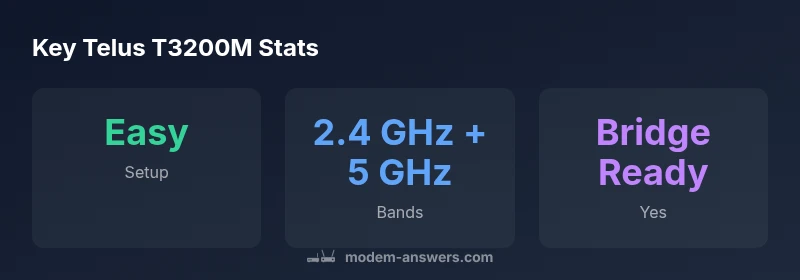
| Wireless bands | 2.4 GHz + 5 GHz | Dual‑band support for compatibility and performance |
| Bridge mode support | Yes | Can be enabled to use own router |
| Default login method | Stickers/Setup guide | Use the admin page prompts to login |
| Power/consumption | N/A | Depends on load and usage |
FAQ
What is the Telus WiFi Modem T3200M?
The Telus WiFi Modem T3200M is a carrier-provisioned gateway that combines a modem with a router for Telus Home Internet. It provides wireless access, basic security, and management features from a single device. For many households, it's the simplest way to get online, with the option to bridge to third‑party gear if desired.
It's a combined modem and router Telus provides; easy to set up, with options to bridge if you want to use your own gear.
Can I use my own router with the T3200M?
Yes, in most cases you can enable bridge mode to bypass the T3200M's routing. This lets your preferred router handle all network duties while the Telus gateway acts as a modem. If you rely on Telus TV or voice services, verify compatibility before bridging.
Yes, bridging lets you use your own router.
How do I improve Wi‑Fi coverage with the T3200M?
Place the gateway centrally and elevated, using the 5 GHz band for nearby devices and 2.4 GHz for distant ones. Enable a strong password and a guest network to reduce congestion. Minimize interference from nearby electronics and adjust channels if needed.
Place it high and central; use 5 GHz nearby, 2.4 GHz further away.
What should I do if the modem drops internet?
First, reboot the T3200M and connected devices. Check all cables and reseat connectors. If issues persist, verify service status with Telus and consider a factory reset as a last resort, then reconfigure from scratch.
Try a quick reboot and check service status with Telus.
Is the T3200M secure by default?
Keep the default admin password changed, enable WPA2/WPA3, and disable remote management if available. Regular firmware updates also strengthen security.
Change the admin password and keep updates on.
How often are firmware updates released for the T3200M?
Telus updates can vary; ensure automatic updates are enabled and periodically check the admin dashboard for new firmware releases.
Check for updates regularly.
“The Telus WiFi Modem T3200M delivers a practical, all‑in‑one gateway for most home networks, but knowing how and when to bridge can unlock better performance.”
Key Takeaways
- Plan a central modem placement for best coverage.
- Bridge mode unlocks more control for advanced users.
- Enable strong passwords and guest networks for security.
- Regularly check for firmware updates through the admin page.
- Use wired connections for devices requiring stable throughput.