ASUS CM32 Modem Guide: Setup, Compatibility & Tips
A practical guide to the ASUS CM32 cable modem, covering compatibility with providers, setup steps, firmware updates, troubleshooting, and best practices for homeowners and renters seeking reliable home-network performance.


The ASUS CM32 is a DOCSIS-based cable modem designed for home networks. It functions best when paired with a separate router to deliver Wi‑Fi coverage throughout the home. Use it with your cable service by confirming provider compatibility lists and, if you plan to use your own router, enable bridge mode only as needed. This approach keeps setup straightforward and lets you tailor your local network.
What is the ASUS CM32 and who should consider it
The ASUS CM32 is a DOCSIS-based cable modem designed to be the centerpiece of a home network. In practice, most households benefit from using CM32 as the modem while connecting a separate router to handle Wi‑Fi, device prioritization, and guest networks. This arrangement avoids double NAT pitfalls and often yields better wireless performance in busy households. For renters or homeowners evaluating a new setup, CM32 offers a straightforward path to a more robust home network without committing to a full modem-router unit. According to Modem Answers, the CM32 is positioned as a cost‑effective, future‑friendly option for those who value simple activation and reliable connectivity.
If you already own a capable router, CM32 can be paired to leverage that router’s features while staying compatible with the provider’s service. As with any new modem, confirm that your provider supports the CM32 or provides an updated compatibility list before purchasing. This helps avoid activation delays and ensures the device will work with your service plan.
How the CM32 fits into a home network
A typical home network topology with the CM32 looks like: coax from the wall into the CM32, a power connection, and an Ethernet cable from CM32 to a primary router. The router then distributes Wi‑Fi and wired connections to devices. For many households, using CM32 as a bridge or passthrough device is ideal when you want to customize network features with a preferred router. This setup reduces healthily the number of network hops and can improve overall speed consistency, especially in homes with multiple simultaneous streams. If you need to host specific services or require advanced QoS, bridging to a high‑quality router is often the best path.
In cases where your provider requires a specific device for activation, you may need to disable DHCP on the CM32 when using your own router to avoid conflicts. Always follow the provider’s activation instructions and the router’s configuration guide for optimal results.
Compatibility considerations with providers and DOCSIS standards
The CM32 is designed to work with common DOCSIS standards used by many cable providers. Before buying, check your provider’s official compatibility list and verify that your service tier aligns with the CM32’s documented support. If you’re upgrading from an older modem, expect a smoother experience with the latest firmware and security updates that come through ASUS’s support channels. Remember that real‑world speeds depend on your plan, network congestion, and the performance of your router, not just the modem. Modem Answers analysis highlights the importance of matching hardware to your service plan and usage needs so you don’t overspec or underperform.
Setup steps: from unboxing to online activation
- Unbox and inspect accessories (coax cable, Ethernet cable, power adapter). 2) Place the CM32 in a central, ventilated area away from heat and large metal obstacles. 3) Connect the coax cable from the wall to the CM32’s coax input. 4) Connect the power supply and wait for the device to boot. 5) Use an Ethernet cable to connect a router or a computer for initial activation. 6) If your provider requires activation, visit the supplied setup page or call support and provide the CM32 MAC address. 7) If you plan to use your own router, enable bridge mode on the CM32 or set it to passthrough per your router’s instructions. 8) Run a quick speed test to confirm performance and adjust router settings as needed.
Troubleshooting common issues and firmware updates
If the CM32 fails to activate, start with a power cycle: unplug, wait 30 seconds, and plug back in. Check the coax connections for tightness and inspect the signal indicators on the device. If you experience intermittent drops, test with a wired connection to your router to isolate Wi‑Fi issues. Regular firmware updates from ASUS improve security and stability; check the official support site and apply updates when available. If problems persist, a factory reset may be appropriate, but only after saving any custom router configurations, as a reset can re‑route device settings.
Practical tips for home users: placement, security, and futureproofing
Place the CM32 in a central location to minimize Wi‑Fi dead zones when paired with a router. Keep it off the floor, away from thick walls and metal appliances that can disrupt signals. For security, ensure the router is using current encryption standards (e.g., WPA3) and change default admin credentials on any devices you own. Consider futureproofing by pairing with a modern router that supports the latest Wi‑Fi standards and has robust QoS features for gaming or home offices. Regularly review firmware updates and security advisories from both ASUS and your provider to stay protected.
The ASUS ecosystem and CM32: integration with ASUS routers
The CM32 integrates smoothly with other ASUS networking products, enabling features like centralized management, synchronized firmware updates, and cohesive parental controls when used with compatible ASUS routers. This ecosystem approach can simplify network administration, especially for households that prefer a single vendor for hardware and software updates. If you already own an ASUS router, you may experience improved device compatibility and easier Lab‑to‑home testing of new features. Proactively testing firmware updates in a controlled manner helps ensure compatibility with your home setup.
ASUS CM32 quick-reference table
| Aspect | CM32 Notes | Practical Tip |
|---|---|---|
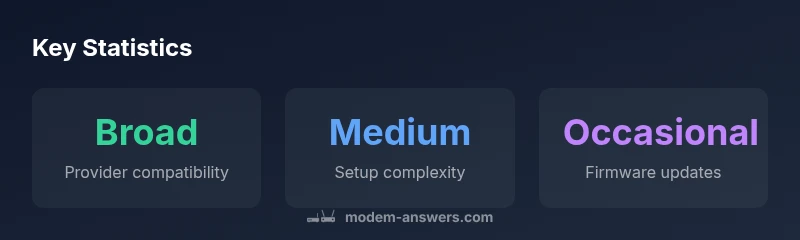
| Compatibility | Broad compatibility with major cable providers | Verify provider support before purchase |
| Setup | Modem primary device; router handles Wi‑Fi | Use a dedicated router for best performance |
| Security | Regular firmware updates recommended | Enable WPA3 and strong admin passwords |
FAQ
What is the ASUS CM32 and what is it best used for?
The CM32 is a DOCSIS-based cable modem designed for home networks. It excels as a modem when paired with a separate router to deliver robust Wi‑Fi coverage, and it’s suitable for users seeking reliable activation and straightforward setup.
The CM32 is a cable modem—best used with a separate router for strong home Wi‑Fi.
Is CM32 compatible with my internet provider?
Compatibility depends on your provider’s supported DOCSIS devices and service plan. Always check the provider’s official compatibility list before purchase to avoid activation issues.
Check your provider’s compatibility list before buying.
Can I use the CM32 with my existing router?
Yes. Use the CM32 as the modem and connect it to your own router to manage Wi‑Fi. If you use your own router, you may need to enable bridge mode or passthrough on the CM32 and configure the router accordingly.
Yes—just connect your router and set bridge mode if needed.
How do I update the CM32 firmware?
Check ASUS support for the latest firmware for the CM32 and follow the provided installation steps. Updates often improve security and stability.
Visit ASUS support for the latest firmware and follow the install steps.
What should I do if the CM32 won’t connect?
Verify coax connections, power cycle the device, and confirm activation with your provider. If problems persist, try a factory reset and reconfigure from scratch.
Check cables, reboot, and re-check activation; reset if needed.
“The ASUS CM32 is a solid starting point for home networks when paired with a modern router, offering straightforward setup and reliable compatibility with common cable providers.”
Key Takeaways
- Check compatibility with your provider before buying
- Pair CM32 with a capable router for best Wi‑Fi performance
- Update firmware regularly to improve security
- Place the modem centrally to maximize coverage
- Use bridge mode when running your own router for cleaner networks